














🔐 WordPress hacked? Step-by-step site recovery plan
The site stopped opening, the browser is screaming about a virus, and Google dropped the pages from search results. First thought: panic. Second: "what do I do right now?"
Every day thousands of WordPress sites get hacked. Hackers don't specifically want your site; bots scan the internet for known vulnerabilities and attack everything in sight. An outdated plugin, a weak password, or a hole in the theme, and the site is already serving malicious code to visitors.
Below is a step-by-step recovery plan: from the first reaction to complete cleanup and protection against re-infection. All tools are free, and the instructions are battle-tested.
💡 Quick overview:
- Make a backup and take the site offline
- Scan your computer with an antivirus and a bootable scanner
- Change all passwords: WordPress, FTP, database, hosting panel
- Set up SFTP instead of FTP for encrypted data transfer
- Restore WordPress from a clean backup or re-upload the core manually
- Scan the site with the Wordfence plugin
- Check files manually via SFTP for base64 and eval
- Re-upload wp-admin, wp-includes, and root files
- Check the theme for foreign code and configure a firewall and 2FA
Why WordPress sites get hacked

Hackers and script kiddies don't pick targets manually. Automated scanners run around the clock looking for sites with unpatched vulnerabilities: an outdated plugin, a theme without updates, a WordPress version with a known hole.
Once they find one, they upload a shell, inject malicious code into index.php or header.php, and use the site as a platform for spam, phishing, or serving trojans to visitors. Google notices the infection within hours and kicks the site out of search.
You can check whether a site is hacked using Sucuri SiteCheck, a free online scanner that shows malware, blacklists, and suspicious redirects. It works instantly and doesn't require admin access.
First actions: backup, PC scan, and password changes
1. Backup and taking the site offline
First, download the current state of the site via the hosting file manager or FTP. Yes, the site is infected, but the backup will be useful for analysis and as insurance in case something goes wrong during cleanup. At the same time, put the site in maintenance mode or temporarily close it via.htaccess so visitors don't catch malware while you work.
2. Scanning your computer
The source of the password leak could be your own PC. A trojan that intercepts FTP passwords is a classic.
- Scan your computer with an antivirus (Avast, AVG, or the built-in Windows Defender).
- Download c't Notfall Windows and scan the system from a bootable USB drive; a bootable scanner sees what a running OS hides.
- If you're technically inclined, install Sandboxie and run your browser in a sandbox until the system is fully clean.
3. Changing all passwords

If you don't know which passwords were compromised, change everything:
- Passwords for all WordPress users.
- FTP credentials.
- MySQL database passwords.
- The master password for the hosting panel.
Generate long random passwords and store them in a password manager. Until passwords are changed, the attacker retains access, and any cleanup is pointless.
Site cleanup: scanning and restoring files
4. Setting up SFTP
Regular FTP transmits passwords in plain text. Enable SFTP or SSH access; the settings are in your hosting panel. Don't save passwords in the FTP client: if the PC is still infected, a trojan will extract the saved credentials.
5. Restoring WordPress from a backup
If you have a clean backup from before the hack, roll the site back to it. This is faster than manual cleanup. Lost some content between the backup and the attack? Export the needed posts from the infected database separately. Most attacks modify files, not the database, so you can restore just the file portion.
6. Scanning with Wordfence
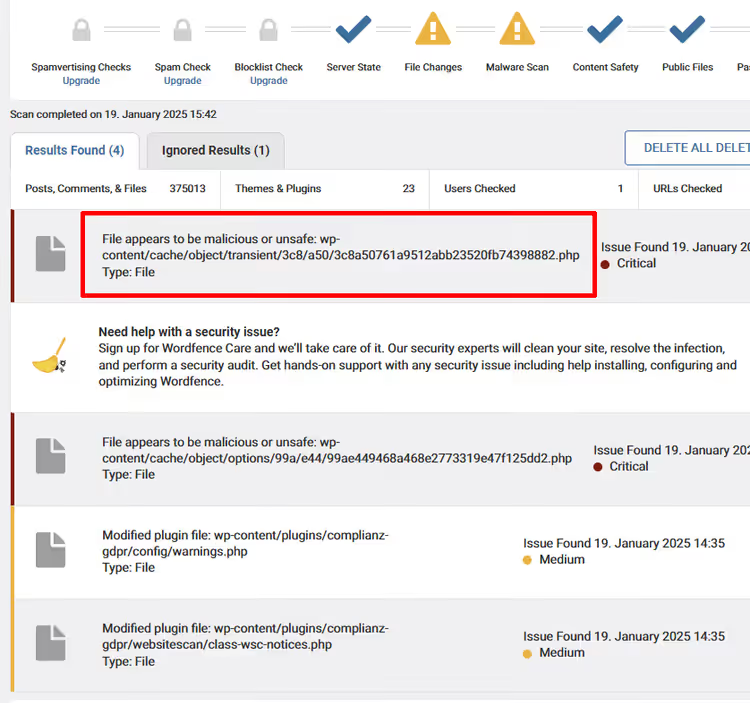
Wordfence is a free plugin with a firewall and malware scanner. Install it and run a full scan: it compares core, plugin, and theme files against the originals from the repository and shows modified lines.
Wordfence finds: injected base64 code, eval constructs, hidden iframes, and suspicious PHP files. Mark false positives so they don't reappear on the next scan.
7. Manual check via SFTP
A scanner doesn't see everything. Connect via SFTP and go through the folders with your own eyes:
- index.php in the root, header.php and functions.php in the theme: favorite attack targets.
- Look for strings containing
base64andeval, constructs likegzinflateandstr_rot13; this is obfuscation of malicious code. - Pay attention to files with unusual names and modification dates in the middle of the night.
8. Re-uploading core and plugins
Download a fresh WordPress from wordpress.org and re-upload the wp-admin and wp-includes folders, as well as all root files except wp-config.php and.htaccess (check those separately). Reinstall all plugins and themes from scratch from official sources. Don't restore plugins from the backup; use clean versions.
Update everything to the latest versions. A plugin that hasn't been updated in a year is a future hole, even if it's clean right now.
9. Checking the theme for malicious code
After re-uploading the core, it's the theme's turn. Check functions.php and header.php for foreign code. Cross-check file modification dates; activity outside business hours is suspicious. Wordfence will find most problems, but a manual review won't hurt.
If you have the slightest doubt, reinstall the theme from scratch from the official source.
Final steps and contacting the host
10. Security measures after cleanup
Reset the WordPress Security Keys (Salt) in wp-config.php; generate new ones via the official generator. This forcibly ends all active sessions, including the attacker's.
Set up two-factor authentication for all administrator users. Wordfence supports 2FA out of the box; enable it in the plugin settings.
11. Contact your host
Notify your host about the hack. A good host will help with log analysis, point out the attack vector, and suggest additional server-level protection measures. Some hosts provide free cleanup assistance; ask.
12. Check other sites on the hosting
Do you have multiple sites in the same web space? Check every one. The infection jumps between sites if the hosting doesn't isolate them from each other. Run the same procedure on neighboring sites. Properly configured hosting uses open_basedir for isolation; confirm with your host.
Protection tools: Wordfence and Sucuri

For self-managed protection, a combination is enough: Wordfence (free firewall + scanner) and regular backups. Wordfence catches brute force attacks, scans files, and blocks suspicious traffic at the site level.
If the site is business-critical, consider Sucuri. It's a cloud firewall that filters attacks before they reach the server. Sucuri also includes monitoring, malware removal, and DDoS protection. Plans start at $199 per year. In practice, this is justified for commercial projects: an hour of store downtime costs more than an annual subscription.
An English-language tutorial on the full recovery cycle, with a real-time demonstration of each step:
How to prevent re-infection
A site that has been hacked once is a target for repeat attacks. Hackers leave backdoors, and if you don't close all the holes, the infection will return within a week.
- Auto-updates: WordPress 6.7+ can automatically update plugins and themes. Enable it in settings.
- Minimum plugins: Every extra plugin is a potential entry point. Delete everything you don't use.
- 2FA: Two-factor authentication for all administrator accounts. Wordfence, Solid Security, or Google Authenticator.
- Backups: Automatic daily backups with at least 30 days of retention. UpdraftPlus (free) or Jetpack Backup.
- Monitoring: Wordfence sends an email when it detects modified files. Don't ignore them.
- Hosting:** Choose a host with account isolation, a server-level WAF, and support for current PHP versions.
⁉️🤔 Frequent questions
Can I restore a site without a backup?
Yes, but it's harder. Re-upload a fresh WordPress, reinstall plugins and themes from official sources, and export the content from the database. Check media files one by one; uploads can contain malicious PHP files disguised as images.
Is the free version of Wordfence enough for cleanup?
For scanning and detection, yes. The free version compares files against originals, finds malware, and blocks brute force attacks. Paid plans add real-time signature updates, which is overkill for a one-time cleanup.
What if the host has blocked the site?
Contact support, explain the situation, and request temporary access for cleanup. Hosts usually cooperate. After cleanup, ask for a re-scan; the site will be unblocked.
How long does cleaning a hacked site take?
A typical case: 2-4 hours for the full cycle (backup, PC scan, password changes, scanning, re-upload, protection setup). Severe cases with multiple backdoors can take up to a business day. If the site is on hosting with a WordPress auto-installer, re-uploading the core takes 10 minutes.
Do I need to pay for Sucuri, or is Wordfence enough?
For a personal blog or a small site, Wordfence covers most typical threats for free. Sucuri makes sense for online stores, sites that accept payments, and projects where an hour of downtime costs money. The cloud firewall reduces server load and catches attacks before they even arrive.
What to do right now: the final checklist
Recovering a hacked WordPress site comes down to three stages: stop the infection, clean the code, close the holes. A backup is your insurance. Wordfence is the primary cleanup tool. Password changes and 2FA are protection against re-entry.
- If the site is still working and you have admin access, start with Wordfence. Run a scan and act on the results.
- If the admin panel is down, connect via SFTP, back up files and the database, and re-upload a clean WordPress core.
- If the site is blocked by the host, contact support first. The block can't be lifted without their involvement.
Don't delay. Every hour an infected site loses search rankings, and visitors receive malicious code. Start with a free check on Sucuri; 30 seconds, and the scale of the problem is clear.
Which tool helped you after a hack: Wordfence, Sucuri, or manual cleanup? Tell us in the comments.

A professional team of writers and editors specializing in creating quality content.