


🛠 How to add .html extension to WordPress URLs
Added .html to WordPress URLs without plugins: three methods plus safe removal with redirects.
Moved your site from Joomla or static HTML to WordPress, and search engines have already indexed hundreds of pages ending in .html? You don't want to lose rankings, but the standard permalink settings don't offer that format.
In practice, .html in a URL isn't about looks. It's insurance against 404 errors during a migration, when the old structure site.ru/page.html changes to site.ru/page/. Every broken link in the index means lost traffic. Fortunately, WordPress lets you add the .html extension natively, no hacks or plugins needed.
Below, three methods: via the admin panel (the easiest), via functions.php code, and for custom post types. Plus safe removal of .html with a redirect if you no longer need the format.
💡 Quick overview:
- Add
.htmlvia Settings → Permalinks, 30 seconds, no code - If the native method doesn't work, edit
functions.php(3 lines) - For custom post types, the
post_type_linkfilter - Remove
.htmlwithout 404s, a redirect in.htaccess
Why WordPress links need the.html extension
Back in the static site era, every page was a physical .html file on the server. The browser requested site.ru/about.html and got a ready-made document. WordPress works differently: all URLs are virtual, served by index.php via mod_rewrite.
But the habit of "file" endings is still alive. Typical scenarios where .html is genuinely needed:
- Redesign or migration from a static site. The old URLs are already in Google's and Yandex's index. Changing them without a redirect guarantees a rankings drop for 2-4 months.
- Migration from Joomla, Drupal, ModX. Many old-school CMSs generated
.htmlat the end of the address by default. - Client requirement. The client "wants it like it was," end of story. Arguing takes longer than just doing it.
WordPress handles all three cases without a single plugin.
Method one: via the admin panel
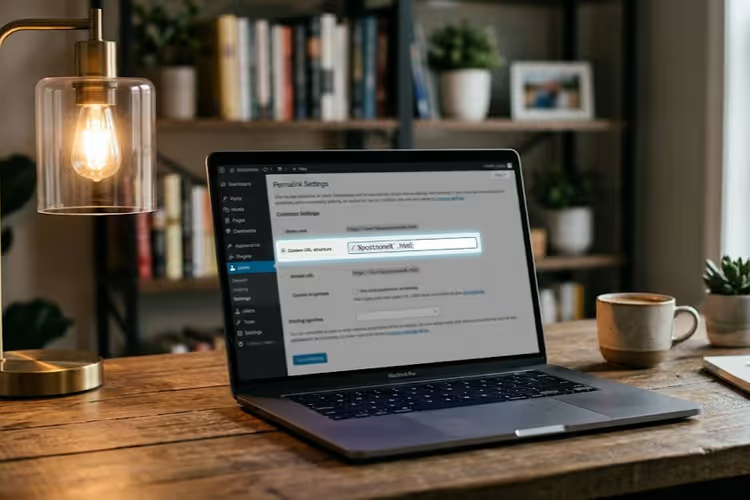
The fastest route. Go to Settings → Permalinks and select the "Custom Structure" option.

In the structure field, add .html to the end of the template. For example:
1 /%category%/%postname%.html
Or if you don't need categories:
1 /%postname%.html
Click "Save Changes." Done. All new and existing post URLs will get the .html ending. This method does not affect site pages (page); they'll need the code from the next section.
Note: if the site already has indexed links without .html, WordPress does NOT automatically redirect from the old URLs to the new ones. You'll need a separate redirect plugin or rules in .htaccess.
Method two: via functions.php
Sometimes the admin panel doesn't deliver: the theme or another plugin overrides the link structure. Then we go into the code.
Add this to your child theme's functions.php or via the Code Snippets plugin:
1 /** 2 * Adds .html to the end of WordPress page URLs. 3 * After inserting the code, go to Settings → Permalinks 4 * and click "Save Changes" to flush the rewrite rules cache. 5 */ 6 add_action('init', function() { 7 global $wp_rewrite; 8 if (! strpos($wp_rewrite->get_page_permastruct(), '.html')) { 9 $wp_rewrite->page_structure .= '.html'; 10 } 11 });
What's happening here: the init hook fires on every WordPress load and adds .html to the page URL structure via the page_structure property of the global $wp_rewrite object. The strpos check prevents double addition if the code gets inserted twice.
After adding the code, be sure to go to Settings → Permalinks and click "Save Changes." Without this step, WordPress won't rebuild the rewrite rules cache, and the new URLs won't work, you'll get a 404.
If the native method and the code don't help, you can use the Permalink Manager Lite plugin. It has 100,000+ active installs, a 5-star rating, and supports rewrite rules for any content type, including taxonomies and WooCommerce.
How to add.html to custom post types (CPT)
Your site has a portfolio, testimonials, products, or another content type created via register_post_type. The standard "Permalinks" screen doesn't affect them. We work through the post_type_link filter:
1 /** 2 * Adds .html extension to the URL of the custom post type "portfolio". 3 * Replace 'portfolio' with your CPT slug. 4 */ 5 function sdstudio_cpt_html_permalink($post_link, $post) { 6 if ($post->post_type === 'portfolio') { 7 return home_url('/portfolio/' . $post->post_name . '.html'); 8 } 9 return $post_link; 10 } 11 add_filter('post_type_link', 'sdstudio_cpt_html_permalink', 10, 2);
After inserting the code, again go to Settings → Permalinks → Save Changes. The post_type_link filter works on the fly: WordPress builds the URL, you intercept it for the desired post type and append .html.
If the CPT is registered with a custom slug ('rewrite' => array('slug' => 'works')), use that in home_url() instead of the standard type name.
How to remove.html without breaking indexing
Decided to go back to clean URLs without extensions? Simply removing .html from the settings isn't enough. The old links already in search engine indexes will become 404s.
Steps to take:
- Remove
.htmlfrom the "Custom Structure" field in Settings → Permalinks and save. - Delete the code from
functions.phpif you added it. - Add a redirect to
.htaccess(in the site root, before the# BEGIN WordPressblock):
1 RewriteEngine On 2 RewriteCond %{REQUEST_FILENAME} !-f 3 RewriteRule ^portfolio/(.+)\.html$ /portfolio/$1 [R=301,L]
For regular posts and pages, the rule is similar, just replace /portfolio/ with the needed segment. R=301 tells search engines the move is permanent: link equity passes to the new URL.
Check the result: open the old .html address in a browser, it should redirect to the version without the extension. Then check Google Search Console in a couple of weeks and confirm the number of indexed 404s is dropping.
Video: adding.html in 2 minutes
A short demo of all three methods on a live WordPress site:
⁉️🤔 FAQ
Does the method work with taxonomies, categories, and tags?
The standard permalink screen doesn't touch taxonomies. Categories and tags would need their own rewrite rules via
add_rewrite_rule()or the functionality of Permalink Manager Pro. But in practice,.htmlin category URLs is rarely used: search engines handle/category/seo/just fine without an extension.
What happens to old links without.html after changing the structure?
WordPress does not create an automatic redirect from old URLs to new ones. If the site is already indexed, after changing the structure the old links will start returning 404s. Solution: a redirect plugin (e.g., Redirection) with automatic permalink change tracking. It remembers the old slug and applies a 301 automatically.
Can I use.php,.htm, or another extension?
Technically yes, WordPress processes any string in the "Custom Structure" field. But from a search engine perspective,
.phplooks suspicious (it usually reveals server technology), and.htmis an outdated format from the Windows 3.1 era. The.htmlextension is neutral, familiar, and raises no questions from users or search bots.
Will this help when moving a blog from Blogger to WordPress?
Yes, this is a classic scenario. Blogger served URLs in the format
/2024/06/post-title.htmlby default. When importing to WordPress via the native tool, the structure breaks to/2024/06/post-title/. Adding.htmlin the permalink settings preserves compatibility, all old addresses continue to work without manual redirects.
Should you add.html: the bottom line
In short: for a brand-new WordPress project, .html isn't needed. Clean URLs like site.ru/post-name/ are the standard that both users and search engines understand.
But there are two scenarios where .html is fully justified: migrating from a static site or another CMS, and migrating from Blogger. In both cases, you preserve your search rankings and save weeks of manual redirects.
The most reliable path is the native setting via the admin panel. If that doesn't work, functions.php. For CPTs, the post_type_link filter. All three methods require no plugins and add no load to the site. And when .html is no longer needed, .htaccess with a 301 redirect cleanly passes equity to the new URLs.

A professional team of writers and editors specializing in creating quality content.