














🔑 How to change your WordPress password via phpMyAdmin: a step by step guide
Access to the WordPress admin panel is lost. Email is not working, and the password reset message never arrives. The site control panel is behind an impenetrable wall, and every minute of downtime hurts visitors and your reputation.
Sound familiar? You are not alone. Mail failures on the hosting, loss of access to the owner's email account, account hacking: there are countless causes, but the result is always the same. The standard "Forgot password" scenario is useless.
Fortunately, a workaround exists. You just need to access the site database through phpMyAdmin and replace the password hash manually. This is more reliable than waiting for an email and takes exactly two minutes. We will cover all the working methods, from point-and-click to command line.
💡 Quick overview:
- Log into phpMyAdmin through cPanel or your hosting panel
- Find the
wp_userstable and edit theuser_passfield using the MD5 function - For speed, use a single-line SQL query
- With SSH access, reset the password via WP-CLI with one command
When the standard password reset is powerless
The standard WordPress mechanism is simple: on the login page you click "Forgot password?", enter your username or email, and receive a reset link. It works flawlessly as long as the email is functioning.
Problems begin when:
- You do not have access to the email account linked to the user account (the admin email changed, the mailbox was abandoned);
- The hosting does not send system emails: the
mail()function is disabled, SMTP is not configured, the email goes to spam or gets lost; - The site was hacked, and the attacker changed both the email and the administrator password.
In all these cases, the only guaranteed path is direct access to the MySQL database. phpMyAdmin is available on virtually every hosting: it comes standard with cPanel, DirectAdmin, Plesk, and ISPmanager. No additional tools need to be installed.
Method 1: manual editing through the phpMyAdmin interface
The most visual method. Suitable if you are working with the database for the first time and want to see exactly what you are changing.
Step 1. Log into phpMyAdmin. Open your hosting control panel (cPanel or similar), find the "Databases" section, and click the phpMyAdmin icon.
Step 2. Select your site's database. In the left column is the list of databases. Choose the one that belongs to your site (if you do not remember the name, check wp-config.php in the site root, the DB_NAME parameter).
Step 3. Open the wp_users table. In the list of tables, find the row wp_users (the prefix may differ: wp_ is the default, but it could be wpxy_, site_, or any other set during installation). Click "Browse."
Step 4. Click "Edit" next to the desired user. A form with all the account fields will open.
Step 5. Replace the password. In the user_pass field, delete the old hash and enter your new password. In the "Function" dropdown, select MD5. Click "Go" at the bottom of the form.
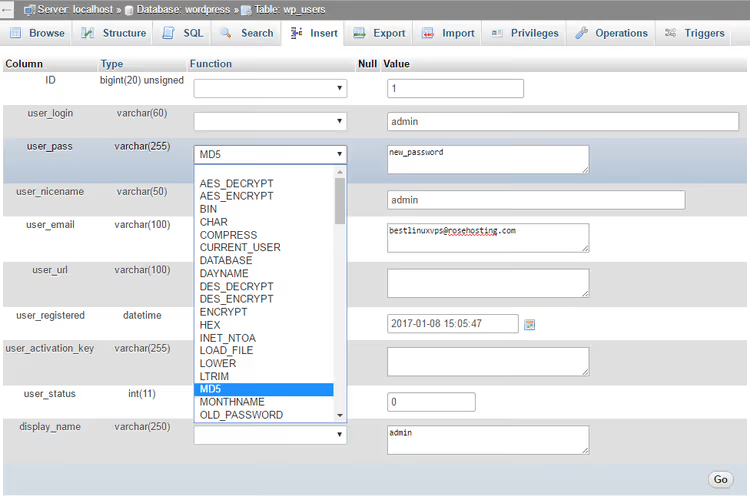
Done. The password is saved in the database as an MD5 hash. On the very first login, WordPress will recognize the outdated format, automatically rehash the password with a modern algorithm (PasswordHash with salt and 256 iterations), and write the strengthened version to the database. No additional actions are required; the backward compatibility mechanism has worked since version 2.5.
Method 2: quick reset via SQL query
The same result, but in one action. Convenient when you need to change the password without navigating through rows and forms.
Log into phpMyAdmin, select your site's database, and go to the SQL tab. Paste the query:
1 UPDATE `wp_users` SET `user_pass` = MD5('your-new-password') WHERE `user_login` = 'your-username';
Replace your-new-password with the actual password and your-username with the login (the user_login field in the table). If the table prefix differs from wp_, correct it in the query. Click "Go."
The query will execute instantly. The mechanics are the same: MD5 in the database, auto-upgrade of the hash on first login.
Method 3: WP-CLI for those comfortable with the terminal
If WP-CLI is installed on the server (and on a proper VPS or dedicated server it almost certainly is), the password changes with one command without entering phpMyAdmin:
1 wp user update your-login --user_pass=new-password
WP-CLI will call wp_set_password() itself, and the password will be written immediately with the correct, modern hash, without the MD5 intermediate step. The command does not require specifying the table prefix, does not depend on the PHP version, and does not touch other user fields.
If you need to reset the administrator password but do not remember the login, get the list of users:
1 wp user list --role=administrator
Then pass the needed login to the wp user update command.
Method 4: emergency reset via the theme's functions.php
The most "emergency" option for when you have no access to the hosting panel but can edit site files via FTP or through the hosting file manager.
Add the following code to functions.php of the active theme before the closing ?> tag (or at the end of the file if there is no tag):
1 wp_set_password('new-password', 1);
The number 1 is the user ID (usually 1 for the administrator created during installation). If the administrator has a different ID, replace the number.
Save the file and open any page of the site ONCE. The password will be set. Immediately after this, **delete the line from **functions.php; if you leave it, the password will be reset on every page load.
This method is crude, but it helps when the others are unavailable.
This 4-minute video shows the complete path: from logging into cPanel to saving the new password in the wp_users table. The button locations and dropdown menus are clearly visible; if your hosting interface differs, the general logic remains the same.
⁉️🤔 Frequently asked questions
Why specifically MD5, if this algorithm is considered insecure?
MD5 in phpMyAdmin is the only available hash function that WordPress understands when inserted directly into the database. However, the MD5 hash will only be stored until the first login: the CMS core checks the password, sees the outdated format, and transparently replaces it with PasswordHash, a modern algorithm with salt and 256 iterations. The final hash in the database is robust. MD5 here is a transport bridge, not permanent storage.
What should I do if the table prefix is not wp_ and I do not know what it is?
Open
wp-config.phpin the site root and find the line$table_prefix. The value of this variable is the prefix. If you have no access to files, scroll through the table list in phpMyAdmin:usersalways ends with_users, and the prefix is visible from neighboring tables (_posts,_options, and so on).
Can I do without phpMyAdmin if I do not want to go into the database?
Yes, use WP-CLI (method 3) or reset via
functions.php(method 4). WP-CLI requires SSH access to the server, whilefunctions.phprequires FTP or the hosting file manager. If you have neither, phpMyAdmin remains the only option, but it handles the job reliably.
Will this method work if the site runs on PHP 8+ and a recent version of WordPress?
Yes. All described methods work on current versions of WordPress and PHP. The backward compatibility mechanism for MD5 hashes has not been removed from the core since version 2.5, as too many sites upgrade through this route. The MySQL
MD5()function has not gone anywhere either.
I changed the password, but I still cannot log in. What is wrong?
Check three things. First: the
user_loginfield may have ended up with extra spaces or typos; the login is case-sensitive for keyboard layout. Second: the site may have cached the old session, so open the login page in incognito mode. Third: if a security plugin is installed (Wordfence, Solid Security), it may be blocking login by IP after several failed attempts. Wait 15 minutes or reset the block through the same database in the plugin's table.
Password loss is not a catastrophe if you know the workaround
phpMyAdmin looks intimidating to those who have never looked into a database. But changing the WordPress password through it is an operation of three clicks and one dropdown menu. Once you master it, you will never be locked out in front of the login screen again.
If your site is on regular hosting, your tool is phpMyAdmin (method 1 or 2). If you have a VPS or dedicated server with console access, WP-CLI (method 3) will handle it faster. And even when the hosting panel is unavailable and you only have FTP, functions.php (method 4) will save the day. Choose whichever path is available right now and regain control of your site in two minutes.

A professional team of writers and editors specializing in creating quality content.