













🔑 How to change your WordPress password: database, FTP and control panel
Losing your WordPress admin password is one of those moments when the ground drops out from under you. The site is running, visitors are coming in, but you're standing in front of the login screen and can't get in. The password is forgotten, email is inaccessible, and accessing the hosting makes you break into a cold sweat.
The situation is unpleasant but not catastrophic. WordPress stores credentials in the database, and the files sit on the server, which means you can bypass the login screen through three independent paths. And there's a fourth option for cases when the site has been hacked and you need to reset passwords for all users at once.
Below is a step-by-step guide for each method. None of them require plugins or special skills, just access to what you already have: the dashboard, cPanel, or FTP.
💡 Quick overview:
- Go to the WordPress dashboard: "Users" → "Edit" → "Generate Password"; this method works if you're still inside the admin area or remember your current password
- Reset the password via phpMyAdmin: find the
wp_userstable, edit the administrator record, enter a new password and select MD5 from the function dropdown - Upload the theme's
functions.phpvia FTP, add the linewp_set_password('new_password', 'username');, visit the site, then immediately remove that line from the file - For a mass reset after a hack, install the Emergency Password Reset plugin; it will force-reset passwords for all accounts and send notifications to users
Why change your WordPress password at all?
The administrator password is the master key to the entire site. Through the admin area you can change content, install plugins, edit theme files, and export the database. One compromised password, and the site is under an attacker's full control.
Changing passwords regularly is basic hygiene, especially when more than one person works on the site. A developer left, a freelancer finished their project, a partner exited the business: the password gets changed that same day. No "later" or "they're a good person."
But a password is only one layer of protection. Even a complex 20-character combination won't save you if the site has vulnerable plugins or a three-year-old core version. WordPress security is a multi-layered cake: reliable hosting, HTTPS, two-factor authentication, backups, and timely updates.
4 ways to change your WordPress password
The methods are arranged by increasing complexity. The first is for the "I'm still in the admin area" situation; the last is for a full-scale incident. If one path is blocked, try the next.
Method 1: Through the WordPress dashboard
The simplest scenario: you remember your current password or you're already logged into the admin area and want to change it to something stronger.

Go to Users → All Users. Find your account and click Edit under the name.
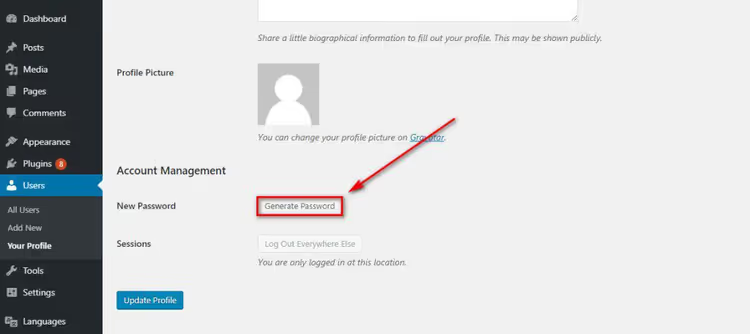
Scroll down to the Account Management section. Click Generate Password; WordPress will offer a cryptographically strong random combination. You can replace it with your own, but the built-in generator produces a password that is virtually impossible to crack by brute force.
Click Update Profile; the password takes effect immediately. Your current session won't be interrupted, but on the next login the system will ask for the new password.
Method 2: Through the database (phpMyAdmin)
You have no access to the admin area, the recovery email is unavailable, but you can log into the hosting cPanel. In that case, the password can be changed directly in the MySQL database.

Log into cPanel, find the Databases section, and click the phpMyAdmin icon. The MySQL web interface will open.

In the left column, select your site's database (it's usually named with a _wp prefix or the domain name). Find the wp_users row in the table list and click Browse next to it.

The table will display all site accounts. Find the row with the user you need and click Edit (the pencil icon). In the editing form, fill in the user_pass field: in the Value column enter the new password, and in the Function dropdown select MD5.
Click Go; the password is saved. You can now log into the admin area with the new password. WordPress will automatically update the hash to a modern algorithm on your first login; MD5 is only needed for the initial entry.
Method 3: Through FTP and functions.php
Sometimes cPanel is also inaccessible: network blocks, the hosting password isn't accepted, or the provider is doing maintenance. In that case FTP remains an option; this file transfer protocol works almost always.

Connect to the server through any FTP client (FileZilla, WinSCP, or Total Commander). Navigate to /wp-content/themes/your-active-theme/ and download the functions.php file to your computer.
Open it in a text editor; even Notepad will do. Right after the opening <?php tag, add one line:
1 wp_set_password('your_new_password', 'username');
Save the file and upload it back to the server, replacing the original. Now open the site in a browser; a single visit to any page is enough for the code to execute and update the password.
Immediately after that, download functions.php again, remove the line you added, and upload the clean file back. If you don't do this, the password will be reset every time any page on the site loads.
Be careful with the syntax: there must be a semicolon after wp_set_password, the quotes must be straight ('...') rather than curly, and don't mix up the parameter order (password first, then username).
Method 4: Mass password reset for all users
A special case: the site has been hacked, and the attacker may have obtained passwords for several accounts. Changing them manually is slow and risky: while you're editing the fifth user, the hacker may have already logged back in through the first one.

Install the Emergency Password Reset plugin; it's free and available in the official WordPress.org directory. After activation, go to Users → Emergency Password Reset and click Reset All Passwords.
The plugin does three things at once: it force-resets passwords for all accounts, sends users links to set a new password, and updates the secret keys (SALTS) in wp-config.php. Even if the hacker copied the database, old cookie sessions become invalid.
After a mass reset, change your hosting and FTP passwords as well; the attacker may have reached those too.
Video tutorial: changing the password via the database
If the text guide seems complicated, here's a visual demonstration of the phpMyAdmin method. In 3 minutes the author shows the entire process from logging into cPanel to successfully logging in with the new password.
⁉️🤔 Frequently asked questions
Why can't I log in after changing the password through phpMyAdmin?
Most likely you forgot to select MD5 in the "Function" dropdown when saving. Without it, phpMyAdmin inserts the password as plain text, but WordPress expects a hash. Repeat the step and make sure MD5 is selected in the "Function" column.
Do I need to install the Emergency Password Reset plugin in advance, before a hack?
Not necessarily. The plugin weighs less than 100 KB and doesn't affect performance, but its purpose is emergency reset. If the site is operating normally, it's enough to keep the plugin bookmarked and install it at the first signs of compromise. The main thing is regular backups: they let you roll the site back to a clean state, and then the plugin can finish off the remaining password risks.
What if I've lost FTP access too?
Reset the hosting password through the email linked to the account. If that email is also inaccessible, contact the hosting provider's support. They have tools to verify ownership and reset access. After recovery, go to cPanel, change the FTP password, and make sure there are no unfamiliar entries in the FTP accounts list.
Is it really necessary to remove the wp_set_password line from functions.php?
Yes, and immediately. If you leave the code in the file, WordPress will re-set the specified password every time a page loads. Anyone who sees the contents of functions.php will learn your password. Additionally, the extra wp_set_password call creates unnecessary load on the database.
What counts as a secure WordPress password?
At least 12 characters, including uppercase and lowercase letters, numbers, and special characters. Don't use meaningful words, birth dates, or keyboard sequences. WordPress has a built-in password generator that creates 24+ character combinations with a random set of characters. For additional protection, enable two-factor authentication (for example, through the Wordfence plugin).
What to do if none of these methods worked?
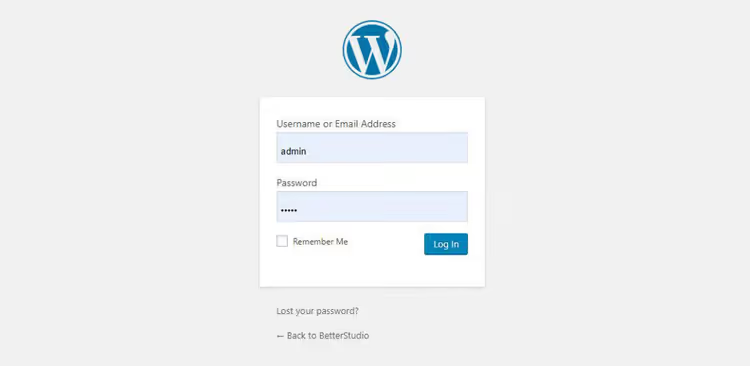
Go through the checklist one more time: access to the administrator's email for recovery through the "Lost your password?" form on the login page; access to cPanel and phpMyAdmin; access to FTP and functions.php. At least one channel is almost certainly working.
If you're completely locked out and hosting support isn't responding, read our breakdown of 6 ways to restore access to the WordPress admin. It covers extreme cases: recovery through the hosting file manager, editing wp-config.php, and creating a new administrator via an SQL query.
And the main rule for the future: as soon as access is restored, set up two-factor authentication and make a full backup. A password can be reset in a minute, but recovering a hacked site can take weeks.

A professional team of writers and editors specializing in creating quality content.