













🚫 Can't log in to WordPress admin? 6 ways to regain access
Yesterday the site worked. Today you see a blank screen after entering your login and password. Or the login page simply refreshes without letting you through. A familiar situation for anyone who runs a WordPress site.
There are dozens of reasons for admin panel lockout: a plugin conflict after an update, a corrupted .htaccess file, a damaged wp-login.php, a lost password, or a browser cache loop. The good news is that in most cases access can be restored in 5-10 minutes without a developer.
Below are six methods, from simplest to more technical. Just work through them in order.
💡 Quick overview:
- Clear your browser cache and cookies; in a third of cases this is the only problem
- Change the administrator password through phpMyAdmin in your hosting panel
- Disable plugins via FTP by renaming the
pluginsfolder - Disable the theme via FTP so WordPress activates the default one
- Upload a fresh
wp-login.phpfrom the official WordPress archive - Delete and recreate
.htaccessthrough the permalink settings
Why the login page stops working
The WordPress admin panel does not break on its own. Almost always the cause is a recent change. You updated a plugin and it stopped working with the PHP version on your server. You switched to a theme that conflicts with an installed caching plugin. You migrated the site and did not fix the URLs in the database. Or the .htaccess file got corrupted after editing redirect rules.
Less often the problem is the browser: stale cache or cookies prevent WordPress from validating the user session. And sometimes the hosting provider enables a security module like ModSecurity that blocks the POST request to wp-login.php.
The six steps below cover all of these scenarios. Work through them sequentially: each step is slightly more complex than the previous one, but none of them require editing code.
1. Clear your browser cache and cookies
The most common culprit is the browser. When you log into the WordPress admin panel, it creates a session cookie. If that cookie is corrupted or outdated, the login page enters a loop: you enter the password, it refreshes, and the login form appears again.
The solution is to clear your cache and cookies for all time and restart the browser. In Chrome you do this as follows:
- Click the three dots in the upper right corner of the window.

- Select "History" and then "History" again.
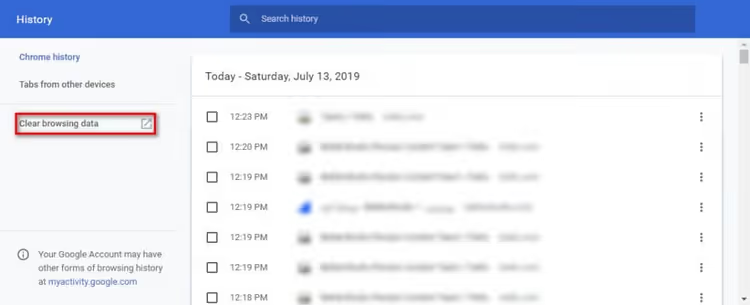
- In the window that opens, click "Clear browsing data."
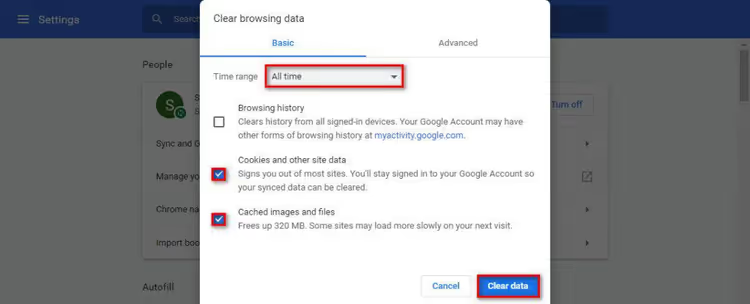
- Check both "Cookies" and "Cached images and files."
- For the time range, select "All time."
- Click "Clear data," then close and reopen the browser.
After that, try logging into the admin panel. If it did not help, move on.
2. Change the administrator password through phpMyAdmin
If the password is forgotten and the "Forgot password" link on the login page does not help (the administrator email is inaccessible or SMTP is not configured), there is a direct route: change the password through the database.
To do this, go to your hosting control panel (cPanel, ISPmanager, or similar) and find phpMyAdmin in the databases section. Here is a step-by-step guide to changing the password through phpMyAdmin. In brief:
- Open phpMyAdmin and on the "Databases" tab, select your site's database.

- Find the
wp_userstable (the prefix may differ if you changed it during installation). - Click "Edit" next to the row with your administrator account.

- In the
user_passfield, enter a new password. - For the "Function" column, select MD5.
- Click "Go" to save.
Note that WordPress uses its own password hashing system. MD5 through phpMyAdmin is a temporary solution. On your first successful login, WordPress will automatically convert the password to a modern hash. Just log in with the new password and the system will update everything itself.
3. Disable plugins via FTP
Sometimes a plugin conflict blocks not only the admin panel but the entire site. And since the admin panel is inaccessible, you cannot disable plugins the standard way. The solution is to access the server via FTP and rename the plugins folder.
Connect to your hosting through any FTP client (FileZilla, WinSCP) or the file manager in your hosting panel. Find the site's root folder and navigate to wp-content.
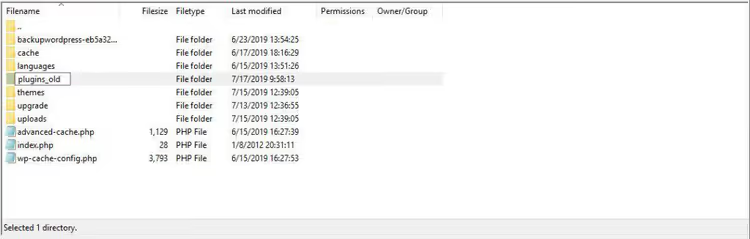
Rename the plugins folder to plugins_old. WordPress will instantly disable all plugins because it will no longer find them at the expected path.
Now try logging into the admin panel. Did it work? Great, that means one of the plugins was the cause. Bring them back one by one: rename the folder back to plugins, go into the admin panel (plugins are still deactivated for now), and enable them one at a time, checking the login after each one in a new private browser window. The culprit will reveal itself quickly.
4. Disable the theme via FTP
The same logic as with plugins, but for the theme. Theme incompatibility with the current version of WordPress or PHP is a common situation after an automatic update.
Again, connect via FTP to the wp-content/themes folder. Find your active theme's folder and rename it by adding the suffix _off.

WordPress will detect that the active theme is missing and will automatically switch to the default one (Twenty Twenty-Five or similar, depending on the version). After that, the admin panel should open.
If the admin panel starts working, the problem is with the theme. Go to "Appearance → Themes," update the problematic theme to the latest version, and only then activate it again. If the theme has not been updated by the developer for a long time, it may be time to replace it.
5. Upload a fresh wp-login.php
The wp-login.php file is the entry point to the admin panel. If it is corrupted, deleted, or modified by malicious code, the login page simply will not open.

The correct way to restore it is not to try editing the file manually but to get a fresh copy from the official WordPress archive:
- Download the latest version of WordPress from wordpress.org/download.
- Extract the archive and find
wp-login.phpinside. - Connect to your hosting via FTP and upload the fresh
wp-login.phpto the site's root folder, replacing the existing one.
Before replacing, save the old file locally just in case: simply rename it on the server to wp-login.php.bak and then upload the new one. After the replacement, try logging in. The fresh file is guaranteed to be error-free and compatible with the installed WordPress version if you downloaded the archive of the same major version.
6. Recreate the.htaccess file
A single incorrect line in .htaccess can take down the entire admin panel. This happens especially often after experimenting with redirects or installing security plugins that write their own rules to this file.

The solution is to delete .htaccess and let WordPress create it anew:
- Connect to your hosting via FTP and find
.htaccessin the site's root. - Download it locally (backup copy!) and delete it from the server.
- Try logging into the admin panel. If login works, the problem was in
.htaccess. - In the admin panel, go to **Settings → **Permalinks and simply click "Save Changes" without modifying the link structure.
WordPress will generate a new, clean .htaccess with basic rules for the selected permalink structure. All the extra lines that could have been blocking login will disappear.
⁉️🤔 Frequently asked questions
After changing the password through phpMyAdmin, I still cannot log in. What is the problem?
Most likely you did not select the MD5 function for the
user_passfield before saving. Without this, phpMyAdmin saves the password as plain text and WordPress cannot verify it. Repeat the step: open the same row inwp_users, enter the password again, and be sure to select MD5 in the "Function" dropdown. Also check that you are editing the row that corresponds to your user. Thewp_userstable may have several entries; look for yours by theuser_loginoruser_emailfield.
What should I do if none of the six methods worked?
Enable WordPress debug mode. Add these lines to wp-config.php:
1 define('WP_DEBUG', true); 2 define('WP_DEBUG_LOG', true); 3 define('WP_DEBUG_DISPLAY', false);
After that, try to access the admin panel and check the
wp-content/debug.logfile. Even if the login page does not open, WordPress will write the error cause to the log. Most often at this stage you will find either a fatal error in a theme or plugin, or a PHP version issue on the hosting.
Can I restore access to the admin panel without FTP and phpMyAdmin?
Yes, through WP-CLI, a command-line tool for managing WordPress. The command wp user update USERNAME --user_pass=NEWPASS changes the password directly. But WP-CLI must be installed on the hosting, which not all providers have. An alternative is an emergency password reset code insertion into the active theme's functions.php:
1 wp_set_password('новый_пароль', 1);
This code sets the password for the user with ID=1 (usually the administrator). After inserting it, open any page on the site, the password will change, and you need to immediately remove the code from
functions.php.
Why does the site look broken after disabling plugins?
This is normal. Some plugins are responsible for page layout and appearance (builders like Elementor, caching plugins). After renaming the plugins folder back and activating plugins one by one, the appearance will return.
Do not confuse a broken frontend appearance with the admin login problem. The main goal at this step is to restore access to the control panel. You will fix the frontend afterward.
Do I need to call a developer if I am afraid of breaking something?
All six steps are reversible. A renamed folder can be returned to its original name, a deleted .htaccess can be restored from a copy, and a fresh wp-login.php does not affect the site's content or settings. Follow this rule: before each action, make a copy of what you are changing. With a backup, rollback takes seconds.
Which method to try first?
If you have just encountered an admin panel lockout, start by clearing your cache and cookies; in a good third of cases this is enough. If it does not help within two minutes, work through the steps sequentially from simple to complex.
For situations where the password is definitely lost and the administrator email is inaccessible, go straight to step 2; phpMyAdmin gives you direct access to the database regardless of WordPress's state. And if the admin panel went down right after updating a plugin or theme, steps 3 and 4 will solve the problem fastest.
The main thing is not to panic. WordPress rarely breaks irreversibly. Almost always it is a version conflict, a corrupted file, or a session cookie: something that can be fixed without a developer.

A professional team of writers and editors specializing in creating quality content.