














🔧 How to restore Windows after a crash using Acronis True Image
Windows crashed with a blue screen, froze completely during boot, or simply stopped showing signs of life. Sound familiar? After several hours of configuring the system, installing drivers and programs, losing all of that because of a single failure is quite the experience.
A backup made in advance through Acronis True Image solves the problem in 15-20 minutes. You simply boot into the recovery environment, point to the backup file and wait, the system returns to exactly the state it was in when the copy was made. No reinstalling Windows, no manually restoring drivers.
But there's a catch: for this scenario to work, you need to configure the Acronis bootloader once and know the exact sequence of steps in the recovery wizard. Below is an instruction that will guide you from pressing F11 to the desktop.
💡 Quick overview:
- Restart your computer and press F11 when the "Starting Acronis Loader" message appears
- In the Acronis recovery environment, launch the disk recovery wizard
- Select the backup file from the Acronis Secure Zone
- Check all partitions and MBR for complete recovery
- Start the process and wait for automatic reboot into working Windows
What is Acronis True Image and how does the bootloader work
Acronis True Image is a backup and recovery program that, since 2026, includes not only classic disk imaging but also built-in patch management for Windows, anti-ransomware, and AI-based threat detection. The Essentials, Advanced, or Premium subscription covers needs from home PCs to small offices.
The main advantage of Acronis over Windows' built-in recovery tool is the Startup Recovery Manager emergency bootloader. It's written to the MBR during program installation and allows you to enter the recovery environment BEFORE Windows loads, even if the system is completely destroyed and refuses to start.
The only condition: the backup must be made in advance and placed in the "Acronis Secure Zone" on the same or external drive. Without a ready backup there's nothing to restore, this isn't resurrecting a broken system but rolling back to a saved state.
Step 1. Entering the Acronis recovery environment
Restart your computer. Immediately after the BIOS/UEFI logo, watch the screen, you should see the message:
Starting Acronis Loader…
Press F11 for Acronis Startup Recovery Manager…
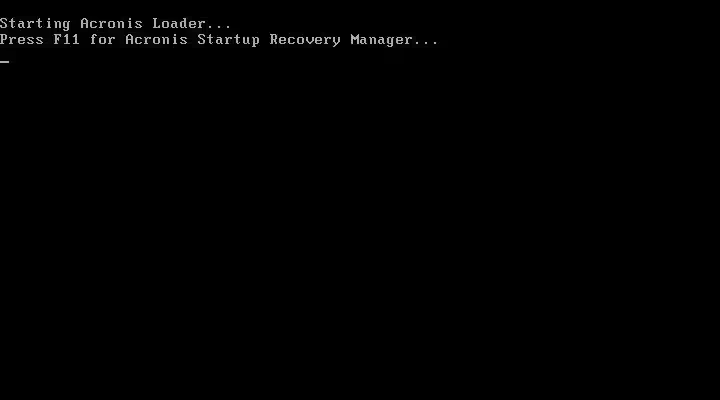
Press the F11 key. Don't wait, the window stays for 2-3 seconds, blink and you'll miss it, restart again.
After pressing, the action selection window will open:
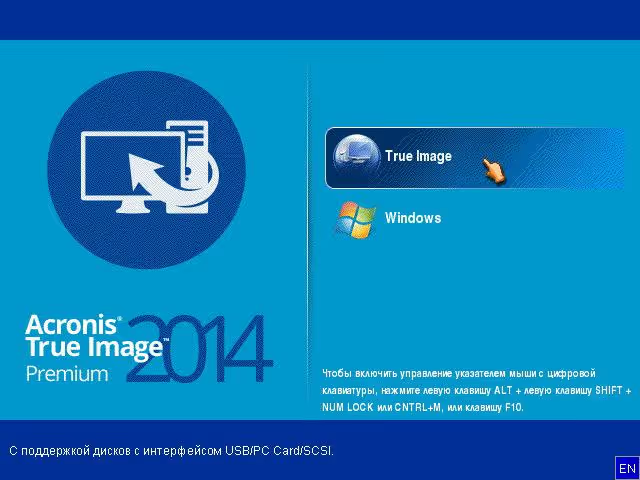
Click the "True Image" button.
If instead you see "Boot Menu":
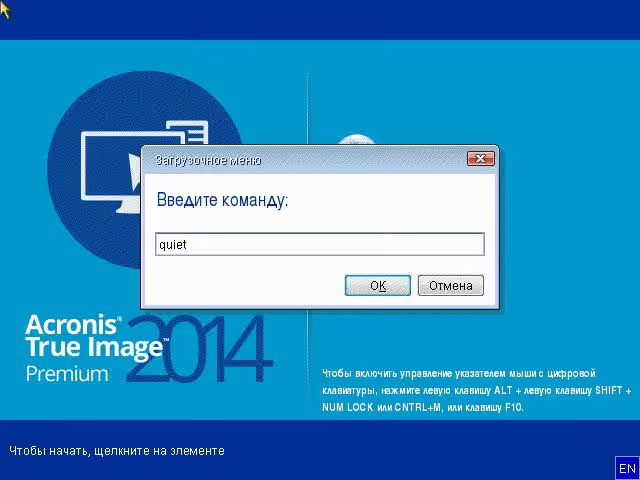
If the mouse works, click "Cancel". If the mouse doesn't respond, press Tab or left-right arrows to highlight the button, then Enter. The boot menu window will close and True Image will launch.
Step 2. Launching the disk recovery wizard
After True Image loads, you'll see the program's main window:
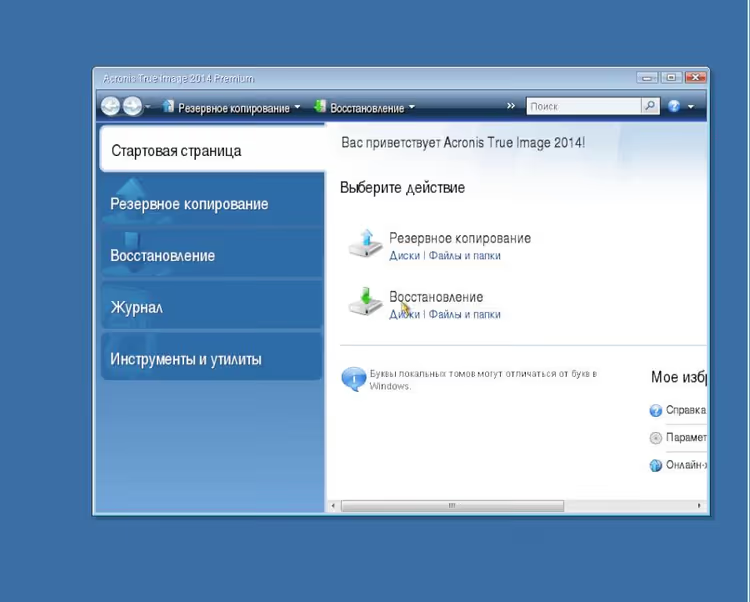
Under the "Recovery" heading, click the "Disks" button. The recovery wizard will open:
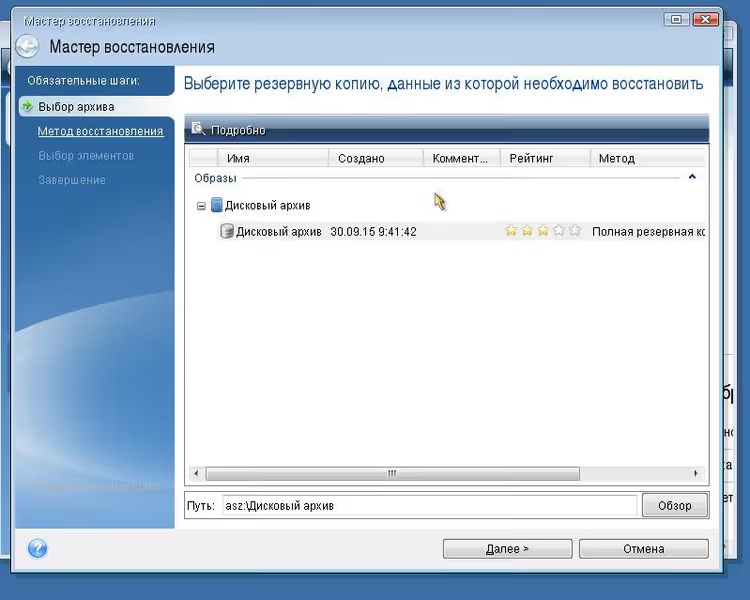
Step 3. Selecting the backup
In the wizard window, the backup file from the "Acronis Secure Zone" is shown by default. This is your Windows backup.
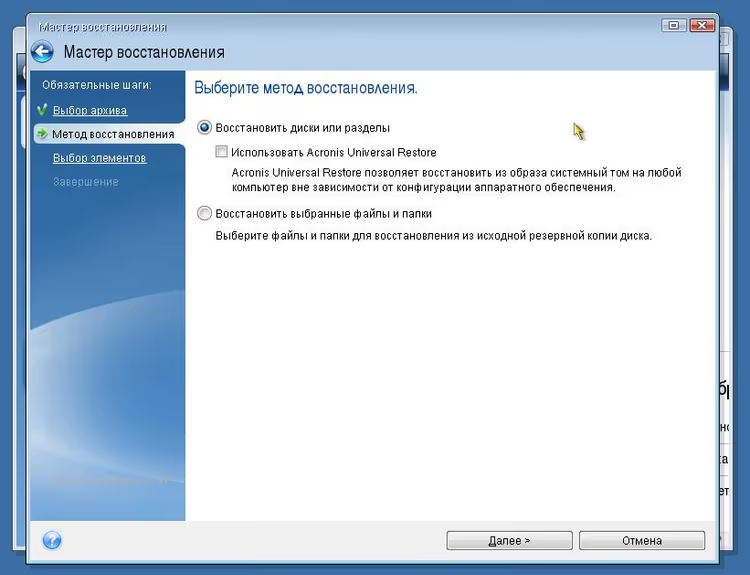
Select the file with a left click and press "Next". On the next screen, choose "Recover disks or partitions" and again "Next".
Step 4. Selecting partitions and MBR
Before you is a window with a list of partitions on the disk to be recovered:
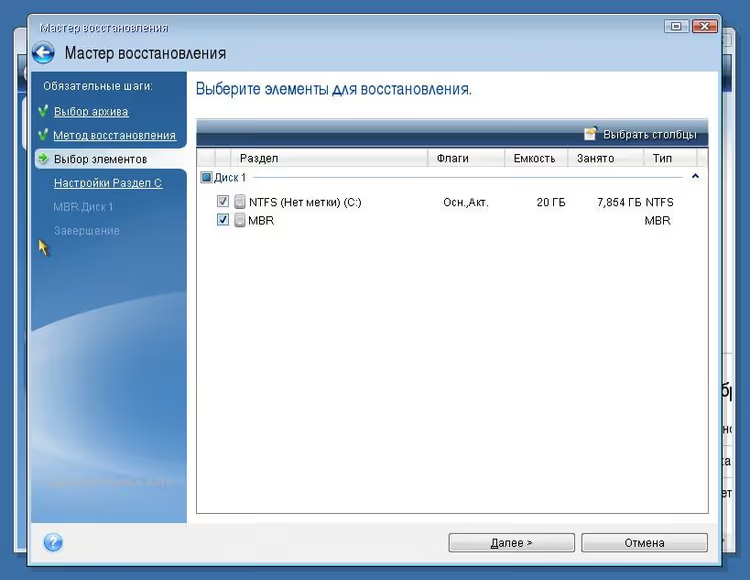
Check all partitions and definitely the "MBR" item (master boot record). Without MBR the system won't boot after recovery, even if the partitions themselves are in place.
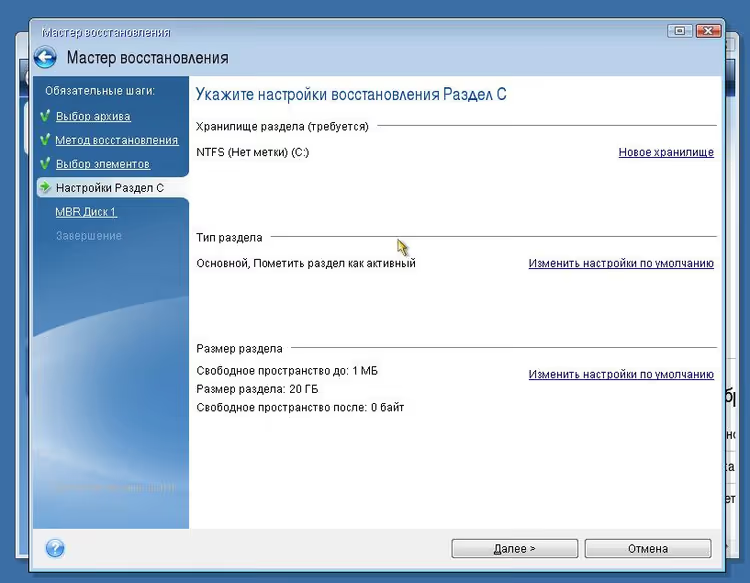
Press "Next".
Step 5. Starting recovery and rebooting
On the next two wizard screens, simply press "Next", Acronis will show a summary of the selected parameters:
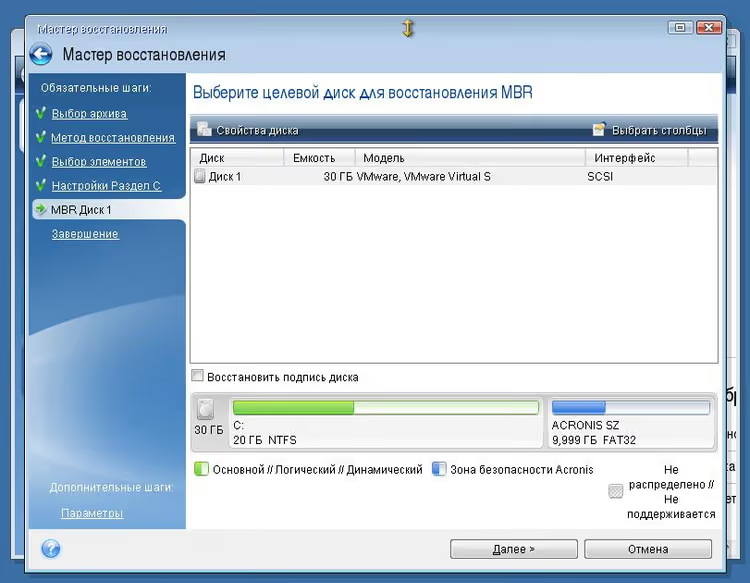
Verify that the system disk and MBR are selected in the list, then press "Next" once more:
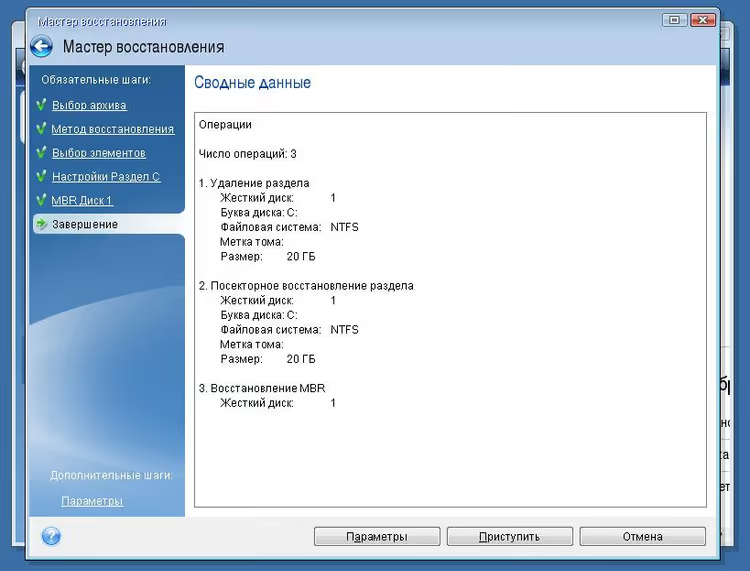
In the last window, press "Proceed":
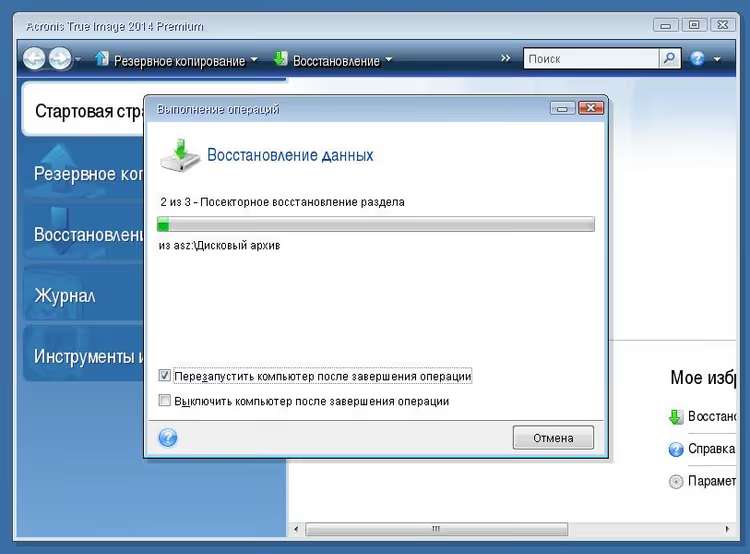
Be sure to check "Reboot the computer after the operation completes", then after restoring the backup the computer will reboot automatically and you'll see the Windows welcome screen.
Recovery time depends on the backup size and disk speed. For a typical 50-70 GB image on an SSD it's 8-12 minutes, on an HDD, 15-25 minutes.
What to do if the Acronis bootloader doesn't appear
If during reboot there's no "Starting Acronis Loader" message, the reason is almost always one of three:
- Startup Recovery Manager is not activated. Enter Acronis True Image in working Windows, open "Tools" → "Acronis Startup Recovery Manager" and click "Activate".
- MBR has been overwritten. This happens after Windows updates or installing a second OS. Solution: reactivate the bootloader from working Windows.
- UEFI BIOS is blocking the bootloader. In some configurations Secure Boot blocks Acronis. Temporarily disable Secure Boot in UEFI settings.
As a last resort, Acronis has a bootable USB, created through "Tools" → "Acronis Media Builder" in the running program. Boot from it and the recovery wizard launches exactly the same as from the built-in bootloader.
Brief overview of Acronis True Image 2026
If you're still using the 2020 version like in the screenshots above, the recovery procedure hasn't changed, but version 2026 added several new tools useful specifically in the context of protecting against failures:
- Built-in Windows patch management. Acronis itself tracks and installs system updates, fewer chances that a failure happens due to a vulnerability.
- AI-based anti-ransomware. Blocks encryptors before they reach files and backups.
- Microsoft 365 protection. Backup of email and OneDrive files, not just a disk image but cloud data too.
The interface in modern versions has been redesigned, but the recovery wizard logic, windows, buttons, sequence, remained the same. So the screenshots above are still relevant as a guide.
How often to make a backup
The optimal regime for a home PC is a full backup once a week plus daily incremental copies. Acronis True Image can do this automatically on a schedule, without your participation. The rule is simple: the more frequent the backup, the less data you lose in case of failure.
Store the copy on a separate physical disk or NAS. A backup on the same disk as the system is useless in case of hardware failure, both Windows and the backup will die together.
Below is a video showing the entire process of restoring a disk from an Acronis backup on a real example:
⁉️🤔 Frequently asked questions
Can you restore the system through Acronis if Windows doesn't boot at all?
Yes, that's exactly what Startup Recovery Manager is for. It works BEFORE Windows loads, you press F11 at computer startup and enter the recovery environment directly. If the bootloader isn't activated or doesn't trigger, use a bootable USB created through Acronis Media Builder.
What happens to files created after the backup?
They'll be lost. Restoring from a backup returns the disk to exactly the state it was in when the copy was made. Everything that appeared later, documents, photos, installed programs, will disappear. That's why it's so important to configure regular backups at least once a week.
Is it mandatory to check MBR during recovery?
Yes, if you're restoring the entire system disk. MBR contains the boot record, without it BIOS/UEFI won't understand which partition to start from. Skip MBR and you'll get fully restored Windows files that won't boot. You'll have to run recovery again.
How much space does a system backup take?
A backup takes noticeably less space than the original data on the disk, Acronis compresses the image during creation. For a typical Windows 11 with a set of programs on 40-50 GB of data, the backup will fit in 25-35 GB. Incremental copies after the first full backup weigh much less: they only include changed files.
Why is Acronis better than Windows' built-in recovery tool?
First, Acronis works even when Windows is completely destroyed, the built-in tool requires at least a partially living system. Second, Acronis restores the disk sector by sector, including hidden partitions, bootloader and layout, Windows' built-in mechanism can't do that. Third, an Acronis backup is one file that's easy to transfer to an external disk or cloud.
Is it worth setting up the emergency bootloader right now
If you're already using Acronis True Image but haven't activated Startup Recovery Manager, do it today. Activation takes 30 seconds: "Tools" → "Acronis Startup Recovery Manager" → "Activate". After that, at the next reboot the cherished "Press F11" line will appear, and the next Windows failure will become not a catastrophe but an annoying 15-minute episode.
No backup yet, start with one. Launch Acronis, choose "Disks" in the "Backup" section, specify the system disk and the destination disk for the backup. The first full image is best made immediately after a clean Windows setup with all drivers and programs, you'll return to it during serious failures. And let incremental copies be written on a schedule, then data loss between backups will be minimal.

A professional team of writers and editors specializing in creating quality content.