














🔍 WP Grid Builder review: grid builder and faceted filtering for WordPress
A product card grid in WooCommerce that lags on mobile. A portfolio that cannot be filtered by category. A catalog where search works via "Ctrl+F" rather than through filters. Familiar pain for anyone building a content site on WordPress.
Until recently, grid layouts with faceted search were developer territory: custom WP_Query, manual CSS Grid markup, endless tweaks for each content type. The WP Grid Builder plugin (GridBuilderWP) changes the game by providing a visual grid and filter builder that works out of the box without touching code.
Below is a detailed breakdown: what the plugin can do, how to install it, how to set up your first grid, and which scenarios it handles best.
💡 Quick overview:
- Download and install WP Grid Builder like any premium WordPress plugin
- Create your first grid: choose the content type (posts, media files, products), configure the style (Masonry, Metro, Justified), and add cards
- Set up facets (filters, search, sorting) through a drag-and-drop builder without writing a single line of code
- Publish the grid via shortcode or Gutenberg block on any page
- If needed, extend functionality with add-ons: maps, caching, multilingual support
What is WP Grid Builder

WP Grid Builder is a premium WordPress plugin for creating customizable grids with faceted filtering. In simple terms: you choose which content to display (blog posts, WooCommerce products, media files, users), define the card appearance, and add filters. The plugin assembles everything into a responsive grid that can be embedded on any page.
The developer, Loïc Blascos, is a French WordPress engineer also known for the Unblock plugin. The product has been actively developed since 2019. As of June 2026, the current version is v2.3.3.
The plugin works with any theme that follows WordPress standards and integrates with Gutenberg, Elementor, Oxygen, Beaver Builder, and Bricks through shortcodes or blocks. Separate add-ons cover integration with WooCommerce, Easy Digital Downloads, ACF, Meta Box, Pods, WPML, Polylang, SearchWP, Relevanssi, and LearnDash.

eCommerce scenario: product cards with price, rating, and "Add to Cart" button, plus filters by price, category, and stock status.

Portfolio scenario: media files from the WordPress library that open in a lightbox, with tag-based filtering.
Key features

The plugin offers many capabilities. Let's group them by category to avoid drowning in a list.
Content and queries. WP Grid Builder can pull content from custom post types, taxonomies, and WordPress users. Configuring the source takes a few clicks: select the post type, publication status, authors, and include or exclude specific posts. Under the hood, custom AJAX endpoints and an index table ensure fast filtering even with large amounts of content.
Grids and layouts. Three layout types: Masonry (brick-style), Justified (width-aligned), and Metro (grid with variable-size cells). Each can be wrapped in a responsive carousel with touch gesture support. Column count and row height are adjustable for different screen widths: tablet, phone, and desktop.
Cards. A drag-and-drop builder: drag blocks (title, image, price, rating, custom fields, HTML) and assemble the card. Included are 20+ ready-made templates, 900+ Google Fonts, and 250+ SVG icons. Cards can be assigned to different content types: one for products, another for blog posts.
Filters (facets). 20+ types: checkboxes, radio buttons, dropdowns, buttons, hierarchical filters, ranges (price, rating), sliders, date pickers, search, sorting, reset, and a "Load More" button. Filters work via AJAX without page reload. Each faceted search generates a unique URL, and browser Back/Forward buttons work correctly.
Lightbox and media. A built-in lightbox for images, video (YouTube, Vimeo, Wistia), galleries, and audio. Lazy loading support: images load on scroll, saving bandwidth and speeding up page rendering.
Animations. 20+ loading animations (loader during filtering) and 20+ reveal animations (cards appear on scroll). These reduce perceived wait time: the user sees motion rather than a blank screen.
Other features. Import/export grids, cards, and facets in JSON; RTL language support; SEO-friendly (W3C compatible); basic requirements according to the developer documentation: PHP 7.0+ and WordPress 6.0+ (PHP 8.x recommended).
Pricing and plans
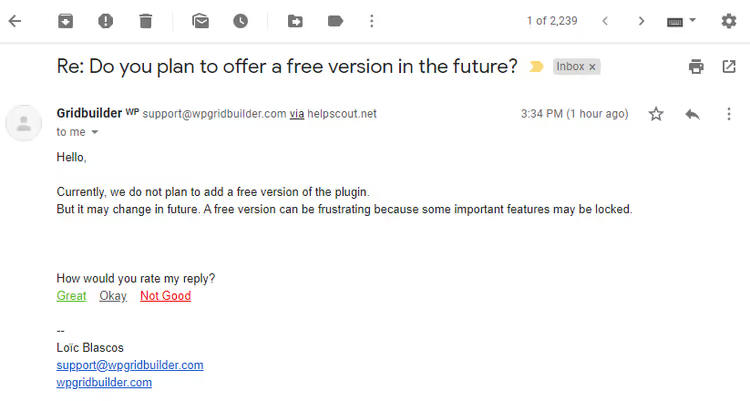
WP Grid Builder is sold only as an annual subscription; there is no free version. Three tiers:
Plan | Price (per year) | Sites | What's included |
|---|---|---|---|
Basic | $49 | 1 | All add-ons, 1 year of updates and support |
Premium | $99 | up to 3 | All add-ons, 1 year of updates and support |
Ultimate | $249 | unlimited | All add-ons, 1 year of updates and support |
Progressive discounts apply on renewal: the higher the tier, the larger the percentage discount. All tiers include the full set of add-ons, so there is nothing extra to purchase. A 14-day money-back guarantee applies at purchase.
The plugin has received positive reviews from notable figures in the WordPress community. Jb Audras, WordPress core developer and CTO of Whodunit, notes the convenience for both users and developers:
Both the user and developer experience are excellent. Great product and a new paradigm for this kind of functionality. Good integration with WordPress core, pleasant admin UX, and lightning-fast frontend.
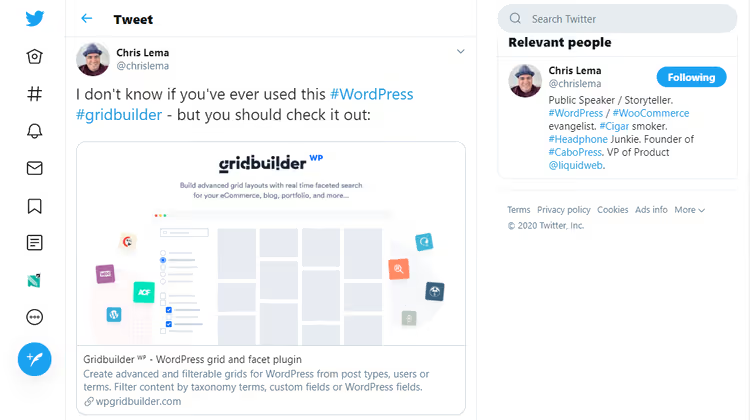
Chris Lema, a well-known WordPress expert and consultant, has also publicly praised WP Grid Builder; his review can be found on social media.
Installing WP Grid Builder
Installation is standard for a premium WordPress plugin. After purchase, you receive a ZIP file and license key via email or in your account at wpgridbuilder.com.
Step 1. Download the ZIP archive. In the WordPress admin, go to Plugins → Add New:

Step 2. Click "Upload Plugin," select the ZIP file, and click "Install Now":

Step 3. Activate the plugin:

After activation, a Gridbuilder WP item appears in the admin menu. Go to Gridbuilder WP → Dashboard:

Step 4. Enter the license email and key, then click "Activate Plugin":

Activating the license enables automatic updates from within WordPress admin. The key itself is available in your account dashboard after purchase:

Done. The plugin is installed, the license is activated, and you can create your first grid.
Setting up your first grid
Setup consists of several sections within a single screen. Let's go through them sequentially.
Creating and naming the grid
Go to Gridbuilder WP → All Grids and click "Create A Grid":

This takes you to the "All Grids" screen, which is currently empty. Click the "Create A Grid" button:

An alternative path is importing demo grids from the WP Grid Builder site. Demos set the layout and card structure, but the content is always yours: your posts, media files, or products.

On this screen, specify: the grid name (for internal use), a custom CSS class (optional, for custom styles), and the message text users will see if there are no results.
Selecting the content source
Section Grid Settings → Source Content:

Three source options:
- Post Type: posts, pages, media files, or any custom type
- Term: filtering by categories, tags, or custom taxonomies
- User: content from specific users
Below, set the number of items per page. A value of "-1" shows all; 0 inherits WordPress settings.

In the "Requested Posts" section, fine-tune: publication type, status (best set to "Published"), authors, MIME types for media, and specific post inclusion and exclusion.

Tip: click "Save Changes" as you go through the settings. Grid configuration takes time, and losing progress midway is frustrating.
Media formats
Section Grid Settings → Media Formats:

Choose formats for cards: images, galleries, video (YouTube/Vimeo/Wistia), and audio. Here you also set a default thumbnail for cards without their own image. A useful option: automatic capture of the first media file from a post if a featured image is missing.
Grid style
Section Grid Settings → Grid Style:

Three styles to choose from: Masonry, Metro, and Justified. For most scenarios, Masonry is a safe choice: cards align optimally regardless of image aspect ratios. Grid behavior, card size overrides, and responsiveness are configured below, but there is no need to modify them without a clear requirement.
Grid layout

Two options: standard vertical scrolling or carousel. The "Full Width" option makes the grid span the full screen width.
Grid composer

Grid Composer is a drag-and-drop area where you arrange facets. For example: a date filter, search, and "Load More" button:

After publishing, this configuration produces a grid with three working filters:

Card style

The "Cards Style" section is the card appearance builder. You can import ready-made cards from the demo set (20+ templates) or create from scratch. Each content type gets its own card: one for products, another for posts. A finished grid with the Beryl card looks like this:
Animations

Two animation types: card reveal on scroll and effects when clicking "Load More." Easy to configure, they provide a noticeable visual upgrade with minimal effort.
Loading

Enable lazy loading so images load only when they enter the viewport. This is critical for grids with dozens of cards on a page. The loading indicator (loader) appears during filtering or when loading the next batch of content, giving users visual feedback.
CSS customization

The Grid Settings → Customization window lets you add your own CSS rules using the class set when creating the grid. If CSS is not your strong suit, consider bringing in a front-end developer or leave the default styles.
Add-ons

Add-ons extend the base functionality. All are included in any tier. As of June 2026, the following are available:
- Map Facet: Google Maps, Mapbox, or Leaflet maps with markers and geo-tag filtering
- Caching: content and facet caching to speed up repeated requests
- LearnDash: displaying LearnDash course data in grid cards
- Multilingual: integration with Polylang and WPML for multilingual sites
- Elementor: native integration with the Elementor builder
- Oxygen: integration with Oxygen Builder
- Bricks: integration with Bricks Builder
- Beaver Builder: integration with Beaver Builder
- Meta Box: Meta Box fields in cards and filters
- Pods: Pods fields in cards and filters
Add-ons install in a couple of clicks via Gridbuilder WP → Add-Ons.
Other settings

Gridbuilder WP → Settings contains global parameters:
- Enabling WP Grid Builder blocks in Gutenberg
- Post format support (image, video, audio, gallery)
- Displaying taxonomy and post format colors
- Cache clearing and stylesheet reset
- Global card and facet colors
- Additional image sizes
- Built-in lightbox settings
- Full reset of plugin global settings
Most of these parameters are configured once and do not require revisiting.
Watch the plugin in action. In this video, WPTuts shows how to set up multi-level filters with WP Grid Builder from start to a working grid:
⁉️🤔 Frequently asked questions
Do I need to know how to code to work with WP Grid Builder?
No. Grids, cards, and facets are fully configured through the visual admin interface. The plugin requires PHP 7.0+ and WordPress 6.0+, but you will not need to write code. Developers have access to PHP hooks and filters for customization, but this is an optional bonus, not a requirement.
Does the plugin work with my theme?
If the theme follows WordPress standards, yes. In practice, compatibility issues are rare, but if they arise, the 14-day money-back guarantee applies. The plugin also offers integrations with Elementor, Oxygen, Bricks, and Beaver Builder for those working with visual builders.
How does WP Grid Builder differ from competitors?
Three things: depth of faceted filtering (20+ facet types versus 5-10 in alternatives), a built-in card builder (no need to edit theme templates), and an index table for fast filtering on large content volumes. Most grid plugins either provide layout without filters or filters without custom cards; here everything is in one package.
Is there a free version?
No, WP Grid Builder is premium only. The minimum tier is $49 per year for one site with the full set of add-ons. This is comparable to the annual subscription for many other premium WordPress plugins.
How does the plugin affect site speed?
It uses custom AJAX endpoints and an index table instead of standard WP_Query, which reduces database load. Lazy loading defers image loading until scroll. For large catalogs, consider enabling the Caching add-on, which additionally caches filtering results. On a test setup, a grid of 50 products with filters opens without noticeable delay.
Can I use the plugin on a test site?
Yes. Domains with.dev,.test,.local TLDs, localhost, and staging subdomains do not count as activations. You can develop and test on staging without using up your license.
Which WP Grid Builder plan to choose for your task
WP Grid Builder is not a tool for everyone. It is overkill if you need a simple post grid without filters: free plugins or built-in theme blocks can handle that. But if the task involves a catalog with faceted search, a filterable portfolio, or a WooCommerce storefront with smart sorting, there are few alternatives with comparable depth in the WordPress plugin market.
- If you are an online store owner on WooCommerce, get Basic for $49 per year. It covers a storefront with price, rating, and stock filters. A Masonry grid with product cards can be built in an hour.
- If you are a freelancer or agency managing multiple projects, consider Premium ($99, up to 3 sites) or Ultimate ($249, unlimited). The Elementor and Bricks add-ons save time on integrating with client builders.
- If you need a simple blog grid without filters, the plugin is overpowered for that task. Try the built-in Query Loop blocks in Gutenberg or free alternatives.
Try the plugin on a test site; the 14-day money-back guarantee lets you evaluate it without risk. And if you have already worked with WP Grid Builder, leave a comment describing which scenario you tailored it for.

A professional team of writers and editors specializing in creating quality content.