














🔘 5 best WordPress plugins for custom buttons in 2026
A visitor lands on the site, glances at the headline, scrolls halfway down, and leaves. The reason is almost always the same: no one told them what to do next. There's no "Try for free" button after the pricing section, no "Download" after the overview, no "Ask a question" where the reader naturally has doubts. A beautifully designed page without directional elements works like a storefront without a door: you can look, but you can't go in.
The standard WordPress block editor provides basic buttons, but their flexibility ends at choosing a color and border radius. For custom CTAs, floating panels, social icons with click tracking, and shortcode buttons with variable substitution, you need a plugin. The good news: there's already a ready-made tool for each of these tasks, and almost all of them in this list work without a single line of code.
Below are five WordPress plugins for 2026 that cover the full range of button scenarios: from a single CTA in a post to a set of social buttons with transition analytics.
💡 Quick overview:
- Determine what type of buttons you need: CTA, shortcodes, social icons, or a visual editor in TinyMCE.
- Choose a plugin for your task: MaxButtons for a flexible editor, FASC Buttons for visual insertion, Shortcodes Ultimate for comprehensive shortcode building, Ultimate Blocks for Gutenberg, Inisev for social icons.
- Compare the pros and cons of the five plugins using the table below.
- Install no more than one button plugin: overlapping CSS from different plugins breaks styles on the front end.
Why your site needs custom buttons: three scenarios where standard ones fall short
The built-in "Button" block in Gutenberg does exactly three things: accept a URL, change the fill color, and round the corners. For a hairdresser's business card site, that's enough. For a blog, landing page, or commercial site, it almost never is. Real scenarios where standard buttons aren't sufficient:
Scenario 1: CTAs with repeating design. You have ten reviews, each with a "View price" button. Manually changing the color for each post guarantees that within a month, the buttons will be three different shades. A plugin solves this with a single saved preset: set up the style once, insert the shortcode, and get the same CTA everywhere.
Scenario 2: a floating button that stays in the corner of the screen while scrolling. No standard block can do this. And a mobile user who has scrolled through three screens of text won't go back to the top of the page for a CTA; they'll simply close the tab.
Scenario 3: social icons with analytics. Standard "Share" buttons from the theme don't count transitions and don't allow you to customize the design for your brand. A custom plugin provides both customization and numbers.
The general rule: if you need a button in one post and its design won't be repeated, the built-in block is enough. If there are multiple buttons, they repeat across dozens of pages, or they require behavior that Gutenberg doesn't have, you need a plugin.
Plugin comparison table
Plugin | Type | Active installs | Price | Presets and shortcodes | Social icons |
|---|---|---|---|---|---|
MaxButtons | Button editor | 100,000+ | Free / Pro from $19 | Yes | Yes (Pro) |
FASC Buttons | Visual editor | 20,000+ | Free | Yes | No |
Shortcodes Ultimate | Shortcodes (50+) | 400,000+ | Free / Pro | Yes | No |
Ultimate Blocks | Gutenberg blocks | 40,000+ | Free / Pro | Yes (blocks) | Yes (Share) |
Inisev Social Share | Social buttons | 100,000+ | Free / Premium | No | Yes |
1. MaxButtons: a full-featured button editor with presets and live preview
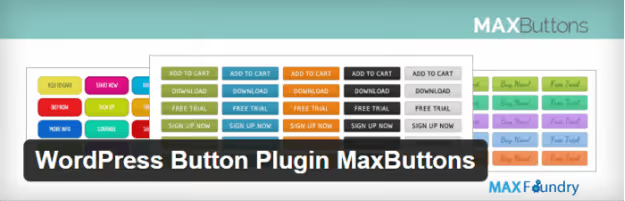
MaxButtons on WordPress.org is the oldest and most popular button plugin for WordPress: over 3.5 million downloads and a thousand five-star reviews. Essentially, it's not just a button but a full-featured editor: you set the shape, color, shadow, gradient, icon (Font Awesome 5 in Pro), font (Google Fonts in Pro), and you see it all in a live preview before inserting it on the page.
The main advantage of MaxButtons over competitors is reusable presets. Create a button once, save it, get the shortcode [maxbutton id="17"], and insert it into any post, widget, or theme file via do_shortcode. If needed, the text and URL can be overridden directly in the shortcode: [maxbutton id="17" text="Download" url="https://..."]. You don't need to modify the original preset.
The free version includes: unlimited buttons, color picker, shadows, gradients, rounding, border settings, preview on different backgrounds, and copying an existing button as a base. The Pro version starting at $19 adds icons, images on buttons, multi-line text, Google Fonts, Google Analytics Event Tracking, import/export, dynamic WordPress variables in text and URL, and a button set for WPBakery, Elementor, Beaver Builder.
Pros: live preview while editing; shortcodes with text and URL override; integration with Contact Form 7, Easy Digital Downloads, and popular popup builders; separate responsive settings for mobile.
Cons: core functionality (icons, fonts, multi-line) is in Pro; the free version doesn't count clicks.
2. Forget About Shortcode Buttons: visual buttons right in the editor

FASC Buttons on WordPress.org is a plugin that solves the main pain point of all button plugins: the need to leave the visual editor for a separate interface. Here, the button is created and edited right in TinyMCE: select text, click the FASC icon in the toolbar, choose a style, done. Double-clicking the button opens the settings panel.
The plugin has been around since 2015, has 20,000+ active installs and a 4.7-star rating. Despite the "not tested with latest WP versions" warning on the catalog page, actual testing through 6.7.5 passed, and the plugin works stably on current WordPress.
The key feature of FASC is template saving: set up a button once (color, size, Dashicons or Font Awesome icon, rounding, shadow), save it as a template. All subsequent buttons are created from this template with a couple of clicks. Icons can be placed before or after the button text. Since version 2.1.0, buttons work in widgets.
Pros: editing without leaving the visual editor; double-click to edit; templates; Dashicons and Font Awesome support; buttons in widgets; free without limitations.
Cons: only the Classic/TinyMCE visual editor (the plugin doesn't work in Gutenberg); no click counters; no social icons.
🔗 FASC Buttons on WordPress.org
3. Shortcodes Ultimate: 50+ shortcodes including buttons and CTA blocks

Shortcodes Ultimate on WordPress.org is the Swiss army knife of WordPress content with 400,000+ active installs and nearly 6,000 reviews. Buttons here are just one of 50+ ready-made elements: tabs, accordions, sliders, carousels, columns, notification blocks, FAQ sections, and much more.
Why Shortcodes Ultimate makes this list: for a significant portion of sites, a button doesn't exist by itself. It's part of a CTA block that includes a headline, description, and button. Or part of tabs where each tab has its own button. In this paradigm, a separate button plugin is redundant, while a unified tool for all elements makes sense.
The visual shortcode generator shows a live preview before insertion. Shortcodes work everywhere: in Gutenberg via the Shortcode block, in Classic Editor, in widgets, and in templates via do_shortcode. The Pro version adds a content slider, pricing tables, testimonials, a custom shortcode builder, and Elementor integration.
Pros: 50+ elements in one plugin covering more than just buttons; live preview on insertion; works in both Gutenberg and Classic Editor; Custom CSS editor; well documented.
Cons: not a specialized button plugin, so button customization depth is less than MaxButtons; not suitable for social icons; Pro version needed for advanced elements.
🔗 Shortcodes Ultimate on WordPress.org
4. Ultimate Blocks: Gutenberg blocks with an advanced button and more

Ultimate Blocks on WordPress.org is a free set of 25+ blocks for Gutenberg that includes an enhanced Button block with icons, hover color, and additional customization. But the main value isn't in the individual button; it's in the ecosystem of ready-made blocks where the button is integrated as a component: CTA block, Review block with Schema markup, Social Share, Content Filter, Tabbed Content, and all of them have customizable buttons.
For a blog or content site, this means you don't need to install four plugins for four tasks. One Ultimate Blocks gives you buttons, social icons, CTA blocks, tabs, a Table of Contents, an FAQ block with Schema, and "Click to Tweet." Everything is assembled with the mouse in the block editor without shortcodes.
The plugin is active, regularly updated (latest reviews from June 2026), and compatible with WordPress 7.0. The Pro version adds Coupon and Timeline blocks.
Pros: 25+ blocks in one plugin, a powerful replacement for a zoo of 5-7 separate ones; Schema markup for Review and FAQ out of the box; visual assembly without shortcodes; active support.
Cons: works only in Gutenberg; individual button customization depth is less than MaxButtons; some advanced blocks are in Pro.
🔗 Ultimate Blocks on WordPress.org
5. Social Media Share Buttons (Inisev): social icons with analytics and pop-ups

Social Media Share Buttons on WordPress.org is a plugin that covers the last element of the button ecosystem: social icons. 100,000+ active installs, 4.5-star rating with 5,300+ reviews. The list of free features itself looks like a competitor's Pro version: 16 icon designs, hover animation, sticky mode (icons float on scroll), a subscribe pop-up, counters, and email subscription from the icon widget.
A step-by-step setup wizard walks you through the entire chain: network selection → defining actions (sharing + profile link) → design → animation → counters. Icons are placed in a floating panel, in a sidebar widget, or at the end of each post. Mobile display is configured separately.
For GDPR compliance, the plugin provides a separate consent settings page. The Premium version expands the network list to 200+ (including Snapchat, WhatsApp, Telegram, Viber), adds themed icon designs, finer pop-up customization, and the ability to set different icon sets for mobile and desktop.
Pros: the free version is genuinely rich with 16 designs, sticky mode, animation, pop-up, and counters; step-by-step wizard; separate mobile settings; GDPR compliance.
Cons: not for creating CTA buttons (social icons only); the extended network list (WhatsApp, Telegram, etc.) is in Premium; the pop-up can annoy readers with aggressive settings.
🔗 Inisev Social Share on WordPress.org
Which plugin to choose for your task
The choice comes down not to an abstract "which is better" but to the specific scenario you need a button for. In our experience, a site most often outgrows standard buttons in three cases: when CTAs start repeating across dozens of pages, when you need a floating element, and when social icons require analytics.
If you work in Gutenberg and want to build pages visually without shortcodes, go with Ultimate Blocks. One plugin will cover buttons, CTA blocks, social icons, table of contents, and FAQ.
If you need maximum design flexibility and reusable presets with shortcodes and dozens of style parameters, choose MaxButtons. This is especially true if part of your site runs on shortcodes and Classic Editor.
If you insert buttons directly in the visual editor and don't want to switch to a separate interface, FASC Buttons wins with its speed and simple double-click editing.
If a button is just part of a larger content structure with tabs, accordions, and columns, Shortcodes Ultimate will give you everything at once in one plugin instead of a zoo.
And finally, if social buttons are the only thing your standard theme is missing, Inisev Social Share will cover this niche with analytics and a floating panel, for free.
The main rule: don't install two button plugins at the same time. Their CSS classes overlap, and on the front end you'll get a mess of styles that's hard to debug. Choose one for your main scenario, cover all key tasks with it, and don't worry about the rest.
⁉️🤔 Frequently asked questions
Can I get by without a button plugin at all?
Yes, if you need a button in one place and its design won't repeat. The built-in "Button" block in Gutenberg provides the minimum: color and rounding. If there are multiple buttons, they repeat on different pages, or you need a floating CTA, install a plugin from the list above. The time saved by reusing presets pays for the plugin within the first two days of work.
What's the danger of having two button plugins at once?
Overlapping CSS classes. Both plugins may use the class
.button,.btn, or wrapper.maxbutton, and styles get mixed on the front end. The button gets border-radius from one plugin, color from the second, and the hover effect doesn't work at all. The rule is simple: one plugin for all buttons, including CTA and social.
Do these plugins work with Gutenberg?
Ultimate Blocks is a fully native Gutenberg plugin where blocks are inserted with the mouse. MaxButtons and Shortcodes Ultimate work through the Shortcode block: you insert the shortcode, and Gutenberg renders the button. FASC Buttons is oriented toward Classic Editor / TinyMCE and doesn't work in Gutenberg. Inisev Social Share is configured in its own admin panel and outputs icons through a widget or floating panel, independent of the editor.
Which plugin should I choose for social icons with click tracking?
From this list, Inisev Social Share (free) or the Social Share block in Ultimate Blocks (no counters, but with Schema). MaxButtons Pro also supports social icons, but through a separate addon. Inisev provides counters and a pop-up in the free version, which is enough for most sites.
Do I need Pro for these plugins?
It depends on the task. Free MaxButtons covers basic buttons: color, shape, shadows, gradients, presets. Pro is needed for icons on buttons, Google Fonts, and Google Analytics click tracking. Shortcodes Ultimate in the free version offers 50+ shortcodes; Pro adds sliders and pricing tables. Ultimate Blocks in the free version provides 25+ blocks; Pro adds Coupon and Timeline. Inisev in the free version offers 16 designs and counters; Premium expands to 200+ networks.
What to install on your site in 2026
The five plugins above cover the full spectrum of WordPress button scenarios. If we distill the shortest selection algorithm: if you work in Gutenberg and want visual assembly, Ultimate Blocks. If you need maximum design flexibility and reusable presets, MaxButtons. If you insert buttons in the classic editor and value speed, FASC Buttons. If a button is just part of tabs, accordions, and columns, Shortcodes Ultimate. If you only need social icons with analytics, Inisev.
And remember: a button without meaningful CTA text doesn't work, no matter which plugin draws it. "Download" converts worse than "Download PDF with configuration examples." Spend five minutes on the wording; it will pay off in conversions.

A professional team of writers and editors specializing in creating quality content.