














Step by step guide to the Gutenberg editor for WordPress
Switched themes and your familiar editor turned into an unfamiliar canvas of blocks? Everyone who opened Gutenberg for the first time goes through this freeze. Familiar buttons disappeared, Metabox fields moved, and creating a simple post takes twice as long.
But here's the truth: the WordPress block editor is the fastest way to lay out content without code. In practice, we've found that after a couple of hours working with blocks, you won't want to go back to the classic editor. And if you know the keyboard shortcuts and a few tricks, Gutenberg starts working faster than any page builder.
In this guide, you'll find a complete breakdown of the block editor: from first launch to hotkeys. No theory for theory's sake, just concrete steps you can repeat on your own site.
💡 Quick overview:
- Open the editor: Posts → Add New, and you'll land in the Gutenberg block interface
- Add content using blocks: each paragraph, heading, image, or button is a separate movable block
- Insert blocks via the "+" icon or the
/key, just type the name of the block you need - Configure blocks through the sidebar: formatting and style options change based on the selected block type
- Learn the hotkeys:
Shift + Alt + H(Windows) opens a cheat sheet with all shortcuts
What is the Gutenberg editor

Gutenberg is the block content editor built into WordPress core starting with version 5.0. Unlike the classic TinyMCE editor, where the entire post was a single text field, Gutenberg breaks content into independent blocks: paragraphs, headings, images, galleries, buttons, columns, and dozens of other elements.
Each block can be moved, configured, and styled independently from the others. The result is visible immediately: this is a visual editor, not a text field with a "Preview" button.
As of 2026, Gutenberg has evolved from a controversial novelty into a full-fledged page builder. With the introduction of Full Site Editing (FSE), the block editor has moved beyond posts and pages. Now you can edit headers, footers, post templates, and archives through it. The classic editor is still available as a separate plugin, but WordPress officially ended support for it back in 2022. Security updates are still released, but no new features are being added.
If you're serious about working with WordPress, Gutenberg is not an option but the main tool. Learning it is worth the effort if only for the speed: once you get used to it, posts come together 2-3 times faster than in the classic editor with its pile of metabox fields.
Interface: first launch

To open the editor, go to Posts → Add New (or Pages → Add New for pages). WordPress will load Gutenberg with a welcome screen and a blank title field.
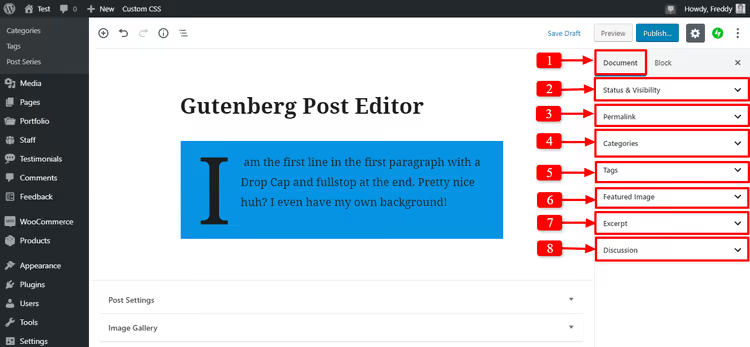
On the right is a sidebar with two tabs: Post (or Page) and Block. The Post tab contains global settings: permalink, categories, tags, featured image, excerpt, and publication status. The Block tab shows settings for the specific selected block.
Note that the permalink field is available immediately, without a separate click on the title. This saves a few seconds on every post.
Working with text blocks
Post title

The first block in the editor is the title. Simply enter text, and it automatically becomes the H1 of the post. Next to the title is an Edit button that opens permalink editing right in the block.

Press Enter, and a new paragraph block appears below the title. Gutenberg preserves the familiar keyboard navigation of the classic editor: Enter creates a new block, Backspace merges with the previous one.
Paragraphs and the formatting toolbar

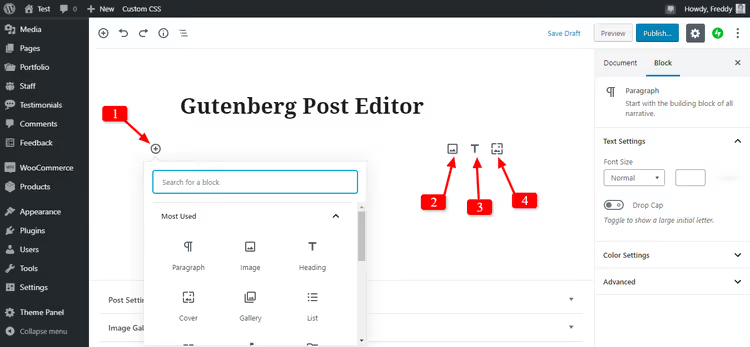
The default new block is Paragraph. But before you enter text, Gutenberg shows options: the block can be turned into a heading, image, gallery, cover, and dozens of other types.
After entering text, the formatting toolbar appears:

The toolbar allows you to:
- Turn a paragraph into a quote, heading, list, code, or preformatted text
- Apply bold, italic,
strikethrough, and underline - Align text left, right, center, or justify
- Add a link with an option to open in a new tab
- Insert an inline image directly in the line
- Duplicate, move, or delete the block
- Edit the block as HTML
- Save the block to Reusable Blocks
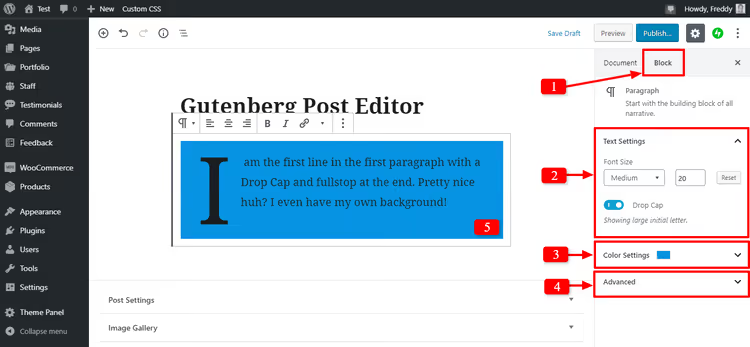
On the Block tab of the sidebar, you'll find advanced settings: font size, drop cap, background and text color, padding, and custom CSS class. Colors can be set to anything; the palette is not limited to theme presets.
Adding images
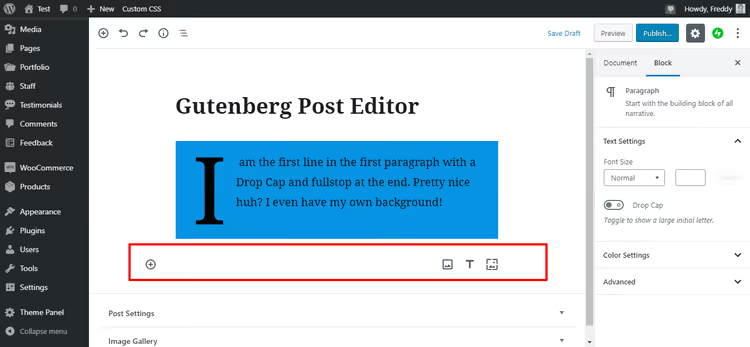
Images can be inserted three ways: through the "+" icon → Image tab, by dragging a file from your desktop directly into the editor, or with the /image keyboard command inside a paragraph.
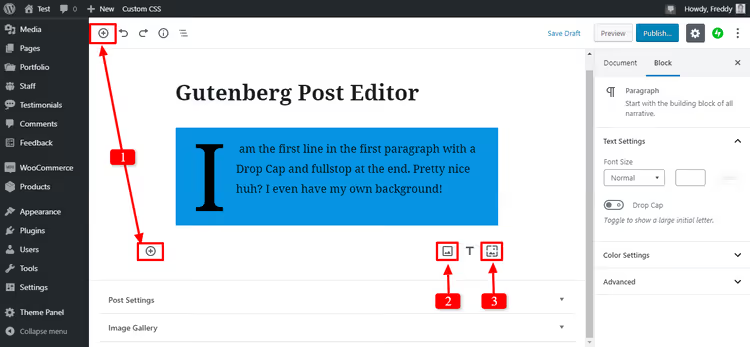
Click any "+" icon, select the Image tab, and a block appears with three sources: upload from computer, select from media library, or paste by URL.
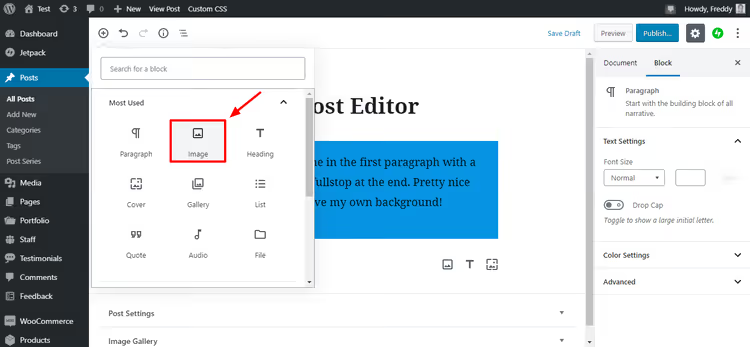
Selecting a block through the insertion menu is the most visual method, especially at first. Once you get used to it, you'll switch to /image, but the visual menu always remains available.
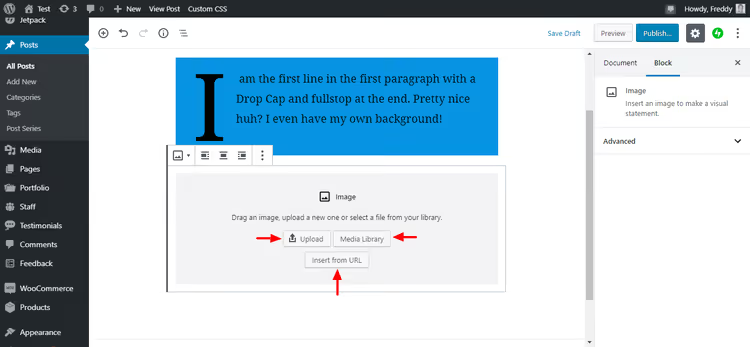
After inserting an image, the sidebar offers: alt text (critical for SEO and accessibility), size, aspect ratio, and styles (rounding, duotone, shadows, and borders).
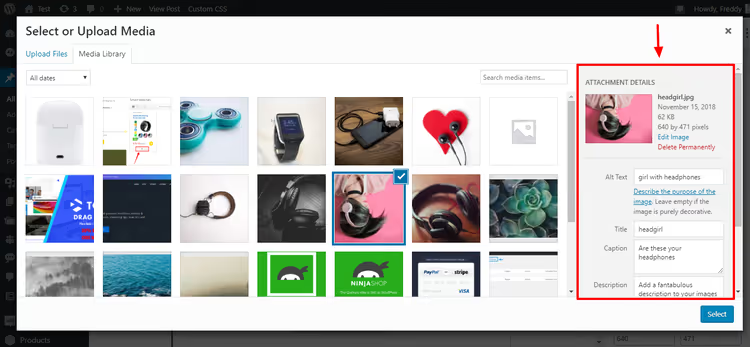
The standard media file dialog is familiar from the classic editor; here you can set the title and description. But the main settings are now concentrated in the Block sidebar.
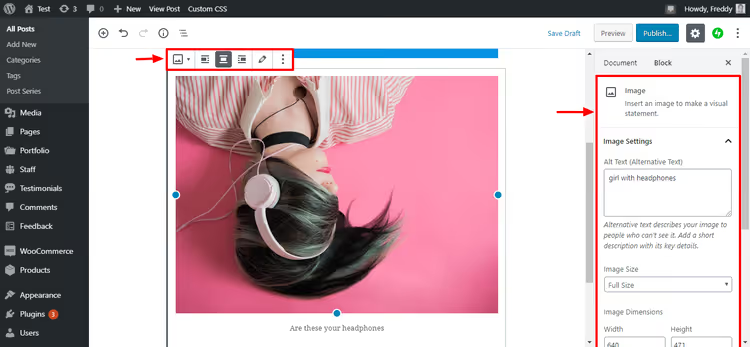
In practice, we recommend always filling in the alt text: it helps both search engines and screen reader users. The description should be specific, 4-8 words, with the section's keyword.
Files for download
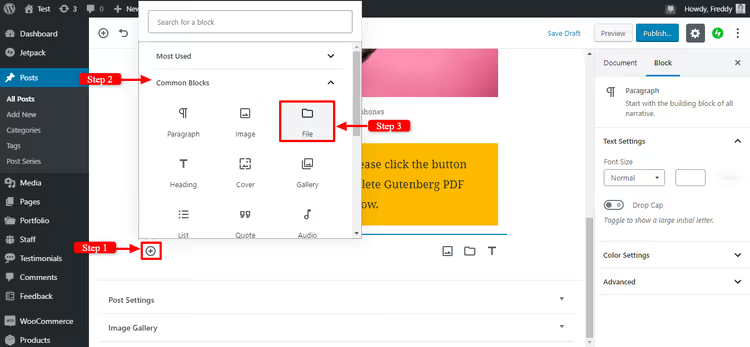
The File block lets you attach a PDF, ZIP, image, or any other file for readers to download.
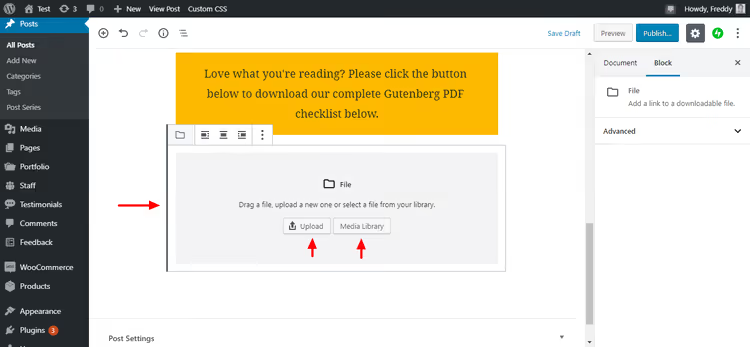
Upload a file or select from the media library; Gutenberg will automatically create a download button.
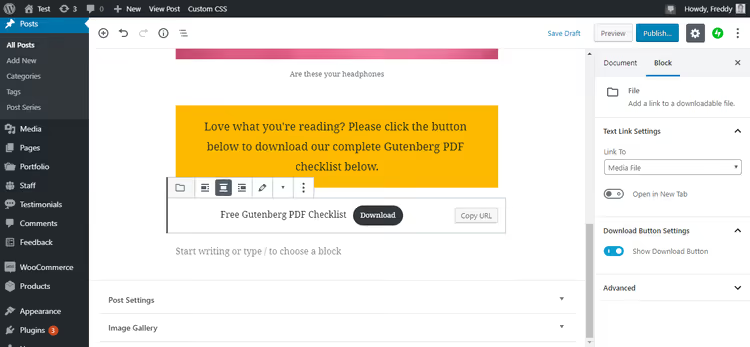
The button text and file name are editable. You can add a CSS class for custom styling. The button opens in a new tab by default.
Quotes and callouts
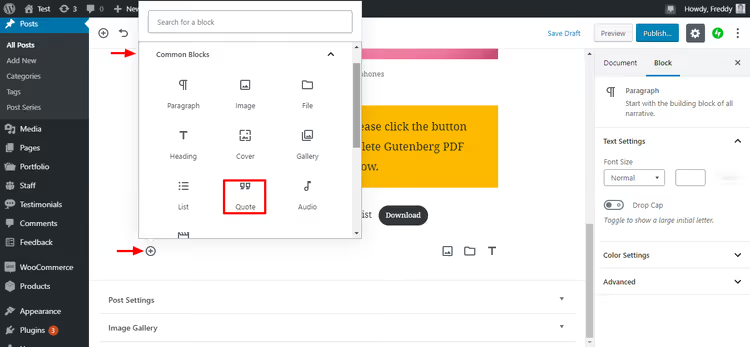
The Quote block adds a styled quotation. Unlike a regular paragraph, the quote is visually highlighted; the theme applies special formatting to it.
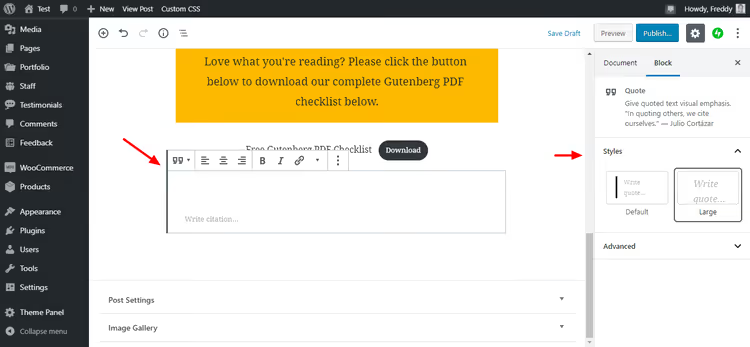
The Quote block sidebar lets you configure background color, font, and padding. The quote can look like part of your branding rather than a standard gray block.
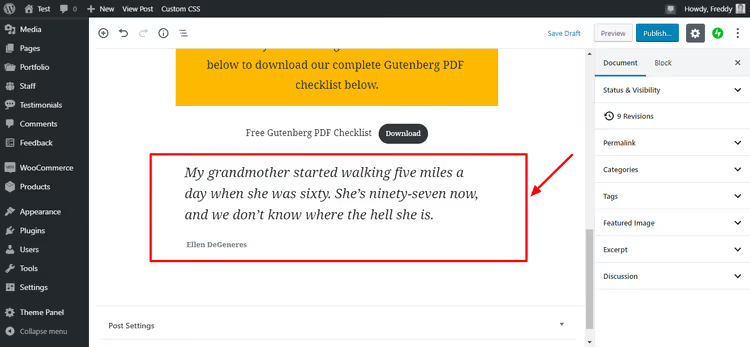
A quote accepts the same text as a paragraph but stands visually apart. Besides the standard Quote, there's Pullquote (a larger callout) and Verse (a block for poetry that preserves spaces and line breaks).
Embedding video and external content
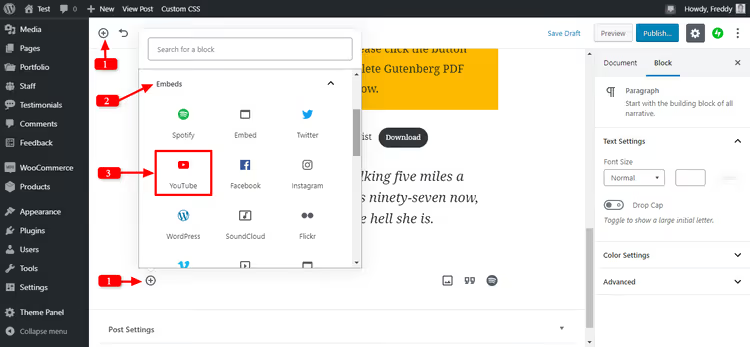
Gutenberg supports embedding content from 30+ platforms: YouTube, Vimeo, Twitter, Facebook, SoundCloud, WordPress.tv, Slideshare, and more. The process is the same for all: insert an Embed block, select the platform, paste the URL, and click Embed.
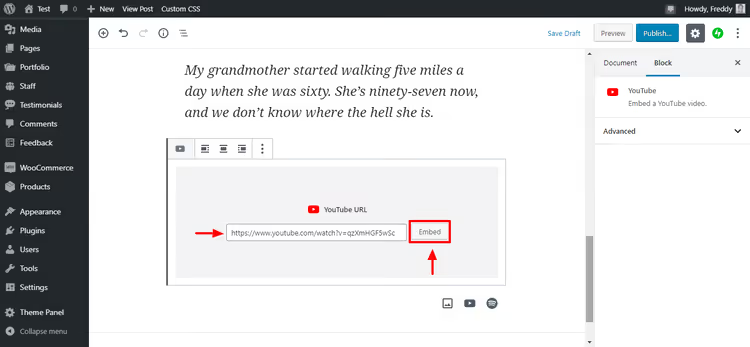
Paste the URL, click Embed, and you're done. Gutenberg automatically pulls in the preview, title, and video thumbnail from YouTube.
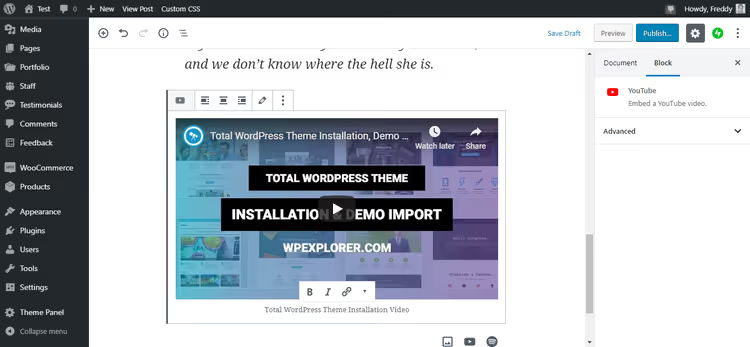
The video appears right in the editor; you can view the preview without leaving the admin panel. For YouTube, settings are available: hide controls, enable autoplay, or set a start time.
Buttons and calls to action
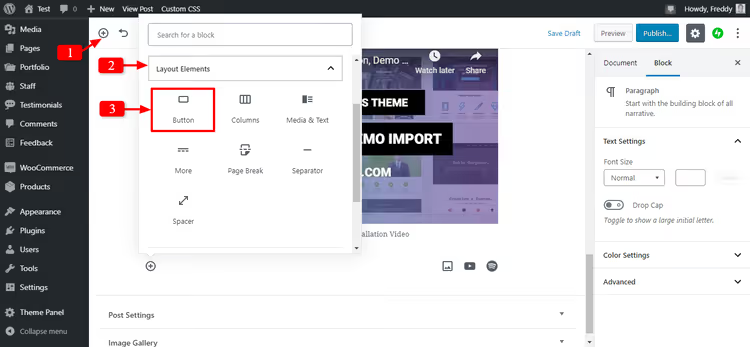
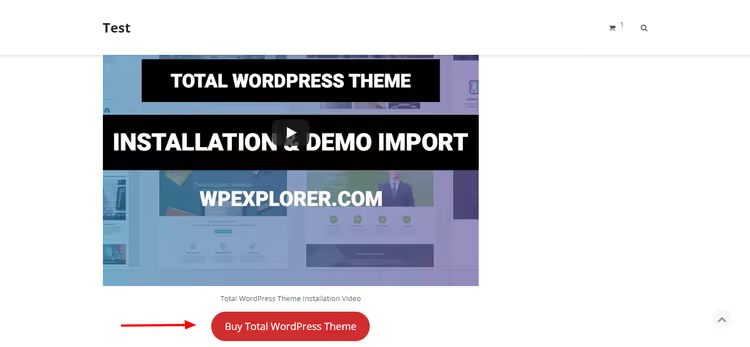
The Buttons block creates one or more buttons in a row. Perfect for CTAs: "Download," "Sign Up," "Go to WordPress.org."
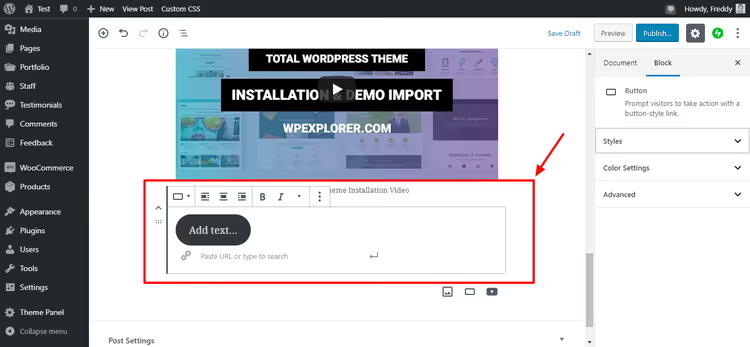
Enter the text, paste the URL, and configure the style: fill, outline, corner rounding, size. Buttons automatically adapt to mobile; on narrow screens, they stretch to full width.
Gutenberg checks the contrast between button text and background: if the color combination is unreadable, the editor displays a warning. A small detail, but it saves time on accessibility checks.
Columns and grids
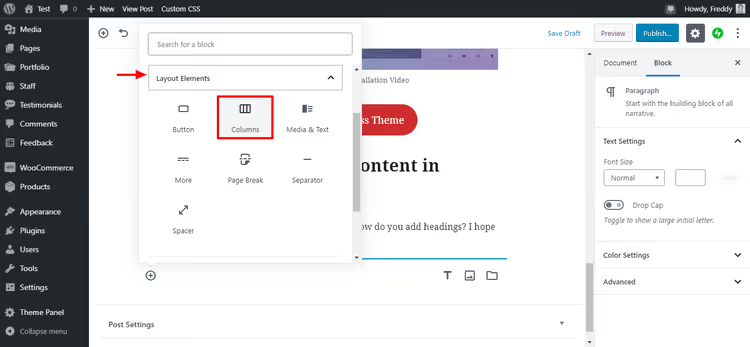
The Columns block creates a grid of 2-6 columns. You can insert any other block into each column: a paragraph, image, button, or quote.
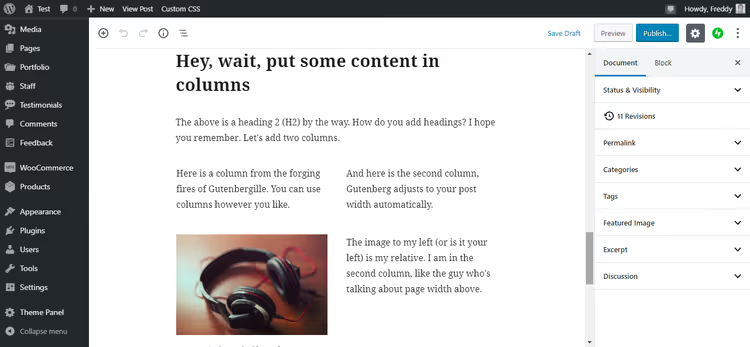
Two columns are created by default, but you can change the number and width of each in the block settings.
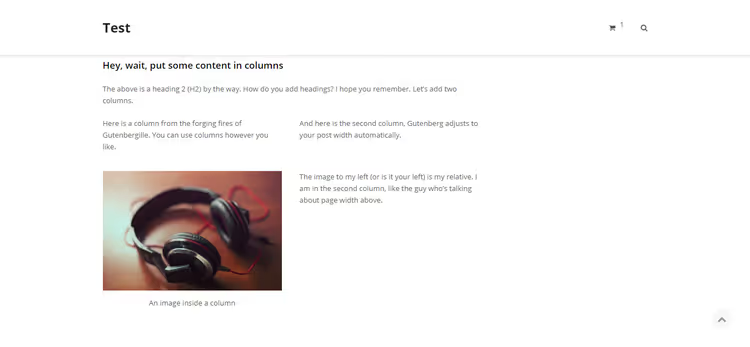
On mobile devices, columns automatically stack vertically; the content doesn't break apart and remains readable. This used to require CSS media queries, but now it works out of the box.
Media + text: image alongside text
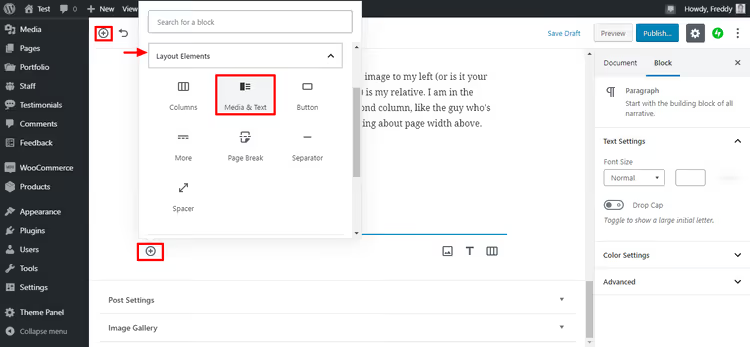
The Media & Text block is one of the most useful for formatting: an image or video on the left (or right), text with a button on the right (or left).
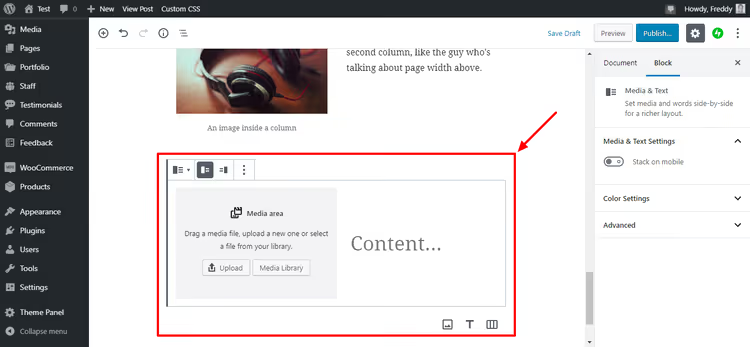
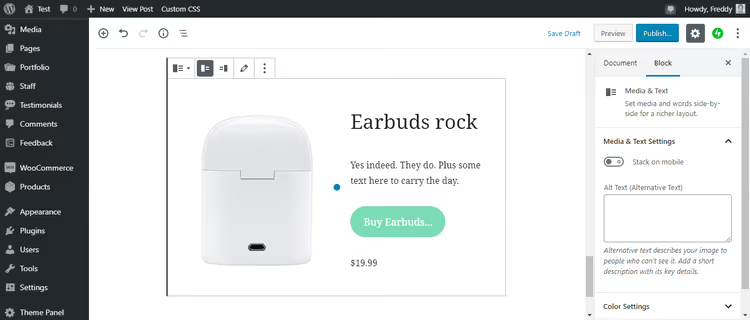
Upload an image, add text, and optionally a button. The sides can be swapped with a single click.
And here's how it looks on the front end:
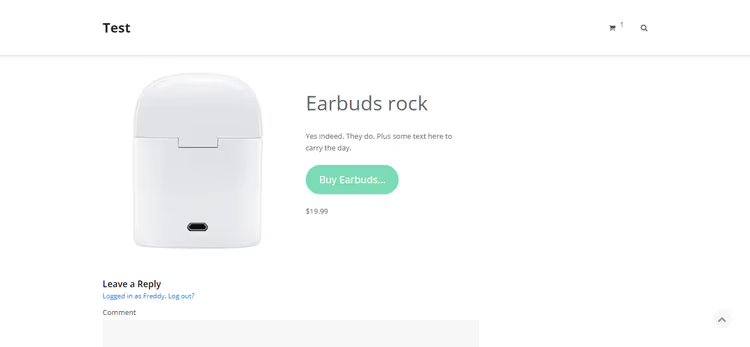
It looks professional and takes just a minute to create. No page builder needed for this kind of layout.
Third-party blocks: plugins extend Gutenberg
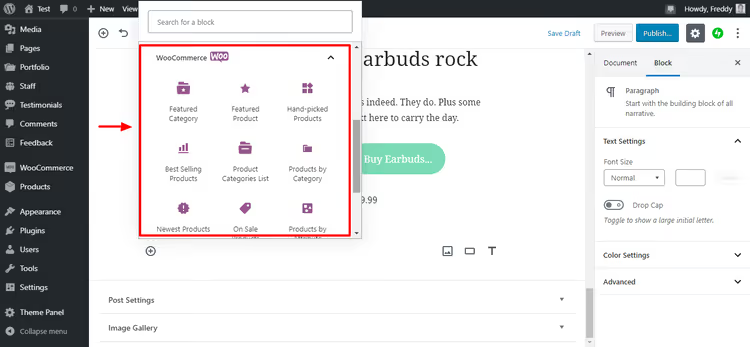
Many plugins add their own blocks to Gutenberg. WooCommerce is the most prominent example: after installing the plugin, blocks for inserting products, carts, filters, and store categories appear in the editor.
Jetpack adds blocks for forms, subscriptions, and social icons. Yoast SEO embeds readability analysis and SEO tips directly into the editor sidebar. Contact Form 7 provides a contact form block.
The principle is the same everywhere: install the plugin, and the blocks appear in the insertion menu. No additional code required.
Keyboard shortcuts and tips
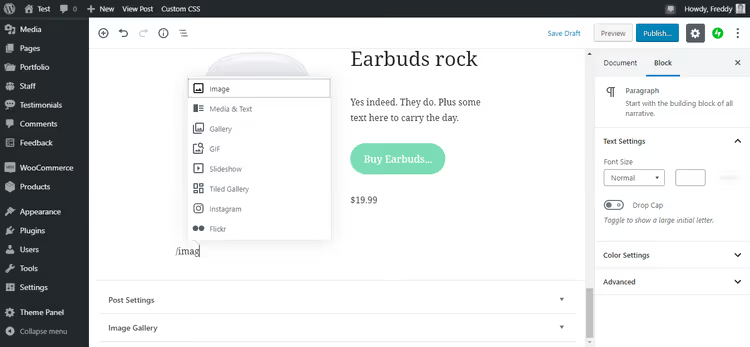
The most useful Gutenberg tip is the / key. While in any paragraph, type / and start entering the block name. The editor will show matching options; select with arrow keys and press Enter.
For example: /image → image block, /heading → heading, /table → table, /column → columns. After a week of use, this trick significantly speeds up your work.
Full list of keyboard shortcuts: Shift + Alt + H (Windows) or Opt + Ctrl + H (Mac). This opens a cheat sheet with all shortcuts, from moving blocks to switching between editing modes.
A few more techniques we use in practice:
- Ctrl + Shift + D: duplicate the selected block
- Ctrl + Alt + T: insert a new block before the current one
- Ctrl + Alt + Y: insert a new block after the current one
- Click the
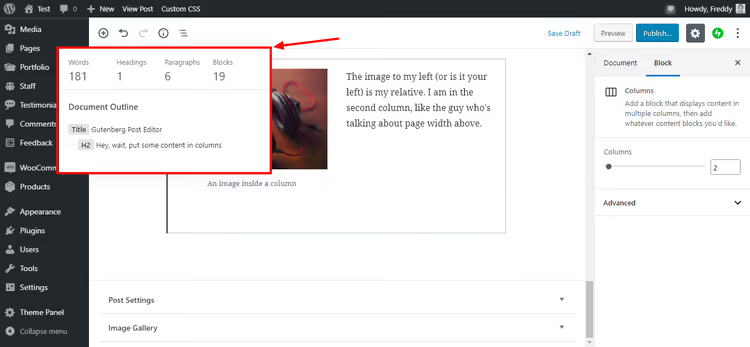
iicon in the top toolbar: show document structure (headings, word count, paragraphs) - List View (three-line icon at top left): navigate all blocks in the post as a tree, convenient for long articles
And finally: the "Update failed" error is usually caused by an unstable internet connection, not a problem with the editor. Check your connection and try saving again.
Video: Gutenberg in 15 minutes
Want to see it all in action? This short video from WPBeginner shows the complete cycle of creating a post in Gutenberg, from the first block to publication:
⁉️🤔 Frequently asked questions
Do I need to install Gutenberg separately?
No, the block editor has been built into WordPress core since version 5.0 (released in December 2018). If you have a recent version of WordPress, Gutenberg is already working. The separate Gutenberg plugin exists only for those who want to test new blocks before they're included in core.
Can I go back to the classic editor?
Yes, install the free Classic Editor plugin. It completely disables Gutenberg and restores the familiar TinyMCE. But keep in mind: WordPress officially ended support for the classic editor in 2022. Current WordPress versions (6.x in 2026) still work with Classic Editor, but new features (Full Site Editing, Block Themes, Patterns) are only available in Gutenberg.
How is Gutenberg different from Elementor or Divi?
Gutenberg is the built-in WordPress content editor: free and with no external dependencies. Elementor and Divi are commercial page builders with broader design capabilities: popups, sliders, marketing integrations. For a typical blog or corporate site, Gutenberg covers the main layout tasks. If you're making money from your site (store, landing pages, funnels), a page builder offers more flexibility. Good news: Gutenberg and page builders work simultaneously. You can build pages in Elementor while managing posts in the block editor.
What if blocks overlap or break on mobile?
Usually, the problem is with the theme, not Gutenberg. Check: (1) whether your active theme supports the block editor (Block Themes guarantee correct layout); (2) whether custom CSS is overriding block padding and width. Switch to the standard Twenty Twenty-Four theme for testing; if blocks display correctly, the problem is with your theme.
How do I add a block that isn't in the default set?
Two options: (1) search for a plugin that adds the block you need (for example, Otter Blocks or Spectra provide dozens of additional blocks), or (2) create a custom block through Advanced Custom Fields (ACF), which is easier than writing a block in React. For most tasks, plugins are sufficient: install and use.
Does Gutenberg work with custom post types (CPT)?
Yes, fully. When registering a CPT, specify
'show_in_rest' => trueand'supports' => array('editor'), and the block editor will enable automatically. For existing CPTs without REST API support, there are adapter plugins, but it's better to update the post type registration.
What to choose: Gutenberg or page builder
Gutenberg has evolved from an experimental "feature" into a mature editor powering millions of sites. For content creators, this means a direct productivity boost: visual layout, instant preview, and keyboard shortcuts save 30 to 60 minutes on each post compared to the classic editor and shortcode plugins.
If you run a blog, news site, or corporate portal, Gutenberg covers the main tasks. Free, with no external code and no extra server load.
If you're building complex landing pages, an online store with custom layouts, or marketing funnels, take a look at page builders. For everyday content work, launch Gutenberg, type /heading, and just start writing.

A professional team of writers and editors specializing in creating quality content.