













 AIIllustrative image: AI-generated
🔧 How to fix the updating or publishing failed error in WordPress: 7 methods
Imagine this: you've finished writing a post, clicked "Publish," and WordPress displays a red banner with an error. Refresh the page? Same error. Log out and back into the admin panel? No change. The post is stuck in drafts, and time is running out.

The Updating Failed or Publishing Failed error is one of those problems that leaves you puzzled: the message doesn't tell you what exactly broke. But after years of working with WordPress, we've developed a clear diagnostic sequence. In most cases, the cause is on the surface, and fixing it takes just a few minutes.
In this guide, you'll find 7 proven methods: from the simplest (internet connection and site URL) to targeted debugging through wp-config and working with plugins. Each step includes specific actions and screenshots from the admin panel.
💡 Quick overview:
- Check your internet connection and site URL in settings
- Open "Tools → Site Health" and check the REST API status
- Enable debug mode via
WP_DEBUGin wp-config.php - Delete the temporary
.maintenancefile from the server via FTP - Deactivate all plugins at once, then enable them one by one to identify the conflict
- Temporarily replace Gutenberg with Classic Editor to rule out a block editor conflict
- If nothing works, contact your hosting provider or the WordPress community
1. Check your internet connection and site URL
The simplest (and therefore often overlooked) cause: WordPress loses connection to the server mid-request.
Open another browser tab and visit any website. Did the page load? Your internet is working. If not, restore your connection and try publishing the post again.
If the internet is fine, the next suspect is URL settings. After years of migrations, domain changes, and HTTPS experiments, the addresses in "Settings → General" sometimes diverge from reality. Go there and compare two fields: WordPress Address (URL) and Site Address (URL). They should match the actual address you use to access the admin panel.
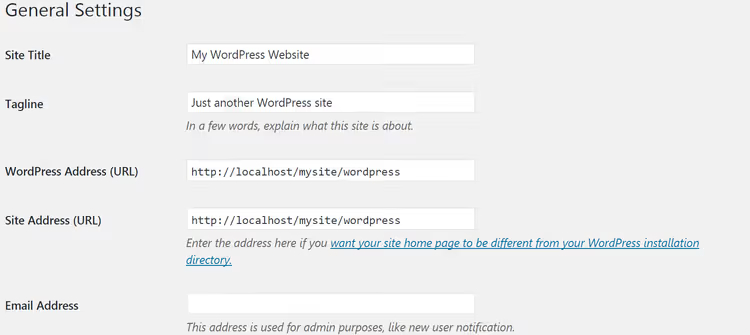
If both addresses are correct but the error persists, let's dig deeper.
2. Check the REST API status
The WordPress REST API is the mechanism through which the Gutenberg editor communicates with the server. When the REST API doesn't respond or returns an error, the "Publish" button stops working.
Fortunately, WordPress 5.2 and later includes a built-in diagnostic tool. Go to Tools → Site Health. Scroll down to the "Recommended improvements" section and look for the line "The REST API encountered an unexpected result" or a similar error.

If the REST API shows an error, expand the debug information right there on the "Info" tab → "REST API." You'll see the specific call that failed and the server response code. Most often the problem lies in:
- A security plugin blocking REST requests (Wordfence, iThemes/Solid Security with aggressive firewall settings);
- Custom code in
functions.phpthat accidentally breaks REST endpoints; - A caching plugin serving a cached REST API response.
Disable the suspicious plugin and recheck the REST API status on the same page.
3. Enable WordPress debug mode
When the problem isn't obvious, you need to "illuminate" it. WordPress has a built-in debug mode for this purpose.
You'll need access to the site's files. An FTP client (FileZilla, WinSCP) or the file manager in your hosting panel will work. Before making any file edits, create a backup. An error in wp-config.php can take down your site, but a backup copy will restore everything in a minute.
Steps to follow:
- Connect to the server via FTP and find the WordPress root folder (where
wp-content,wp-admin, andwp-includesare located). - Find the
wp-config.phpfile and download it to your computer. - Open the file in a text editor (Notepad++, Sublime Text, not Word or Notepad, which can corrupt the encoding).
- At the very bottom, before the line
/* That's all, stop editing! Happy publishing. */, add:
1 define('WP_DEBUG', true); 2 define('WP_DEBUG_LOG', true); 3 define('WP_DEBUG_DISPLAY', false);
The first line enables debugging, the second writes errors to the file wp-content/debug.log (without showing them to visitors), and the third hides errors from the site's display.

Save the file and upload it back to the server, replacing the original. Now try publishing a post. If the error is gone, the cause was a PHP warning that was disrupting the REST response. Open wp-content/debug.log via the same FTP and look for entries with PHP Notice or PHP Warning. They will point to the problematic plugin.
When you're done, be sure to disable WP_DEBUG by replacing true with false. Otherwise debug.log will grow indefinitely.
If the error remains, let's move on.
4. Delete the.maintenance file
WordPress creates a temporary .maintenance file in the site root during core, plugin, and theme updates. It puts the site into maintenance mode, and visitors see the message "Briefly unavailable for scheduled maintenance. Check back in a minute."
Sometimes the update finishes, but .maintenance remains. WordPress thinks maintenance is still in progress and blocks publishing.
Open FTP again, go to the root folder, and find the .maintenance file (with a dot at the beginning, it's hidden; in FileZilla enable hidden file display via "Server → Force showing hidden files").

Delete .maintenance and immediately check publishing. The effect lasts about 10 minutes (WordPress recreates the file if an update is still active). If the error disappears but returns after 10 minutes, a background update is still running. Wait or force it to complete via "Plugins → Installed Plugins" (you'll see the update status there).
5. Find the conflicting plugin
The most common cause of publishing errors is plugin conflicts. One plugin breaks the REST API, another interferes with the save process, and a third conflicts with Gutenberg.
The quick way to find the culprit is mass deactivation with sequential reactivation:
- Go to Plugins → Installed Plugins.
- Check the "Plugin" checkbox in the table header to select all.
- In the "Bulk actions" dropdown, select "Deactivate" and click "Apply."
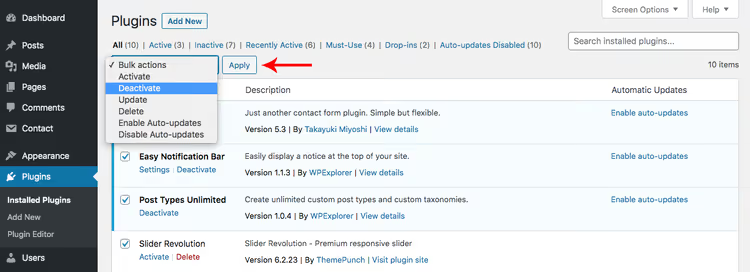
Now all plugins are disabled. Try publishing a post. Did it work? Great, the cause is one of the plugins. Enable them one by one and check publishing after each. As soon as the error returns, you've found the culprit.
What to do with the problematic plugin:
- Update it to the latest version (the developer may have already fixed the bug).
- Contact the plugin's support with details: WordPress version, plugin version, and what action triggers the error.
- Temporarily replace it with an alternative until the developer releases a fix.
6. Temporarily replace Gutenberg with Classic Editor
The Gutenberg block editor appeared in WordPress 5.0 and has come a long way since then. But conflicts with certain plugins and themes still occur, especially with older page builders (WPBakery, old versions of Elementor) and plugins that aren't adapted to the REST API.
The Classic Editor doesn't use the REST API for saving. It works via the old admin-ajax.php. So installing it is a quick test: if the error disappears, the problem is specifically in the Gutenberg + some plugin combination.
Install Classic Editor, the official plugin from the WordPress team:
- Plugins → Add New.
- In the search, type "Classic Editor."
- Click "Install Now," then "Activate."

After activation, try publishing a post through the classic editor. Does it work? Then the conflict is on Gutenberg's side.
Important: this is a diagnostic step, not a permanent solution. Classic Editor disables the block editor, and you lose all Gutenberg capabilities: blocks, templates, built-in formatting. Once you find the problematic plugin (using the method from step 5), remove Classic Editor and return to Gutenberg with a fixed environment.
7. Seek help
If you've completed all six steps and the error persists, the problem likely lies deeper: at the server level, hosting level, or a rare WordPress core bug.
Here's where to turn, in order of effectiveness:
Hosting provider. Contact their support with details: WordPress version, PHP version, which plugins are active, and what action triggers the error. The host has access to server logs and can often spot the cause in a minute (disk space ran out, a PHP module is disabled, memory limit exceeded).
WordPress forums. The official WordPress.org support forum is a live community where core developers and plugin authors respond. Open a topic, attach screenshots and the debug.log output.
After reading this guide, you have a complete diagnostic chain: from a mouse click to editing server files. In 9 out of 10 cases, the problem is solved by steps 1-5, without FTP or wp-config.
Below you'll find answers to the most common questions and a video to reinforce the material.
⁉️🤔 Frequently asked questions
Why does the error occur right after updating WordPress?
Most likely, one of the plugins is incompatible with the new core version or the new PHP version that the hosting activated along with the update. Go through step 5 (mass deactivation), and you'll quickly find the culprit.
Can I just reinstall WordPress without investigating?
Reinstalling the core via "Updates → Re-install Now" is safe and doesn't touch content/plugins. But if the error is caused by a plugin conflict, reinstalling the core won't help. It's better to spend 5 minutes on the diagnostic steps above than blindly try random solutions.
Why does the error appear only on one post while others publish normally?
The likely cause is the content of the post itself. Some combination of Gutenberg blocks, an embedded iframe, or a script is causing a failure during saving. Try copying the content to a new post and publishing it. If the new post publishes successfully, delete the old one and work with the copy.
Should I keep Classic Editor permanently after fixing the issue?
No. Classic Editor is a temporary diagnostic solution. Once you've found and fixed the conflicting plugin, remove Classic Editor and return to Gutenberg. The block editor is the WordPress standard, and you shouldn't abandon it without a serious reason.
What should I do if I don't have FTP access?
Use the file manager in your hosting panel (cPanel → File Manager, ISPmanager → Files). Functionally it does the same thing. If that's not available either, contact your hosting support, and they'll help you gain access.
Which method should you try first?
The universal formula: check the internet (10 seconds) → look at Site Health (30 seconds) → mass deactivate plugins (1 minute). In most cases, the problem is already solved at this stage.
If the error returns after a fix, you've found a symptom rather than the root cause. Enable WP_DEBUG_LOG (step 3) and collect a complete log. It will show the exact file and line with the error. With this log, you can approach the plugin's support team or the WordPress forum.
And most importantly: always keep a fresh backup. It turns any failure from a catastrophe into a five-minute delay.

A professional team of writers and editors specializing in creating quality content.