














🔧 How to fix the Missed Schedule error in WordPress: 3 working methods
You set your alarm for eight in the morning because an important post goes live on Monday. You prepared it over the weekend, scheduled it in the WordPress admin panel, and went to bed without a worry. Tuesday arrives, you open the site, and nothing. Next to the title in the admin panel you see: "Missed schedule."
Sound familiar? In the past year alone, Russian-language WordPress support forums discussed this problem over three hundred times. The issue is not your admin panel, not your hosting, and not your plugins. It is an architectural quirk of WordPress itself.
Below are three ways to solve this once and for all, from the fastest to the most reliable. No cron incantations, no blind edits to wp-config.php, and no "I'll just publish manually" blanket.
💡 Quick overview:
- Install Missed Schedule Post Publisher for automatic publication of missed posts (two minutes to set up)
- Replace WP-Cron with server cron for a radical solution independent of traffic
- Install WP Crontrol for manual oversight (displays all cron events and lets you run any of them manually)
Why WordPress misses scheduled posts
WordPress does not use a real system cron. Instead, it relies on a mechanism called WP-Cron, a pseudo-cron that triggers not on a server timer but when a visitor lands on the site.
Here is how it works. When you schedule a post for 09:00, WordPress writes the task to the database. But it can only execute that task if someone visits the site around 09:00. A visitor arrives, WordPress scans the task list, and publishes the post. No visitor, the task hangs there, and you see the message "Missed schedule."
For sites with 500 to 1,000 daily visitors, WP-Cron works acceptably: someone will almost certainly click at the right moment. But if you have a young blog, a niche project, or you publish posts at night (in your time zone), WP-Cron fails regularly. Add caching plugins to the mix: WP Rocket, W3 Total Cache, or Cloudflare can serve cached pages without invoking WordPress at all, so cron tasks do not run for hours.
That is why the "Missed schedule" error is systemic, not random. The fix is not rescheduling the post manually but one of the three approaches below.
The three methods address different scenarios. The first, installing a lightweight auto-publish plugin, solves the problem for the vast majority of users in two minutes. The second, switching to server cron, provides infrastructure-level reliability regardless of traffic. The third, a manual control panel, is useful for those who want to see every cron task by name and run it manually. You can start with the first and add the third later for complete peace of mind.

Method 1: the Missed Schedule Post Publisher plugin, simple and reliable
The fastest way to close this issue is to install a specialized plugin. Historically, people used WP Missed Schedule, but it was removed from the WordPress.org directory back in 2017, and the GitHub version contained a backdoor. Do not install it under any circumstances.
The current replacement is Missed Schedule Post Publisher. This plugin has one purpose: check whether a scheduled post is stuck and publish it the moment it is detected.
How it differs from its defunct predecessor:
Works via WP-Cron and simultaneously via visitor hits; if the host disables WP-Cron, the plugin switches automatically
Configurable check interval: 5, 10, 15, 20, 30, or 60 minutes
Zero performance impact (one lightweight database query)
Compatible with WP Rocket, W3 Total Cache, and Cloudflare
Does not create a flood of extra cron events; it checks only missed publications
Installation is standard: Plugins → Add New → search for "Missed Schedule Post Publisher" → Install → Activate. After activation, go to Settings → Missed Schedule Post Publisher and choose your check interval. For most sites, 10 to 15 minutes is optimal.
The plugin requires no manual oversight. Install it, set the interval, and check the result after a day: go to Posts → All Posts and confirm the "Missed schedule" label is gone. From then on it runs silently and reliably.
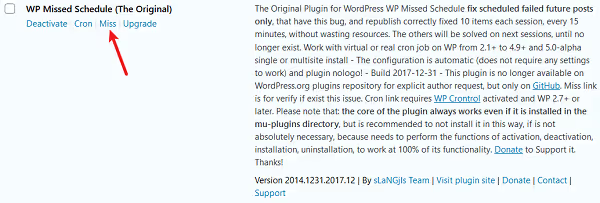
For comparison, the old WP Missed Schedule (removed from the WordPress.org directory in 2017, and the GitHub version contained a backdoor) looked like this in the admin panel. If you happen to see this plugin in your installed list, delete it immediately and replace it with Missed Schedule Post Publisher.
Method 2: server cron instead of WP-Cron, a radical solution
This method is more technical but offers 100 percent reliability: you disable WP-Cron and attach the call to wp-cron.php to the server's system cron.
System cron runs on the operating system's schedule, regardless of site traffic. If you set a 5-minute interval, the task executes in exactly 5 minutes, even if the site has zero visitors.
What you need to do:
- Open
wp-config.phpand add the following line before/* That's all, stop editing! */:
1 define('DISABLE_WP_CRON', true);
This prevents WordPress from running cron tasks on visitor hits. The tasks themselves do not disappear; they remain in the database and wait for an external call.
- In your hosting panel, find the "Cron Jobs" section (cPanel → Cron Jobs, ISPmanager → Scheduler, or equivalent). Create a task with a 5- to 10-minute interval and this command:
1 wget -q -O - https://your-site.com/wp-cron.php?doing_wp_cron > /dev/null 2>&1
If the server supports PHP CLI, here is an alternative that is faster and does not load the web server:
1 php /home/username/public_html/wp-cron.php
- Save the task. After 10 minutes, check the cron logs; if there are no errors, the system is working.
Bonus: disabling WP-Cron via DISABLE_WP_CRON removes the parasitic delay during page loads for visitors. WordPress no longer triggers cron tasks during normal browsing, so pages open a bit faster.
This method has one downside: access to cron settings is not available on all hosts. Cheap shared hosting sometimes blocks cron task creation. In that case, fall back to method 1; Missed Schedule Post Publisher was designed precisely for such limitations and works without system cron.
Method 3: manual inspection via WP Crontrol, full control
The third method is for those who want to see everything happening under the hood. WP Crontrol is a cron event manager right in the admin panel. It does not publish posts on its own but shows which tasks are scheduled, when they were supposed to fire, and what went wrong.
What WP Crontrol provides:
A complete list of all cron events with hook, arguments, and next run time
The ability to run any event immediately with a single click
Editing and deleting cron events
Adding new events and custom schedules
A warning if the cron system is not working (the server cannot connect to itself)
After installation, go to Tools → Cron Events. You will see a table of all tasks. If a post is "stuck," find the event with the hook publish_future_post, click "Run Now," and the post will appear in the feed within a second.
WP Crontrol is especially useful for debugging: you can see whether a plugin created hundreds of extra cron events (it happens), whether the task queue is clogged, or whether there is a conflict between plugins. The "Next Run" column shows when the event should fire next; if the date is in the past, the task is stuck. The "Recurrence" column indicates how often the event repeats; unusually frequent repeats (every minute) almost always point to a problematic plugin.
By itself, however, WP Crontrol does not prevent the "Missed schedule" error; it only helps diagnose and manually close the consequences. After you manually run a stuck publication, the post goes live instantly, but the situation will repeat next time unless you address the cause at the level of method 1 or 2.
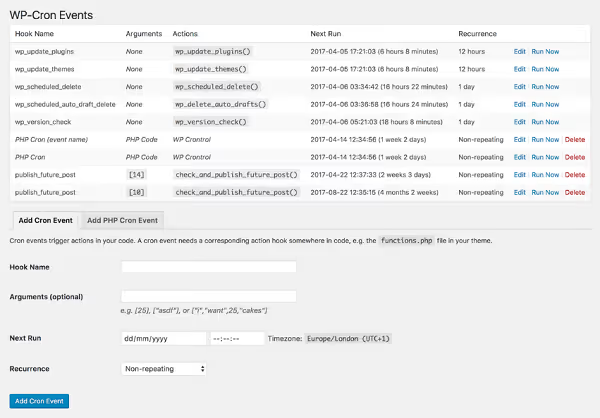
Best combination: method 1 (auto-publish plugin) + method 3 (WP Crontrol for oversight). The auto-publisher handles missed posts, and WP Crontrol lets you verify at a glance that the cron queue is clean and everything is running normally.
⁉️🤔 Frequently asked questions
Why doesn't WordPress use a normal cron like every other normal system?
WordPress developers deliberately chose the pseudo-cron model because it requires no server-side configuration. A user installs WordPress on any hosting, and scheduled publishing works out of the box without SSH or config edits. The price of that convenience is unreliability on low-traffic sites. WP-Cron runs on every request to the site, and if there are no requests at the right moment, the task does not execute. This is an architectural tradeoff, and for time-critical posts it is not enough.
Which method should I choose if I don't understand servers?
Missed Schedule Post Publisher (method 1). Installation takes two minutes through the admin panel; configuration means selecting an interval from a dropdown. No code, no SSH, no edits to
wp-config.php. The plugin detects on its own whether WP-Cron is enabled on the server and adapts.
Could the error be related to the WordPress time zone?
Yes, and check this first. Go to Settings → General → Timezone and make sure you have selected the correct city time zone rather than a manual UTC offset. A UTC+X offset does not account for daylight saving time; twice a year the schedule "drifts" by an hour, and posts publish at unexpected times.
Does caching affect missed posts?
Directly, yes. Caching plugins (WP Rocket, W3 Total Cache, WP Super Cache) and CDNs (Cloudflare) can serve visitors a finished HTML page without launching the WordPress PHP core at all. If WP-Cron is not called, tasks do not execute. Missed Schedule Post Publisher (method 1) bypasses this problem by working both via cron and via visitor hits that bypass the cache. Server cron (method 2) is not affected by caching at all.
What should I do if my host blocks the ability to create cron tasks?
Use method 1: Missed Schedule Post Publisher. It was designed for exactly this situation; it works via the built-in WP-Cron, and if that is disabled, it automatically switches to checking on visitor hits. You do not lose functionality; the check simply happens a bit less frequently (on visits rather than strictly on a timer).
What to install today
The "Missed schedule" problem is not fixed by manual rescheduling; that is like painting over a crack in a pipe. You need either an auto-publish plugin (two minutes, then forget about it) or server cron (a bit longer, then forget about it forever).
If you have a typical blog or company site on average hosting, start with Missed Schedule Post Publisher. Set a 10-minute interval, five clicks in the admin panel, and the issue is closed. If you want infrastructure-level guarantees, set up system cron. Add WP Crontrol for oversight, and you will only remember missed posts in conversations about "how things used to be."
A day after installation, go into the admin panel and check the nearest scheduled post. If it went live on time, the system is working. If not, open WP Crontrol and see whether the publish_future_post task is hanging without executing; that points to a deeper cron problem on the server, which method 2 will solve.

A professional team of writers and editors specializing in creating quality content.