














🚀 How to speed up WordPress with WP Rocket: caching, CSS and media optimization
Your WordPress site takes 4 seconds to load. You checked the hosting, the plan is solid. Minimal theme, only essential plugins. Yet Google PageSpeed still shows yellow or even red. Sound familiar?
The problem is almost always the same: every plugin drags in its own CSS and JS files, every image loads in full, and the database gets hit on every visit, even if the page hasn't changed in months. Manually optimizing this mess takes hours and requires developer skills.
WP Rocket solves these problems automatically. According to the developer, over 80% of web performance best practices are applied immediately upon activation, with no code changes required. And fine-tuning three key sections delivers even greater gains. Let's break it down step by step, with numbers, screenshots, and clear explanations.
💡 Quick overview:
- Activate WP Rocket, caching kicks in instantly, your site speeds up without a single setting change
- Enable CSS/JS minification and concatenation, fewer files that weigh less
- Set up lazy loading for media, images and videos only load when the visitor scrolls to them
- Go through additional settings, disable unnecessary emojis and embeds, configure preloading
1. Caching: the foundation of speed
WP Rocket enables caching immediately upon activation. Literally: click "Activate," and your site already loads faster, even if you never look at the settings again.
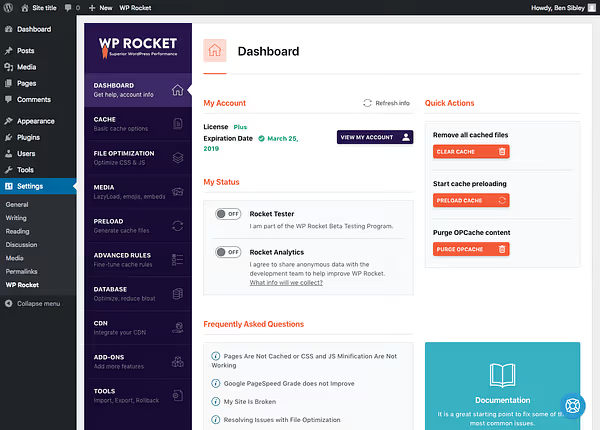
How caching works
Without caching, every page visit triggers a chain: database query → on-the-fly HTML assembly → delivery to the visitor. Ten visitors means ten such chains. A hundred means a hundred.
With caching, the first assembly is saved as a ready-made HTML file, and all subsequent visitors receive it instantly, with no database calls. It's like keeping a document on your desk instead of walking to the cabinet every time.
The result: no matter how many CSS and JS files your site loads, caching delivers them all much faster.
Configuring the cache
Changing anything for caching to work is optional; it works out of the box. But checking the settings is worthwhile: you can enable caching for logged-in users (useful for membership sites and online stores) and separately, caching for SSL (essential if your site uses HTTPS).
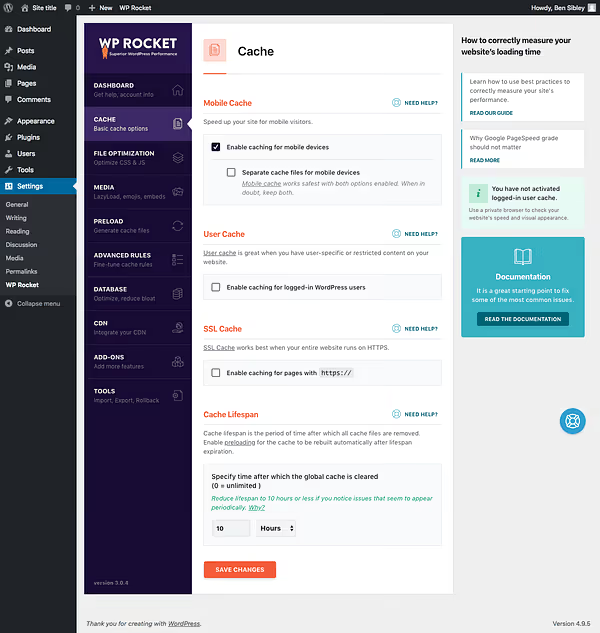
Key takeaway: for basic acceleration, simply activating the plugin is enough. Everything else builds on top of this working foundation.
2. File optimization: smaller and lighter
The second most important section is "File Optimization." Here you reduce both the number of loaded files and the size of each one. The effect stacks with caching and often delivers the most noticeable improvement in metrics.
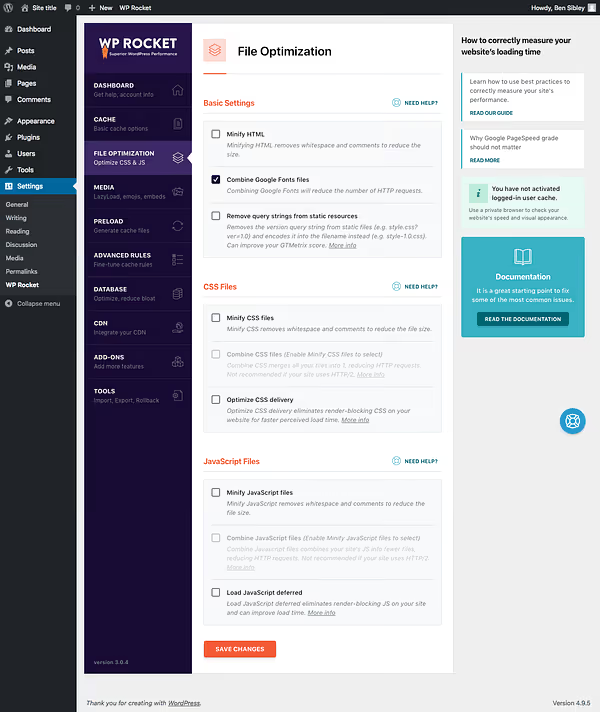
Minification: removing the excess
Developers write code with indentation, comments, and formatting so humans can read it easily. Browsers don't need these embellishments. Minification strips out whitespace, line breaks, and comments, compressing files by a quarter or even a third without losing functionality.
Enable HTML minification, and your page's source code becomes compact:
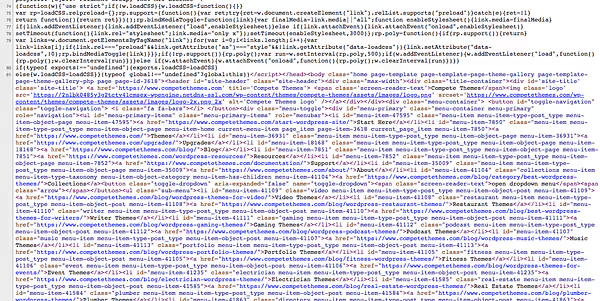
Minification rarely breaks anything and delivers a quick, measurable improvement; it's the ideal first step after caching.
Concatenation: combining files
Five plugins, each with its own stylesheet, means five separate HTTP requests to the server. Concatenation (or "combining") merges these files into one. One request instead of five, and the page assembles faster.
Worth noting separately is the option to combine Google Fonts files. Most WordPress themes use at least one or two fonts from there, and combining their loading into a single request also improves performance.
The rule is simple: minification reduces each file's size, concatenation reduces the number of files. Fewer files × smaller size = faster loading.
CSS: organizing your styles
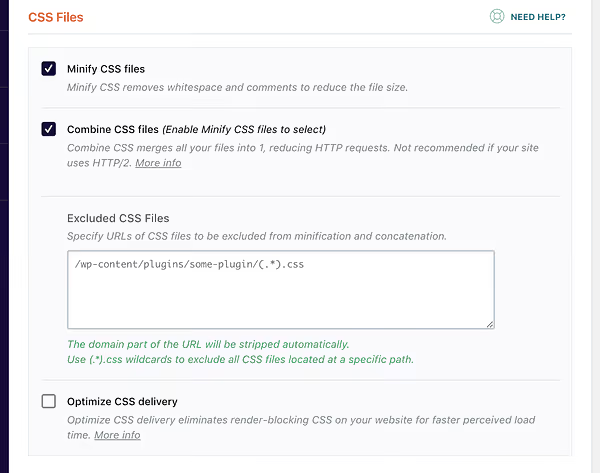
Enable CSS minification for a small but consistent improvement. Then enable CSS file combining, and the plugin merges styles from all plugins and your theme into a minimal number of files.
Sometimes aggressive CSS combining can cause visual glitches: shifted blocks, broken margins. This happens rarely, but if it does, simply disable the option. All settings are reversible.
JavaScript: careful but effective
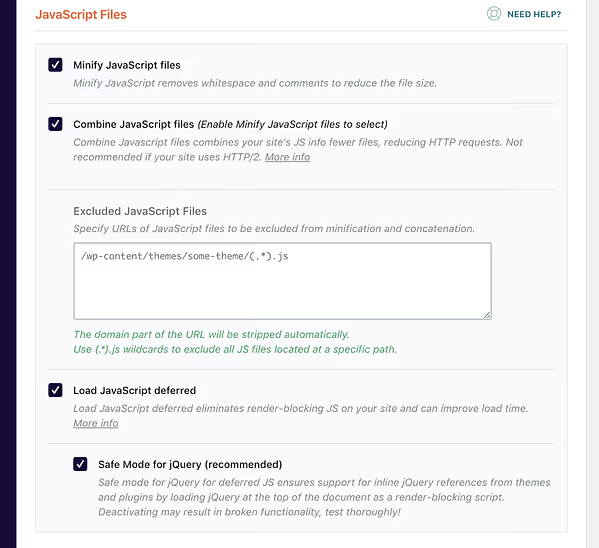
JS files follow the same logic: minification → combining → deferred loading. But caution is needed here. JS combining sometimes breaks frontend functionality: share buttons stop working, mobile menus malfunction, or forms break.
Algorithm for safe configuration:
- Enable JS minification and combining
- Clear the WP Rocket cache
- Browse your site: open several pages and posts, test the mobile menu, social buttons, forms
- Something broke → disable the problematic option
- Everything works → done
The "deferred JavaScript loading" option (Defer JS) allows the page to render visually before all scripts fully load. This improves perceived speed, as visitors see content sooner. But after enabling it, be sure to test your site again: deferred scripts sometimes break interactive elements.
I should also mention safe mode for jQuery; the checkbox is enabled by default. Unchecking it provides a microscopic gain but almost guarantees breaking some functionality. Leave it as is.
3. Media optimization: smart loading for images and video
Images are typically the heaviest assets on a page. WP Rocket handles them so well that visitors don't even notice.
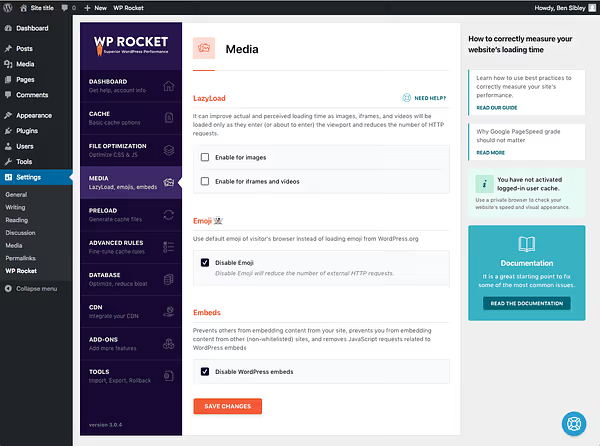
Lazy loading images
Imagine a blog homepage with ten posts, each containing an image. A visitor opens the site and sees only the first post. Why load all ten images if most readers leave after the third or fourth?
Lazy loading watches for scrolling and loads an image only when the visitor approaches it. The result: initial page load is much faster, plus you save hosting bandwidth.
But there's a nuance: on pages with very large images, lazy load can be annoying. You scroll quickly, but the image hasn't loaded yet, so you have to wait. For such cases, WP Rocket lets you selectively disable lazy loading for specific images.
Video, iframes, and YouTube
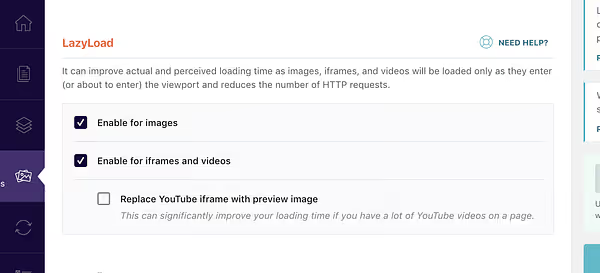
Enable lazy loading for video and iframes, and embedded videos from YouTube and Vimeo won't load until scrolled into view. The "replace with YouTube preview" option shows a static thumbnail instead of the player until the user clicks "Play." For pages with multiple videos, the bandwidth savings are enormous.
Emojis and embeds: disabling the unnecessary
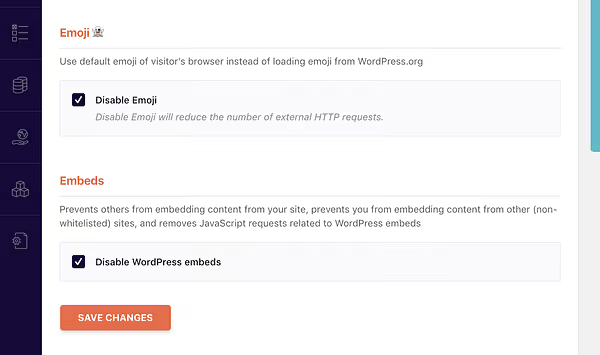
WordPress loads a small JS file by default for emoji support and another one for content embedding (oEmbed). If you don't use emojis in your content (or use system ones), disable this. That's two fewer requests.
I recommend everyone disable embeds: this is when you paste a link in the editor and WordPress turns it into a preview window, like with tweets. In practice, this is more annoying than helpful. Important: disabling this option does not affect YouTube and Vimeo video embedding.
What else WP Rocket can do
Beyond the three main sections, there are several useful but optional tools:
- Preload: WP Rocket scans your sitemap and generates cache for all pages in advance. Visitors always receive a ready, fast version, even if no one has visited the page since the last cache clear.
- Advanced caching rules: fine-grained control over which URLs to exclude from caching and which cookies to ignore. For complex sites with dynamic content.
- Database cleanup: removes post revisions, spam comments, and transient options. Useful hygiene, though only indirectly related to frontend loading speed.
- CDN: integration with content delivery networks (including their own RocketCDN). Content is served from servers geographically closest to the visitor.
These tools aren't required for basic acceleration, but they provide noticeable additional gains for large and high-traffic projects.
In the video above, you'll find a detailed step-by-step walkthrough of all WP Rocket settings with a live interface demonstration and speed measurements before and after.
⁉️🤔 Frequently asked questions
How much does WP Rocket cost?
A Single license for one site is €59 per year, Plus for three sites is €119 per year, and Multi for up to 50 sites is €299 per year; current prices are on the official page. All plans include the full feature set, support, and updates for one year. Also included is free Rocket Insights for performance monitoring.
Do I need programming skills to configure it?
No. WP Rocket automatically applies over 80% of web performance best practices upon activation, without a single line of code; this is stated by the developer. The interface is available in Russian (or English), and all settings are toggled with checkboxes. Developer skills are not required for fine-tuning.
Can I use WP Rocket on client sites?
Yes, the Multi license (up to 50 sites) is designed for this. However, if you provide hosting services, you'll need a reseller program for clients; the standard license doesn't cover that. An affiliate program is available for promoting the plugin.
Can WP Rocket break something on my site?
Certain options (JS combining, aggressive CSS minification) occasionally cause visual bugs or break interactive elements. All settings are reversible: disable the problematic option, and your site returns to its original state. That's why you should test changes on your live site after clearing the cache.
How is WP Rocket different from free caching plugins?
The main difference is comprehensiveness. Free solutions like W3 Total Cache or WP Super Cache require manual configuration of dozens of parameters and easily break sites with incorrect settings. WP Rocket does the same thing automatically, plus provides tools that free alternatives lack: lazy loading, deferred JS loading, unused CSS removal, built-in CDN. For most users, the difference is between hours of manual work and a single "Activate" button.
Is WP Rocket worth buying in 2026?

If you have a WordPress site and want to speed it up without diving into the depths of server optimization, the short answer is: yes. WP Rocket remains the most user-friendly and effective caching plugin on the market: automatic application of best practices, an intuitive interface, and excellent support meet the needs of both beginner blogs and high-traffic projects.
The price of €59 per year for one site (current plans on the website) pays for itself through the time you'd spend manually configuring free alternatives and the frustration when something goes wrong.
The basic scenario for maximum effect: install → caching works → enable CSS/JS minification and combining → set up lazy loading for media → disable unnecessary emojis and embeds → periodically clean up the database. Fifteen minutes, and your site loads dramatically faster.

A professional team of writers and editors specializing in creating quality content.