













⚙️ How to fix the "The uploaded file exceeds the upload_max_filesize directive" error in php.ini
You upload a theme, plugin, or image to the WordPress media library and see a red line: "The uploaded file exceeds the upload_max_filesize directive in php.ini." The file is 10 megabytes, and WordPress won't accept it. A familiar situation for anyone who administers a website.
The problem isn't WordPress or your file. Hosting providers limit upload file sizes at the PHP level, and the standard 2-megabyte limit hasn't changed in years. You can raise it in five minutes using any of the five methods below, from simplest to more advanced.
💡 Quick overview:
- Increase the limit through wp-config.php with a single
ini_setcall, works on most hosts - Change settings in cPanel through MultiPHP INI Editor if your host uses cPanel
- Create or edit php.ini via FTP, a method that works regardless of the control panel
- Add directives to.htaccess when you don't have access to php.ini
- As a last resort, add
@ini_setin your child theme's functions.php
Where the upload_max_filesize limit comes from
The upload_max_filesize directive lives in the php.ini configuration file, the main PHP settings file on your server. It determines the maximum size of a single uploaded file. The default value is 2 megabytes, which is enough for small images, but a WordPress theme or video won't fit within that limit.
Two other directives work alongside it: post_max_size (total POST request size, default 8 MB) and memory_limit (memory available to the script, default 128 MB). All three are connected: if you raise upload_max_filesize, verify that post_max_size is not less than the new value, otherwise the restriction will remain at the previous level.
You can check current limits directly from the WordPress admin panel: go to Media → Add New and look at the line below the upload area, which shows the maximum size. Alternatively, install the PHP Info plugin and find the relevant directives in the phpinfo() output.
1. Increase the limit through wp-config.php
The fastest method that works on most shared hosting. The wp-config.php file is located in the site's root folder and loads before any WordPress code executes, so ini_set directives in it take priority.
Connect to the server via an FTP client (FileZilla, a free and reliable option) or open File Manager in your hosting control panel. Find wp-config.php in the root folder (usually public_html):
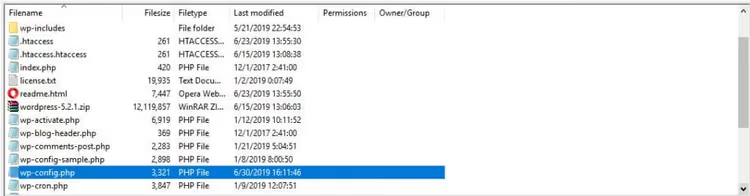
Add the following lines at the end of the file, before the comment /* That's all, stop editing! */:
1 @ini_set('upload_max_filesize', '64M'); 2 @ini_set('post_max_size', '80M'); 3 @ini_set('memory_limit', '256M'); 4 @ini_set('max_execution_time', '300');
Save the file and refresh the WordPress media library page. The upload limit should change to 64 megabytes. If the number hasn't changed, the hosting provider has blocked ini_set, so move on to the next method.
2. Change settings through MultiPHP INI Editor in cPanel
If your host uses cPanel, the built-in MultiPHP INI Editor lets you change PHP settings without manually editing files. It automatically applies values to the selected site and overwrites hosting defaults.
Log into cPanel and find the Software → MultiPHP INI Editor section:
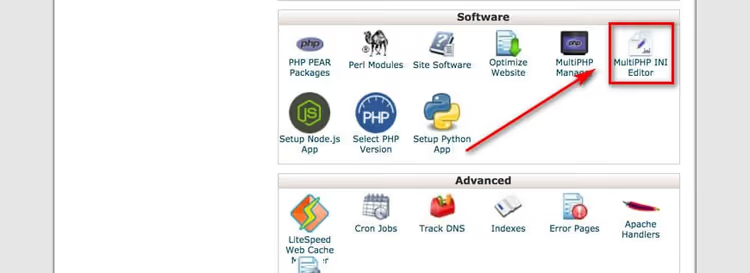
Select the desired site from the dropdown at the top of the page. Scroll down to the upload_max_filesize directive and enter the new value (for example, 64M). Below that, find post_max_size and set it slightly higher, 80M. Click Apply. Changes take effect immediately.
This method is preferable to the first one: cPanel handles syntax automatically, and settings don't reset after WordPress updates.
3. Edit php.ini via FTP
If you don't have access to cPanel or your host doesn't support MultiPHP INI Editor, work directly with the php.ini file. It controls all PHP settings, and modifying it is the most reliable way to raise limits.
Connect to the server via FTP and navigate to the site's root folder. Find the php.ini file. If it doesn't exist (user php.ini is often absent on shared hosting), create a new text file with that name:
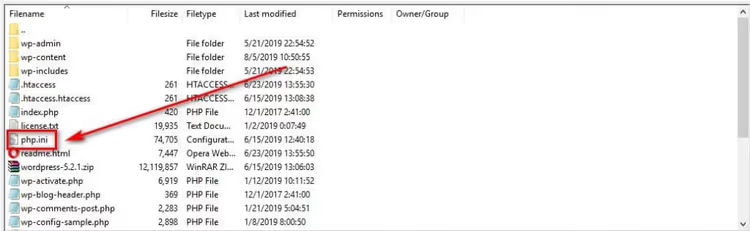
Add the following directives to the file:
1 upload_max_filesize = 64M 2 post_max_size = 80M 3 memory_limit = 256M 4 file_uploads = On 5 max_execution_time = 300 6 max_input_time = 300
Save the file. For changes to take effect, some hosting providers require a suPHP directive in the .htaccess file. Add this block to .htaccess:
1 <IfModule mod_suphp.c> 2 suPHP_ConfigPath /home/yourusername/public_html 3 </IfModule>
Replace yourusername with your hosting account username. If the site crashes with an error after adding this block, remove it: your server runs on CGI and doesn't require suPHP.
On local servers, the path to php.ini depends on the platform: XAMPP (Windows): C:\xampp\php\php.ini; MAMP (macOS): /Applications/MAMP/conf/php/php.ini; LAMP (Linux): /etc/php/version/apache2/php.ini. After editing, restart the web server.
4. Add directives to.htaccess
When the hosting provider has blocked access to php.ini and ini_set doesn't work, the last line of defense at the server level is the .htaccess file. It allows you to set PHP settings for a specific site folder using php_value directives.
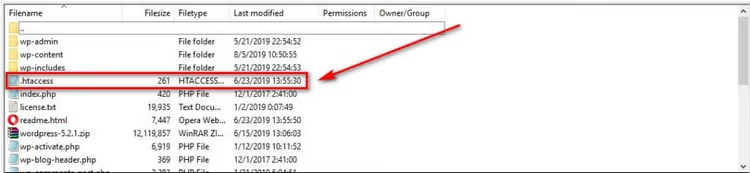
Connect via FTP and find .htaccess in the root folder. Download a backup copy to your computer (required!). Then add the following lines at the end of the file:
1 php_value upload_max_filesize 64M 2 php_value post_max_size 80M 3 php_value memory_limit 256M 4 php_value max_execution_time 300 5 php_value max_input_time 300
Save .htaccess and refresh the site. If a 500 Internal Server Error appears instead of the site, your server runs on CGI, and the php_value directive in .htaccess is not supported. Delete the added lines to restore the site and use method 3 (creating php.ini).
We covered the 500 error and its variant 502 in detail in our guide to fixing WordPress server errors.
5. Add @ini_set in your theme's functions.php
This method is for situations when all previous methods are unavailable or you want to keep settings in the theme repository. Add the code to your child theme's functions.php file, which executes with every request and overrides limits on the fly.
1 @ini_set('upload_max_filesize', '64M'); 2 @ini_set('post_max_size', '80M'); 3 @ini_set('memory_limit', '256M'); 4 @ini_set('max_execution_time', '300');
Place the code at the end of functions.php, but before the closing ?> (if present). Use a child theme: when the parent theme updates, edits in the main theme's functions.php get reset, while a child theme survives updates without losses.
After adding the code, check the limit in the WordPress media library. Note that on some hosts, ini_set for upload_max_filesize is blocked at the PHP level (the PHP_INI_SYSTEM directive doesn't allow changing the value at runtime). In that case, @ini_set will be silently ignored, and you need method 3 or 4.
Why the limit didn't change: diagnostics
Followed all instructions but the limit stayed the same? Go through this checklist:
post_max_sizeis less than the newupload_max_filesize. This is the most common cause:post_max_sizemust be at least equal to, and preferably 20-30% larger than,upload_max_filesize: the PHP documentation explicitly requirespost_max_size≥upload_max_filesize. Batch uploads of multiple files and form fields count towardpost_max_size.- The file was created in the wrong folder. PHP looks for
php.iniin the script directory, then moves up the tree to the server root. Placephp.iniin the site root (public_html), not in a subfolder. - PHP cache (OPcache) stores the old configuration. Some servers cache
php.ini. Restart PHP through the hosting panel or wait 5-10 minutes for the cache to invalidate. - The server runs CGI/FastCGI and ignores
.htaccess. Change your approach: usephp.ini(method 3) oruser.inifor FastCGI. - The hosting provider has locked the limit. On ultra-cheap plans, the upload limit is fixed and cannot be changed by any method except upgrading your plan.
If none of these points helped, contact hosting support. Provide your domain, the method you used to change the limit, and ask them to verify whether overriding upload_max_filesize is allowed on your plan.
Video tutorial
Watch the step-by-step process of fixing this error from diagnostics to final verification in this video:
⁉️🤔 Frequently asked questions
What upload_max_filesize value should I choose?
For most sites, 64 MB is sufficient, covering uploads of themes, plugins, and high-resolution images. If you work with video files or large ZIP archives through the admin panel, set it to 128-256 MB. Don't chase gigabytes without reason: the higher the limit, the more memory the server reserves for each upload request.
Can I upload a file bypassing the limit?
Yes, via FTP. An FTP client connects to the server directly and doesn't go through the PHP handler, so
upload_max_filesizelimits don't apply to it. Upload the file towp-content/uploadsvia FTP, then register it in the WordPress media library using the Add From Server plugin.
What's the difference between upload_max_filesize and post_max_size?
upload_max_filesizeis the maximum size of a single file in an upload.post_max_sizeis the total size of the entire POST request, including all files, form fields, and service headers. If you're uploading three 20 MB files,upload_max_filesizeshould be ≥ 20 MB, whilepost_max_sizeshould be ≥ 60 MB plus some buffer for the form. That's whypost_max_sizeis always set higher thanupload_max_filesize.
Why do limits reset after WordPress updates?
WordPress doesn't touch PHP server settings during updates, but if you edited
wp-config.phpor the main theme'sfunctions.php, core/theme updates may have overwritten those files. Always keep custom PHP settings inphp.ini, cPanel MultiPHP INI Editor, or a child theme: these locations are not affected by updates.
Do I need to restart the server after changing php.ini?
For shared hosting and cPanel, no: changes apply automatically within a few minutes. For VPS and dedicated servers with PHP-FPM, restart the service:
sudo systemctl restart php-fpm(orphp8.3-fpm, depending on the version). Apache with mod_php usually picks up changes without a restart.
What to do if the limit still won't increase
The five methods above cover virtually any hosting scenario. From basic wp-config.php to child theme functions.php, you've gone through the entire chain. If after honestly executing each step and running diagnostics the limit remains unchanged, the cause is a strict hosting provider policy, and you can't work around it without changing plans or hosts.
Contact support and directly ask whether overriding upload_max_filesize is allowed on your plan. An answer of "no" is reason to consider moving to a VPS or a more flexible shared plan where you control PHP settings without regard for server neighbors. In the meantime, upload large files via FTP: there are no size restrictions there, and Add From Server will hook them into the media library.

A professional team of writers and editors specializing in creating quality content.