














🔧 How to fix the HTTP error in WordPress: a complete guide
You're uploading an image to the WordPress media library, and instead of a preview you see a red banner saying "HTTP error." No error code, no log entry, no hint about the cause.
This is one of the most frustrating WordPress errors precisely because it tells you nothing. You don't know where to look: plugins, server memory, the file itself, or browser cache. But the problem isn't unique, and the community has found working methods over the years, ranging from quick fixes to server-level solutions. We've compiled them into one guide: each method with specific steps, code, and screenshots.
💡 Quick overview:
- Rename the file using lowercase Latin letters with hyphens and upload again
- Clear your browser cache or open the admin panel in incognito mode
- Increase the PHP memory limit to 256M via wp-config.php
- Temporarily disable all plugins and switch to a default theme
- Switch the image processing library from Imagick to GD Library
What is the HTTP error in WordPress
The HTTP error when uploading media files is a generic message WordPress uses instead of a meaningful problem description. Unlike the white screen of death or a database connection error, an upload failure doesn't leave an entry in the PHP log.
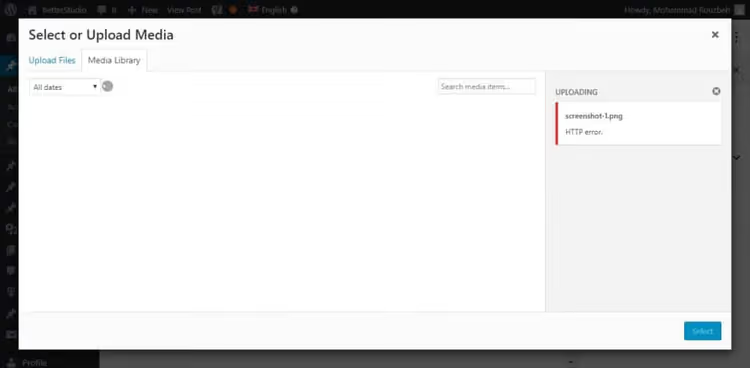
Most often the error occurs when uploading images through the standard uploader, less frequently with video or other file types. There can be dozens of causes: from a dropped browser connection to insufficient server RAM and PHP library conflicts.
The main difficulty is the lack of logs. You only see "HTTP error" and have to try methods one by one. Below they're arranged from simple and safe to more advanced, so you don't waste extra time.
1. Quick basic fixes
Start with the simplest options. These four steps don't require access to site files and resolve a significant portion of cases.
Refresh the page or switch browsers
A dropped connection between browser and server, a brief load spike, or an expired WordPress session can all be fixed by refreshing the page. If the error persists after pressing F5, open the admin panel in incognito mode (Ctrl+Shift+N in Chrome) or in a different browser. Extensions, outdated cache, or an old browser version sometimes interfere with the upload process.

Rename the image file
WordPress doesn't like duplicates. If a file with the same name already exists in the media library, the CMS adds a sequential number to the new one, but sometimes this mechanism fails. Solution: rename the file on your computer before uploading. Use lowercase Latin letters and hyphens instead of spaces, for example site-banner-02.jpg instead of Site Banner 02.JPG. Special characters, Cyrillic in filenames, and excessively long names can also trigger the error.
Reduce the file size
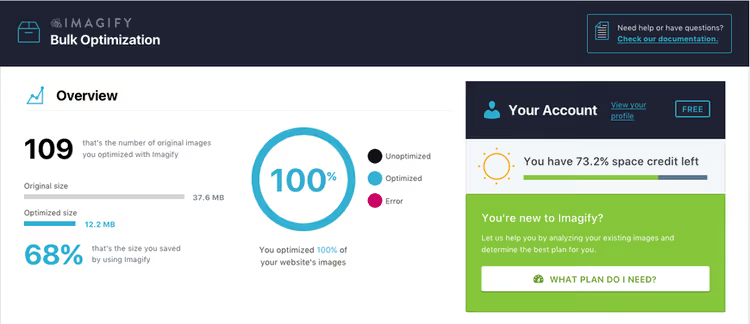
Compressing the image often resolves the issue, especially on budget hosting with limited memory. If the image is larger than 2-3 MB, run it through a compressor before uploading. For regular work, keep the Imagify plugin installed. It automatically compresses images on upload without noticeable quality loss.
Change the image format
WordPress reacts poorly to certain formats: WebP on older PHP versions, HEIC from mobile devices. Convert the file to a proven JPEG or PNG and try again. The difference between "WebP won't upload" and "JPG uploads fine" immediately points to the problem.
2. Clearing browser cache
Browser cache stores copies of pages and scripts to speed up loading, but sometimes these copies conflict with the new version of the WordPress admin panel. The result: you click "Upload," the browser uses an old script, and the server responds with an error.
The quick method for a specific page is a hard refresh: Ctrl+F5 on Windows/Linux, Cmd+Shift+R on macOS. If that didn't help, clear the cache completely. Below are step-by-step instructions for each browser.
Browser | Quick clear | Full clear |
|---|---|---|
Chrome | Ctrl+F5 | Ctrl+Shift+Del |
Firefox | Ctrl+F5 | Ctrl+Shift+Del |
Safari | Cmd+Shift+R | Cmd+Alt+E (Develop menu) |
Edge | Ctrl+F5 | Ctrl+Shift+Del |
Opera | Ctrl+F5 | Ctrl+Shift+Del |
Google Chrome
In the top right corner, click the three-dot icon (⋮). Select "Delete browsing data" or press Ctrl+Shift+Del directly.

In the "Basic" tab, check "Cached images and files" and nothing else if you don't want to lose passwords and history. Select the time range "All time" and click "Delete data."

Mozilla Firefox
Click the three-line icon (≡) in the top right corner. Select "Library," then "History."

In the submenu that opens, click "Clear Recent History."

In the window that appears, select the time range "Everything."

In the dropdown, select "Everything," check only "Cache," and click "OK."

Safari
Open Safari → "Settings" → "Advanced" tab. Enable the option "Show Develop menu in menu bar."

In the Develop menu that appears, click "Empty Caches."
Microsoft Edge
Click the three dots (…) in the top right corner and select "Settings."

In the "Privacy, search, and services" section, find the "Clear browsing data" block and click "Choose what to clear."
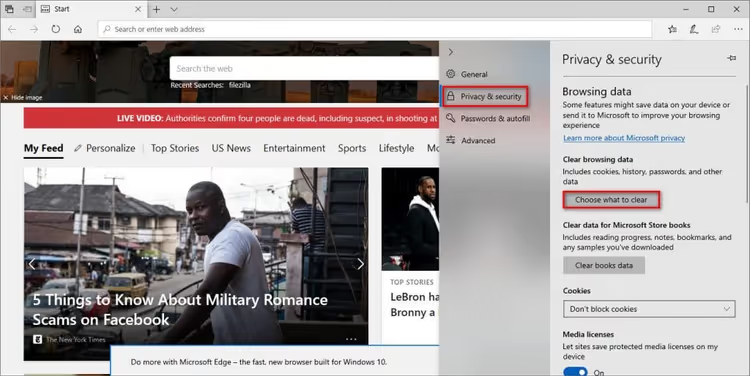
Check "Cached images and files" and click "Clear now."

Opera
Click the Opera icon (O) in the top left corner. Select "Additional tools" → "Clear browsing history."

Select the range "All time," check "Cached images and files," and click "Clear data."
3. Disabling plugins and theme
Extension conflicts are a common cause of HTTP error. Security plugins and image optimization plugins are the most suspicious: they intercept the upload process and can block it by mistake.

The fastest diagnostic method: access the server via FTP and rename the /wp-content/plugins/ folder (for example, to plugins_old). WordPress will automatically disable all plugins. If the error disappears, restore plugins one by one, testing the upload each time, until you find the culprit. Do the same with the theme folder: temporarily switch to a default theme (Twenty Twenty-Five or whichever is current when you're reading this).
If you don't want to touch the live site, run diagnostics on a staging copy and only disable the problematic plugin on production.
4. Server settings
If quick methods didn't produce results, the problem is server-side. You'll need access to site files: via FTP, hosting file manager, or SSH.
Increase PHP memory limit
Insufficient PHP memory is perhaps the most common cause of HTTP error when uploading media files. The standard 128 MB that most hosts set is easily consumed when processing a large image.

Add this line to wp-config.php before the comment /* That's all, stop editing! */:
1 define('WP_MEMORY_LIMIT', '256M');
If you don't have access to wp-config.php (some shared hosts restrict it), look for the "PHP version" section in your control panel. There's usually a memory_limit setting there. Set it to 256M without editing files.
Alternative methods: via php.ini (memory_limit = 256M), via .htaccess (php_value memory_limit 256M), or in cPanel via MultiPHP INI Editor.
Update PHP version
WordPress in 2026 recommends PHP 8.3 as the optimal version, with 8.2 as the minimum. If your site runs on PHP 7.4 or older, errors during image processing are just one symptom. In cPanel, updating is done in the "Select PHP Version" section. Before updating, make sure your theme and plugins are compatible, and create a backup.
Check upload folder permissions

The /wp-content/uploads/ folder should have 755 permissions for directories and 644 for files. Via FTP client: right-click the folder → "Permissions" → set 755 and enable "Apply to directories only" with recursive subdirectory traversal.

Permissions that are too strict (below 755) block writing, while permissions that are too loose (777) create a security hole.
Temporarily disable mod_security
ModSecurity is a web application firewall at the Apache server level that sometimes falsely triggers on harmless media file upload requests. Temporarily disabling the module will show whether it's the cause.
Add to .htaccess:
1 <IfModule mod_security.c> 2 SecFilterEngine Off 3 SecFilterScanPOST Off 4 </IfModule>
Or via cPanel: "Security" section → "ModSecurity" → disable for the domain. After testing, be sure to re-enable it. The firewall protects your site from real attacks.
Switch image library from Imagick to GD Library
WordPress uses one of two PHP modules for image processing: Imagick or GD Library. Imagick is more powerful, but on budget hosting it lacks memory, and uploads fail with HTTP error. GD Library has fewer features but is more stable on weaker servers.
Add this code to the functions.php of your active theme:
1 function wpb_image_editor_default_to_gd($editors) { 2 $gd_editor = 'WP_Image_Editor_GD'; 3 $editors = array_diff($editors, array($gd_editor)); 4 array_unshift($editors, $gd_editor); 5 return $editors; 6 } 7 add_filter('wp_image_editors', 'wpb_image_editor_default_to_gd');
If it didn't help, remove the code from functions.php.
Limit Imagick to single-threaded processing
An alternative to completely disabling Imagick is limiting it to one thread so the module doesn't process multiple images simultaneously:
1 SetEnv MAGICK_THREAD_LIMIT 1
Add this line to .htaccess in the site root. This reduces memory load and often solves the problem without losing Imagick's capabilities.
5. Additional methods
Reset custom media library path
Go to the admin panel: "Settings" → "Media." If there's a non-standard path in the "Full path to files" field, delete it and leave the field empty. WordPress should store uploads strictly in wp-content/uploads. A custom path isn't recognized by the hosting provider and leads to errors.
Import files via Add From Server Reloaded
When the media library uploader doesn't work and you need to publish a post urgently, upload files to the server via FTP to the /wp-content/uploads/ folder and use the Add From Server Reloaded plugin. It scans the folder and imports files into the media library, bypassing the standard uploader. It supports modern PHP versions and is actively updated (unlike the original Add From Server, which hasn't received updates since 2020).
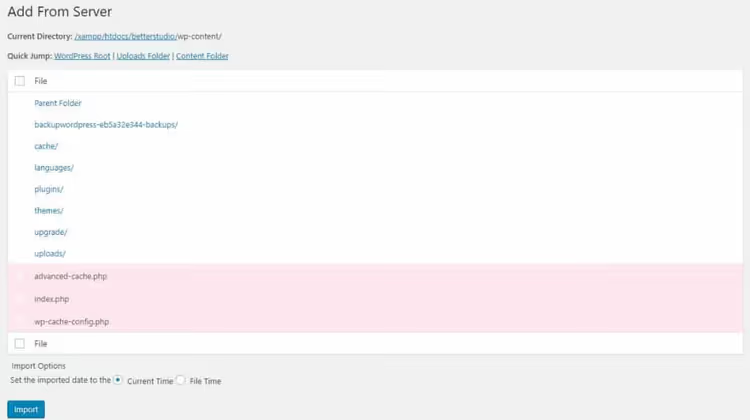
This is a temporary workaround. If HTTP error keeps recurring, return to the server settings in section 4.
Video: step-by-step error fix
Watch a visual demonstration of methods from quick fixes to server-level solutions:
⁉️🤔 Frequently asked questions
Why does WordPress show "HTTP error" without details?
That's how it evolved historically. Unlike the white screen of death or database connection error, a media file upload failure doesn't generate an entry in the PHP log. WordPress doesn't know what exactly went wrong: a dropped connection, script timeout, or memory shortage all look the same to it. Hence the generic "HTTP error" instead of a meaningful message.
Can I just restart the server?
If you have a VPS or dedicated server, yes, restarting Apache/Nginx or
php-fpmsometimes helps, especially when processes hung and consumed all memory. On shared hosting, self-service restart isn't available: contact support and ask them to check the load on your account.
Will changing hosts help?
If you've tried all methods in this article and the error keeps returning regularly with different images, your hosting is probably overloaded and your account doesn't have enough allocated resources. Moving to a more powerful plan or a different provider (for example, from 256 MB to 512 MB PHP memory) often eliminates the problem completely.
Is it safe to disable mod_security?
For 10-15 minutes of diagnostics, yes. But don't leave it disabled permanently: mod_security protects your site from SQL injections, XSS, and other common attacks. If you've determined that it's the culprit, ask your hosting provider to add an exception for the specific rule rather than disabling the module entirely.
Where should I start if the error just appeared on a working site?
First, try incognito mode or a different browser. If that didn't help, rename the file and upload again. If the error persists, think about whether you recently installed a new plugin and disable it. In our experience, most cases are resolved in the first three steps without diving into server settings.
What to do if nothing helped
You've gone through all the methods, but WordPress stubbornly refuses to accept files. This doesn't mean you did something wrong. Most often the cause is a combination of factors: weak hosting plus a heavy theme plus several plugins, each eating up a bit of PHP memory.
Course of action: enable WordPress debug mode by adding this to wp-config.php:
1 define('WP_DEBUG', true); 2 define('WP_DEBUG_LOG', true);
Try uploading a file again and check the log at /wp-content/debug.log. You might find a specific error not covered in this article.
If the log is empty, contact hosting support with a clear description: "WordPress shows HTTP error when uploading images through media library, PHP memory limit is 256M, plugins were disabled, theme is default." Good support will check the server logs and find the cause that's invisible from WordPress's side.
If support didn't help either and the site is on a cheap shared plan, seriously consider migrating. The difference between hosting at 3 dollars versus 15 dollars per month often equals the absence of this error.

A professional team of writers and editors specializing in creating quality content.