













 AIIllustrative image: AI-generated
🔧 How to fix the "Sorry, this file type is not permitted for security reasons" error in WordPress
You upload a file to the WordPress media library and get a red warning in response: "Sorry, this file type is not permitted for security reasons." A.woff font for a custom design, an SVG icon for a logo, an.epub book for users: WordPress simply refuses to accept them.
The problem is not with your file. WordPress out of the box strictly filters the types of data that can be uploaded. This is a built-in security mechanism that protects your site from potentially dangerous files. But it also blocks perfectly legitimate formats that you need for your work.
Below are three working methods to bypass the restriction: a quick one using code in wp-config.php, a flexible one using a plugin, and a specialized one for SVG graphics. No core modifications, no risk to your site.
💡 Quick overview:
- Remove WordPress restrictions using the ALLOW_UNFILTERED_UPLOADS constant in wp-config.php.
- Install the Add MIME Types plugin for precise format additions through the admin panel.
- For SVG graphics, use Safe SVG with its built-in sanitizer.
Why WordPress blocks file uploads
WordPress supports dozens of formats out of the box, but not all of them. The system checks the MIME type of each uploaded file against a hardcoded list of allowed types. If the type is not found, you see the message "Sorry, this file type is not permitted for security reasons."

By default, WordPress allows uploading the following categories:
Category | Allowed extensions |
|---|---|
Images | .jpg,.jpeg,.png,.gif,.ico,.webp |
Video | .mp4,.m4v,.mov,.wmv,.avi,.mpg,.ogv,.3gp,.3g2 |
Documents | .pdf,.doc,.docx,.ppt,.pptx,.pps,.ppsx,.odt,.xls,.xlsx,.psd |
Audio | .mp3,.m4a,.ogg,.wav |
Everything not in the table (.woff/.woff2 for fonts,.svg for vector graphics,.epub for ebooks,.json,.xml,.csv) WordPress blocks.
A typical example: you are adding a custom font to your theme and try to upload a .woff file through the media library. The result:
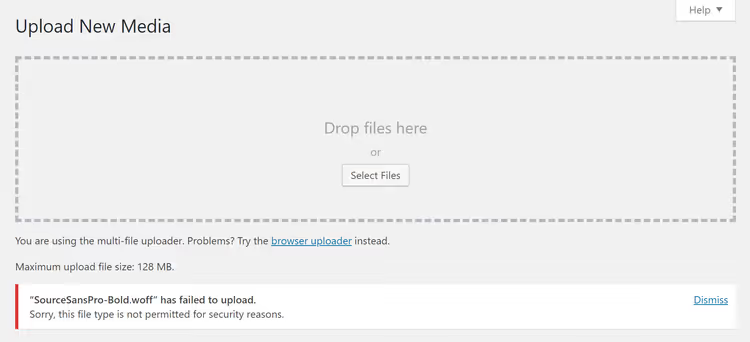
The file is on the server, the extension is correct, the content is safe, but WordPress does not recognize the MIME type font/woff and rejects it. There are three solutions.
Method 1: Code in wp-config.php (quick, for any format)
The shortest path is to add one line to the WordPress configuration file. The ALLOW_UNFILTERED_UPLOADS constant disables MIME type checking, allowing you to upload files of any format.
Before you begin, back up your site. Editing wp-config.php directly is a low-risk operation, but the file is critical for WordPress to function.
Connect to your server via FTP/SFTP (FileZilla, WinSCP, or your hosting file manager). The wp-config.php file is located in the root folder, in the same place as the wp-admin and wp-includes directories.
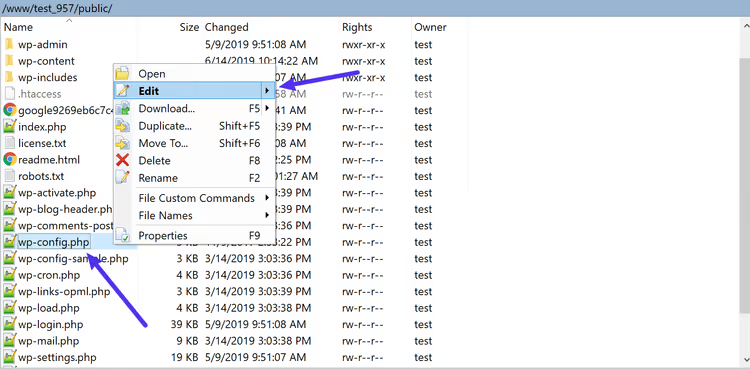
Open wp-config.php and add the following line before the comment /* That's all, stop editing! Happy blogging. */:
1 define('ALLOW_UNFILTERED_UPLOADS', true);
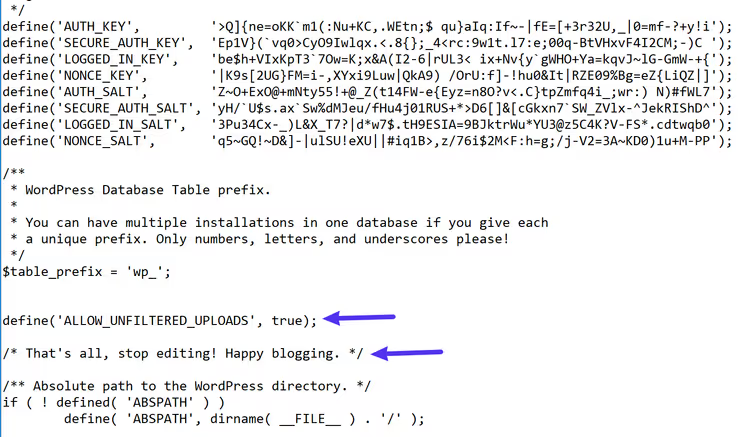
Save the file and upload it back to the server if you edited it locally. Then log out of the WordPress admin and log back in. This is mandatory; otherwise, the changed configuration will not apply.
After logging in again, try uploading the file. The restriction is removed.
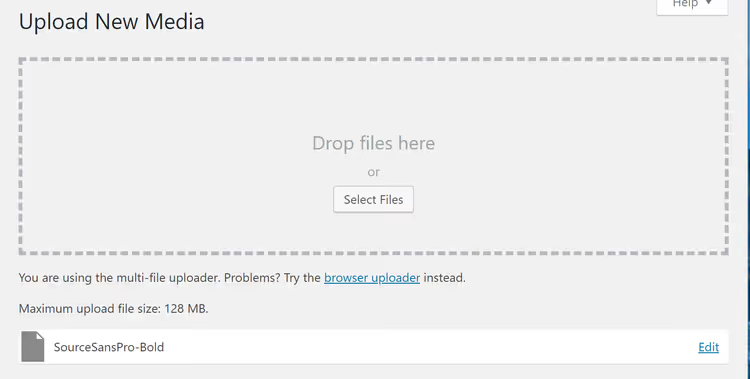
Pros of this method: instant, requires no plugins, works for any format. Con: it opens up uploads for absolutely everything. ALLOW_UNFILTERED_UPLOADS does not distinguish between a safe .woff and a potentially dangerous executable file. If there are other administrators or authors on the site, it is better not to use this method.
Method 2: Add MIME Types plugin (flexible, through admin panel)
If you do not want to touch wp-config.php or you need precise control (only .woff and .svg, but not .exe), use the Add MIME Types plugin on WordPress.org.
The plugin is actively maintained (version 3.2.0, compatible with PHP 8.5 and WordPress 7.0) and does not modify core files. It only adds the necessary MIME types through the standard WordPress filter.
Install and activate the plugin, then go to Settings → Add MIME Types. You will see a list of already allowed formats; the plugin displays them in red at the end of the list.

To add a new type, enter the extension and corresponding MIME type in the field. For example:
1 woff = font/woff 2 woff2 = font/woff2 3 svg = image/svg+xml 4 epub = application/epub+zip
Click Save Changes, and the format is added. Verify by uploading a file of the required type to the media library. WordPress will accept it without an error.
Pros: safer than the ALLOW_UNFILTERED_UPLOADS constant (you add only what you need), management through the admin panel, settings are preserved during core updates. Con: one step longer than editing code.
Alternative for SVG: Safe SVG plugin
If the only "not permitted" format on your site is SVG, there is a specialized solution. Safe SVG from the 10up team does not just allow vector graphics uploads; it sanitizes each file on upload, removing potentially malicious XML/JavaScript code.

After installation, the plugin works out of the box: no settings required. SVG files are immediately available for upload and display correctly in the media library (including previews, which WordPress does not provide for SVG by default).
The plugin is active on 1+ million sites, compatible with WordPress 7.0, and regularly updated. If SVG is all you need, Safe SVG handles the task more cleanly than a universal MIME plugin.
Here is a short video on the topic that clearly demonstrates all three methods for fixing the error in the WordPress admin:
⁉️🤔 Frequently asked questions
Is it safe to use ALLOW_UNFILTERED_UPLOADS on a production site?
With reservations. The constant completely disables MIME type checking. Any user with file upload rights can upload anything to the media library, including executable scripts. On a production site with multiple authors, use the second method (Add MIME Types) or at least limit who has access to the media library.
Why does WordPress not allow SVG by default?
SVG is an XML document, not a binary image. Inside an SVG file there can be JavaScript, event handlers, and
<foreignObject>tags, which opens a vector for XSS attacks. This is exactly why the WordPress core blocks SVG, and plugins like Safe SVG pass files through a sanitizer, removing all potentially dangerous code and leaving only the graphics.
After adding the code to wp-config.php, the error remains. What should I do?
There are three likely causes. First: you did not log out and log back into the admin panel. The configuration is cached by the session, so a new login is required. Second: the file was uploaded to the wrong location.
wp-config.phpmust be in the site root, not in/wp-content/or/wp-admin/. Third: a security plugin is active on the site (Wordfence, Solid Security) that intercepts uploads regardless of the constant. Check their settings.
Can I allow uploads for only one user?
Not through
ALLOW_UNFILTERED_UPLOADS; the constant is global. The Add MIME Types plugin also applies to all roles with theupload_filescapability. For selective access, use theupload_mimesfilter infunctions.phpwith acurrent_user_can()check, but this is already custom development.
What should I do if the Add MIME Types plugin does not work for my format?
Some formats require an exact match of the MIME type that the PHP function
finfo_filedetermines on your server. This may differ from the "standard" type. In the plugin settings, enable the "Enable to debug output for file types recognized by WordPress" option, upload the file, and see which MIME type the server actually determined. Then enter exactly that type. After checking, disable debug mode.
Removing the block: which method to choose
Three-step selection logic:
Need to upload one file right now? Edit
wp-config.php. It takes 30 seconds, and the restriction is gone. Do not forget to remove or comment out the line afterward if the site is public.Regularly uploading specific formats? Add MIME Types is safer, more visual, and does not reset when the WordPress core is updated.
Working only with SVG? Safe SVG is a specialized tool with a sanitizer that does not just "allow" but also cleans. For everything else, use the first or second method.
The "Sorry, this file type is not permitted" error is not a bug but an intentional restriction. However, WordPress has left legitimate ways to bypass it. Choose the appropriate one and get back to work. 🔗 Add MIME Types on WordPress.org | 🔗 Safe SVG on WordPress.org

A professional team of writers and editors specializing in creating quality content.