













 AIIllustrative image: AI-generated
🔑 How to find the WordPress admin page and log in to the dashboard
You installed WordPress, but where is the admin panel? The first moment of confusion after installation: the site works, but you have no idea how to log in and start publishing.
Without access to the admin panel you cannot change the theme, install plugins, or publish a single post. The good news: the login page is always in the same place, and getting to it is easier than it seems. Below are three steps from finding the URL to resetting your password if you have already forgotten it.
💡 Quick overview:
- Add
/wp-adminto your site address; this is the direct path to the login form. - Enter the username and password you created during WordPress installation.
- If the password is lost, click "Lost your password?" and receive a reset link via email.
How to find the WordPress login page
The WordPress login page lives at the same address on every site, regardless of theme, hosting, or plugin set. To open it, add /wp-admin to the end of your site address:
1 your-site.com/wp-admin
This URL automatically redirects you to the login page. If you are not yet logged in, WordPress will display a form with fields for username and password. If your session is active, you will land directly in the admin panel.
WordPress developers also provided alternative addresses that lead to the same page:
your-site.com/wp-login.php, the direct path to the login file;your-site.com/admin, a short alias;your-site.com/login, another option.
All four addresses point to the same form. Whichever you use, the result is identical. If a short option does not work (rare, but it happens on some hosts), fall back to /wp-admin: this path always works.
An important point: the login pages for WordPress.com and a self-hosted WordPress installation are different things. They look similar, but the credentials do not overlap. If your site is not on WordPress.com, a WordPress.com account password will not work for it.
How to log into the WordPress admin panel
The login form is spartan: two fields and a button. It looks the same on a freshly installed WordPress, but if the site has been around for a while, the owner or administrator may have changed its appearance through customization plugins. Do not be alarmed by extra fields, logos, or a request for an SMS code: these are normal layers of protection.
Step-by-step login
Open your-site.com/wp-admin and follow three steps:
- Enter the username or email you provided during installation.
- Enter the password.
- Click the Log In button.
If the credentials are correct, you are in. Before you lies the WordPress dashboard: a menu on the left, "At a Glance" blocks in the center, and endless customization possibilities.
Where to get the username and password
Did you install WordPress yourself? You created the username and password during the installation process. Check your email: WordPress sends a message with your credentials to the email address you provided during installation. The message may have landed in spam, so check there as well.
Did someone else handle the installation (a developer, freelancer, or hosting provider)? Request the credentials from that person. Without a username and password you cannot log in, and this is correct behavior from a security standpoint.
The "Remember me" option

Below the password field you will see a "Remember Me" checkbox. Checking it tells the browser to save a cookie with your credentials. The next time you open the login page, the browser will recognize you and let you in without re-entering the password.
The cookie lives on your computer for about two weeks; the exact duration depends on WordPress and browser settings.
Enable "Remember me" only on a personal computer to which no one else has access. On someone else's or a shared device, this checkbox is a direct ticket to the admin panel for anyone who sits down at that computer after you.
How to reset a WordPress password
Forgot your password? Not a problem. Below the login button there is a "Lost your password?" link. Click it.
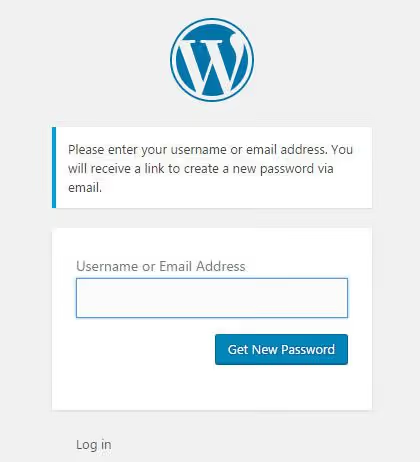
The system will ask you to enter the username or email associated with the account. Provide it and click "Get New Password." WordPress will instantly send an email with a password reset link.
No email within a couple of minutes? Check the "Spam" folder. Still nothing? Two possible reasons: a typo in the email address, or mail-sending issues on the hosting side. In the second case, contact your hosting support or the server administrator.
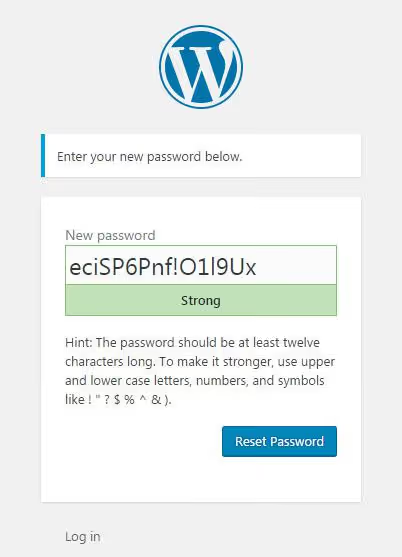
Follow the link in the email. WordPress will offer an auto-generated strong password. You can accept it or type your own; the field is editable. Save the password in a password manager, click "Reset Password," and the system will redirect you back to the login page. Now log in with your new password.
How to simplify admin access in the future
To avoid typing the address manually every time, here are three simple options:
- Browser bookmark. Open the login page and press Ctrl+D (Cmd+D on Mac). A bookmark named "WordPress Admin" will always be at hand.
- Link in the site menu. Add
/wp-adminto the WordPress navigation menu (Appearance → Menus). The link is visible only to you; logged-out visitors will see the login page. - "Meta" widget. The built-in WordPress "Meta" widget contains a login link. Add it to the sidebar via Appearance → Widgets.
Video: the entire process visualized
If it is easier to see it once, here is a three-minute tutorial on logging into the WordPress admin panel with a demonstration of all the steps:
⁉️🤔 Frequently asked questions
What is the difference between WordPress.com and self-hosted WordPress when logging in?
WordPress.com is a hosted service, and login happens through
wordpress.com. Self-hosted WordPress (WordPress.org) lives on your own hosting, and the login page is atyour-site.com/wp-admin. Credentials do not overlap: a WordPress.com password will not work for a site on your own hosting, and vice versa.
Can I change the login page address?
Yes, through security plugins such as WPS Hide Login or Solid Security. They change
/wp-adminto an arbitrary URL, for exampleyour-site.com/my-login. This makes automated brute-force attacks harder. If you changed the URL and forgot the new one, check the security plugin settings or the.htaccessfile on your hosting.
Why does WordPress kick me back to the login page after I enter the password?
Most likely, there is an issue with cookies or the session. Clear the cookies for your site in the browser settings. If that does not help, disable caching plugins via FTP (rename the plugin folder) and try again. In rare cases the cause may be a mismatch between
site URLandhome URLin WordPress settings; this is fixed via wp-config.php.
How can I protect the login page from hacking?
Three levels of protection without plugins: a strong password (at least 16 characters), limiting login attempts (via the Limit Login Attempts Reloaded plugin), and avoiding the default username
admin. If your site is on hosting with cPanel, enable two-factor authentication at the hosting level.
What should I do if the login page does not open at all?
Connect to the site via FTP and check the
.htaccessfile in the root; there may be extra rewrite rules. Temporarily rename thepluginsfolder toplugins_old; this disables all plugins and rules out a conflict. If the admin panel opens after this, the problem is in one of the plugins. Enable them one by one.
Conclusion: logging into the admin panel in one minute
The WordPress login page is always your-site.com/wp-admin. Open it, enter your username and password, and you are in. If you save the password in the browser (but only on a personal device), the next login is even faster. Forgot the password? The reset email arrives in seconds.
Add /wp-admin to your bookmarks or site menu right now, and the question "how do I log into the admin panel" will be answered forever. And if you are setting up a site for someone else, let us know in the comments whether you use the standard login URL or change it through a security plugin.

A professional team of writers and editors specializing in creating quality content.