














💡 50+ frequently asked questions about WordPress: complete guide 2026
You install WordPress, and an hour later the admin panel asks a question you don't have an answer to. The theme won't activate. A plugin breaks the site. The password is lost, and Google returns ten outdated guides. Sound familiar?
WordPress, the most popular CMS in the world, but its "simplicity" ends the moment you need to do something slightly more complex than installing a ready-made theme. We've collected 50+ questions that beginners actually ask and answered them without fluff.
💡 Quick overview:
- What WordPress is,.com versus.org, cost of launching
- Installation three ways: host's auto-installer, managed hosting, manual deployment
- Setting up theme, menu, logo, sidebar and footer, site framework in an hour
- SEO, speed optimization, security and monetization, what beginners miss
- Common questions: migrating from.com to.org, how many plugins to install, WordPress versus site builders
If you've never opened the WordPress admin panel, start with this 10-minute video. It shows the interface, basic settings and logic of working with blocks, after which the text instructions below will become three times clearer.
Questions about WordPress
Before you install the engine, dig into themes and count money, let's start from the very beginning. What exactly is WordPress and why you need it specifically.
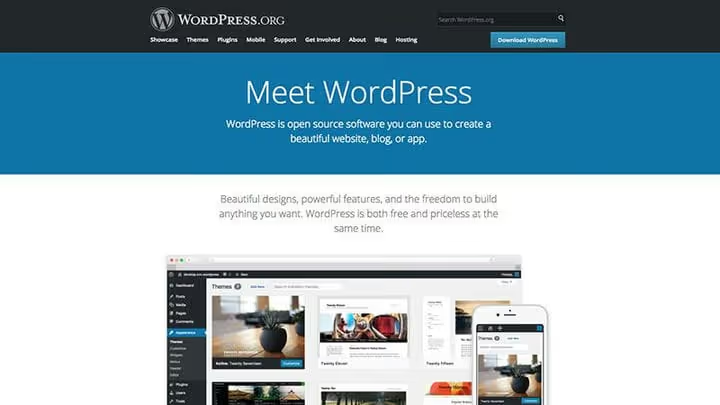
WordPress, an open-source content management system. In practice: you get a ready-made engine that can be installed on any hosting, and through the admin panel you manage the site without programming. Blog, portfolio, online store, forum, WordPress assembles all of this equally well.
Version confusion, the first thing to clarify. WordPress.com and WordPress.org, two different worlds. On.com they give you a stripped-down version with hosting thrown in and a mass of limitations. And.org, a self-sufficient engine that you install on your server and control completely. Need full control, only.org.
WordPress itself is free. You don't pay for downloading, installation or use. Expenses start at the hosting stage: shared plan for $1-3 per month, managed WordPress hosting (WP Engine, Kinsta, SiteGround) starts from $10-15. Plus domain, another $8-15 per year.
Is WordPress available in your language? The platform supports over 200 locales, about 70 are fully translated. The Polyglots team constantly refines translations at make.wordpress.org/polyglots.
Do you need to know how to code? No. Most WordPress users have never written a line of code. Themes change appearance, plugins add features, both are installed in a couple of clicks. Code is only needed for unique projects from scratch.
Installing WordPress
You can install WordPress three ways, and all three are easier than they seem.
The easiest path, managed hosting (WP Engine, Kinsta, SiteGround): WordPress is pre-installed. Medium, shared hosting with auto-installer: "Install WordPress" button in cPanel. Manual, 5-minute installation: download archive, upload to server, create database.
Can you install WordPress on your computer? Yes. Local installation is free: MAMP for Mac, WAMP for Windows, LAMP for Linux. Or Local by Flywheel or DevKinsta in one click.

Updating, an operation you'll do regularly. Notification appears in the admin panel, in "Dashboard → Updates" section. Clicked "Update Now", waited, done. Before major updates always make a backup. Current WordPress version is displayed in the bottom right corner of every admin screen.
Importing content from another platform, WordPress can pull posts from Blogger, Medium, Tumblr, Joomla and a dozen other CMSs. Official guide for content import describes the process for each platform step by step.

How to change site appearance? WordPress theme, it's like a cover for content. It determines colors, fonts, menu placement, widgets, post formats. Installation in a minute: "Appearance → Themes → Add New". Free themes from WordPress.org catalog are installed in a click, premium, uploaded as zip file.
"Missing stylesheet" error when installing theme, classic. Cause: you're uploading the wrong zip file. Inside the downloaded archive often lies a folder with documentation, and only then, the theme file. You need to upload exactly the zip with the theme, not the entire archive. Another common error, white screen after activation. Usually the server lacks memory. Solution: increase PHP memory limit through php.ini or contact hosting support.

Plugins, add-ons that add functions to the site. SEO tools, caching, contact form, online store, there's a plugin for everything. Installation: "Plugins → Add New", search in WordPress.org catalog or upload zip file. After activation most plugins get their own settings section.
WordPress basics

Logo is changed through the customizer: "Appearance → Customize". Look for "Branding", "Header" or "Site Identity" section, names depend on theme. Uploaded image, adjusted size, saved.
WordPress menu, this is site navigation. Create in "Appearance → Menus", add pages, posts, categories or custom links, assign menu to one of the locations (header, footer, sidebar). Order of menu items changes by dragging.

Sidebar is managed through widgets: "Appearance → Widgets". Drag needed blocks, search, recent posts, categories, custom HTML, into sidebar area. Additional color and width settings look in theme customizer.
Footer works the same as sidebar, through widgets. Go to "Appearance → Widgets", add blocks to footer area. Column settings and copyright usually found in customizer or theme panel.

Changing password, through profile: click on username in top right corner of admin panel or "Users → Your Profile". At bottom of page, "Generate Password" button. WordPress will suggest strong password automatically, but you can enter your own. If you forgot password and can't log in, on login page click "Forgot password?", reset link will come to email.
Blogging on WordPress

New post is created through "Posts → Add New". Modern WordPress uses Gutenberg block editor: each paragraph, image or heading, separate block that can be moved and customized.
Featured image is set in editor sidebar: "Set featured image", choose picture from media library or upload new one. Theme itself will insert image into post excerpt, on homepage and in social media.
Categories and tags help organize content. Categories, large topical sections ("News", "Tutorials", "Reviews"). Tags, granular keywords ("Gutenberg", "SEO", "caching"). Set in editor sidebar when creating post.
Video and audio are inserted two ways. First, just paste link to YouTube, Vimeo or SoundCloud into text: WordPress will expand it into embedded player (oEmbed). Second, theme media features: some themes allow setting video as featured media instead of featured image.
Image gallery is added through standard WordPress functionality. In editor: "Add Media → Create Gallery", select images, set columns and link type. Some themes add special "Image Gallery" meta field under editor, it works similarly.
WordPress pages
Pages differ from posts. Posts, streaming content: news, articles, reviews. Pages, static content: "About", "Contact", "Services". Pages have no categories and tags, don't appear in blog feed, but can be organized in hierarchy.
Create page: "Pages → Add New". For complex pages use builders (Elementor, WPBakery, Gutenberg blocks).

Page template, special layout applied to specific page. Theme may offer "Full Width", "Homepage", "Shop" templates. Choice, in "Page Attributes" meta field when editing.

Homepage: "Settings → Reading". Options, "Your latest posts" (blog feed) or "Static page" (you choose homepage and blog page yourself).

Login and password recovery form, another basic setting.

Contact form, no built-in solution, but easily fixed with plugin. Contact Form 7, free and most popular: create form, copy shortcode, paste on page. Gravity Forms, premium option with visual builder and conditional logic. Both work through shortcode in page content.
WordPress configuration
Theme colors are configured through customizer ("Appearance → Customize", colors section), live CSS editor plugin like Yellow Pencil or child theme with custom styles.
Page layout is easiest to change through builder. Plugins like Elementor, WPBakery or Spectra give visual drag-and-drop editor: assemble page from ready blocks. Alternative, child theme with manual layout, but this requires frontend development skills. Important: if you make edits to theme directly, they'll be lost on update. Use child theme or builder.
WordPress SEO
SEO, search engine optimization: everything you do to make site show higher in Google and Yandex: content quality, headings, meta descriptions, backlinks, loading speed, structured data.
WordPress out of the box gives good SEO foundation: clean HTML, proper heading semantics, pretty URLs. But it won't do all work for you, need plugin. Yoast SEO adds title and meta description settings, generates XML sitemap, manages breadcrumbs. Alternatives, Rank Math and SEOPress: both free and functional.
For self-study read Ahrefs, Backlinko and Yoast, each has detailed guides for beginners.
Speeding up WordPress
Site speed, both SEO factor and user experience. Nobody waits for loading more than three seconds.
Caching, first thing to start optimization with. Instead of assembling page from scratch on every request, server delivers ready HTML copy. Two popular free plugins: WP Super Cache (easier to configure) and W3 Total Cache (more parameters, requires carefulness).
CDN, Content Delivery Network. Images, CSS and JavaScript files are copied to servers worldwide, each visitor gets data from nearest server. Free CDNs: Cloudflare, Jetpack CDN, BunnyCDN. Cache, about page generation speed, CDN, about resource delivery speed. For maximum performance use both.
Will large number of plugins slow down site? Not quantity matters, but quality. One overloaded plugin can slow site more than ten specialized ones. Main rules: don't duplicate functions, don't install all-in-one plugins and get plugins from verified sources, WordPress.org catalog or CodeCanyon. Plugin without updates for more than two years, candidate for replacement.
WordPress security
WordPress, one of most popular CMSs, which means target for attacks. Basic security measures close overwhelming majority of threats.
Five rules: (1) strong passwords, long, unique; (2) regular backups, UpdraftPlus saves files and database; (3) core, theme and plugin updates, always current, but test on local copy; (4) no pirated themes and plugins, they guaranteed contain malicious code; (5) sources, only official WordPress.org catalog or verified marketplaces.
For those who don't want to handle security manually: managed hosting (WP Engine, Kinsta, Flywheel) includes backups, firewall and scanning. Or plugin: Solid Security or Wordfence.
Spam, automated comments and trackbacks from bots. Best remedy, Akismet from Automattic: filters spam before appearing in admin. Manual method: "Settings → Discussion", tighten rules, works, but scares readers away.
Making money with WordPress
Making money on WordPress is possible, and for this you don't need thousands of traffic.
Advertising, easiest entry. Google AdSense or BuySellAds: place ad blocks in header, sidebar, inside posts and get income for impressions and clicks. Direct ad space sales, more income, but need audience.
Affiliate marketing: you recommend hosting, themes, plugins, courses through affiliate links and get commission. Most WordPress products have affiliate programs. Important: if your audience includes USA, FTC requires disclosing affiliate relationships, disclosure page is mandatory.
Online store, WooCommerce (physical and digital products) or Easy Digital Downloads (digital only). Both free, both integrate with payment systems. What's needed to launch: SSL certificate, "Terms of Use", "Privacy Policy" and "Return Policy" pages, plus documents required in your country for commerce.
⁉️🤔 Common questions
WordPress.com or WordPress.org, what should beginner choose?
If you just want blog and not ready to deal with hosting, try WordPress.com on free plan. But as soon as you need own domain, plugin installation or monetization, move to WordPress.org. Difference in control: on.com you're guest, on.org, owner.
Can you move site from WordPress.com to WordPress.org?
Yes. WordPress.com allows exporting content to XML through "Tools → Export". Then install WordPress.org on your hosting and import data through "Tools → Import → WordPress". Images can be transferred separately, some hosts do this automatically during migration.
How many plugins is "too many"?
No magic number. Site with 15 specialized plugins can work faster than site with 5 heavyweight ones. Focus on code quality, developer reputation and last update date. Plugin without updates for two years or more, look for replacement.
How often need to update WordPress, themes and plugins?
Always, when update comes out. But with caveat: first test on local or test copy. Automatic updates of WordPress minor versions are enabled by default, this is safe. For major versions make backup before each update.
Is developer needed for WordPress site?
For typical site, blog, portfolio, small store, developer not needed. Themes and plugins cover overwhelming majority of needs. Developer needed when: unique design doesn't fit ready theme, custom functionality required, site grew and requires code-level optimization.
How is WordPress better than builders like Wix, Tilda or Squarespace?
WordPress gives full control over data, design and functionality. You're not tied to one platform, site can be moved to another hosting, redesigned, any function added. Builders easier at start, but as soon as you hit their limitations, no way out, only migration from scratch.
What to install in 2026: final breakdown
WordPress in 2026, not just "blog engine", but full-fledged platform for any type of site. Question is not "should you use it", but "how to use it right".
Main thing: start with WordPress.org on normal hosting, install theme without function overload, add 5-7 key plugins (SEO, caching, backup, security, forms), and don't install plugins "just in case". Simpler build at start, faster site and fewer problems.
If you're just starting, simply install WordPress locally and spend hour studying admin panel. This will remove significant part of fears and questions.

A professional team of writers and editors specializing in creating quality content.