














📝 Yoast SEO: how to set up automatic meta description filling
Every page on a site should have a meta description, from the homepage to the most modest blog post. When you have dozens or hundreds of pages, filling in the description for each one manually is a chore where it's easy to cut corners and leave the field empty.
When the description is empty in search results, Google fills it in automatically, often with a random text fragment that doesn't sell the click. There is a solution: Yoast SEO can insert descriptions automatically using a template. Setting it up takes five minutes, and it works for all new and existing posts at once.
Below is a step-by-step guide: from finding the right settings section to the nuances of how the %%excerpt%% variable works and how it differs from %%excerpt_only%%. After setup, every post will receive a meaningful meta description without your involvement.
💡 Quick overview:
- Open the Search Appearance section in the Yoast SEO menu
- Go to the Content types tab and find the post type you need
- Insert
%%excerpt%%into the Meta description template field - Save changes and verify the result in the page source code
What is a meta description and why automate it
A meta description is text up to 160 characters long that search engines display below the page title in search results. It directly affects snippet click-through rate: a meaningful description with keywords attracts more clicks than a random first paragraph fragment that Google inserted on its own.
Yoast SEO checks each post: if you filled in the description field in the editor metabox, the plugin uses it. If the field is empty, the template from settings kicks in. This is exactly the mechanism we're configuring: you set the rule once, and the system handles the rest.
In practice, automation saves hours when working with custom post types: portfolios, WooCommerce products, landing pages. The more non-standard content on your site, the more noticeable the benefit.
Step 1: where to find description templates in Yoast SEO
Go to the WordPress admin panel and find Yoast SEO in the sidebar menu. Hover over it, and a submenu will expand. The second item from the top is Search Appearance.
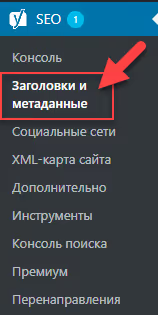
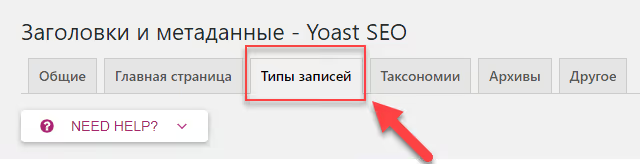
Click on this item. A page with several tabs will open; we need the second one: Content Types. It contains title and description templates for every content type registered in WordPress: posts, pages, media files, and all active custom types.
Step 2: configuring the template for the desired post type
On the Content types tab, you'll see a table where each row represents a separate post type. Two templates are defined for each: SEO title and meta description. We're interested in the second field: Meta description template.
Find the row for the post type you need. In the example below, it's Portfolio work (portfolio), a custom type where automatic descriptions are especially useful: portfolios often have dozens of items, and nobody is going to fill in the description for each one manually.
Insert the following variable into the template field:
1 %%excerpt%% 2
Here's what the filled field looks like:
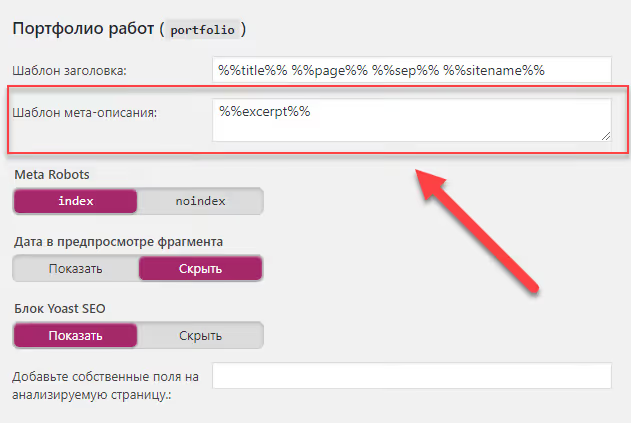
Click Save changes at the bottom of the page. The template is now applied globally to all posts of this type, both existing and future.
Step 3: how '%%excerpt%%' works and how it differs from '%%excerpt_only%%'
The logic of %%excerpt%% is simple and predictable:
- The plugin checks whether the Excerpt field is filled in the post editor. If yes, it uses that text.
- If the Excerpt field is empty, Yoast automatically extracts the first 120 characters from the post body and uses them as the description.
As a result, the description never remains empty in any scenario: either you control it through the excerpt, or the system assembles a meaningful fragment from the content. For most sites, this is sufficient.
However, there's a nuance. If you intentionally leave the Excerpt empty and want the meta description to ALSO be empty (for example, for pages that shouldn't be indexed with a description), use %%excerpt_only%%. This variable does NOT generate text automatically: empty Excerpt = empty description. In indexing, Google will see the missing tag and insert its own fragment, which is sometimes preferable for utility pages.
Where the Excerpt metabox is located in the editor
Not everyone knows where the Excerpt field is in the WordPress editor. By default, it's hidden; you can enable it through Screen Options (the tab in the upper right corner of the editor). Once enabled, the field appears below the content editor.
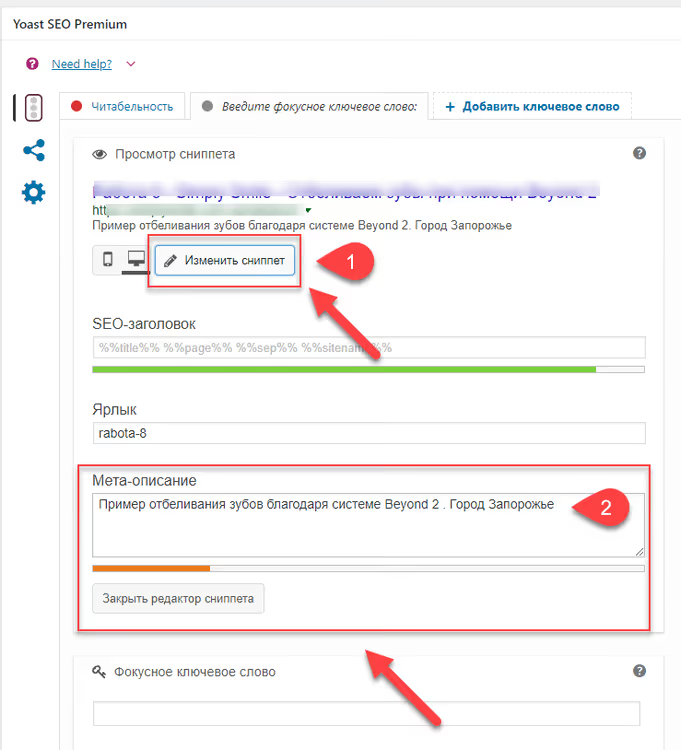
Fill it with meaningful text of 140-160 characters, and %%excerpt%% will use exactly that text rather than an auto-truncated fragment from the content. This gives you control over the snippet without manually filling in the SEO metabox for each post.
Step 4: verifying the result
After saving the settings, open any post of the type you configured the template for. View the page source code (Ctrl+U) and find the tag:
1 <meta name="description" content="...">
The content should contain either the text from the Excerpt field or the first 120 characters of the content, depending on whether the excerpt is filled in. If the tag is present and contains meaningful text, the setup is working.
For a quick check, you can use a free browser SEO extension (for example, Detailed SEO Extension for Chrome); it displays the meta description right on the page without digging through the source code.
Other useful variables for descriptions
%%excerpt%% is not the only variable you can use in a meta description template. Yoast SEO supports dozens of snippet variables, and you can combine them in a single template. Here are a few practical scenarios:
%%excerpt%%**%%sep%%**%%sitename%%: description plus separator and site name. Works for blogs where brand presence in search results matters.%%cf_<custom-field-name>%%: inserts the value of a custom field. Useful if a custom type has a separate "short description" field that doesn't match the standard Excerpt.%%primary_category%%: the name of the post's primary category. Useful for news sites where the category adds context.
The full list of available variables is in the official Yoast documentation.
Video: step-by-step meta description setup in Yoast SEO
For those who prefer a visual guide, here's a short video on setting up description templates on a real site:
⁉️🤔 Frequently asked questions
What should I do if %%excerpt%% doesn't work and the description remains empty?
Check two things. First: make sure the template isn't being overridden at the individual post level. Open the post, scroll down to the Yoast SEO metabox, and confirm that the description field is empty. Second: go to Search Appearance → Content types and verify that
%%excerpt%%is inserted in the Meta description template field, not in the SEO title. The interface is similar, and it's easy to confuse the fields.
What's the difference between manually filling in the description and using a template?
A manual description in the Yoast metabox ALWAYS takes priority over the template. If you fill in the description field for a specific post, the template is ignored for that post. This is convenient: automation works for most pages, while for key landing pages you manually write a unique description tailored to a specific search query.
Can I use %%excerpt%% for WooCommerce products?
Yes. WooCommerce registers a custom post type called Products, and it appears as a separate row on the Content types tab. Insert
%%excerpt%%into the meta description template for Products, and all products will receive their description from the WooCommerce "Short description" field. If there's no short description, Yoast will take the first 120 characters from the full product description.
What happens if the Excerpt is longer than 160 characters?
Yoast doesn't truncate the text itself. If the excerpt is longer than 160 characters, Google may truncate it in search results at its discretion, often mid-word. The recommendation: keep the Excerpt within 140-160 characters and formulate a complete thought. To check, use the snippet preview in the Yoast metabox; the plugin shows how the description will appear in search results.
Can I set different templates for posts and pages?
Yes, that's exactly what the Content types tab is for. Set one template for Posts, another for Pages, and a third for custom types. The rules apply independently. For example: posts get
%%excerpt%%; pages get an empty template (description is filled in manually for each landing page); portfolio gets%%excerpt%%%%sep%%%%sitename%%.
Summary: set it up once, and descriptions fill themselves in
The meta description template in Yoast SEO is a "set it and forget it" solution: five minutes to configure through Search Appearance → Content types, and every new post automatically receives a meaningful description. For sites with dozens or hundreds of pages, this isn't just a time-saver; it's insurance against empty meta tags that hurt CTR in search results.
The main rule: fill in the Excerpt thoughtfully for key pages. Then %%excerpt%% will output exactly your text rather than an auto-truncated fragment from the content. For everything else, the automatic fragment from the first 120 characters works well enough, especially in blogs and news sections where content is regularly updated.
Check your site's description templates right now: open Search Appearance → Content types and make sure the Meta description template field isn't empty for your main post types. If it is empty, insert %%excerpt%% and save. Five minutes now, and not a single lost click in the future.

A professional team of writers and editors specializing in creating quality content.