














🔧 Yoast SEO: installation and setup guide for beginners
Your WordPress site is ready, the content is written, but there is no search traffic. Sound familiar? Without search optimization, even the best articles remain invisible to Google. And starting SEO without a plugin is like assembling furniture without instructions: technically possible, but the result is unpredictable.
Among dozens of SEO tools for WordPress, there is one that millions of users install first: Yoast SEO. The plugin has been around since 2008, has over 13 million active installations, and a 4.8 rating on WordPress.org. Developers update it every two weeks, and recent versions added AI-generated titles and meta descriptions directly inside the editor.
Below is a step-by-step guide from installation to achieving green signals for SEO and readability. No fluff, with a focus on the free version, which is enough for most sites.
💡 Quick overview:
- Install Yoast SEO through the WordPress plugins directory.
- Complete the 12-step first-time configuration wizard.
- Enter a keyphrase in the SEO analyzer and achieve green lights on all items.
- Check text readability and fix long paragraphs and sentences.
Why install Yoast SEO at all
WordPress "out of the box" does disappointingly little for SEO. There is no sitemap, meta tags are not managed, and canonical URLs are not set. Search engines index pages, but without structured data, snippets in search results look haphazard.
Yoast SEO closes all basic gaps at once. After activation, the plugin automatically:
- generates an XML sitemap for Google, Bing, and Yandex;
- sets canonical URLs, eliminating duplicates;
- adds Schema.org structured data (Article, Breadcrumb, Organization);
- creates breadcrumbs for navigation and snippets;
- manages
titleandmeta descriptionfor each page.
And the most valuable feature is the built-in content analyzer. It checks text for SEO metrics (keyword in title, density, length) and readability (sentence length, paragraph length, passive voice) right in the post editor. Red, yellow, green: a simple system that enforces discipline better than any textbook.
The free version is sufficient for a blog, portfolio, or company website. Premium is worth connecting when specific tasks arise: managing redirects, optimizing for multiple keywords, automatic internal linking.
Step 1: Installing and activating Yoast SEO
Go to the WordPress admin panel, open Plugins → Add New and type "Yoast SEO" in the search box.

The first result with 13+ million installations and the Yoast logo is the one. Click Install, then Activate.

The second method is to download the ZIP archive from wordpress.org/plugins/wordpress-seo/ via the Add New → Upload Plugin button. The result is the same, but the first method is faster.
Immediately after activation, a Yoast SEO item appears in the sidebar menu, and a Y icon appears in the admin bar. The plugin is ready for configuration.
Step 2: Initial setup: configuration wizard
The first thing Yoast SEO offers after installation is to complete the First-time configuration wizard. Do not skip it: without it, the plugin does not know your site type, organization name, and other data used to build structured markup.
To launch the wizard, go to Yoast SEO → General and click Start first-time configuration.
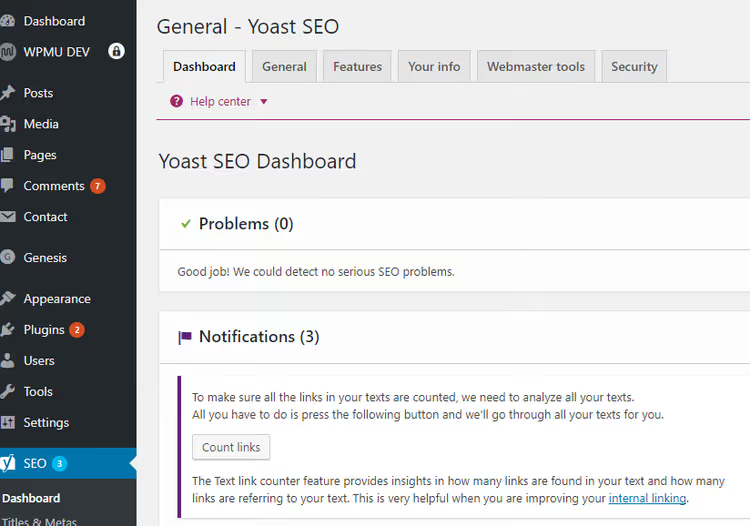
You will arrive at the general settings page. Here all information about the plugin status is collected: notifications, indexing issues, and improvement suggestions.

Click the "Start first-time configuration" button to launch the step-by-step First-time configuration wizard.
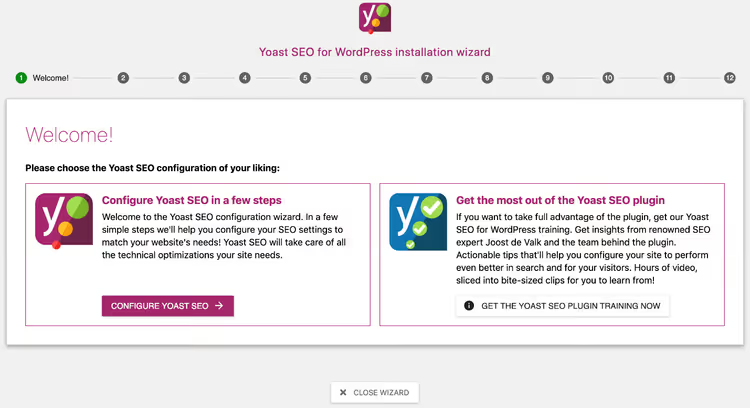
Next come 12 sequential steps. Let's look at each one.
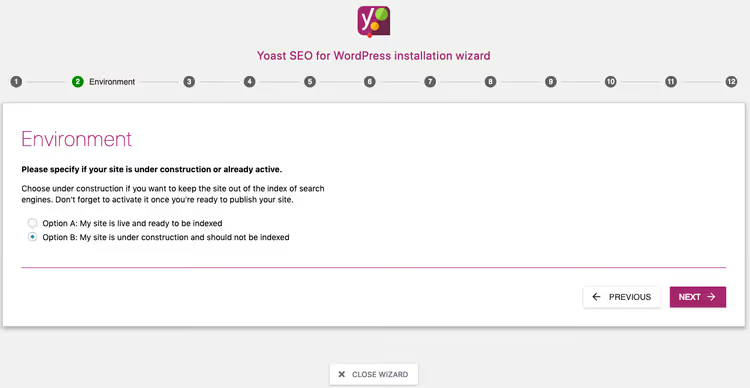
Is the site ready for indexing?
On the second step, the wizard asks whether the site is already indexed. If the site is in development or on a local server, choose "No", and the plugin will hide the site from search engines. For a live site, choose "Yes".
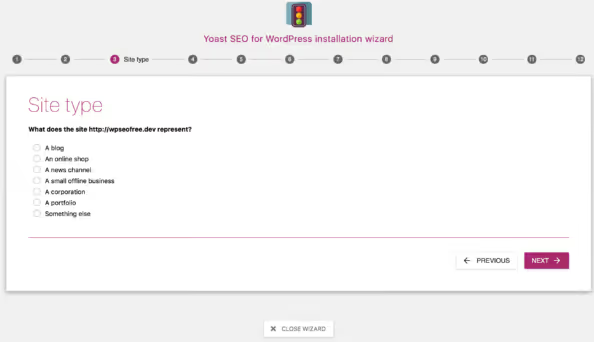
Site type
Specify what the site represents: a blog, online store, news portal, or something else. This determines what structured markup the plugin will output.
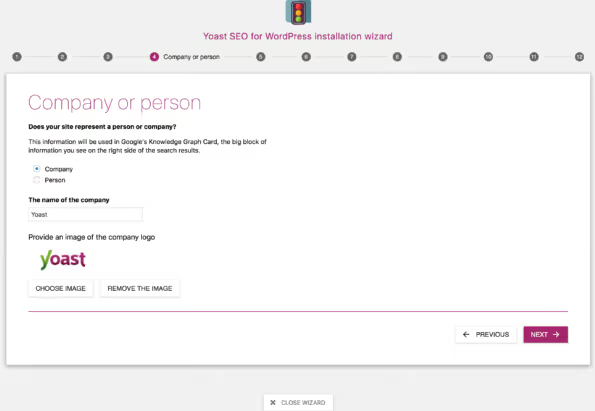
Person or organization
You determine whose name the content is published under. For a personal blog, choose "Person"; for a company website, choose "Organization". In the second case, additionally specify the name and upload a logo, which will go into Schema markup and Google Knowledge Graph.
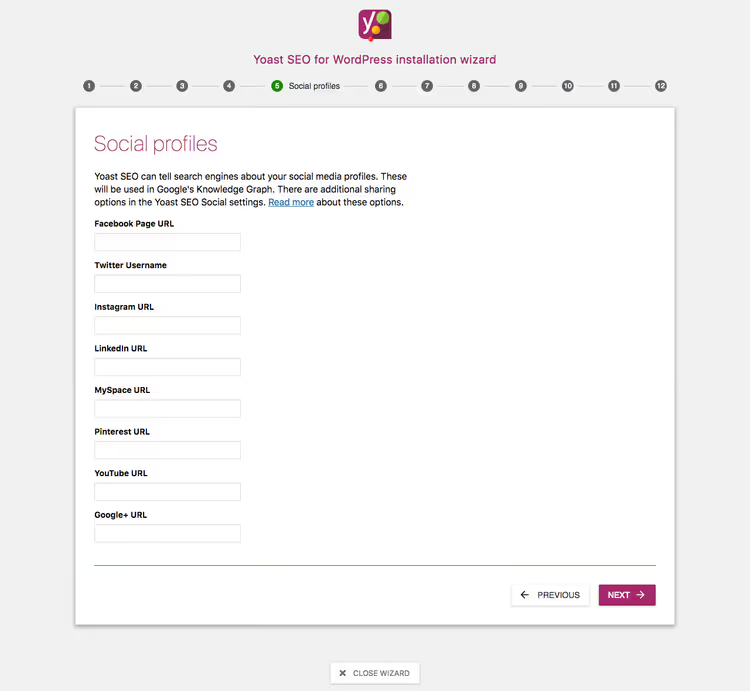
Social networks
Add links to profiles on Facebook, X (Twitter), Instagram, and other social networks. These URLs go into Open Graph markup and are used by search engines to link the brand to social accounts.
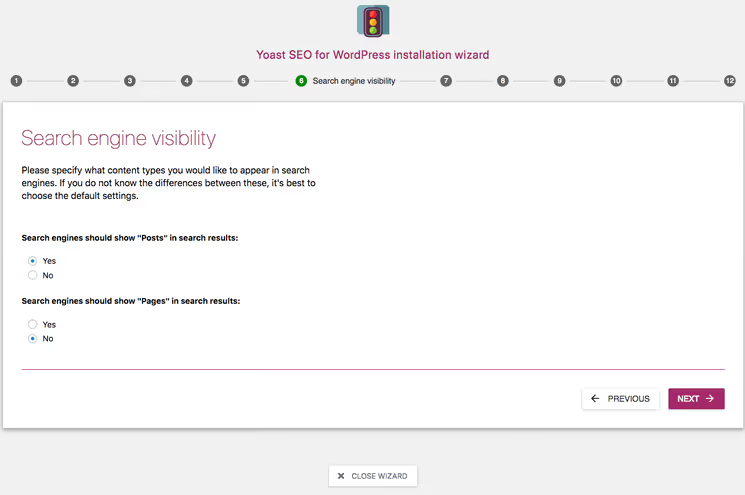
Search engine visibility
Here you decide which content types to index. For most sites, leave the default values: posts and pages should be indexed, media files should not be indexed (so Google does not direct traffic to bare images).
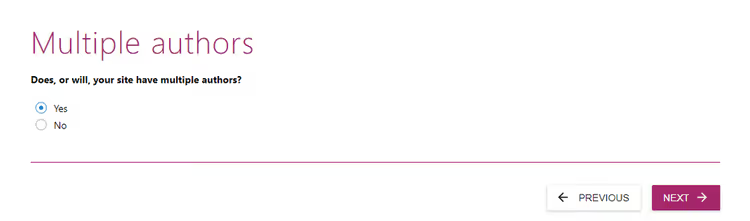
Authors
If the site has a single author, select the corresponding option, and the plugin will remove authors from public markup to avoid creating thin content. For a multi-author blog, choose "Multiple authors".
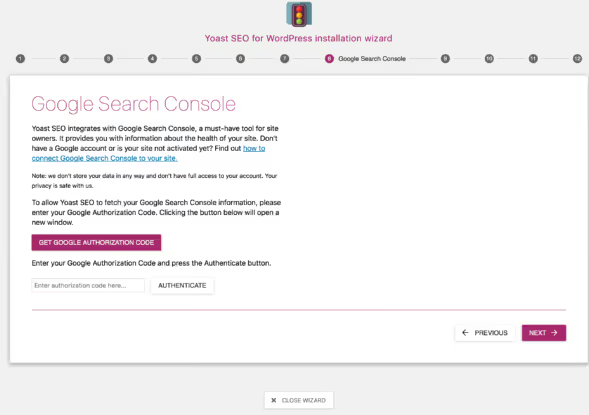
Google Search Console
Connect the site to Search Console by inserting the Google authorization code. This gives Yoast SEO access to search query data and indexing errors, which will be displayed directly in the admin panel.
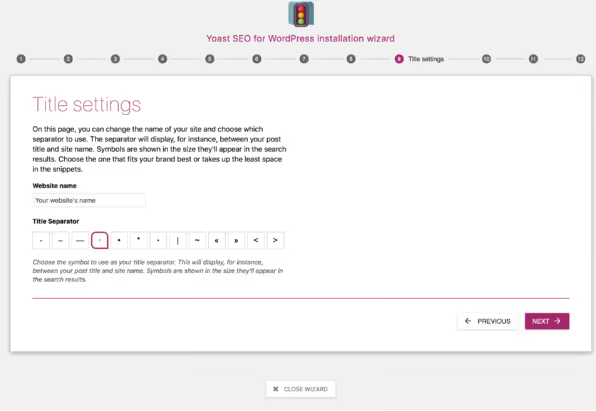
Title separator and site name
Choose a separator for <title>: hyphen, vertical bar, or tilde. And specify the site name that will be added to the end of each SEO title.
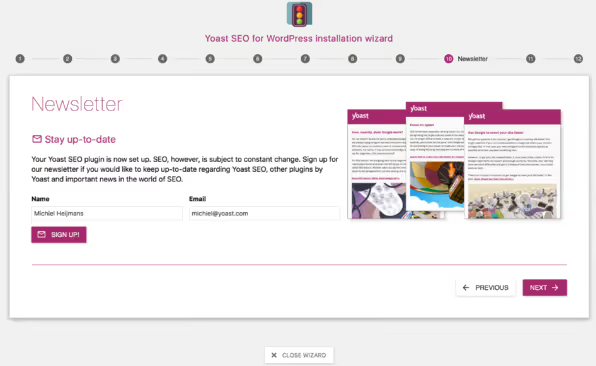
Newsletter subscription
Optional step. Enter your name and email if you want to receive news and SEO tips from Yoast. You can skip this.
Recommended content
The wizard suggests several Yoast extension plugins (Premium, Local SEO, Video SEO, News SEO). On the free version, simply review them and click "Next".

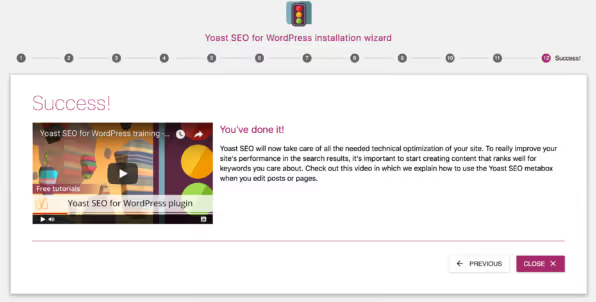
Finish
The wizard is complete. Click "Close" and return to the Yoast SEO panel. The plugin is fully configured for basic operation.
Step 3: SEO analysis: getting the green light
Now for the main part: working with content. Open any post or page in the WordPress editor. Below the text field, the Yoast SEO panel appears with three tabs: SEO, Readability, and Social.

Keyphrase
On the SEO tab, first enter the keyphrase: what you want the page to be found for. This can be a single word ("redirects") or a phrase ("how to set up redirects in WordPress"). After entering it, the plugin analyzes the text and provides a list of issues.
Each issue has a colored marker:
- Red: a problem that needs to be fixed (keyphrase not in title, text too short);
- Yellow: an improvement (phrase should be added to the first paragraph, meta description is too long);
- Green: metric is fine.
Snippet and its settings
In the "Search appearance" block, click "Edit snippet". Here you set:
- SEO title: what the user will see in Google search results. If you leave the field empty, Yoast will substitute the construction "Post title + separator + Site name". I recommend filling it in manually: the wording for search often differs from the article title.
- Meta description: brief text below the title in search results. Up to 160 characters. Should contain the keyphrase and encourage clicking.
Keyphrase analysis
Below the snippet is a list of checks for keyphrase compliance. The plugin analyzes whether the phrase appears:
- in the first paragraph of the text;
- in H2 and H3 headings;
- in image alt text;
- in the page URL.
It also tracks keyphrase density: not too rare, but without keyword stuffing.
Our recommendation: go through the red items from top to bottom until all indicators are green or yellow. A perfectly green score on all items is rare, and that is normal. What matters most is that no red problems remain.
Step 4: Readability tab: what competitors overlook
Many beginners focus on the SEO tab and ignore readability. That is a mistake. Google evaluates behavioral factors: if text is hard to read, visitors leave the site within seconds, and rankings drop.

Yoast SEO checks readability using the Flesch Reading Ease formula, adapted for each language. Specific criteria:
- Paragraph length. A paragraph longer than 150 words triggers a red signal. Break up the text: 3-4 sentences per paragraph, no more.
- Sentence length. More than 20 words triggers a warning. Alternate long sentences with short ones. After an extended explanation, add a phrase of 4-5 words.
- Passive voice. English text often overuses passive constructions: "was launched," "will be configured." Yoast recommends keeping the share of passive constructions below 10%. This is a built-in plugin metric, with the threshold set by developers based on the Flesch formula.
- Subheadings. Every 300 words of text should start with a new H2 or H3. This enforces structure and helps readers scan the material.
- Transition words. "However," "therefore," "as a result," "on the other hand": these connect sentences into a logical chain. Yoast highlights when their share is below the threshold set by the readability algorithm.
Getting a green light on readability is harder than on SEO. But this is exactly what distinguishes text that people read through from text they scroll past in 15 seconds.
Yoast SEO Premium features: when the free version is not enough
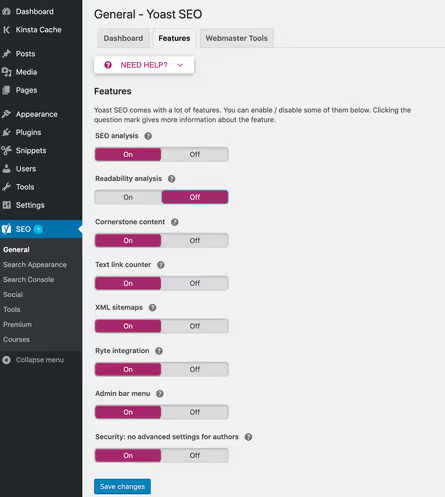
On the Yoast SEO → Features tab, you can enable and disable individual plugin modules. For maximum results, activate: SEO analysis, readability analysis, cornerstone content, admin bar menu, and text link counter.
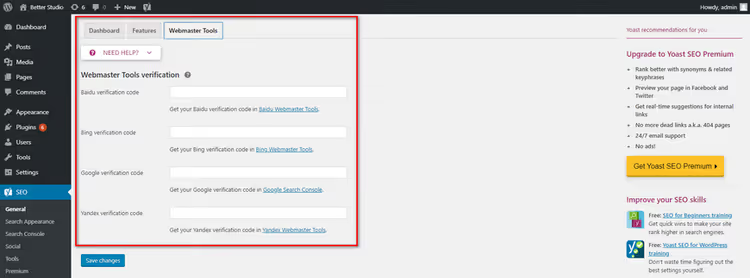
Here you also find integration with webmaster tools. Yoast SEO can verify your site for Google, Bing, Baidu, and Yandex: paste the verification code in the corresponding field and click "Save".
Now about the paid version. Yoast SEO Premium costs 118.8 EUR/USD/GBP per year per site (as of 2026). What you get for that money:
- Redirect manager. When deleting a page or changing a URL, the plugin automatically creates a 301 redirect. For large sites where URLs change regularly, this saves hours of manual work.
- Multiple keyphrases. The free version optimizes for one phrase. Premium handles up to five, plus it recognizes synonyms and word forms (including for the English language).
- Internal linking. The plugin scans the site and suggests which of your own pages to link to from the current post. Convenient when you have 50+ articles and cannot keep the structure in your head.
- AI tools: Yoast AI Generate creates SEO titles and meta descriptions (5 options per click), Yoast AI Optimize automatically adjusts keyphrase occurrences, and Yoast AI Summarize creates brief summaries for social media and briefings.
- Social previews. Preview how the post will look when shared on Facebook and X.
- 24/7 support from Yoast SEO specialists.
- Free courses from Yoast SEO Academy.
Additionally, Premium includes three extensions at no extra charge: Local SEO (maps and local search results), Video SEO (video sitemap and Schema markup for videos), and News SEO (for appearing in Google News).
A Yoast SEO AI+ package is also available for 358.8 EUR/USD/GBP per year, which includes all AI features plus brand visibility monitoring in ChatGPT, Claude, Perplexity, and Google Gemini.
Who needs Premium and who does not
Premium is justified for:
- online stores (redirect management, WooCommerce extension);
- news sites (News SEO + multiple authors);
- blogs with hundreds of posts where manual internal linking is impossible.
If you have a business card site, portfolio, or blog with 10-30 articles, the free version is more than enough. Better invest your budget in quality content and return to Premium when you actually need it.
⁉️🤔 Frequently asked questions
Do I need Yoast SEO if I use a builder like Elementor?
Yes, you do. Elementor handles layout, not SEO. Yoast SEO integrates with Elementor directly: the analysis panel is displayed inside the Elementor editor, and the title and meta description fields work as usual. Plugin-level integration ensures the SEO analyzer works right inside the visual editor without switching to the standard WordPress editor.
Can I use two SEO plugins at the same time?
Absolutely not. Two SEO plugins generate duplicate meta tags, canonical URLs, and sitemaps. Search engines get confused, and indexing suffers. When migrating from Rank Math or AIOSEO, follow this order: deactivate the old plugin, install Yoast SEO, import metadata via Yoast SEO → Tools → Import and Export. The plugin correctly transfers titles, descriptions, and social data from Rank Math, AIOSEO, SEOPress, and All in One SEO.
Does Yoast SEO slow down the site?
No, provided the plugin is updated. Yoast SEO uses its own "indexables" system: a single database table through which all SEO data is requested with one SQL query. Developers specifically optimize performance: recent versions contain crawl settings that reduce server load during indexing. In practice, the difference in page load time with and without the plugin is less than 50 milliseconds on typical hosting.
Does Yoast SEO work with the English language?
Yes, fully. The readability analysis accounts for English morphology, passive voice is detected correctly, and transition words are adapted. The Premium version recognizes keyphrase word forms: "WordPress setup," "WordPress settings," "set up WordPress" are all counted as occurrences of the same phrase. The plugin interface and documentation are in English, and all fillable fields accept all characters without restrictions.
Does Yoast SEO replace the work of a specialist?
No, and it should not. The plugin automates the technical side: sitemaps, meta tags, Schema markup. Content strategy, semantic core, external linking, and competitor analysis are done by a human. Yoast SEO lowers the barrier to entry: with it, a beginner will not make critical technical mistakes. The plugin covers most of the technical SEO routine, but no tool replaces strategy and semantics.
What to choose: free version or Premium?
The choice comes down to one question: do you have a specific task that the free version cannot solve?
For the vast majority of WordPress sites, free Yoast SEO covers everything necessary. Sitemap, canonical URLs, Schema markup, SEO and readability analysis: this is enough for content to be indexed correctly and ranked appropriately.
Premium is chosen for three scenarios: redirects (you actively change site structure), internal linking (50+ posts and no time to add links manually), and multi-keyword optimization (you promote a page for multiple phrases simultaneously).
If you are just launching a site, start with the free version. Install the plugin, complete the setup wizard, write 10-15 articles with an eye on the SEO analyzer. When you feel you are hitting limitations (redirects are multiplying, keyphrases are not enough), upgrade to Premium. No rush.
🔗 Yoast SEO Premium, from 118.8 EUR/year
Watch the video above: it is a complete English tutorial on Yoast SEO from installation to fine-tuning SEO analysis. 40 minutes of practice that cover all questions not included in the article.

A professional team of writers and editors specializing in creating quality content.