














🗂️ How to exclude pages from the Yoast SEO sitemap
You open Search Console and see: out of 200 site pages, 340 are indexed. The extra 140 are archive tags, duplicates with UTM tails, test stubs, and attachment pages. Google spends crawl budget on junk while your real URLs wait their turn for weeks.
The problem is not Google. The sitemap that Yoast SEO generates honestly reports everything it sees to the bot. And by default, it sees a lot of unnecessary stuff. Your job is to tell the plugin which pages should not end up in the sitemap.
Below are four ways to clean up your XML sitemap: from a single click in the interface to filters in functions.php. With real screenshots and up-to-date code.
💡 Quick overview:
- Exclude a single page via the "Advanced" tab in the Yoast SEO meta box, no code required.
- Bulk remove dozens of URLs via the
wpseo_exclude_from_sitemap_by_post_idsfilter, one array. - Disable entire taxonomies in Search Appearance or via
wpseo_sitemap_exclude_taxonomy. - Check the result in
sitemap_index.xmland addnoindexif necessary.
Why you need to clean your sitemap at all
A sitemap is not just a list of links. It is an instruction to the search bot: "here are the pages that actually matter, index them first." When junk ends up in the sitemap, Google faces three problems.
First, duplicates. The same content at two URLs (say, /blog/ and /blog/?utm_source=telegram) signals a low-quality site to the search engine. Second, thin content. Stub pages, empty author archives, and attachment pages carry no value for search but eat up crawl budget. Third, service URLs. Test landing pages, post-purchase thank-you pages, and user dashboards have no place in search at all.
Regular sitemap audits are basic SEO hygiene. Especially if the site is more than a year old: extra URLs almost inevitably leak into the sitemap.
Yoast SEO provides several levels of control, from pinpoint exclusion of a single page to filtering entire taxonomies via a hook. Let's go through each one.
How to exclude a single page from the sitemap
The simplest scenario: remove one specific post or page from the index. Yoast SEO lets you do this right from the WordPress editor, without a single line of code.
Open the desired entry in the admin panel, scroll down to the Yoast SEO meta box, and go to the "Advanced" tab. Find the question "Allow search engines to show this post in search results?" and switch from "Yes" to "No". Click "Update."

After saving, Yoast will remove the entry from the sitemap, and a meta tag <meta name="robots" content="noindex, follow"> will appear in the page's source code. The page itself will remain accessible via direct link. It will be excluded from search and the sitemap.
This is the standard and safest method. It works for hiding one or two pages. For bulk exclusion of dozens of URLs, see the next section.
How to bulk exclude pages via code
When you need to exclude 20-30 pages at once, clicking through each one manually is a waste of time. Yoast SEO provides the wpseo_exclude_from_sitemap_by_post_ids filter: it takes an array of post IDs and removes them from the sitemap.
Add the code to your active theme's functions.php or via the Code Snippets plugin:
1 add_filter( 'wpseo_exclude_from_sitemap_by_post_ids', function() { 2 return array( 311, 322, 450, 512 ); 3 } );

How do you find a page's ID? In the WordPress admin panel, open the list of pages or posts, hover over the title, and you will see post=311 in the link URL. The number after post= is the ID.
After adding the filter, go to yourdomain.com/sitemap_index.xml, open the child sitemap (for example, page-sitemap.xml), and verify: the specified IDs have disappeared from the list.
Important: the filter only removes IDs from the sitemap. It does not add noindex to the page itself. If the page is already in Google's index, additionally set noindex via the interface (previous section) or request URL removal through Google Search Console.
How to increase the sitemap link limit
By default, Yoast SEO includes up to 1000 links in a single child sitemap. For a large site (a store with 5000 products or a directory with tens of thousands of articles), this means either more files (decrease the limit) or more URLs in one file (increase the limit).
The setting is in Yoast SEO → Settings → Content types:

What you can adjust here:
- Disable unnecessary content types. For example, if you only publish posts and use pages as service pages, remove "Pages" from the sitemap.
- Configure media. The Media (attachments) tab is included in the sitemap by default. For photo blogs this makes sense; for a regular site, it wastes crawl budget.
- Link limit. Technically, the
wpseo_sitemap_entries_per_pagefilter lets you set an arbitrary number of entries per sitemap file:
1 add_filter( 'wpseo_sitemap_entries_per_page', function() { 2 return 500; 3 } );
The standard 1000 is the sweet spot for most projects. Only change the limit if you fully understand the consequences for indexing speed.
How to remove categories and taxonomies from the sitemap
Categories, tags, and custom taxonomies often clutter the sitemap with empty or low-value archives. This is especially relevant for WooCommerce sites: product attributes ("color," "size") generate hundreds of URLs with no standalone search value.
The first, visual method is the Taxonomies tab in Yoast SEO settings:

Each taxonomy has a "Show in search results?" toggle. "Yes" means the taxonomy goes into the sitemap, "No" means it is excluded. For most sites, it makes sense to keep only categories in the sitemap, disabling tags and product attributes.

If the taxonomy you need is not in the list (it is registered by custom code or a third-party plugin), use a filter. Code to exclude a single taxonomy by slug:
1 /* Exclude one taxonomy from Yoast SEO sitemap */ 2 function sitemap_exclude_taxonomy( $value, $taxonomy ) { 3 if ( $taxonomy === 'taxonomy_slug' ) { 4 return true; 5 } 6 return $value; 7 } 8 add_filter( 'wpseo_sitemap_exclude_taxonomy', 'sitemap_exclude_taxonomy', 10, 2 );
For multiple taxonomies at once:
1 /* Exclude multiple taxonomies from Yoast SEO sitemap */ 2 function sitemap_exclude_taxonomies( $value, $taxonomy ) { 3 $taxonomy_to_exclude = array( 4 'taxonomy_slug1', 5 'taxonomy_slug2', 6 'taxonomy_slug3' 7 ); 8 if ( in_array( $taxonomy, $taxonomy_to_exclude, true ) ) { 9 return true; 10 } 11 return $value; 12 } 13 add_filter( 'wpseo_sitemap_exclude_taxonomy', 'sitemap_exclude_taxonomies', 10, 2 );
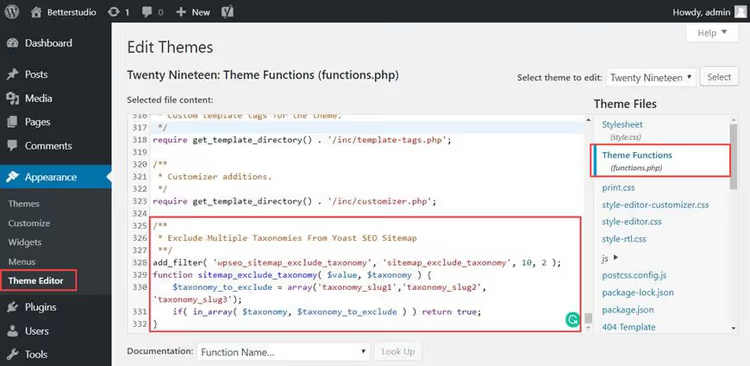
Replace taxonomy_slug1, taxonomy_slug2, and taxonomy_slug3 with the actual slugs of your taxonomies. After saving the code, go to sitemap_index.xml and check the child sitemap: archives of the excluded taxonomies should be gone.
⁉️🤔 Frequently asked questions
A page excluded from the sitemap still shows up in search. Why?
A sitemap is only a recommendation to Google, not a directive. Excluding a page from the sitemap does not equal
noindex. If the page is already indexed and has external links pointing to it, Google may continue to show it. Solution: along with excluding from the sitemap, enablenoindex(the same toggle in the Yoast "Advanced" tab) and, if necessary, request URL removal via Google Search Console.
Can you completely exclude a content type from the sitemap without code?
Yes. In Yoast SEO → Settings → Content types, each registered content type has a "Show in search results?" toggle. Set it to "No," and the entire type (for example, "Pages" or "Products") will stop appearing in the sitemap altogether. This also works for taxonomies via the Taxonomies tab.
How do you verify that a page has actually been removed from the sitemap?
Open
yoursite.com/sitemap_index.xmlin a browser, and you will see a list of child sitemaps. Find the one you need (for example,page-sitemap.xmlorpost-sitemap.xml), follow the link, and search by title or URL. If the page is not there, the filter worked. For bulk comparison, Screaming Frog or Sitebulb are handy: they will show discrepancies between the sitemap and the actual pages on the site.
What if the filter code is not working?
Check three things. First: the code is added to the active theme (
functions.php) or via Code Snippets, and the file is saved without syntax errors (open the site in another tab; a white screen = PHP error). Second: page IDs are specified correctly, with no extra spaces inside the array. Third: cache. Yoast SEO caches the sitemap; after changes, clear the plugin cache (SEO → Tools → Optimize SEO Data) or wait up to 24 hours.
Does excluding from the sitemap affect internal linking?
No. The sitemap and internal links are independent signals. A page excluded from the sitemap still passes link equity through internal links if other pages on the site link to it. But Google will re-index it less frequently: it has disappeared from the main source of information about the site structure.
What to prioritize: interface or code
For three to five pages, use the interface only. It is fast, safe, and does not require access to theme files.
For dozens of pages, use the wpseo_exclude_from_sitemap_by_post_ids filter. One array with IDs instead of manually toggling each post.
For taxonomies, use the visual toggle in Search Appearance if the taxonomy is in the list. If it is not (custom taxonomy), use the wpseo_sitemap_exclude_taxonomy filter.
And most importantly: exclusion from the sitemap does not equal exclusion from the index. If a page should disappear from search completely, always add noindex. Yoast SEO provides a unified interface for this; do not neglect it.

A professional team of writers and editors specializing in creating quality content.