













🔄 Writage: how to save a Word document as Markdown, 2026 guide
What is Writage and why you need it
You wrote an article in Word with headings, tables, lists, footnotes. Everything is polished. But you need to publish in Markdown, and manual formatting eats up an hour and guarantees errors. Sound familiar?
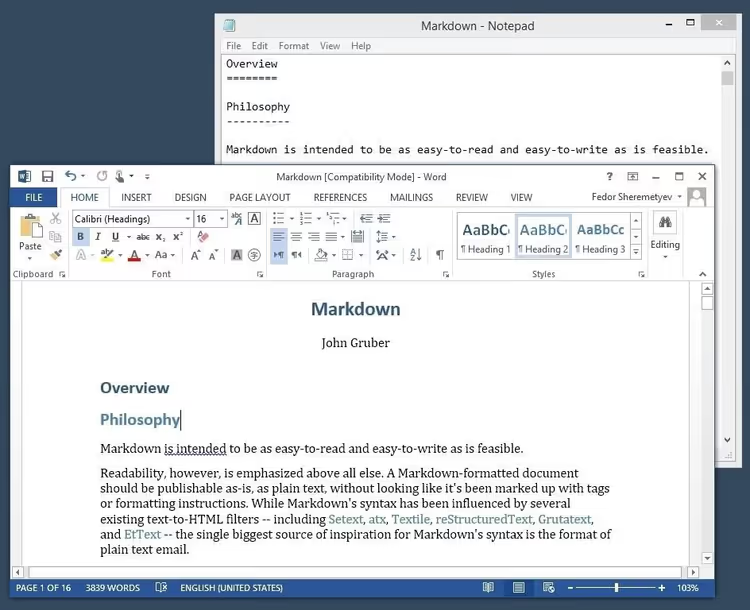
Writage is a plugin for Microsoft Word that adds a Markdown tab to the ribbon. You work in the familiar Word interface and save the result as .md. No magic: just a bridge between rich-text and plain-text markup.

The plugin relies on CommonMark and GitHub Flavored Markdown extensions. It correctly handles headings of all levels, numbered and bulleted lists, links, bold and italic text, tables, footnotes, images, and mathematical formulas. In recent versions, Writage accepts content directly from ChatGPT, Claude, and Gemini: you copy an AI response, paste it into Word, and the formatting (headings, lists, tables, code blocks, formulas) is preserved without manual editing or additional converters.
💡 Quick overview:
- Download the installer from the official website and install the plugin in a couple of minutes.
- Open a Markdown file in Word and edit it like a regular document.
- Save DOCX to Markdown via "Save as," and the result is ready for publication.
- Copy text from Word as Markdown and paste it into GitHub, Dev.to, or your CMS.
- Paste Markdown content from ChatGPT into Word, and the formatting is preserved.
- Convert a finished MD file back to DOCX for colleagues who only work in Word.
Installation: three steps to your first Markdown

Installation takes no more than three minutes:
Go to the official Writage website and download
Writage.msi. A 14-day trial version with full functionality is available, with no limitations.Double-click the downloaded file and follow the wizard instructions. Administrator rights are required.
Open Microsoft Word. The Writage tab has appeared in the ribbon, and the plugin is ready.
Writage is available for Windows and macOS, including Word 2016, 2019, 2021, and Microsoft 365. No additional dependencies: the plugin works completely locally, files stay on your computer and are not sent to third-party servers.
After installation, on the Writage tab you will find everything you need: buttons for opening and saving Markdown files, a smart clipboard with Markdown markup support, and a license management section.
Four scenarios for working with Writage
The plugin covers all typical tasks when working with Markdown documents. Let's examine each one.
Opening a Markdown file for editing
You received an .md file from a developer, downloaded documentation from GitHub, or exported an article from a CMS, but reading "raw" markup is inconvenient. Writage solves this:
- Launch Microsoft Word.
- Click "Open" (
Ctrl+O) and select a Markdown file (extension.md,.markdown, or.text). - The document opens as a regular Word file with formatted headings, lists, links, and tables.
- Edit with familiar Word tools. When saving, simply choose the Markdown format.
Saving a Word document as Markdown
The main scenario for authors and content managers: you wrote material in Word and saved it as Markdown for publication.
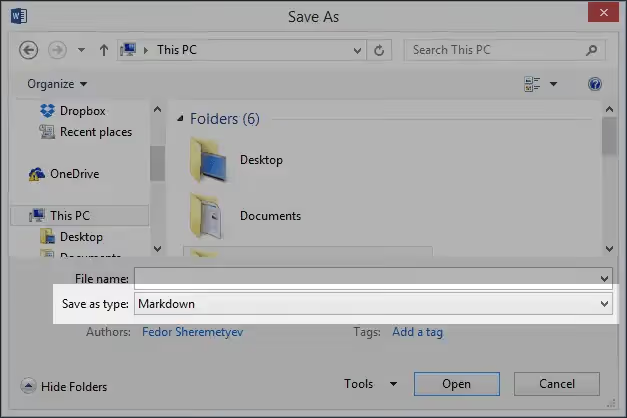
- Open an existing document in Word or create a new one.
- Choose "File" → "Save as…".
- In the "File type" dropdown list, find Markdown.
- Click "Save." The document is converted to
.mdwith structure, links, tables, and formatting preserved.
No intermediate converters and no manual markup.
Saving a Markdown file as a Word document
The reverse task: you worked in Markdown, but the result needs to be sent to a colleague who only uses Word. Or you need formatting that is not available in plain Markdown.
- Open the
.mdfile in Word via "File" → "Open." - Choose "File" → "Save as…".
- In the "File type" field, specify Word Document (
.docx). - Save. All Markdown elements are converted to corresponding Word styles.
Conversion is bidirectional and reversible: the DOCX → MD → DOCX path works without loss of structure.
Copying and pasting Markdown content
Writage adds a smart clipboard with Markdown support to Word. Two key scenarios:
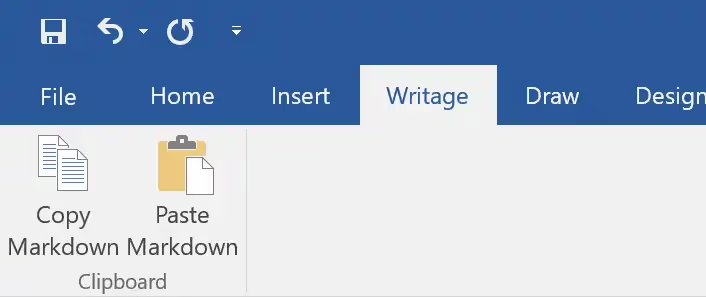
- Copy as Markdown. Select text in Word, copy it via the Writage tab, and the clipboard contains ready Markdown code. Paste it into a code editor, GitHub, Dev.to, or your CMS.
- Paste Markdown as formatted text. Copy Markdown markup from any source, paste it via Writage, and Word displays it as a formatted document. This also works for content from ChatGPT, Claude, and Gemini: an AI response with headings, lists, tables, and code blocks is pasted with full structure preservation.
Pricing and plans
Writage's pricing model is simple and transparent. A 14-day trial version with full functionality is available so you can test everything before purchasing.
Plan | Price | For whom |
|---|---|---|
Personal | $29 +VAT | Individual use. Perpetual license in the owner's name, 12 months of free updates |
Commercial | $145 +VAT ($29 per user) | Companies and organizations. Perpetual license in the company's name, 12 months of updates. Minimum 5 users |
The license is perpetual: you buy it once and use it forever. There is no subscription. Payment is processed by FastSpring, an e-commerce platform for software companies that has been operating since 2005.
Video: how Writage works
A short demonstration of the plugin in action: installation, opening a Markdown file, and document conversion in a couple of minutes.
⁉️🤔 Frequently asked questions
How is Writage different from Pandoc?
Pandoc is a powerful command-line converter that requires technical skills and working through the terminal. Writage is a GUI plugin for Word that requires no command-line knowledge. If you already work in Word and want to save results as Markdown without additional tools, Writage is more convenient. If you need batch conversion of hundreds of files or support for dozens of formats, use Pandoc.
Does Writage preserve tables and formulas during conversion?
Yes, tables and mathematical formulas are converted correctly in both directions. Writage supports CommonMark and GitHub Flavored Markdown extensions: tables, code blocks with syntax highlighting, task lists, and mathematical expressions. When pasting content from ChatGPT, formulas are also preserved.
Does Writage work on macOS?
Yes, a macOS version is available on the developer's website. Installation is similar to the Windows version: download the installer, run it, grant administrator rights, and the plugin appears in the Microsoft Word for Mac ribbon.
Do I need to know Markdown syntax to work with Writage?
No, that is the point of the plugin. You work in the familiar Word interface with visual formatting, and the plugin handles the conversion to Markdown markup. Knowing Markdown is useful for understanding the result but is not necessary for everyday work.
Is it safe to use Writage for confidential documents?
Yes. Writage works completely locally on your computer. No data is sent to the cloud; the entire conversion process happens offline. This is essential for confidential documents and corporate materials.
Is it worth installing Writage in 2026

Writage addresses a specific pain point: authors and editors accustomed to Microsoft Word can work with Markdown without retraining on new editors and without dealing with the command line. This is not a replacement for specialized tools like iA Writer or Typora; it is a bridge between the world of rich-text and plain-text markup.
If you write documentation for GitHub, articles for Dev.to, posts for blogs on static generators, or simply want to store work materials in an open format, Writage saves hours of manual markup. And the support for pasting from ChatGPT seamlessly integrates the plugin into the modern AI content-writing pipeline.
Try the 14-day free version: in two weeks it will be clear how well the plugin fits into your workflow. Download Writage from the official website and write your first Markdown document right from Word.

A professional team of writers and editors specializing in creating quality content.