













 AIIllustrative image: AI-generated
🔒 How to hide a post or an entire category from the WordPress homepage
A new post shot to the homepage and pushed everything else down. After a month you have three dozen posts like that, while the articles that actually bring in clients have drifted off to the fourth scroll. The urge to delete the excess is strong. Don't.
WordPress displays the latest posts on the homepage by default. For a blog this is normal. But if you run a catalog, knowledge base, or store, some content should live in a slider, on a landing page, or in an email newsletter. There is no reason to duplicate it on the homepage. Locking it in a draft means losing SEO. Deleting it is even worse.
Below are five ways to hide a post or an entire category from the homepage: from built-in privacy in two clicks to a database-level filter. Choose the one that fits your task.
💡 Quick overview:
- Hide a single post from all visitors: built-in WordPress privacy, two clicks in the editor.
- Selectively control content visibility: the WP Hide Post plugin with flexible settings for the homepage, categories, search, and RSS.
- Bypass the homepage feed without plugins: publish the post as a page, and the theme will ignore it.
- Exclude an entire category with code: a pre_get_posts hook in functions.php, eight lines.
- Do the same with checkboxes: the Ultimate Category Excluder plugin, zero lines of code.
Why hide posts from the homepage at all
The reason is not always "I don't want to show this." More often it is about site structure. Suppose you have three categories: plugin reviews, industry news, and guest articles. Reviews drive search traffic and belong front and center. News is interesting to subscribers and makes more sense in a slider than duplicated in the main feed. Guest posts live in an "Author columns" section and on the homepage they just create noise.
Another scenario is WooCommerce. A product has been discontinued, but the page with its description and reviews should remain accessible via direct link. Removing it from the catalog kills the accumulated SEO weight. Hiding it from the storefront while keeping the URL is another matter.
WordPress does not offer a "do not show on homepage" checkbox out of the box. But the task is solvable, from trivial to fully automatic.
Method 1: Built-in visibility, private post
The simplest option. No plugins, no code changes. It works when you need to remove one or two posts and public access to them does not matter.
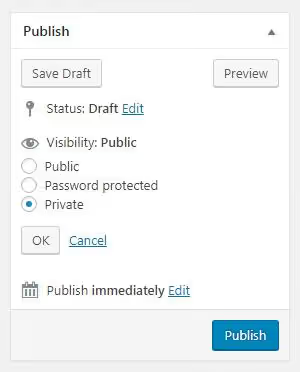
Open the post in the editor. On the right, in the "Publish" panel, click the link "Visibility: Public." Select Private. Done. The post disappears from the homepage, from archives, and from search. The direct link works, but only for administrators and editors; regular visitors get a 404.
The downside is obvious: the content is inaccessible to everyone except your team. For closed drafts and internal instructions this is ideal. For material that clients should see, it is not.
If you want a deeper look at the WordPress editor, from basic publishing to advanced settings, WordPress.org has an official block editor guide.
Method 2: WP Hide Post plugin
When private mode is not suitable and you need selective visibility control, this plugin covers nearly every scenario.
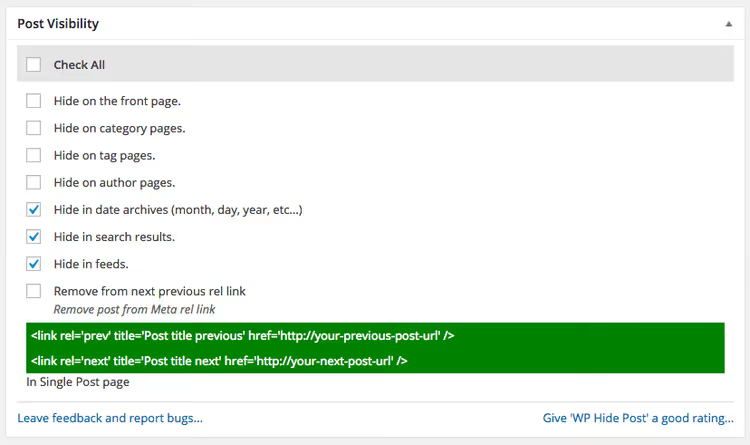
WP Hide Post is a free plugin from Xfinitysoft. After installation, every post, page, and WooCommerce product gets a "Post Visibility" metabox. Inside are eight checkboxes: homepage, categories, tags, author and date archives, search, RSS, REST API, and widgets.
Check the ones you need, and the post disappears from the selected areas. The direct link continues to work. No code. No template edits.
What else the plugin offers:
- Pros: out-of-the-box WooCommerce support (hides products from the storefront, category pages, and store search); hides media files and attachments; a "Hidden" column in the admin shows exactly where each item is hidden.
- Cons: the free version does not support bulk editing (only one post at a time); no redirect of hidden pages to 404 (requires Pro).
- Price: Free; Pro from $29 per year (Quick Edit, Bulk Edit, 404 Redirect, Hide Everywhere).
Installation in three steps: Plugins → Add New, search for "WP Hide Post," install and activate. The visibility metabox appears in every post's editor immediately after activation.
🔗 WP Hide Post on WordPress.org
Method 3: Publish as a page
A workaround that works with most themes. A standard WordPress theme displays the latest posts (post type post) on the homepage. Pages (post type page) do not enter this stream; they live separately.
Create a new page (Pages → Add New), write your content, and publish. It will not appear on the homepage. It will not appear in the RSS feed, in category archives, or in search results unless you have configured search to include pages separately.
This solution is for situations where content lives at a fixed URL in a menu or on a landing page and readers arrive via a direct link rather than the blog feed. Simple and plugin-free. The downside is that pages do not participate in post taxonomies: you cannot assign a tag or include them in a category.
Method 4: Exclude a category via code
The previous methods work one post at a time. But if you need to hide an entire category (say, "Industry news" with 40 posts), manually setting checkboxes becomes torture. Here query-level filtering in WordPress helps.
First, find the category ID. Go to Posts → Categories, open the one you need, and look at the browser address bar: the parameter tag_ID=55 is the ID. Note the number.
Now add the following code to the functions.php of your active theme (preferably a child theme):
1 function exclude_category_from_home($query) { 2 if ( $query->is_home() && $query->is_main_query() ) { 3 $query->set( 'cat', '-55' ); 4 } 5 return $query; 6 } 7 add_filter( 'pre_get_posts', 'exclude_category_from_home' );
Replace 55 with your category ID. The minus sign before the number means "exclude."
What happens here: the function checks that we are on the homepage (is_home) and that this is the main query (is_main_query) so it does not affect sidebar widgets and nested loops. Then it adds the cat parameter with a minus sign, the standard WP_Query syntax for excluding a category. WordPress does not even fetch the posts from the excluded category from the database; it does not just hide them in the template. Fast, clean, no extra queries.
After saving the file, all posts from the selected category disappear from the homepage. To bring them back, remove this block from functions.php.
If you need to exclude multiple categories, list the IDs separated by commas: 'cat' => '-12,-34,-56'.
Method 5: Ultimate Category Excluder plugin
For those who do not want to touch code, a plugin that does exactly the same thing through the admin panel.
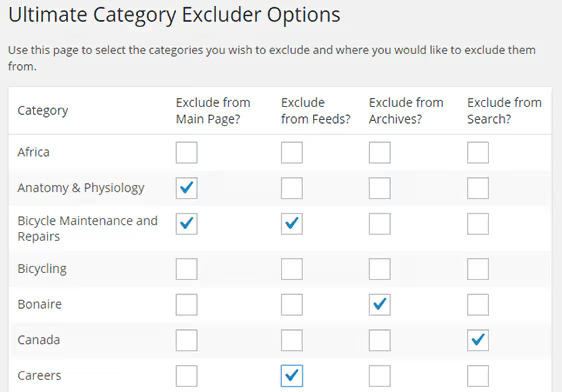
Ultimate Category Excluder is a free plugin with 50,000+ active installations and a 4.2 rating on WordPress.org. After activation, go to Settings → Category Exclusion and check the categories you want to exclude. Four columns: Front Page, Archives, Feeds, Search. Minimalistic. This is enough for 90% of tasks.
- Pros: zero code; exclusion from four areas with a single click; works with native WordPress categories.
- Cons: does not work with WooCommerce taxonomies or custom post types; some users report a conflict with Elementor where the plugin resets the page template to "Elementor Canvas" (fixed by switching back to "Elementor Full Width").
- Price: Free.
The plugin has not been updated since December 2025, but it has been tested up to WordPress 6.9 and remains stable for the basic scenario of excluding a category from the homepage. If regular updates are critical to you, use method 4 (the same 8 lines of code with no external dependencies).
🔗 Ultimate Category Excluder on WordPress.org
A short video on the topic (in English, but all actions are shown step by step):
⁉️🤔 Frequently asked questions
Can I hide a post from the homepage but keep it in search?
Yes. The WP Hide Post plugin lets you check "Hide from Front Page" while leaving "Hide from Search Results" unchecked. The post will be available through search and via direct link but will not appear in the homepage feed. Built-in privacy cannot do this: it hides the post completely, including from search and direct access. For flexible control, use the plugin.
What happens to SEO indexing of hidden posts?
If a post is hidden via a plugin (WP Hide Post or Ultimate Category Excluder), the direct link remains functional. Google can index it; the exclusion from the homepage feed does not affect indexing. WordPress private posts are not indexed: the server returns a 404 for unauthorized visitors. This is the right choice if the content should not appear in search results at all.
Can I hide posts from multiple categories at once?
Yes. In code, list the IDs separated by commas with a minus sign:
'cat' => '-12,-34,-56'. In Ultimate Category Excluder, simply check all the categories you need on the settings page. A limitation:pre_get_postswithcatexcludes categories but does not work with custom taxonomies. For those, use thetax_queryparameter.
Does the WP Hide Post plugin slow down the site?
No. The plugin uses its own cached database table; the metabox does not add queries to
wp_postmeta. On the front end the speed impact is negligible. According to the developer (Xfinitysoft), the overhead is less than 5 ms per page in a typical configuration.
Which is better for excluding categories: code or a plugin?
It depends on how comfortable you are with PHP. The
pre_get_postsfunction from method 4 is 8 lines with no external dependencies or updates. The Ultimate Category Excluder plugin is zero lines of code but adds another plugin to your admin. In practice: if you are excluding one or two categories and do not plan to change the rules often, code is simpler and lighter. If you have many categories and the rules change frequently, the plugin is more convenient.
Which method to choose for your task
A quick matrix so you do not have to reread the entire article on your next visit:
- One post, for the editorial team only → Private visibility (method 1). Zero plugins, two clicks.
- One post, clients should see it via link → WP Hide Post (method 2). As flexible as it gets, works with WooCommerce.
- Content not for the blog but for a menu or landing page → Publish as a page (method 3). The theme will not notice.
- An entire category, you are comfortable with PHP →
pre_get_postsinfunctions.php(method 4). Eight lines, no plugins. - An entire category, you do not want to touch code → Ultimate Category Excluder (method 5). Checkboxes, and done.
If you regularly hide and restore posts, start with WP Hide Post. The free version is enough for the homepage, categories, search, and RSS. Pro becomes useful when you have around a hundred posts and need bulk editing.
Set it up once, and forget about it. WordPress does the rest.

A professional team of writers and editors specializing in creating quality content.