













How to check if a website is built on WordPress: 9 verification methods
Liked someone's website and want to figure out what it's built with? Or maybe you're looking for a theme for your own project and trying to find out what the competition uses? Perhaps you're simply curious whether WordPress is in front of you or not?
This used to be trivial: a "Powered by WordPress" footer, the standard /wp-admin, characteristic folders in the source code. Today many owners deliberately disguise their platform, and visually distinguishing WordPress from a custom engine or website builder has become genuinely difficult.
Below are nine working methods to check: from the quickest (10 seconds) to the technical ones. None of them individually guarantees an answer, but three or four together almost always do.
💡 Quick overview:
- Method 1: look for "Powered by WordPress" in the footer, the fastest but doesn't always work
- Method 2: add
/wp-adminto the domain and see where it redirects - Methods 3-6: look at the page source code, folders, meta tags, and system files reveal the CMS
- Methods 7-9: online detectors (BuiltWith, IsItWP) and browser extensions (Wappalyzer), automation in seconds
Why you'd want to know what a site is built with
Short answer: to make decisions faster. If a site runs on WordPress, it inherently has a standard admin panel, an understandable database structure, predictable file paths, and a massive plugin ecosystem. This means you can:
- Search for similar themes and plugins in the WordPress.org directory, starting from what you saw on a site you liked.
- Assess vulnerabilities: knowing the WordPress version and the set of active plugins, you understand which security holes are theoretically open.
- Copy the layout approach: see which theme is used and find its demo for inspiration.
- Check out a competitor: if everyone in your niche is on WordPress and one player is on a custom solution, that says a lot.
In practice, the most common scenarios are "what theme is that?" and "how did they implement that feature?" Both are solved by the very first methods below.
Method 1: "Powered by WordPress" footer
The most obvious and fastest way. Scroll to the very bottom of the page and look for text like "Powered by WordPress," "Proudly powered by WordPress," or simply "WordPress."

This method works less and less often. By default WordPress does put this text in the footer of any standard theme, but most owners remove it in three simple steps. Premium themes often don't display this text at all, and custom builds even less so. So the absence of this text in the footer tells you nothing. But its presence tells you for sure.
Method 2: /wp-admin in the address bar
Add /wp-admin to the site's domain in your browser's address bar. For example: https://example.com/wp-admin.

If you're redirected to the WordPress login page, the characteristic form with the WordPress logo and "Username" and "Password" fields, you're looking at WordPress. No question about it.
However, this method isn't universal either. Many owners change the standard login URL through security plugins (more on them in the section about hiding WordPress below). In such cases, /wp-admin will return a 404 or redirect to the homepage, and this doesn't prove the site isn't on WordPress. In other words, if it works, great; if not, move on.
Method 3: searching for wp-content and wordpress in source code
Right-click anywhere on the page and select "View Page Source" or press Ctrl+U.

In the opened HTML, search with Ctrl+F for any of the following:
wp-content, the standard folder where WordPress stores uploaded images, themes, and pluginswordpress, often found in paths to scripts and styleswp-includes, another system folder of the core
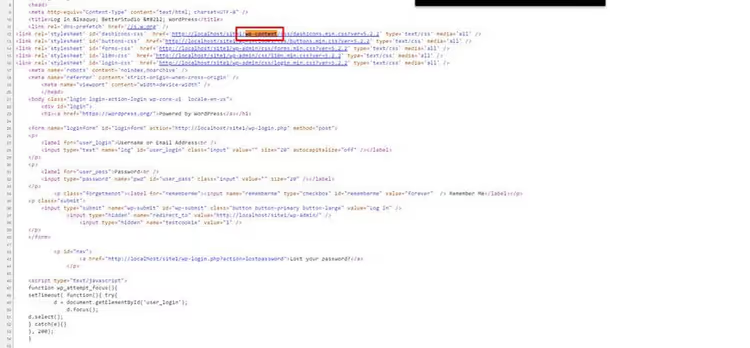
If you find wp-content in paths to images or scripts, the site is very likely on WordPress. No other popular CMS creates a folder with that name. Even if the owner renamed /wp-content through a hiding plugin (which is rare), references to the original paths may still remain in the code, thanks to human error.
Method 4: the BuiltWith online service
BuiltWith is a free tool that analyzes a site's technologies from the domain alone. Enter the address in the search field and click "Lookup."

BuiltWith shows not only whether WordPress is used, but also the version, active plugins, theme, CDN, analytics, and a couple dozen other technologies. It works by analyzing HTTP headers, page structure, and signatures; the project's technology database is huge and updated weekly.
Limitation: for sites with aggressive caching and WordPress trace hiding, detection may be incomplete. But BuiltWith almost always identifies WordPress usage because there are too many characteristic patterns in the markup of any theme.
Method 5: the readme.html file
When installing WordPress, a system file called readme.html sometimes ends up in the site's root. Check at this address:
https://example.com/readme.html
If the page opens and shows WordPress version information, everything is clear. In modern WordPress versions, this file is still placed in the root during installation, but most hosts and builds delete it immediately. So this method rarely works, but the check takes exactly one click.
By the way, on production sites this file should be deleted: it reveals the WordPress version to anyone interested, including bots scanning for vulnerabilities.
Method 6: the generator meta tag with WordPress version
Another marker WordPress leaves by default is a meta tag in the <head> of every page:
1 <meta name="generator" content="WordPress 6.4" />
Look for it through the same "View Page Source" (Ctrl+F → generator). If the tag is present, you're looking at WordPress, and the version is stated right there.
In practice, this tag is increasingly removed: first, many SEO plugins offer to delete it with one click as "unnecessary information"; second, WordPress hiding plugins (section below) do this automatically. But on sites without deep customization, the meta tag often remains, and it's worth checking since it takes five seconds.
Method 7: the IsItWP online service
IsItWP is a specialized detector specifically for WordPress. Unlike BuiltWith, it's designed for one task and can identify not only WordPress itself but also the specific theme and plugins.
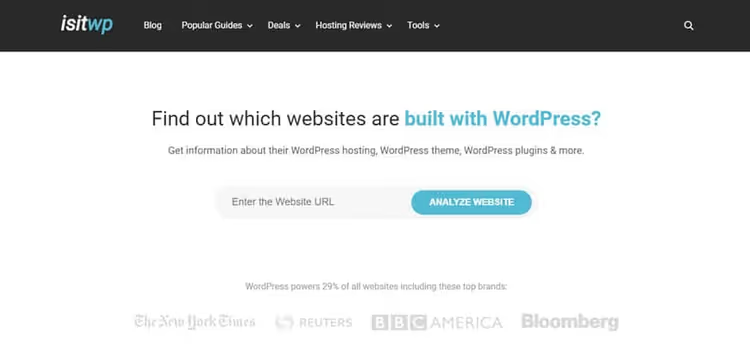
Enter the domain, click "Analyze Website," and in a few seconds you'll get:
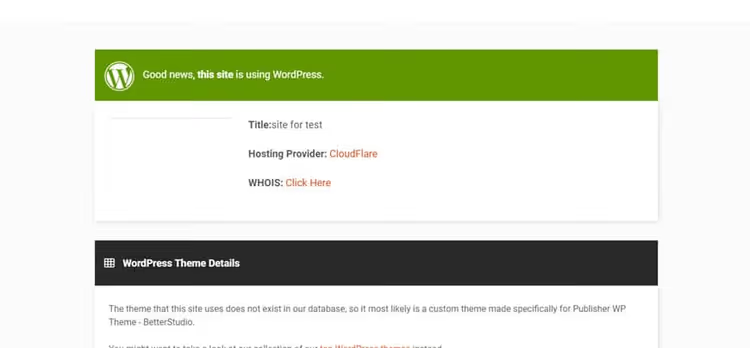
- Verdict: WordPress or not
- Theme name (if detected)
- List of detected plugins
- Hosting information
The service is free and doesn't require registration. For everyday tasks like "what theme does the competitor use," it's the ideal option. Deep checks with plugin versions and analytics are better handled by BuiltWith.
Method 8: browser extensions
If you check sites regularly, install a browser extension that shows site technologies in real time while you simply browse pages.
Wappalyzer is the most popular option, available for both Chrome and Firefox. It detects not only WordPress but also the theme, plugins, server, CDN, analytics systems, and a couple thousand other technologies. The icon in the browser panel changes when you visit a site and immediately shows what was detected.
Library Sniffer (Chrome) is an older alternative, originally created to detect JavaScript libraries. It can detect WordPress too, but with less depth than Wappalyzer.
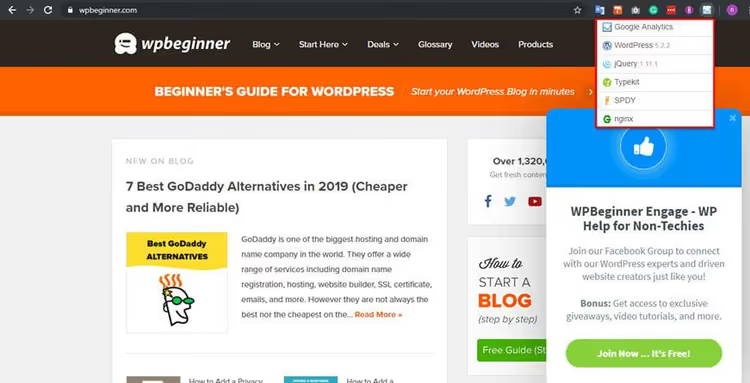
WordPress Detector+ (Firefox) is a specialized extension specifically for WordPress: themes, plugins, fonts. A good option if you use Firefox and don't want to install the heavier Wappalyzer.
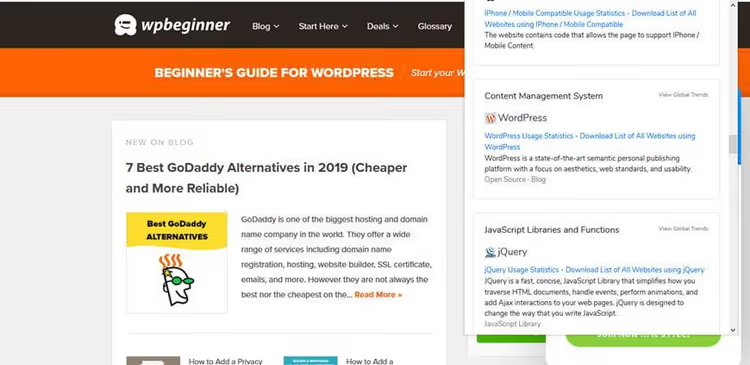
The main advantage of extensions is that you don't have to go anywhere or type anything. Just open a site, glance at the icon, and you already know what it runs on.
How to hide that a site runs on WordPress
Now let's look at this from the other side. If you're a WordPress site owner and want to hide this fact from outsiders, the methods above show exactly what needs to be masked.
The reasons for hiding WordPress aren't paranoid: bots and vulnerability scanners are specifically designed for WordPress sites. They know the standard paths: /wp-admin, /wp-content, and /wp-includes. These bots also automatically probe theme and plugin signatures. The fewer hints you leave them, the fewer automated attacks hit your site.
The main tool for this is the free WP Hide & Security Enhancer plugin. It can:
- Change standard URLs:
/wp-admin→ any other,/wp-content→ anything,/wp-includes→ a non-standard path - Remove the
generatormeta tag and other WordPress signatures from the code - Hide links to WordPress.org and WordPress version in scripts and styles
- Block direct access to system files:
readme.html,wp-config.php, andxmlrpc.php - Rename classes and IDs in HTML, removing
wp-prefixes

The plugin offers several preset levels: from light masking (compatibility with all plugins) to deep (less compatible but leaves almost no WordPress traces). You can choose a ready-made profile without configuring each parameter manually.

The General tab configures basic things:
- Custom template for the 404 page instead of the standard one
- Trusted user roles allowed to log in through the standard URL
- New URL for the login page instead of
/wp-login

The plugin cleans up HTML output: removes WordPress version information from scripts and styles, deletes wp-includes and wp-content paths from page code. For visitors, the site looks the same, but the characteristic WordPress signs disappear from the markup.

A separate function handles HTML minification and keyword replacement in the code. You can automatically remove all occurrences of "wordpress" and "wp-" from the markup.

The Permalinks & URLs tab is the most important for masking. Here you set non-standard paths for everything: theme folders, uploads, wp-includes. You can even rename system files like wp-comments-post.php, preventing attacks through the comment form at the standard address.

On the same tab, RSS feeds and author pages are hidden or their URLs changed. Bots often look for /author/admin/ and /feed/ as sure signs of WordPress; by closing these endpoints, you deprive them of easy detection.

Similar settings are available for pages, posts, categories, and tags: you can hide them from public access or rename the URL structure. Together, this removes virtually all automatic WordPress identification methods.
Note: aggressive hiding sometimes breaks functionality. For example, if you remove categories from URLs, visitors won't be able to filter posts by topic. Renaming the wp-content folder may break plugins that have the path hard-coded. Test changes on a copy of your site and enable options one at a time, checking functionality after each.
Alternative: Hide My WP, an older commercial plugin from CodeCanyon. At the time of writing, its page is unavailable, and the project appears to no longer be maintained. If you've seen mentions of it in old articles, use WP Hide & Security Enhancer instead, a living and actively updated tool with the same functionality.
All the methods described are demonstrated visually in this video:
⁉️🤔 Frequently asked questions
Can you reliably hide WordPress from detection?
Completely, no. Even with renamed folders and hidden meta tags, indirect signs remain: HTML class structure of certain themes, REST API behavior (
/wp-json/), signatures of popular plugins in JS files. The goal is to remove automatic detection for bots, not to hide from a person who knows where to look.
What's the fastest checking method?
A combination: add
/wp-adminto the domain (2 seconds) and open IsItWP.com (10 seconds). If neither gives a definitive answer, look at the source code. In practice, these three are enough in the vast majority of cases.
Why doesn't a site show "Powered by WordPress" but it's WordPress?
Because the owner removed that text. This is done either in theme settings, through the
footer.phpof a child theme, or with a plugin like WP Hide. Standard practice for commercial sites, nobody wants to expose their platform unnecessarily.
Is it mandatory to hide that a site runs on WordPress?
Not mandatory. If the site has no confidential data and doesn't attract targeted attacks, a "Powered by WordPress" footer doesn't hurt anyone. Masking is needed for sites that have already become bot targets or operate in sensitive niches (finance, healthcare, membership areas).
Which is better: Wappalyzer or BuiltWith?
For quick checks on the go, Wappalyzer (extension, instant result). For detailed site technology analysis, BuiltWith (web interface, more data, technology change history). They're not competitors but complementary tools.
What to install and how to check: the final breakdown
The nine methods above aren't a "pick one" situation. They're a ladder: start with the fastest and go deeper until you get a confident answer. In most cases, the first three or four points are enough. The rest are for stubborn sites whose owners really tried to cover their tracks.
If you check sites regularly, install Wappalyzer. One click during installation saves dozens of hours of "viewing source code" over a year.
If you're a site owner and want to reduce the number of automated attacks, install WP Hide & Security Enhancer. Free, flexible, updated. Just don't enable all options at once: test them one at a time on a copy.

A professional team of writers and editors specializing in creating quality content.