














🔒 How to disable viewing source code in WordPress: plugins and setup
You published an article, and a week later its text is already on someone else's site. They change links to their own, set up redirects and collect your traffic. The "View Source" button in the browser makes content theft a matter of a couple clicks: Ctrl+U, and all the HTML with text is laid bare.
But the problem is broader than simple copying. Through View Source, an attacker sees the WordPress version, installed plugin names and their directories, and that's already a ready attack vector. A vulnerability scanner picks an exploit in minutes if it knows what and where to look for.
WordPress itself doesn't provide a built-in toggle to "disable code viewing." You need a plugin, and there aren't many if you count ones that actually work. Below we examine two tools that close View Source, plus a bonus method for masking WordPress traces.
💡 Quick overview:
- You'll learn what information View Source reveals and why it's dangerous
- We'll walk through installing WPShield Content Protector with 16 protection modules
- We'll configure WP Content Copy Protection to disable source code
- We'll hide the fact of using WordPress from bots and vulnerability scanners
What View Source reveals and why it's dangerous
Page source code is not just HTML markup. It shows:
- Exact WordPress version. Hacker scanners automatically collect the CMS version and select exploits for known vulnerabilities.
- Plugin names and paths. Every
wp-content/plugins/<slug>in the code reports which extensions are installed on the site, and each of them may have its own CVE. - Theme structure. Template file names, custom post types, meta fields, all of this facilitates reverse engineering.
- Developer comments.
<!-- TODO: fix auth -->or commented-out API keys in HTML are still encountered, and View Source makes them public.
Closing source code is not paranoia but a standard layer of defense in depth, which complements basic measures: strong passwords, two-factor authentication, timely updates and a web-server-level firewall.
1. WPShield Content Protector, premium protection suite
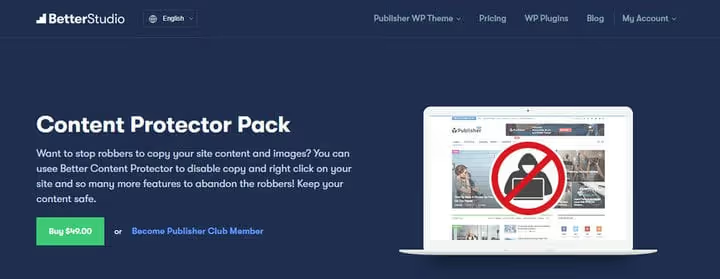
WPShield Content Protector (formerly Content Protector Pack from BetterStudio) grew from a code protection plugin into a complete kit of 16 modules. Each module is a separate toggle for a specific attack vector:
- View Source Protector, disables opening source code via Ctrl+U, right click and F12.
- Developer Tools Protector, blocks DevTools not only by F12, but also by Ctrl+Shift+I, Ctrl+Shift+J and Ctrl+Shift+C.
- Right Click Menu Disabler, disables the context menu entirely, including "Save image" and "Print."
- Right Click Menu Limiter (pro), the menu is shown, but "Copy" and "View code" items are unavailable.
- Feeds Protector, removes RSS/Atom feeds that autoblogs use for parsing.
- Hotlinking Protector, prohibits embedding your images on other sites directly.
The plugin is paid. The price depends on the number of sites, the license includes updates and support. When purchasing, you get access to all 16 modules at once, with no hidden charges for individual features.
Installation and enabling protection
- Download the plugin zip archive from your personal account at wpshield.com.
- In WordPress admin: Plugins → Add New → Upload Plugin.
- Select the archive and click "Install," then "Activate."

- After activation, a WPShield section appears in the left menu. Go to Content Protector.

- Find the View Source Protector module and switch the toggle to Enabled.
- Save changes.
From this moment on, Ctrl+U, right click and "View code" do not work for logged-out users. Search engines see the content in full, the plugin doesn't touch server-side rendering, only the client side.
2. WP Content Copy Protection, free way to close code
WP Content Copy Protection from Tyche Softwares works on the principle of "turn on and forget": no settings pages, after activation protection is enabled immediately.
What is blocked in the free version: viewing source code via Ctrl+U, right click and F key, text selection with mouse and drag-and-drop, saving images via context menu, Ctrl+A, Ctrl+C, Ctrl+X, Ctrl+S, Ctrl+P combinations, direct access to /wp-content/uploads/ directory.
No pop-up windows, protection works silently without degrading user experience. The plugin is compatible with WooCommerce and most themes.
Important nuance: the last update was released in June 2023, and the WordPress.org card shows a warning "not tested with the last three major WP versions." On fresh versions of WordPress the plugin works, but new features are not added, the developer is focused on commercial products. If you need guaranteed future compatibility, look toward WPShield.
The premium version adds Print Screen protection, advanced CSS masks for images, disabling RSS feeds and selective disabling of protection for registered users.
Bonus: how to hide that the site runs on WordPress
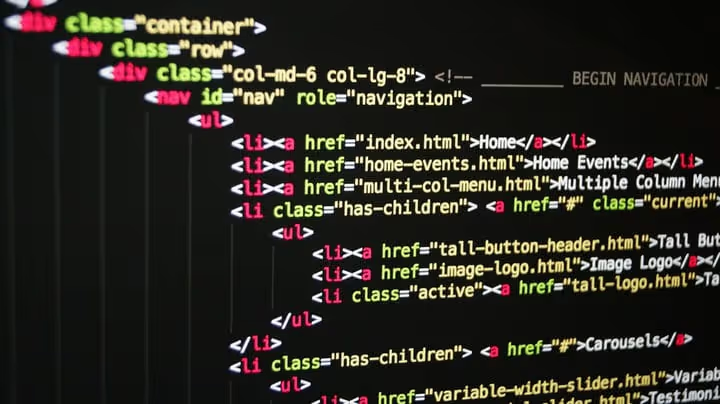
Disabling View Source is good. But there's another level: making sure a scanner doesn't even understand that it's facing a WordPress site.
- Remove meta-tag generator. In
functions.phpadd:remove_action('wp_head', 'wp_generator');. The tag<meta name="generator" content="WordPress X.X">will disappear from head. - Hide WP version. Besides the meta-tag, the version is visible in query parameters of scripts and styles (
?ver=X.X). Snippet for removal:add_filter('style_loader_src', 'remove_version_query', 999); add_filter('script_loader_src', 'remove_version_query', 999); function remove_version_query($src) { return remove_query_arg('ver', $src); }. - Rename directories. Standard paths
wp-content,wp-includesandwp-admingive away the site to passive scanners. Plugins like Hide My WP Ghost change them to custom ones. - Change permalink structure. Default
?p=123is another WordPress marker. Pretty URLs like/post-name/solve this problem.
None of these methods provides absolute anonymity, an experienced specialist will identify the CMS by indirect signs. But it cuts off bots and automatic scanners, and it's they who generate the main stream of attacks on WordPress sites.
Video: complete content protection setup
This video shows the process of installing and configuring content protection plugins, from disabling right click to hiding source code. All steps from the screen, on a real WordPress site.
⁉️🤔 Frequently asked questions
Does disabling View Source protect from hacking?
No, by itself it doesn't protect. This is a layer of security-through-obscurity: an attacker doesn't see the WP version and plugin list, so they can't automatically pick an exploit. But if the site has a vulnerable plugin with a hole, they'll find it by other methods. View Source Protection works only in conjunction with regular updates, a firewall and a minimal set of plugins.
Does blocking right click affect SEO?
No. Search bots get HTML directly from the server, and JavaScript protection only works in the user's browser. Google, Yandex and Bing see the content in full. In practice, the ranking of sites with enabled protection doesn't differ from normal.
Can View Source protection be bypassed?
Yes. The simplest way is to disable JavaScript in the browser or use developer tools opened before the page loads. The protection is not designed for deliberate bypass by a specialist, its task is to cut off mass copying and automatic vulnerability scanners.
What to choose: WPShield or WP Content Copy Protection?
If you need one toggle "turn on and forget" at no cost, WP Content Copy Protection. If you need a comprehensive shield with protection from Print Screen, DevTools, RSS feeds and the ability to flexibly configure for user roles, WPShield Content Protector.
Does a content protection plugin slow down the site?
Both plugins have minimal impact on speed. WP Content Copy Protection adds one JS file (about 5 KB compressed). WPShield loads scripts only for active modules, if you enabled only View Source Protector, the other 15 modules don't load a single line of code.
Do I need to disable caching when using protection plugins?
No. Content protection plugins inject JavaScript code that executes in the visitor's browser regardless of server cache. Cache pages as usual, this doesn't affect protection operation. After installing or updating the plugin, clear the cache so that new scripts are guaranteed to reach all pages.
Is it worth closing source code and what to install
Disabling View Source is not a silver bullet, but one of the bricks in the site security wall. By itself it won't stop a targeted attack, but it cuts off the lion's share of automatic scanners and makes mass content parsing pointless.
If budget doesn't allow paid solutions, start with WP Content Copy Protection. Free, instant activation, minimal settings. Just keep in mind that the plugin hasn't been updated since mid-2023.
If content protection is critical for you (monetization through unique articles, paid courses, closed materials), get WPShield Content Protector. 16 modules provide coverage that can't be achieved with a set of separate free plugins, and each module is updated for current WordPress and browser versions.
And don't forget about basic WP masking in functions.php: five lines of code from the bonus section cost zero $ and cut off most automatic scanners even before they try to open View Source.

A professional team of writers and editors specializing in creating quality content.