














🚫 How to disable copying and right-click on your website: codes and plugins
You've invested months into content: articles, guides, reviews. A week later, you find your text on someone else's site, copied word for word, with images and even your own links. Frustrating? Absolutely.
The problem isn't paranoia. Content copying is a real headache for site owners. Someone else's bot or a person with Ctrl+C nullifies your SEO efforts: search engines see a duplicate and don't always correctly identify the original source. The simplest way to steal text and images is to select with the mouse, right-click and choose "Copy". Or press the familiar Ctrl+A → Ctrl+C.
Disabling right-click and copy hotkeys won't stop a professional, you can always view the source code or disable JavaScript. But it cuts off the overwhelming majority of opportunistic copying: a student for a paper, a beginner "rewriter" for a content mill, an owner of a clone forum. In this article, working methods: clean code (jQuery, 3 lines per method) and WordPress plugins with flexible settings.
💡 Quick overview:
- Blocking right-click via
contextmenu: closes the copy menu and "Save as". - Preventing
cut copy pasteviabind: kills Ctrl+C/Ctrl+X/Ctrl+V and context menu items. - Disabling system hotkeys: supplements protection for those who copy from the keyboard without the mouse.
- Four WordPress plugins: ready-made solutions with fine-tuning, image protection and exceptions for admins.
How to disable right-click
Right-click is the gateway to copying. The browser shows a context menu: "Copy", "Save image as", "View code". Block it and you close off the most obvious path.
In WordPress, the method works through jQuery, the library is already in the core, nothing needs to be connected. The code is placed in functions.php of a child theme or via a snippet insertion plugin like Code Snippets.
First, make sure jQuery is loaded (in WordPress it's there by default):
1 <script src="/wp-includes/js/jquery/jquery.min.js"></script>
Then, the blocker itself. The contextmenu event fires on right-click; return false cancels the browser's default behavior:
1 jQuery(document).ready(function ($) { 2 // Block right-click on the entire page 3 $('body').on('contextmenu', function (e) { 4 return false; 5 }); 6 7 // Or only in a specific block — by ID or class 8 $('#content-area').on('contextmenu', function (e) { 9 return false; 10 }); 11 });
The body selector kills clicks everywhere. If protection is only needed in the article area, replace it with #post-content, .entry-content or another CSS selector from your theme. On the homepage and in the sidebar, right-click will remain functional, the visitor doesn't lose convenience where protection isn't needed.
The downside of the method: it blocks not only copying, but also useful menu items like "Open link in new tab". For readers, this is annoying. Therefore, the next step is targeted disabling of specifically copy operations, without completely blocking the context menu.
How to prevent copying and pasting
Instead of crudely blocking the entire menu, we intercept specific actions: cut copy paste. The jQuery method .bind() attaches a handler to a group of events at once; e.preventDefault() cancels each of them, neither via mouse nor keyboard:
1 jQuery(document).ready(function ($) { 2 // Disable cut, copy, and paste — entire page 3 $('body').bind('cut copy paste', function (e) { 4 e.preventDefault(); 5 }); 6 7 // Same restrictions, but only inside a content block 8 $('#post-content').bind('cut copy paste', function (e) { 9 e.preventDefault(); 10 }); 11 });
The first variant is for sites where you protect absolutely everything (closed courses, paid content). The second is gentler: menus and contact forms work as usual, without scaring off the visitor.
An important nuance: preventDefault cancels the action at the JavaScript level, but doesn't touch system-level operating system combinations. On Windows, Ctrl+Insert can still copy text bypassing this handler. To close this loophole too, we supplement the protection by disabling hotkeys.
How to disable system copy hotkeys
Every method has a blind spot. Right-click is blocked, the user presses Ctrl+C. cut copy paste is intercepted, the user presses Ctrl+Insert (alternative copying in Windows) or Cmd+C on Mac. Full protection closes these paths too.
The code below extends the previous approach: .bind('cut copy paste', ...) already blocks standard combinations. But for greater reliability, we add interception by key code, keydown with a check for ctrlKey/metaKey:
1 jQuery(document).ready(function ($) { 2 // Main restriction — cut/copy/paste via bind 3 $('body').bind('cut copy paste', function (e) { 4 e.preventDefault(); 5 }); 6 7 // Additional interception — Ctrl+C / Ctrl+X / Ctrl+V / Ctrl+A by key code 8 $(document).keydown(function (e) { 9 if (e.ctrlKey || e.metaKey) { 10 var key = String.fromCharCode(e.which).toLowerCase(); 11 if (key === 'c' || key === 'x' || key === 'v' || key === 'a') { 12 return false; 13 } 14 } 15 }); 16 });
e.ctrlKey catches Control on Windows/Linux and e.metaKey for Command on Mac. List of keys: c (copy), x (cut), v (paste), a (select all). return false cancels both the event and bubbling, copying won't happen.
This approach works at the DOM level, the page doesn't respond to prohibited combinations. But browser extensions (Absolute Enable Right Click & Copy) and DevTools with disabled JavaScript bypass any client-side protection. Therefore, the code isn't a silver bullet, but a filter that cuts off mass attempts. A complete content protection strategy is a topic for a separate conversation, but for the everyday practice of a WordPress site, the three methods listed are sufficient.
The code needs to be stored and maintained somewhere. If the jQuery version changes or the theme is updated, manual edits may break. Plugins solve this problem: an interface instead of a code editor, regular updates, technical support. Let's look at the best ones.
Best WordPress plugins to prevent copying and right-click
Each plugin below has been verified: active installations, fresh updates (2025-2026), compatibility with the current version of WordPress. One of the five from the original list has been replaced, WP Content Copy Protection from Tyche Softwares hasn't been updated since June 2023 and hasn't been tested with the latest WP releases. Its place has been taken by a live alternative with similar functionality.
1. Content Protector Pro

The most functional commercial plugin in the selection. Developed by the Better Studio team, comes as part of the Publisher theme, but is also available separately. Covers all three copying vectors: right-click, text selection, hotkeys, plus adds a layer of protection that free alternatives don't have.
After activation, the plugin adds a "Content Protector" section in the Better Studio menu:

Settings are gathered on one tab, the logic is sequential, without jumping between screens:

What Content Protector Pro offers:
- Three copy modes. "Allow all", "Deny all" and "Allow but add your text to the end of copied content", useful for attribution: a copy with a link to the source still steals traffic, but at least leaves your trace.
- Fine-tuned right-click. Can be disabled globally or left for internal site links, the reader navigates via menu, but doesn't copy.
- Custom warning. The message text when attempting right-click is editable, instead of an aggressive alert you write a polite explanation.
- Separate toggles. Text selection, copying, Windows hotkeys, Mac hotkeys, each controlled separately, without a rigid "all or nothing" binding.
The plugin is paid, the cost is tied to the Publisher theme package (from $44 to $399). If Publisher is already installed, the plugin is available for free. For everyone else, a reasonable choice when content protection is critical for business, not just "just in case".
🔗 Content Protector Pack on Better Studio
2. WP content copy protection and no right click

Free plugin with more than 100,000 active installations and an update from May 2026, one of the most popular in the niche. Installed directly from the WordPress admin: "Plugins" → "Add New" → search by name.
What works "out of the box": right-click blocked, hotkeys Ctrl+S/Ctrl+X/Ctrl+C/Ctrl+A/Ctrl+V disabled, when attempting to copy, an informational message to the user. No configuration required, activate and forget.
The Premium version adds:
- watermarks on images;
- protection via
.htaccessfrom direct file access; - mobile device compatibility;
- disabling protection for administrators;
- print plugin support.
For a typical blog or news site, the free version is more than enough. Premium is worth taking if monetization depends on content uniqueness: paid courses, closed guides, photo stocks on WordPress.
🔗 WP Content Copy Protection on WordPress.org | 🔗 Live demo
3. Disable right click and content copy protection

A fresh plugin (first release 2025, update May 2026), which quickly gained an audience thanks to simplicity and lack of extras. Unlike WP Content Copy Protection (abandoned since June 2023), this one is alive, maintained and works correctly with current versions of WordPress.
Functions are exactly what you came for:
- disabling right-click on the entire site or selected pages;
- blocking text copying and image dragging;
- customizable notification when attempting to copy;
- selective protection: you can exclude admins and authorized users.
No side effects like broken sitemaps (which the predecessor suffered from). Lightweight, doesn't add extra scripts to the front, except for the protective one directly. A good choice for those who want "set it and forget it", without diving into the depths of settings.
🔗 Disable Right Click & Content Copy Protection on WordPress.org
4. Secure Copy Content Protection
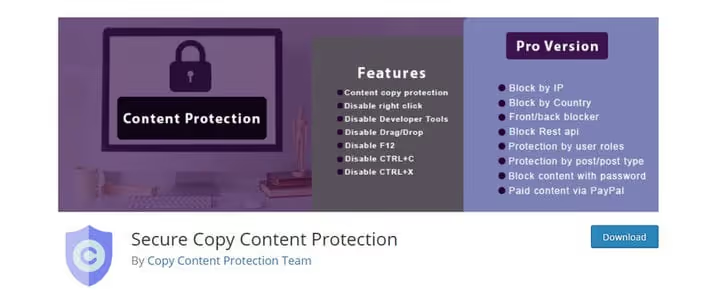
A stable veteran of the niche: version 5.1.7, update June 2026. Closes right-click, hotkeys and text selection predictably, without surprises. Cross-platform, works identically on Windows, Mac and Linux. Cross-platform in browsers too: Chrome, Firefox, Safari, Opera, Edge.
The free version provides the basics. Premium extends protection to the infrastructure level:
- IP blocking, cuts scripts and bots masquerading as visitors;
- geo-blocking by country, relevant for content with regional rights;
- front and admin protection, content won't be copied even through REST API;
- password protection of content, an additional barrier for paid materials;
- selective protection by post type, pages protected, news open.
If besides copy protection you need access control at the country or IP level, take a look at Secure Copy Content Protection. For a simple blog it's excessive, for a commercial project with paid content, just right.
🔗 Secure Copy Content Protection on WordPress.org
5. WP Content Copy Protection with Color Design
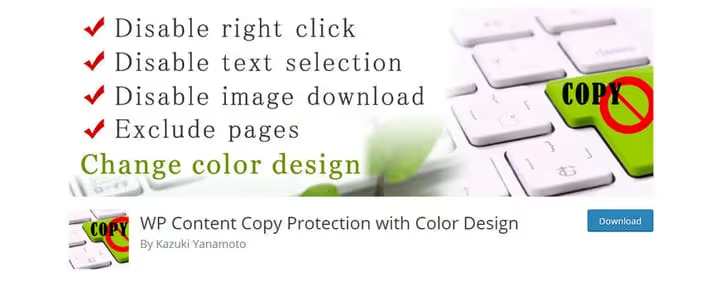
The simplest from the selection. Does three things: disables right-click, blocks hotkeys, kills Print Screen. The latter is rare: most plugins don't even try to fight screenshots. Here this function is claimed as built-in.
Another feature: a filter system. In the settings you can specify specific pages or post types that need to be protected. Everything else on the site remains "open", convenient when content is mixed: part free and publicly available, part paid or exclusive.
Version 2.4.2 from October 2025, the plugin doesn't update lightning fast, but is stable and predictable. Suitable for those who need simple protection without a dozen additional options: install, select pages, it works.
🔗 WP Content Copy Protection with Color Design on WordPress.org
Video: visual demonstration of copy protection
Theory and plugins are half the battle. See how right-click and copy protection looks from the visitor's side: HTML, CSS and pure JavaScript, without jQuery dependency.
⁉️🤔 Frequently asked questions
Can you completely prohibit copying content from a site?
Completely, no. Any client-side protection (JavaScript, CSS overlay, right-click blocking) is bypassed through DevTools with JS disabled, browser extensions like Absolute Enable Right Click & Copy or direct viewing of the page's HTML code. Right-click and hotkey protection cuts off the overwhelming majority of opportunistic copying, but against a purposeful thief with technical skills it's powerless. The only reliable protection is not to publish content in open access at all.
Will a copy protection plugin help improve SEO?
Directly, no. The plugin doesn't add keywords, doesn't speed up the site and doesn't build link mass. Indirectly, yes: if your content is regularly copied, search engines may incorrectly determine the canonical source. By blocking mass copying, the plugin reduces the risk of duplicates appearing on other domains. But this is a supporting measure, SEO is done with content and links, not protection plugins.
Which method to choose: code or plugin?
For a single blog without frequent theme updates, code. The three methods from this article cover basic scenarios, don't add extra weight to the page and don't require updates to a separate plugin. For a site with a changing team, frequent updates or the need for fine-tuning (exceptions for admins, image protection, geo-blocking), a plugin. It will survive a theme change, receive compatibility updates and provide an interface instead of a code editor.
Why was WP Content Copy Protection replaced in the plugin list?
The plugin from Tyche Softwares hasn't been updated since June 2023 and officially hasn't been tested with the last three major versions of WordPress. In practice, this means the risk of incompatibility, vulnerabilities and lack of technical support. Disable Right Click & Content Copy Protection is a fresher replacement (2025-2026) with a similar set of functions and confirmed compatibility.
Does right-click protection disable screenshots?
Most plugins, no. Print Screen takes a screen image at the operating system level, which JavaScript protection doesn't reach. WP Content Copy Protection with Color Design claims a "Print Screen disabling" function, in reality this is blocking the PrtScr key via interception of the
keyupevent, which doesn't work in all browsers and not on all OSes. A screenshot via a system tool (Snipping Tool on Windows, Screenshot.app on Mac) plugins don't block.
Content protection in 2026: what to install on the site
Code or plugin, both approaches work. The choice comes down to three questions. Do you update the theme once a year and don't touch functions.php? Install the code, the three methods above close the main copying vectors. Do you change design, test hypotheses, work in a team? Take a plugin, WP Content Copy Protection & No Right Click (free, 100,000+ installations) or Secure Copy Content Protection (if you need IP and country blocking). Is content a business? Content Protector Pro: three copy modes, custom messages, integration with Publisher.
The main thing, remember: no plugin will replace content uniqueness. Copy protection isn't a goal, but insurance in case of someone else's laziness. First make content that people want to steal. Then install protection to make stealing it a bit harder.

A professional team of writers and editors specializing in creating quality content.