













 AIIllustrative image: AI-generated
🔕 How to disable WordPress comments on your entire site: a step by step guide
Comments in WordPress are a double-edged sword. On one hand, lively discussion under a post boosts engagement and depth metrics. On the other, open comments attract spammers like a magnet. Dozens or even hundreds of automated "great post, check out my site" messages per day. And that's not counting outright toxic or inappropriate comments.
If your site is corporate, a portfolio landing page, or simply a blog without an active community, the comment section provides no benefit. It creates extra moderation work and bloats the database.
Good news: you can disable comments across all of WordPress in 5 minutes. No plugins, no manual template editing. And in this guide we'll cover all working methods, from built-in settings to surgically precise code.
💡 Quick overview:
- Discussion settings: uncheck "Allow comments" and the form disappears for all new posts, while the auto-close option set to 0 days blocks old ones.
- Disable Comments plugin: install from WordPress.org, it removes the comment section completely, including REST API and XML-RPC, with one click.
- Code in functions.php: add the filter
add_filter('comments_open', '__return_false')for programmatic disabling without a single plugin. - Bulk deletion: "Comments → Actions → Move to Trash" to clear the database of spam accumulated over the years.
Method 1. Discussion settings (built-in, no plugins)
The native WordPress mechanism closes comments without a single line of code. The downside is that it only works for new posts; old entries remain open until you apply the setting retroactively.
Go to the admin panel: Settings → Discussion. Find the "Default post settings" block and uncheck "Allow people to submit comments". Click "Save Changes."
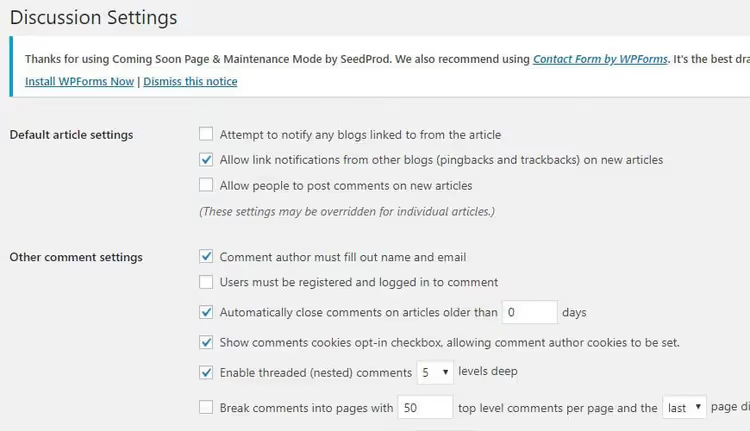
Now the comment form won't appear for all new posts and pages. But old publications will remain with open comments. To close those as well, scroll down a bit to the option "Automatically close comments on posts older than X days". Check the box and enter 0 in the days field.
Zero means "close instantly," and all existing posts will lose their comment form immediately after saving. This same setting will block comments on any future publications.
Pros: free, built-in, no plugins. Cons: doesn't remove "Comments are closed" links from the interface; doesn't delete already submitted comments.
Method 2. Disable Comments plugin (full control)
When you need not just to close the form but to completely erase any trace of comments from the site, Disable Comments on WordPress.org handles the task in a minute. The plugin has been active for over 10 years, was updated in May 2026 (version 2.7.0), and works reliably with the latest WordPress versions.
After installation, a Disable Comments item appears in the Settings menu. The interface consists of a single screen: you choose where to disable comments, everywhere (Everywhere) or only for specific content types (posts, pages, media files).
The plugin does three things at once:
- Removes comment forms and links from the frontend;
- Hides the "Comments" section in the admin panel;
- Blocks comments via XML-RPC and REST API, so spammers can't get through even directly.
🔗 Disable Comments on WordPress.org
Pros: complete removal of comment traces; API protection; multisite support. Cons: an additional plugin (though lightweight, ~50 KB).
Method 3. Code in functions.php (no plugins, maximum control)
If you don't want to install a plugin for a single function, close comments with a filter. Add this code to the functions.php of your active theme (or through the Code Snippets plugin):
1 // Completely disable comments across the entire site 2 add_filter('comments_open', '__return_false', 20, 2); 3 add_filter('pings_open', '__return_false', 20, 2); 4 5 // Hide existing comments from the admin panel 6 add_action('admin_menu', function () { 7 remove_menu_page('edit-comments.php'); 8 }); 9 10 // Remove 'Comments' links from the admin bar 11 add_action('init', function () { 12 if (is_admin_bar_showing()) { 13 remove_action('admin_bar_menu', 'wp_admin_bar_comments_menu', 60); 14 } 15 });
What's happening here: the comments_open filter forcibly returns false for any post or page. pings_open disables pings and trackbacks (another loophole for spam). The next two blocks remove the "Comments" menu from the admin panel and admin bar so the interface doesn't distract you.
The code is inserted at the end of functions.php (before ?> if present) or through the Code Snippets plugin. Before editing, back up the file; if you make a syntax error, the site will crash to a white screen.
Pros: zero extra plugins; full control over behavior. Cons: lost when switching themes; code errors break the site.
Method 4. Selective management (posts and pages)
Sometimes you need comments only on the blog, while on pages like "Contact" or "About Services" they're unnecessary. Or vice versa. WordPress lets you manage this at the level of each individual post.
Open the entry in the editor. In Gutenberg, click the three dots in the upper right corner → Settings → the "Discussion" panel. Uncheck "Allow comments." In the classic editor, enable the "Discussion" block via "Screen Options" at the top.
For bulk disabling on already published posts: go to "Posts → All Posts," select the ones you need with checkboxes, in the "Bulk Actions" dropdown choose "Edit" → "Apply." In the panel that opens for bulk editing, find the "Comments" field and set it to "Do not allow."
The same applies to pages and custom post types; the principle is identical.
Pros: flexibility; comments remain where needed. Cons: manual work; tedious on hundreds of posts.
Deleting existing comments
You disabled the form, but old comments remain in the database. They take up space and are visible in the admin panel. Deleting them in bulk is simple:
- Go to Comments in the left admin menu.
- If there are many comments (more than 20 per page), increase the number of displayed items to maximum in "Screen Options."
- Select all with the checkbox in the table header.
- In the "Bulk Actions" dropdown, choose "Move to Trash" and click "Apply."
- Repeat for remaining pages.
- Go to the comment trash and click "Empty Trash"; now they're deleted permanently.
The database is lighter, space is freed up.
Video: disabling comments in 3 minutes
If it's easier to watch than read, here's a visual demonstration of all three methods in one video. From settings to plugin, from the WordPress screen:
⁉️🤔 Frequently asked questions
Can I disable comments only for new posts while keeping old ones?
Yes. Uncheck "Allow people to submit comments" in Settings → Discussion and save. New posts will publish without a comment form, old ones will remain as is. The "Allow" checkbox controls future publications, while the "older than X days" option controls existing ones. Two independent settings.
Will already submitted comments disappear after disabling?
No. Disabling comments (by any method) only removes the form and links. Existing comments remain in the database and admin panel; entries in
wp_commentsandwp_commentmetawon't go anywhere. To delete them completely, use the bulk "Move to Trash" action and empty the trash.
Which method is best for a corporate site?
The Disable Comments plugin. It removes the form from the frontend, blocks REST API and XML-RPC (closing technical loopholes for spammers bypassing the interface), and hides the comments section in the admin panel. It weighs less than 50 KB, updates reliably, and doesn't conflict with popular themes and builders.
What should I do if comments are disabled but the form is still visible?
Most likely, the theme is hard-calling
comments_template()bypassing filters. Checksingle.phpandpage.phpin the theme editor; if you see<?php comments_template(); ?>, comment out or delete the line. But edits will be lost when the theme updates. Typically, the Disable Comments plugin solves this problem automatically, as it intercepts the template at the WordPress level rather than the theme level.
Can I hide the comment counter in the admin panel?
Yes. Method 3 from this guide (code in functions.php) removes both the "Comments" item from the menu and the counter from the admin bar. If you only need to remove the counter but keep the menu, use the filter add_filter('comments_open', '__return_false', 20, 2) without remove_menu_page. The counter will zero out when all comments are deleted.
Is it worth disabling comments in 2026?
If you have a blog with an active audience, comments are more of a plus. Lively discussion increases time on page and depth metrics, and Google factors this into rankings. But for other scenarios (corporate site, landing page, portfolio, WooCommerce online store) comments are pure dead weight.
Spam bots in 2026 have only become more aggressive: CAPTCHA and Akismet filter most of it, but don't fully solve the problem. Every day moderation consumes time that could be spent on content and growth. And if comments on your site just sit there empty, that's a signal saying "nobody's here," which works against trust.
The pragmatic conclusion: if you're not sure comments add value to your site, disable them. Choose the method based on your task:
- Need it quick and without plugins → discussion settings;
- Need it surgically clean → Disable Comments plugin;
- Need full control without extra code in the admin panel → filter in
functions.php; - Need flexibility (yes in some places, no in others) → manual management post by post.
Spend 5 minutes now and forget about comment spam forever.

A professional team of writers and editors specializing in creating quality content.