













🗑 How to bulk delete all product variations in WooCommerce with WP Sheet Editor
You created a dozen variable products to test a theme, and now they sit in the catalog as dead weight. Or you set up attributes with a mistake, and instead of "Red, XL" you ended up with hundreds of meaningless combinations. Cleaning them up manually means losing an entire evening.
Standard WooCommerce doesn't offer a "delete all variations at once" button. Variations can only be removed one at a time through the product editing screen. For three products, that's tolerable. For thirty, it's not.
WP Sheet Editor solves the problem in four clicks. Below is a step-by-step breakdown: from installation to bulk deletion of hundreds of variations in seconds.
💡 Quick overview:
- Install WP Sheet Editor from WordPress.org or upload the ZIP manually
- Open the products table and navigate to the "Bulk Edit" tool
- Configure your search: enable the variations filter and run the search
- Apply the "Delete completely" operation to all found rows
Why you need WP Sheet Editor
WP Sheet Editor is a plugin that displays all WooCommerce products in a spreadsheet interface right inside the WordPress admin. No CSV export, no editing in Excel, no re-importing: changes apply to the database immediately.
The free version of the plugin works with simple products and provides access to basic fields: title, description, SKU, stock, regular price, and sale price. That's enough for quick catalog edits on the fly.
The premium version (WooCommerce Bulk Edit Products on WordPress.org) removes limitations: variable products, variations, subscription and membership products all become editable, along with all fields from gallery and attributes to custom fields from ACF and other extensions. At the time of publication, the plugin has 200,000+ active installations and a 4.5 out of 5 rating with the last update in January 2026.
It's specifically the premium search functionality for variations that you need for the task mentioned in the title.
Step 1. Install WP Sheet Editor
The free version is available in the WordPress directory: Plugins → Add New, type "WP Sheet Editor" or "Bulk Edit Products for WooCommerce" in the search bar. Click Install Now, then Activate.
Immediately after activation, the plugin displays a quick setup page. Enable the "Products" table and check the columns you want to see in the interface: Title, SKU, Type, and Status are required, as they'll be needed for filtering variations. You can add others later. Click Continue and proceed to the table.
Step 2. Open the products table
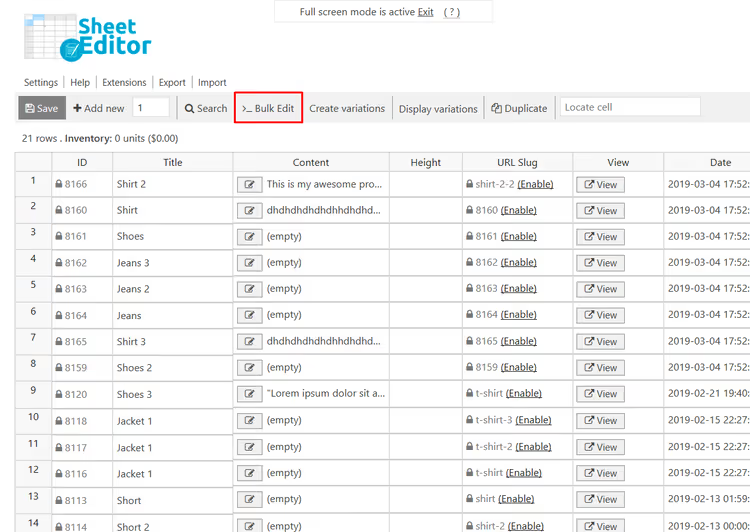
After setup, the plugin adds a menu item Sheet Editor → Edit Products to the admin menu. Open it, and you'll see a familiar spreadsheet with all store products.
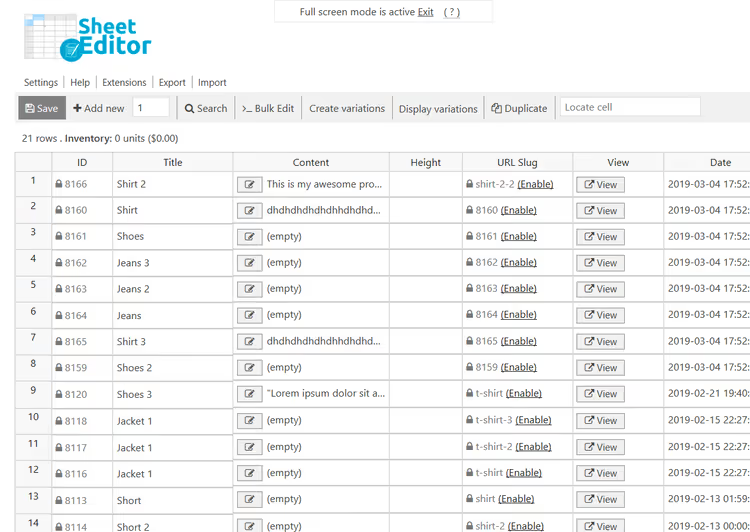
The top toolbar contains everything you need: search, bulk editing, export, and column management. Right now we're interested in the Bulk Edit button, which opens the tool for batch operations.
Step 3. Configure bulk editing
Click Bulk Edit on the toolbar. A form with three key settings will open.
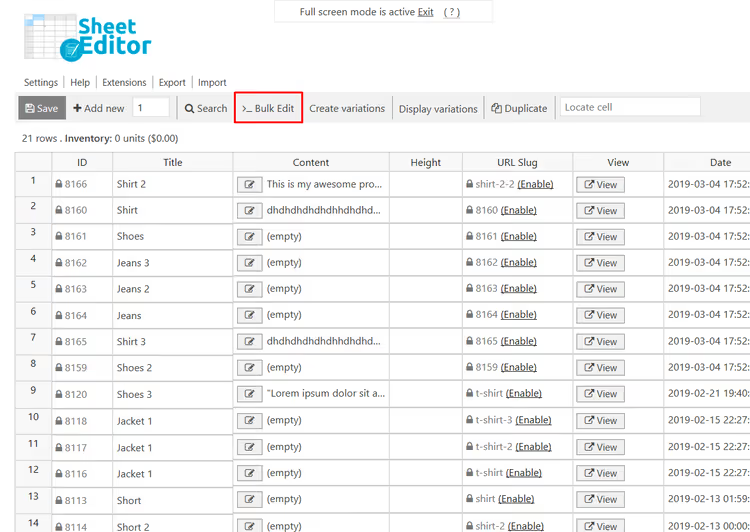
The Mass Edit tool lets you apply the same change to thousands of rows at once. But first you need to specify which rows to modify, and here it's critical not to make a mistake. Without the correct filter, you'll delete all products, including parent ones. So the next step is search and selection.
Step 4. Find product variations
In the Mass Edit form, expand the Select the rows you want to update dropdown and choose I want to find rows to update. This switches the tool to search mode.
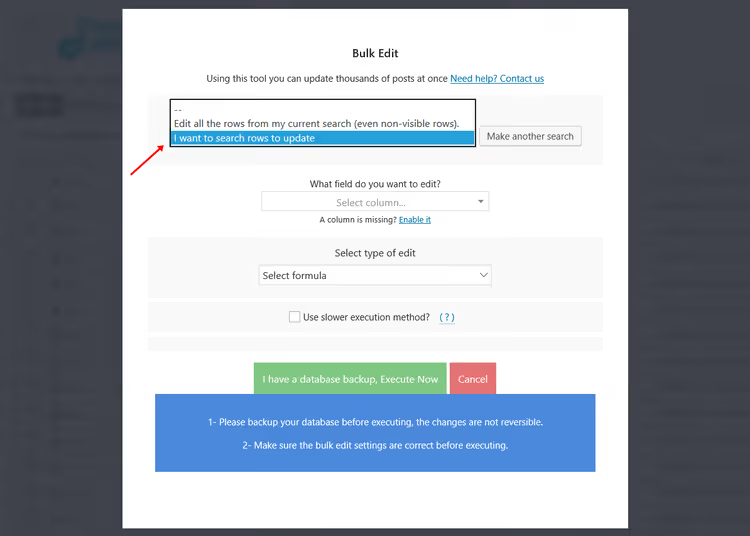
Search fields will appear. You don't have to fill in all of them; for deleting variations, two actions are sufficient:
- In the Contains keyword field, you can enter a word from variation titles (for example, a common attribute) to narrow down the results. If you need to delete all variations without exception, leave the field empty.
- Check the Search variations box. Without it, the search applies only to parent products, and then the entire catalog would be marked for deletion.
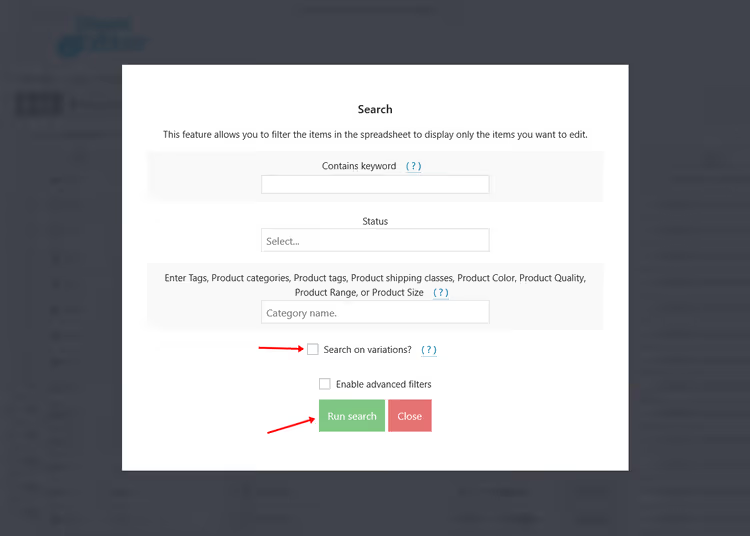
Click Run search. The plugin will select all rows matching the conditions and show their count in the table. Visually check the first few items to make sure the selection actually contains variations, not main products.
Step 5. Delete all variations in one operation
Now that your selection is ready, return to the Mass Edit form (it's still open) and fill in three fields:
- What field do you want to edit: select Status
- Select type of edit: leave Set value
- Replace existing value with this value: select Delete completely
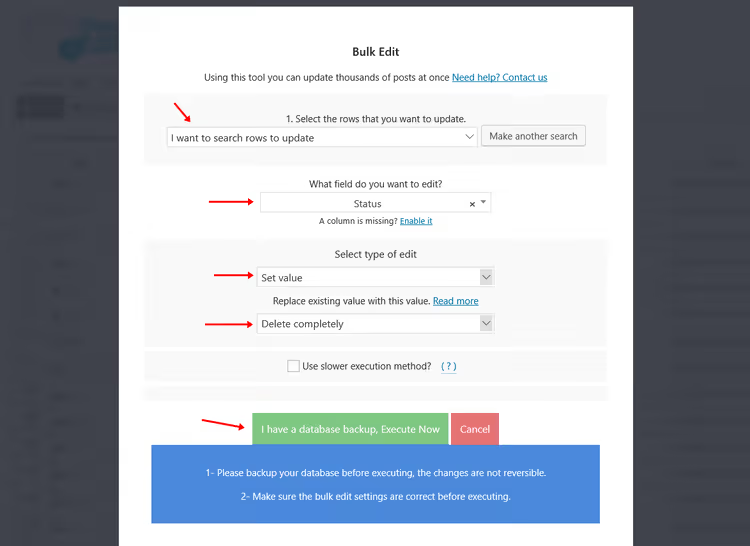
Click Execute now. The plugin will process all selected rows and remove them from the database. Parent products will remain untouched: they didn't get into the selection thanks to the Search variations checkbox from the previous step.
The operation takes anywhere from a couple of seconds to a minute, depending on the number of variations and your hosting power. The site doesn't slow down during this: WP Sheet Editor processes records in batches with a configurable pause between batches.
⁉️🤔 Frequently asked questions
Can the free version of WP Sheet Editor handle variation deletion?
No. The free version works only with simple products (Simple Product). For searching and editing variations, you need a premium license, which unlocks all product types, including Variable Product and Variations. You can use the free plugin to evaluate the interface, but it won't handle the task from this guide.
What happens to parent products after deleting variations?
Parent products remain in the catalog unchanged. They don't get into the selection thanks to the Search variations checkbox, as the search targets only variation rows. Status, prices, and attributes of main products are not affected. The only thing: if a variable product has no variations left, it will stop displaying on the storefront until new ones are added.
Can I delete only some variations, for example, those with a specific attribute?
Yes. For this, use the Contains keyword field in the search step. Enter the attribute value (say, "Blue" or "XL"), and the plugin will select only variations containing that word in their title. Filtering by tags, categories, and shipping classes works the same way through the Enter tags field. All conditions combine.
How many variations can I delete at once?
There are no technical limits; the plugin processes selections of any size. In practice, users delete from several dozen to tens of thousands of variations in a single operation. WP Sheet Editor breaks the work into batches (batch size is configurable in Settings), so the process doesn't hit memory limits or PHP timeouts.
Is there a way to restore deleted variations?
There's no built-in undo mechanism in the plugin; the operation applies directly to the database. Before bulk deletion, be sure to make a full site backup (files + database). Plugins like UpdraftPlus or Duplicator handle this in two clicks. Restoring from a backup is the only way to recover variations if you deleted the wrong ones.
Is WP Sheet Editor worth installing just for one variation cleanup
If the task is a one-time thing (delete variations and forget about it), an annual premium license might seem excessive. But WP Sheet Editor covers more than just this need. It replaces manually going through dozens of WooCommerce fields with a spreadsheet interface: editing prices, stock, descriptions, and SEO data for hundreds of products in one session.
Alternatives like VBULKiT and Bulk Edit Variations focus specifically on variations and cost less, but they don't provide a general editor for all WordPress post types. WP Sheet Editor, on the other hand, works with posts, pages, media files, and custom post types. It's an everyday tool, not just for emergency cleanups.
On a test site, try the free version: evaluate the interface, table speed, and search logic. If the "spreadsheet in admin" format works for you, the premium pays for itself with the first operation that would have taken hours without it.

A professional team of writers and editors specializing in creating quality content.