














🛡 How to disable hotlinking in WordPress
Imagine logging into your hosting panel and discovering that monthly traffic has doubled. Visitors haven't increased, sales haven't grown, yet the server bill arrived at twice the usual amount. Sound familiar? This is a classic hotlinking scenario.
Someone embedded your image URL on their site. The image loads on their end, but you pay for the traffic. For news and content projects on WordPress, hotlinking ranks among the top 5 hidden hosting budget drains.
Below are seven working methods to stop image theft: from quick .htaccess configuration to plugins and CDN. Each method has been tested on current WordPress versions and works without core modifications.
💡 Quick overview:
- How hotlinking works, why it's dangerous, and how much traffic you're losing without noticing
- Three server-side blocking methods:.htaccess (Apache/LiteSpeed), NGINX configuration, and cPanel's built-in tool
- All-In-One Security (AIOS) plugin: enabling hotlink protection with a single checkbox, plus firewall and brute-force protection
- Cloudflare Hotlink Protection: CDN-level filtering without loading WordPress, free tier
- Disabling right-click: a plugin as an additional barrier against casual image URL copying
- Finding stolen images through Google Images: a one-minute audit and three ways to deal with violators
What is hotlinking and why is it dangerous
Hotlinking means embedding a direct URL to your image on someone else's site. That site's visitor's browser fetches the image from your server, not from the owner's server. Visually the image displays normally, but every view consumes your bandwidth and CPU resources.
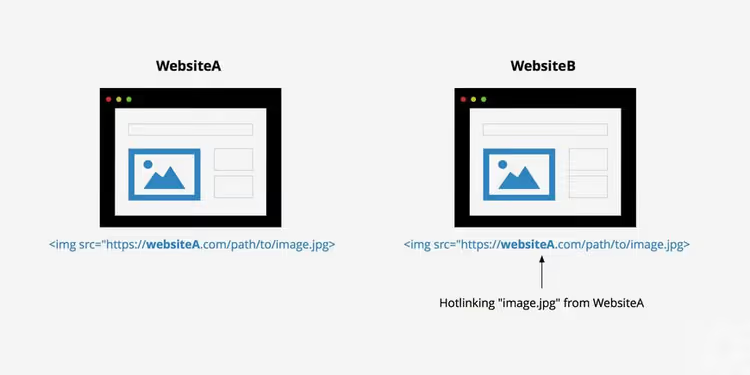
The main problem isn't "theft" per se. The image physically remains on your server, and copyright isn't formally violated. But every external view eats bandwidth you paid the hosting provider for. For a site on cheap shared hosting with a 10-25 GB traffic limit, one popular post with an image spreading across a dozen platforms can exhaust your monthly quota in three days.
The second threat is CPU load. With high traffic on the offending site, your server handles two fronts: your visitors and theirs. The result is slower load times and declining Core Web Vitals.
How to disable hotlinking in WordPress
There are seven methods, from server-side to plugin-based. Choose based on your access level: do you have cPanel hosting, which web server (Apache or NGINX), and are you willing to edit configuration files.
1. Blocking via.htaccess file
The .htaccess file is the main configuration handler for Apache and LiteSpeed. Through it, you can prohibit image loading from any domains except yours and search engines. Downside: this method doesn't work on NGINX servers.
To access the file, connect to the server via FTP (for example, through FileZilla) or open the file manager in your hosting panel. The file sits in the site's root folder, alongside wp-config.php.
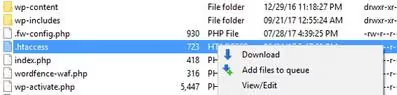
Before any .htaccess edits, make a backup. One missing bracket or directive, and the site goes down with a 500 error. After editing, open the site in another tab and make sure it's alive.
Copy this block to the end of the file, replacing yourwebsite.com with your domain. The rules reject requests from all external referrers while allowing search engines and social networks:
1 RewriteEngine On 2 RewriteCond %{HTTP_REFERER} !^$ 3 RewriteCond %{HTTP_REFERER} !^http(s)?://(www\.)?yourwebsite\.com [NC] 4 RewriteCond %{HTTP_REFERER} !^http(s)?://(www\.)?google\.com [NC] 5 RewriteCond %{HTTP_REFERER} !^http(s)?://(www\.)?bing\.com [NC] 6 RewriteCond %{HTTP_REFERER} !^http(s)?://(www\.)?facebook\.com [NC] 7 RewriteCond %{HTTP_REFERER} !^http(s)?://(www\.)?twitter\.com [NC] 8 RewriteRule \.(jpg|jpeg|png|gif|webp|avif|svg)$ - [F]
Here's what's happening: RewriteCond checks the referrer, the address of the page the request came from. If the referrer is empty (first line), your own domain, Google, Bing, Facebook, or Twitter, the request passes through. Everything else gets 403 Forbidden. The last line lists the file formats covered by protection (webp, avif, and svg formats added, relevant for 2026).
Testing the rule is easy: open an image from your site via direct URL in a new tab. It should open. Then create a simple HTML file on your local computer with <img src="URL-of-your-image"> and open it. The image should not load.
2. All-In-One Security (AIOS) plugin
If server configs aren't your thing, install a plugin. All-In-One Security (AIOS) (formerly All in One WP Security & Firewall) blocks hotlinking with a single checkbox. As a bonus, you get a firewall, brute-force protection, and vulnerability scanning.

After installation and activation, go to WP Security → Firewall → Prevent Hotlinks. Check the "Prevent Image Hotlinking" box and save. The plugin automatically writes the necessary rules to .htaccess, so you don't have to touch the file manually.
The advantage of AIOS is that it doesn't conflict with other .htaccess rules and automatically updates the list of allowed referrers when you change domains. The free version is sufficient for hotlink protection; premium adds two-factor authentication and country blocking.
3. Cloudflare: CDN-level protection
Cloudflare offers Hotlink Protection on the free tier, and this is the most elegant approach because traffic is blocked before reaching your server.
In the Cloudflare panel: Security → Hotlink Protection → toggle to On. That's it. Cloudflare starts checking the referrer for every image request and blocks external ones.
The strength of this method is that you don't burden WordPress or risk breaking .htaccess. All requests are filtered at Cloudflare's edge servers. Bonus: caching and image compression via Polish (lossy compression on the free tier, lossless on Pro) work simultaneously.
If your site already uses Cloudflare, enabling Hotlink Protection takes ten seconds. If not, registration, DNS change, and basic setup take about an hour. For projects already on Cloudflare, this is method number one.
4. cPanel: built-in Hotlink Protection tool
Hosting providers using cPanel (SiteGround, Namecheap, A2 Hosting, and dozens of others) have a built-in hotlink protection tool. Finding it is simple: in the cPanel dashboard, search for "Hotlink Protection" or find the icon in the Security section.

Steps to enable:
- Click Enable to open the page with the list of allowed domains
- In the URLs to allow access field, add your domain (cPanel fills it in automatically) and subdomains if needed
- In the Block direct access for the following extensions field, file formats under protection are listed; keep the default list or add
avif,webp - Allow direct requests: leave empty if you don't want to grant direct access to specific files
- Redirect request to: you can specify a placeholder image URL that thieves will see instead of your image. For example, a text banner saying "This image was stolen from site.ru". Or leave it empty, and the request simply gets a 403
- Click Submit
To disable protection, use the Disable button on the same page.
5. Disabling right-click
This isn't hotlinking protection in the pure sense, but rather an additional barrier. The Prevent Content Theft (Disable Right Click) plugin disables the browser's context menu on your site. Visitors can't click "Copy image URL" because there's physically no way to obtain the direct image address.
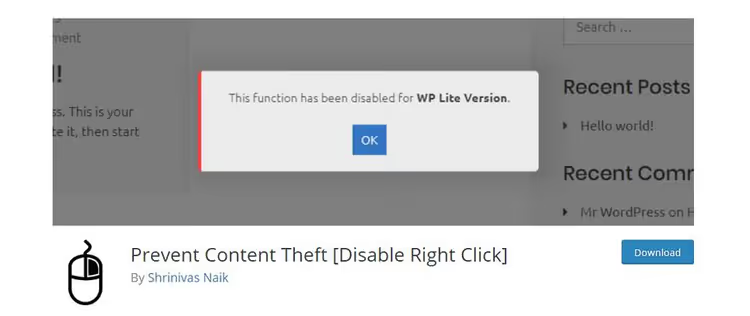
The plugin blocks not only right-click but also keyboard shortcuts: Ctrl+C, Ctrl+U (view source), Ctrl+Shift+I (developer tools). The premium version adds protection against image dragging and text selection. You can exclude specific pages or user roles (for example, keep right-click for administrators).
Fair warning: this method won't stop someone who knows how to open DevTools through the browser menu or view page source. But it blocks the vast majority of casual copying, and that's exactly the audience that steals images on the "see it, click it, paste it" principle.
A more detailed breakdown of copy protection, including CSS methods and server-side solutions, is available in our guide on disabling copy and right-click on websites.
6. Blocking on NGINX
NGINX doesn't read .htaccess; all configuration lives in server files (nginx.conf or in separate files in the sites-available folder). Only the server administrator has access (VPS/dedicated server). On shared hosting with NGINX proxy, this method is typically unavailable.

Add the following inside the server { } block for your site:
1 location ~* \.(gif|png|jpeg|jpg|svg|webp|avif)$ { 2 valid_referers none blocked ~\.google\. ~\.bing\. ~\.yahoo\. yourdomain.com ~\.yourdomain\.com; 3 if ($invalid_referer) { 4 return 403; 5 } 6 }
The valid_referers directive lists who is allowed: none (direct visits and downloads without referrer), blocked (referrer hidden by browser or proxy), search engines, and your domain with subdomains. Everything else gets a 403.
After changing the configuration, check the syntax (nginx -t) and reload the server (nginx -s reload or systemctl reload nginx). A configuration error will bring down the entire site, so never apply changes without syntax verification.
7. Blocking on Apache (direct configuration)
On Apache, you can go beyond .htaccess and write protection directly in the virtual host configuration (httpd.conf or apache2.conf). The syntax is the same as for .htaccess, but the rules apply at the server level and can't be accidentally overwritten by a plugin or update.

Advantages of direct configuration: rules apply to all sites on the server at once, execute faster (the configuration file is read once at startup), and can't be accidentally deleted via FTP. The downside is obvious: you need access to server configuration, which cheap hosting doesn't provide.
For most WordPress users, the .htaccess method (option 1) is more than sufficient. Direct Apache configuration makes sense for administrators managing multiple sites on a single server.
How to find stolen images through Google Images
You can detect image theft through indirect signs: unexplained traffic growth with stable visitor counts, declining load speeds. But there's a direct method: searching through Google.
Open Google Images and enter:
1 inurl:yourwebsite.com -site:yourwebsite.com
Replace yourwebsite.com with your domain. The inurl: operator finds all pages mentioning your URL, while -site: excludes pages from your own site. Only external sites that embedded links to your content remain in the results.
An alternative is reverse image search. Upload a suspicious image to Google Images (camera icon in the search bar), and Google shows all pages where this image appears. This method is slower but more precise: you see specific violator URLs.
Found a thief? Three options: a polite request to remove the image (rarely works), replacing the stolen image on your end with a placeholder containing your logo and link (works reliably, the thief displays your advertisement), or filing a DMCA complaint with the violator's hosting provider.
This 8-minute video demonstrates the process of setting up hotlink protection via AIOS and .htaccess on a live WordPress site. The author walks through from diagnosis to result verification and explains which referrers should be whitelisted.
⁉️🤔 Frequently asked questions
Does hotlinking hurt SEO?
Not directly. Google doesn't penalize sites for having their images stolen. Indirectly, yes: if hotlinking overloads the server and page load times increase, rankings drop because Core Web Vitals is an official ranking factor. For the server, every external image view is indistinguishable from your own traffic.
Can I block hotlinking only for specific images?
Yes. In
.htaccessand NGINX rules, you can specify a particular folder or file instead of a wildcard for all images. For example,RewriteRule ^wp-content/uploads/premium/.*\.(jpg|png)$ - [F]protects only the premium folder. Plugins typically don't offer this flexibility: it's all or nothing.
Will a watermark help against hotlinking?
A watermark doesn't technically prevent hotlinking; it only marks authorship. If an image is embedded via direct URL, the watermark will be visible on the external site, which is at least some advertising. But you still pay for the traffic. Combining approaches is better: watermark as visual protection plus
.htaccessor CDN as technical protection.
What if my hosting doesn't provide.htaccess access and there's no cPanel?
Set up Cloudflare on the free tier and enable Hotlink Protection. Cloudflare works on top of any hosting, requires no access to server configs, and solves the problem at the DNS level. An alternative is the AIOS plugin from the WordPress directory, which writes to
.htaccessautomatically even if you don't know where that file is located.
Will blocking hotlinking break images on social media and messengers?
Not with proper configuration. In the examples above, Facebook, Twitter, and search engines are added to the referrer whitelist. If you actively use other platforms (Pinterest, Telegram, Reddit), add their domains to the rules. Without this, preview images when sharing your links on social media and messengers will indeed disappear.
Hotlink protection: which method to choose
The choice comes down to three scenarios. If you're on Cloudflare, enable Hotlink Protection in the panel: ten seconds and a complete solution. VPS or dedicated server on NGINX: a rule in the server configuration, five lines. Regular shared hosting on Apache with cPanel: the built-in Hotlink Protection tool in the panel or the AIOS plugin with a single checkbox.
The most reliable defense combines approaches: Cloudflare or server-side blocking as the primary barrier, plus Prevent Content Theft to disable the context menu. One doesn't interfere with the other, and together they block both direct URL embeds and casual "just looking" copying.
Spend ten minutes today. When next month's hosting bill doesn't surprise you with an extra zero, you'll understand this was one of the most worthwhile time investments in site security.

A professional team of writers and editors specializing in creating quality content.