














🚀 Guide to launching SiteGround hosting for WordPress
Bought hosting but your site won't launch? Or choosing a plan and wondering whether to pay extra for GoGeek?
Over the years of working with WordPress, we've tried about a dozen hosting providers, and SiteGround is one of those where the admin panel doesn't make you want to close the tab. A setup wizard, daily backups out of the box, three-layer caching, and support that responds in half a minute rather than a day. Below is a complete guide: from choosing a plan to your first post on a ready-made site.
💡 Quick overview:
- Comparing three SiteGround plans: StartUp, GrowBig, GoGeek
- Walking through the WordPress installation wizard step by step
- Configuring the site after installation: theme, permalinks, SSL, plugins
- Answering common questions about plans and speed
What matters in WordPress hosting
WordPress hosting is not just "a place for files." The CMS brings along a database, PHP processing, cron jobs, and caching. Regular shared hosting that isn't optimized for WordPress turns even a lightweight theme into a sluggish mess.
What to look for when choosing:
WordPress auto-installation. If a host makes you download an archive from wordpress.org and upload it via FTP, walk away. SiteGround's installation wizard takes three steps and two minutes. You choose a domain, login, password, and the admin panel is ready.
Auto-updates. WordPress itself applies minor security patches, but major versions and plugin updates are the host's or your responsibility. SiteGround updates the core automatically on all plans. Plugins are optional: you can enable auto-updates selectively right from the panel.
Daily backups. Included in all three plans. GrowBig and GoGeek have a built-in restore tool: a couple of clicks, and your site rolls back to yesterday's copy. No FTP, no phpMyAdmin, no panic.
24/7 support. Chat, phone, and ticket system around the clock. SiteGround operators are trained specifically in WordPress: they won't tell you to "contact the plugin developer" but will troubleshoot on the server side and point you in the right direction.
Uptime guarantee. The industry-standard uptime level that SiteGround confirms with a public SLA. In practice, over a year the site is down for no more than a couple of hours, mostly due to scheduled maintenance announced a week in advance.
Speed. This is where it gets interesting. SiteGround runs on Google Cloud, and every plan includes the SG Optimizer plugin (formerly called SuperCacher) with three caching levels: static cache for files, memcached for database queries, and dynamic cache for ready-made pages. In practice, dynamic caching on a WordPress site with up to 50 thousand visits eliminates page generation delay almost entirely.
Security. Free SSL from Let's Encrypt, account isolation on the server, malware monitoring, and optional HackerAlert (a premium feature with monthly billing) that scans your site and sends an email if it finds suspicious code.
SiteGround plans: what each tier offers
SiteGround offers three WordPress plans. The key difference from many hosts: even the entry-level StartUp isn't stripped of critical features; backups, SSL, support, and auto-updates are available everywhere. Higher tiers add more power and development tools.
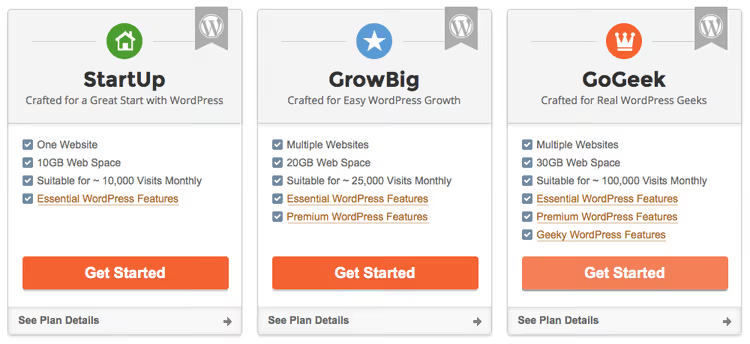
Parameter | StartUp | GrowBig | GoGeek |
|---|---|---|---|
Price (first year) | $2.99/mo | $4.99/mo | $7.99/mo |
Price (renewal) | $17.99/mo | $29.99/mo | $44.99/mo |
Websites | 1 | Unlimited | Unlimited |
Storage | 10 GB | 50 GB | 100 GB |
Monthly visits | ~10,000 | ~25,000 | ~100,000 |
Backups | Daily | Daily + restore | Daily + on-demand + restore |
Staging | ❌ | Yes | Yes + Git |
Caching | Static | Static + memcached | All three levels (including dynamic) |
Priority support | ❌ | Yes | Yes |
White-label / Private DNS | ❌ | ❌ | Yes |
Prices shown are for the US in dollars. European customers are billed in euros. On the first order, SiteGround offers a significant discount when paying for 12 months; after that, standard rates apply.
Pricing based on SiteGround and WPINDIGO as of June 2026.
StartUp: for your first site
If you're launching a personal blog or a simple business card site, go with StartUp. One site, 10 GB of disk space, up to 10 thousand visits per month. When traffic grows, you can switch to a higher plan in a couple of clicks without file migration or downtime. For a beginner, this is almost always enough for the first year or year and a half.
GrowBig: for multiple projects
This is a case where a minimal extra payment pays off instantly. Instead of one site, unlimited. Instead of basic backup, a restore panel (log in, choose a date, press a button, site is alive). Dynamic caching, priority support, and staging are added: a copy of the site for testing that you can push to production with one click.
GoGeek: for business and development
The most powerful plan. 100 GB of disk space, up to 100 thousand visits per month, all three caching levels, Git integration, on-demand backups (make a copy before updating and sleep peacefully), white-label for agencies, free PCI compliance for online stores. Private DNS and dedicated IP are optional. If you build sites for clients or run a WooCommerce store, the extra cost is justified.
Installing WordPress through the SiteGround wizard
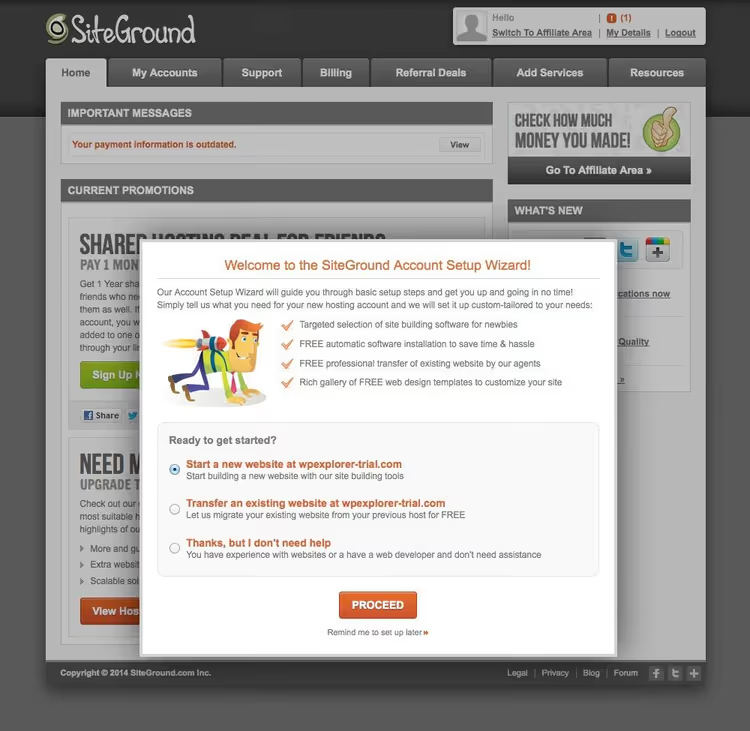
After purchasing a plan, an invitation to set up your site appears in the panel. SiteGround offers two paths: the installation wizard (we strongly recommend it) and manual mode through cPanel. The wizard takes three steps.
Step 1: choosing a site type
Log into your SiteGround user panel; after the first login, a window appears with choices: "New Site," "Transfer Site," or "New Domain." Select "New Site."
Step 2: choosing CMS and domain
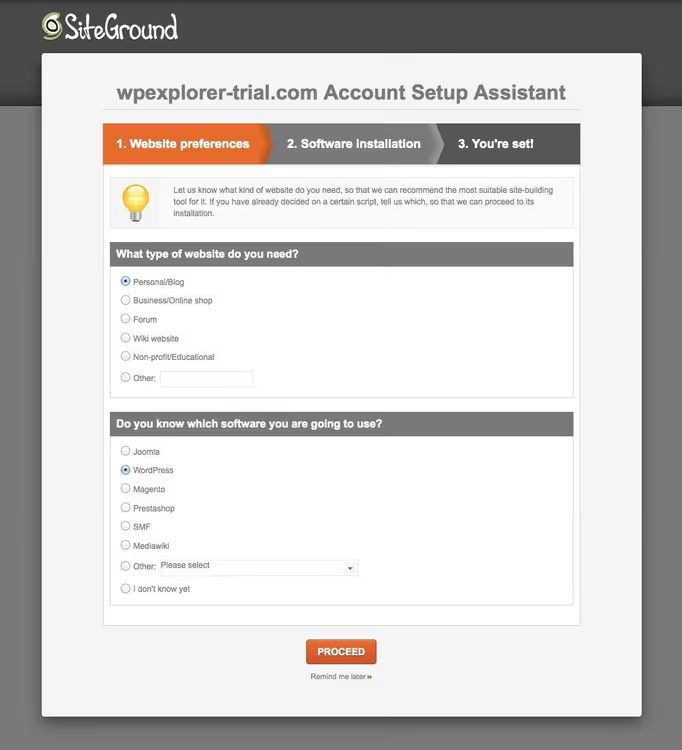
The system will ask which CMS to install. Choose WordPress. On the same screen, specify the domain; you can use the free domain included in your plan or link one you've already purchased.
Step 3: login credentials
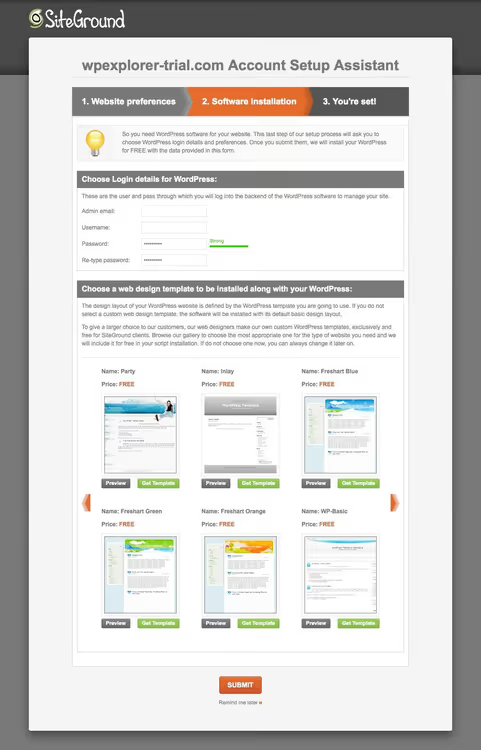
The final screen is creating a WordPress administrator account. Enter your email, username, and password. Here you can also choose a free theme from SiteGround (optional; you'll change it later anyway). Click "Confirm," and in a minute your site is ready.
Done. After installation, a "What's Next" page opens with a brief guide to the SiteGround control panel.
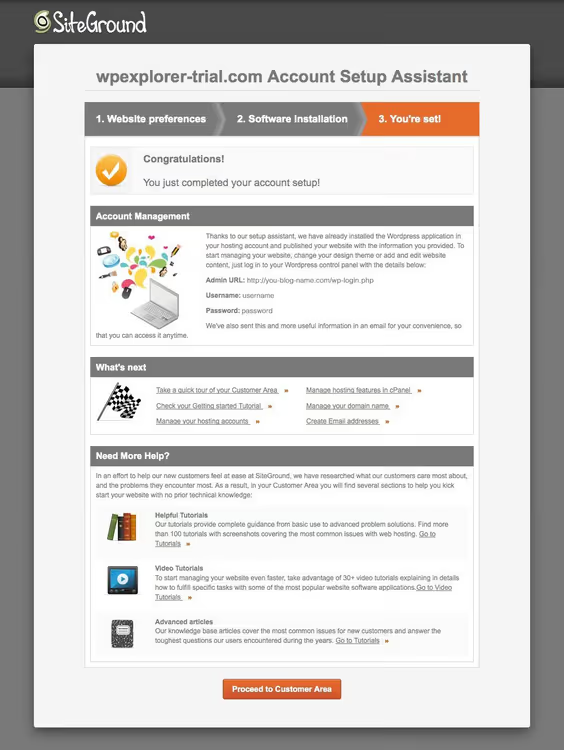
First site settings after installation
The site is created, and the admin panel opens at your-website.com/wp-admin. But before your first post, do five things you won't have to redo later.
Installing and activating a theme
If you chose a free SiteGround theme in step 3, it's already active. To upload your own, go to Appearance → Themes → Add New. You can find any theme from the WordPress.org catalog or upload a premium one using the "Upload Theme" button.
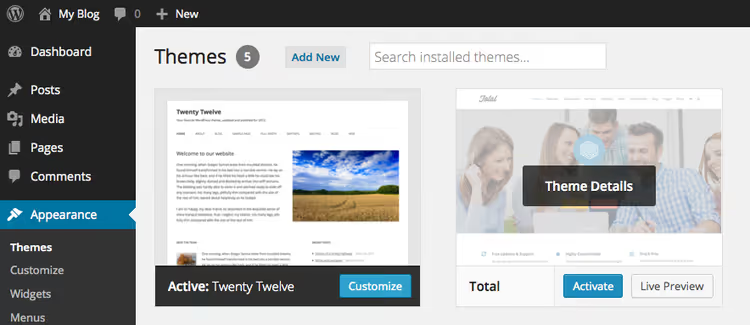
After activating a theme, a notification about installing additional plugins often appears. Don't close it right away; theme developers (especially for premium themes like Total) bundle necessary extensions there: page builders, sliders, contact forms.

Enabling SSL
The free Let's Encrypt certificate is enabled in the SiteGround panel with a couple of clicks. Go to Site Tools → Security → SSL Manager, select your domain, and activate. After that, in WordPress settings, enter the https version of your address: Settings → General → Site Address.
Permalinks
Right after installation, WordPress generates URLs like ?p=123. This is ugly and hurts SEO. Go to Settings → Permalinks and choose "Post name"; URLs will become human-readable (/siteground-guide/). Save changes twice (WordPress sometimes resets the structure on the first save).
Setting up caching
The SG Optimizer plugin is installed automatically when you choose WordPress. An SG Optimizer menu item appears in the admin panel. Enable:
- Dynamic Caching: ready-made HTML copies of pages (available on GrowBig and GoGeek)
- Memcached: cache for database queries (GrowBig and GoGeek)
- CSS/JS Minification: compressing styles and scripts
- WebP conversion: automatic conversion of images to the modern format
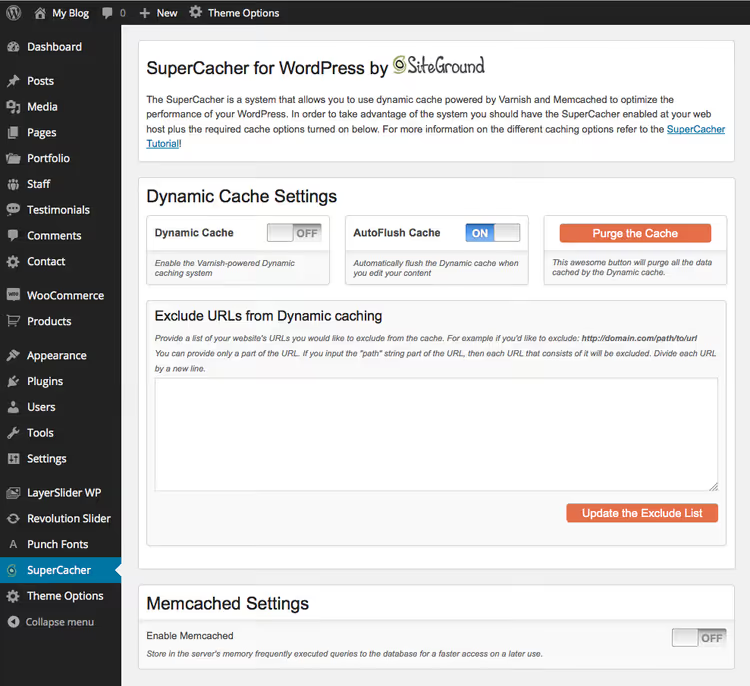
Additional tools in the SiteGround panel
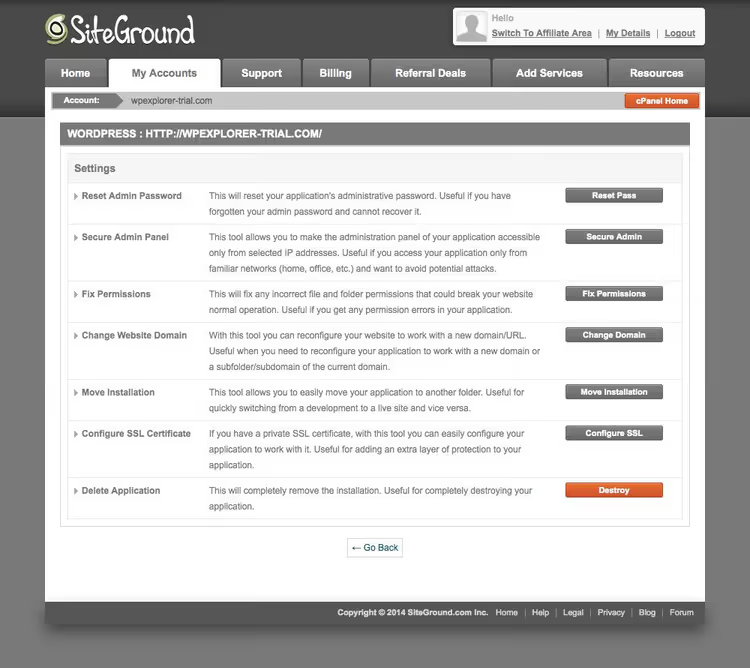
In Site Tools, there's a set of quick actions that help in unusual situations:
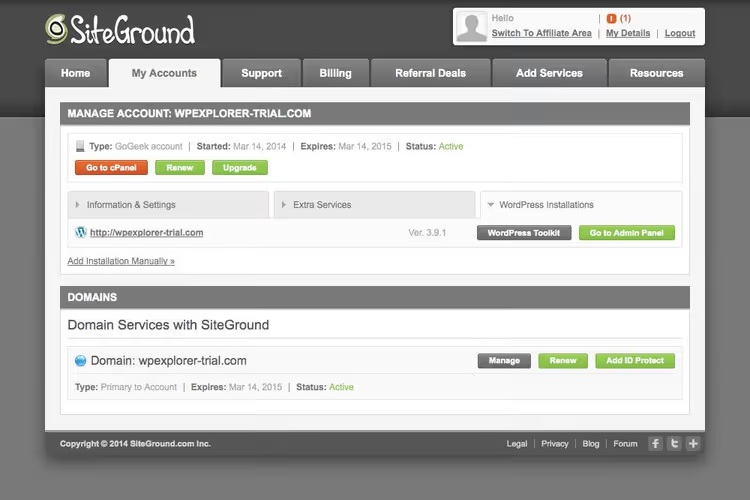
Admin password reset if you forgot your password and email recovery doesn't work. One button.
IP access restriction closes the admin panel to everyone except specified addresses. Useful during development or when under a brute-force attack.
File permissions fix: a quick reset of permissions if the site crashed with a 403 error or the "white screen of death" after installing a plugin.
Domain change: move the site to another domain without digging through wp-config.php and the database.
Application removal completely wipes the WordPress installation if you decide to start from scratch.
In the Additional Services section, you'll find premium features:
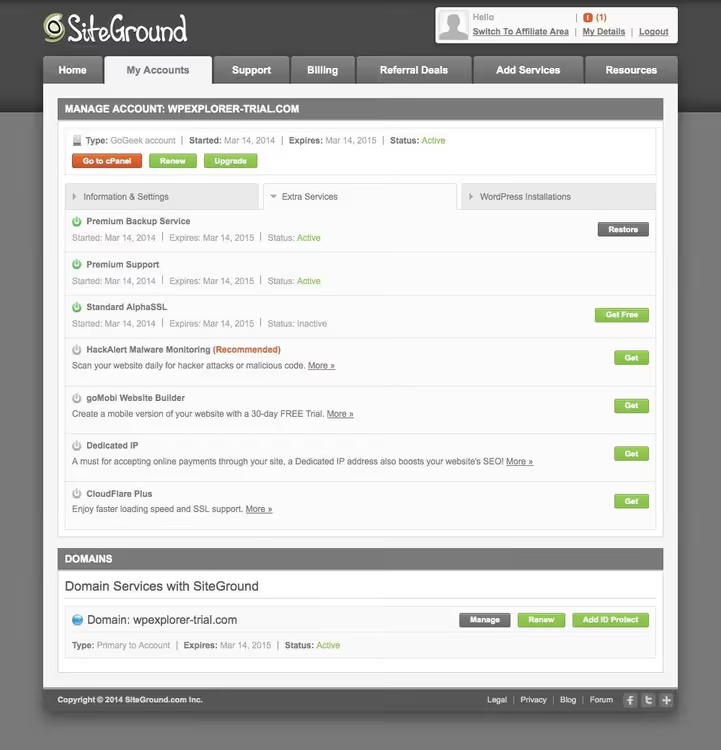
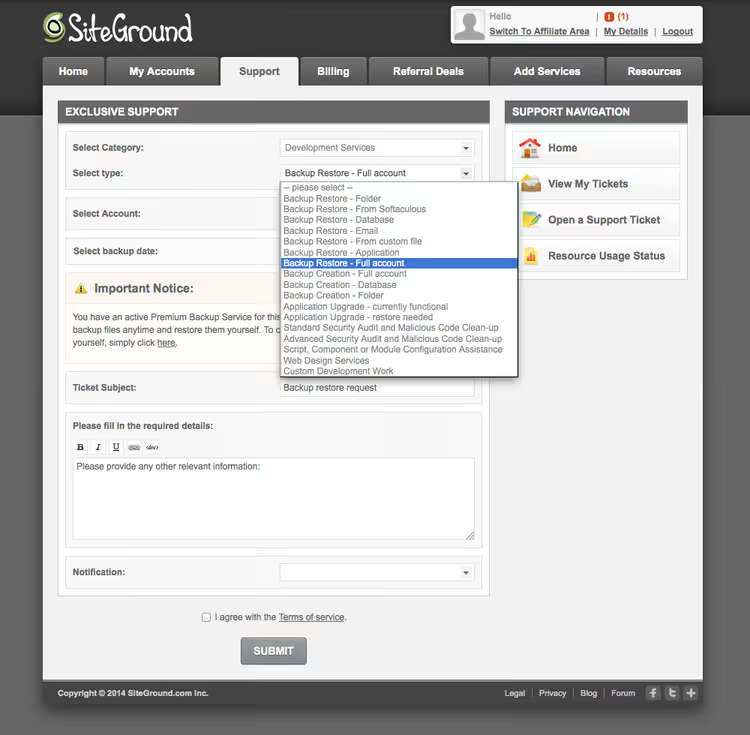
Backup. All plans include daily backups. On GrowBig and GoGeek, you get a built-in restore tool: 30 saved copies on GrowBig and unlimited manual restore via support on GoGeek. In practice, the "Restore" button brings your site back in a couple of minutes.
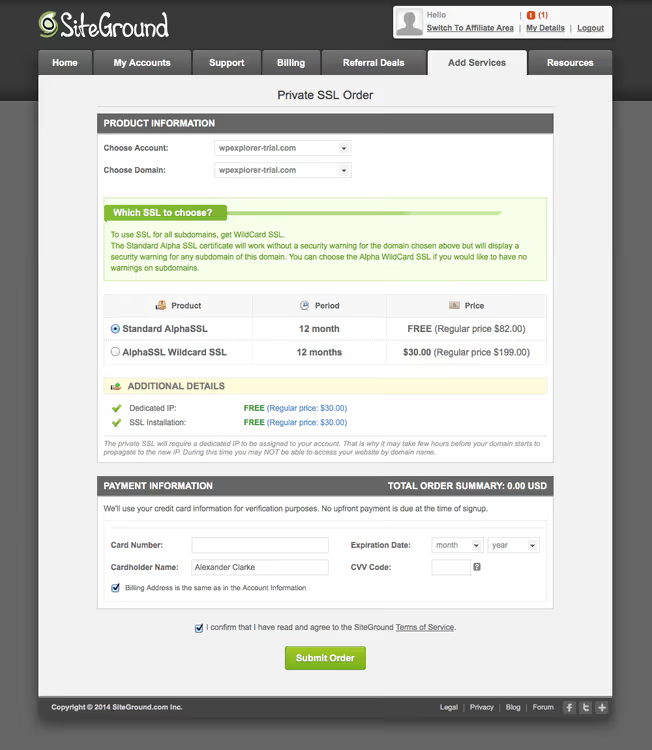
SSL certificates. GrowBig and GoGeek include one year of free standard AlphaSSL. For multisites with subdomains, you need WildCard SSL, which is also available (one-click upgrade).
CloudFlare** CDN.** Built into all plans. It serves static files (images, CSS, JS) through the data center closest to the visitor. According to SiteGround, it saves up to 60% of bandwidth and speeds up loading by up to 50%. In practice, for a site with 2-3 MB of images, the difference between CDN on and off is about one second in Time to First Byte.
Staging (GrowBig and GoGeek). A copy of your site for testing: change the theme, install plugins, break things, and only then push to the live site with one button. GoGeek adds Git integration for team development.
Now that you're familiar with the panel, here's a short video on launching WordPress on SiteGround, showing a real walkthrough of all the steps:
⁉️🤔 Frequently asked questions
Which SiteGround plan should a beginner choose?
StartUp is the optimal entry point. One site, 10 GB, daily backups, 24/7 support. When traffic grows, switching to GrowBig takes a couple of clicks in the panel, and no migration is required. There's no point in overpaying for GoGeek at the start unless you're launching an online store right away.
Can I change plans later?
Yes, and it's free. In the panel under Site Tools → Upgrade, you choose a new plan, resources expand automatically, and WordPress doesn't need to be reinstalled. The only nuance: when switching from monthly to annual billing, you pay the difference, not the full price.
What is dynamic caching and why do I need it?
Dynamic caching (available on GrowBig and GoGeek) saves a ready-made HTML copy of the page after the first request. The next visitor gets it instantly: PHP doesn't run, the database isn't queried. On a site with 20 plugins, the difference in load time is up to 300-400 ms. For an online store, dynamic caching is essential.
Is a dedicated IP necessary?
For the vast majority of sites, no. A dedicated IP makes sense in three cases: your own SSL certificate (not from Let's Encrypt), FTP access when port 21 is blocked, and a mail server on the same account. For a regular blog or business card site, a shared IP works without issues.
Will SiteGround migrate a site from another host?
Yes, on GrowBig and GoGeek, free migration of one site by the support team. On StartUp, you migrate yourself using the SiteGround Migrator plugin (also free, with a three-button interface). Migration takes from a couple of hours to a day depending on site size.
Summary: which SiteGround plan to choose for your task
SiteGround is hosting where the admin panel and speed don't frustrate you. The installation wizard eliminates FTP and manual wp-config.php configuration, and three-level caching on higher plans pulls through even heavy themes with a dozen plugins.
- If you're launching your first blog or a business card site, get StartUp, the entry plan with the lowest price. After a year, when traffic grows, you'll move to GrowBig.
- If you run multiple projects or a site with 10-25 thousand visitors, GrowBig is the middle plan. Dynamic caching and staging make up for the price difference.
- If you're building a WooCommerce store or client sites, GoGeek is the maximum plan. On-demand backups and Git save you during intensive development.
Prices for the first year when paying for 12 months: check current figures on the official SiteGround website. After that, standard rates apply. For new projects, the annual discount offers serious savings.
Before purchasing, make sure to choose the data center closest to your audience: SiteGround has servers in the US, Europe, Asia, and Australia. For an English-speaking audience, choose the location nearest to your visitors.
Which plan did you choose and for what project? Tell us in the comments.

A professional team of writers and editors specializing in creating quality content.