














🛡 Security Ninja: an honest review of the WordPress security plugin in 2026
Updated your plugin and the site stopped loading? Or worse, you logged into the admin panel one morning and found unknown users with administrator privileges. WordPress site owners go through this more often than they would like: according to WPScan data for 2025, three times as many sites are hacked through plugin and theme vulnerabilities than through the WordPress core.
The problem is that basic measures (updates, strong passwords, and login protection) often are not enough. You need a tool that checks the site against 50+ parameters, scans files for malicious code, and blocks attacks before they even land. That is exactly what Security Ninja does.
Below is a detailed breakdown of the plugin: what the free version can do, what Pro adds, and when it is worth paying for.
💡 Quick overview:
- Install the free version of Security Ninja from WordPress.org and run your first audit; you will get a list of 50+ security checks with specific recommendations for fixes.
- Decide if you need Pro: if the site generates revenue or has more than a couple hundred visitors per day, the cloud firewall, malware scanning, and auto-fixes pay for themselves in the first month.
- Set up scheduled scanning, enable two-factor authentication, and turn on notifications for critical events; that is where routine protection ends.
What is Security Ninja and who is behind it
Security Ninja appeared on CodeCanyon back in 2011 as a premium solution for WordPress security auditing. In 2016, the team moved the plugin to WordPress.org and released a free version, while Pro functionality is sold directly from the developer's website.
The plugin is developed by cleverplugins, authors of several popular solutions in the WordPress.org directory: Under Construction (over 100,000 active installs), WP Reset, and Widget for Google Maps. The plugin is maintained and actively updated: as of June 2026, the current version works with WordPress 6.5+ and WordPress 7, with a catalog rating of 4.6 out of 5.
In essence, Security Ninja is a security combine: configuration auditing, vulnerability scanning, firewall, login protection, and event monitoring in one plugin. The free version checks and reports; Pro protects and fixes automatically.
Free version: what you get without paying
The free version does not make changes to the site itself; it conducts an audit and produces a report. After installation, you go to the Security Ninja section in the admin panel and run your first scan.
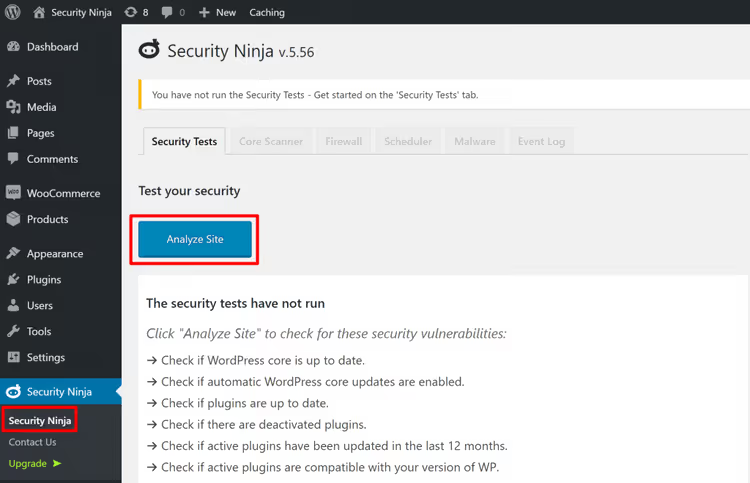
The plugin runs over 50 tests: it checks file permissions, database settings, account activity, PHP and MySQL versions, whether debug mode is enabled, and whether the server is vulnerable to known exploits like Shellshock. The result is a list of passed and failed tests with color coding.
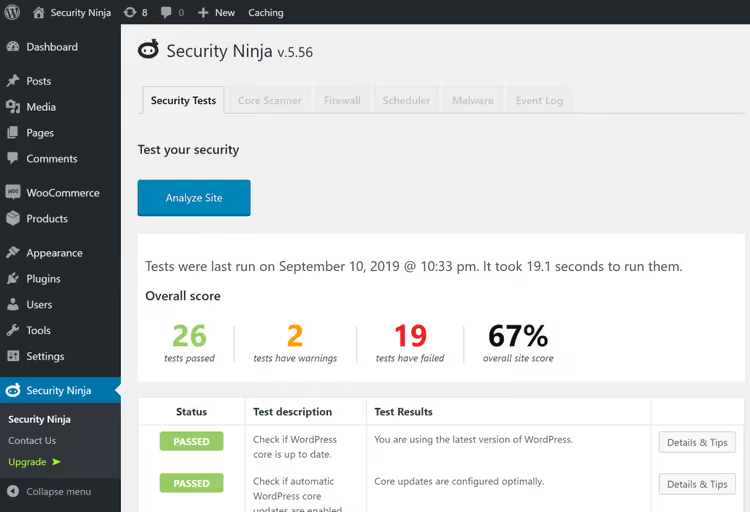
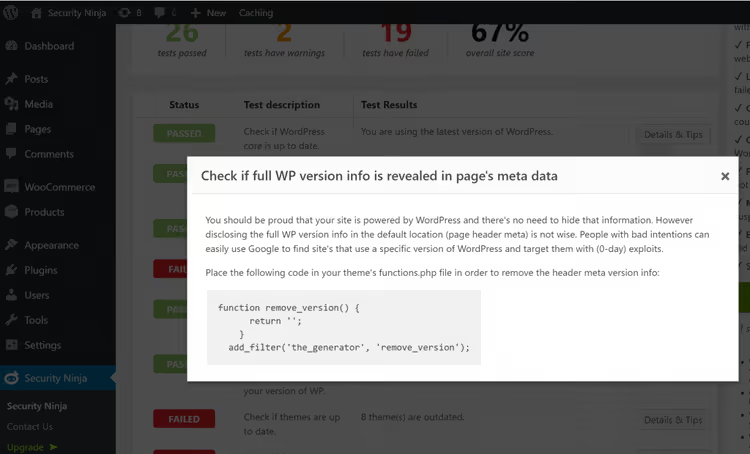
For each failed test, the plugin shows a Details and tips button: it contains an explanation of the issue and a ready-made code snippet for manual fixing. For example, if WP_DEBUG is enabled on a production site, you get a snippet for wp-config.php. Convenient, but every fix is manual.
Besides security tests, the free version includes:
- Basic firewall (WAF) based on 8G rule sets, blocking typical malicious requests and bot noise before they reach the site;
- WordPress core scanner, comparing core files with reference versions and finding modified or foreign files;
- Vulnerability scanner, checking installed plugins and themes against a database of known vulnerabilities and warning about problematic versions;
- Basic event log, recording firewall triggers and login attempts (both successful and failed).
In practice, the free version is enough to understand the actual state of the site. Check it out; you will probably find at least 5-7 red lines.
Pro version: automatic protection in one click
The Pro version adds seven modules to the free functionality, turning the audit into active protection. The most noticeable difference is the Apply Fix button next to many tests: instead of manually editing code, you click one button and the plugin closes the vulnerability itself.
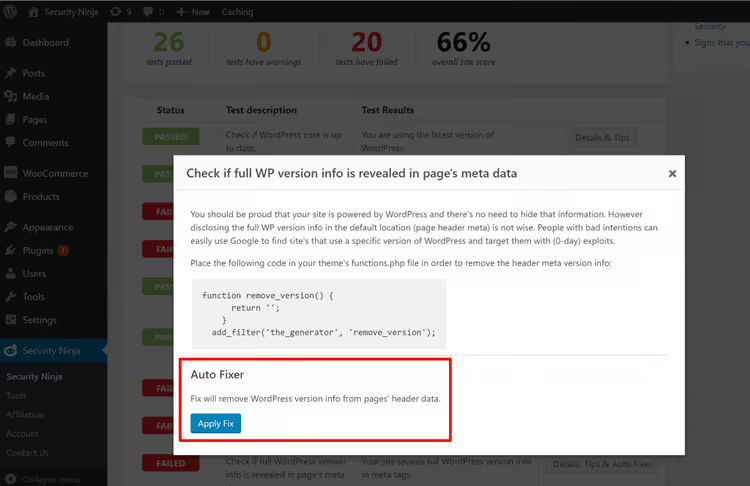
Auto-fix can disable XML-RPC, close file editing from the admin panel, hide PHP error messages, and perform two dozen other typical hardening tasks. This saves hours of manual work, especially if you manage several sites.
Core scanner and malware detection
Core Scanner in the Pro version goes beyond the free one: it not only reports discrepancies but also allows you to restore the original core file in one click or delete a suspicious file directly from the plugin interface.
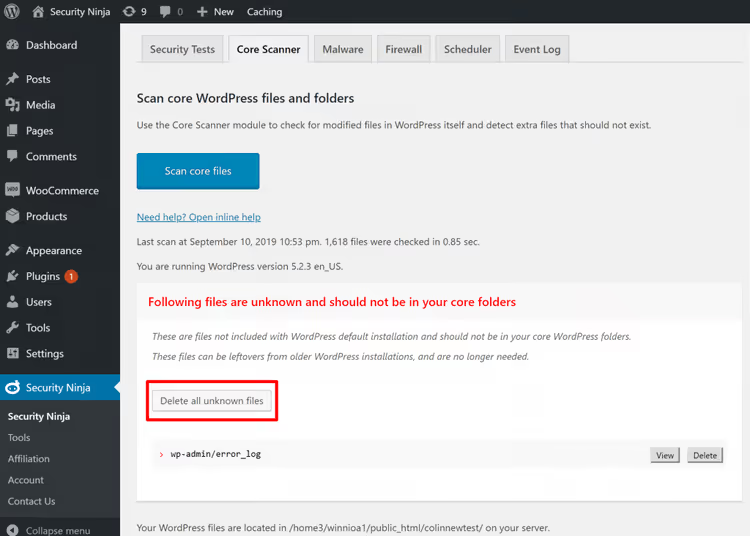
A modified core file is not always a hack. Sometimes it is the result of a botched update or developer experiments. But the built-in file viewer helps quickly assess the situation without going to FTP or the hosting file manager.
Malware Scanner checks server files using heuristic methods: it compares content with code samples typical of malicious scripts. The developer honestly warns: flagging a file does not automatically mean you are looking at malware. False positives happen, especially on custom themes with non-standard functions.
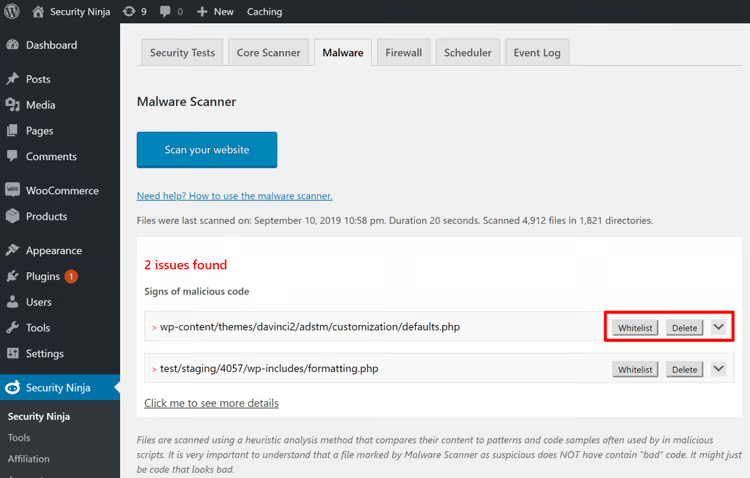
A verified file can be added to the whitelist so it does not appear in subsequent scans. An infected one can be deleted directly from the interface. Practice shows: the scanner catches typical backdoors, shell scripts, and hidden eval/base64 injections well, but it may not work against custom obfuscated code. For such cases, you need a manual audit or an external service like Sucuri.
Cloud firewall and country blocking
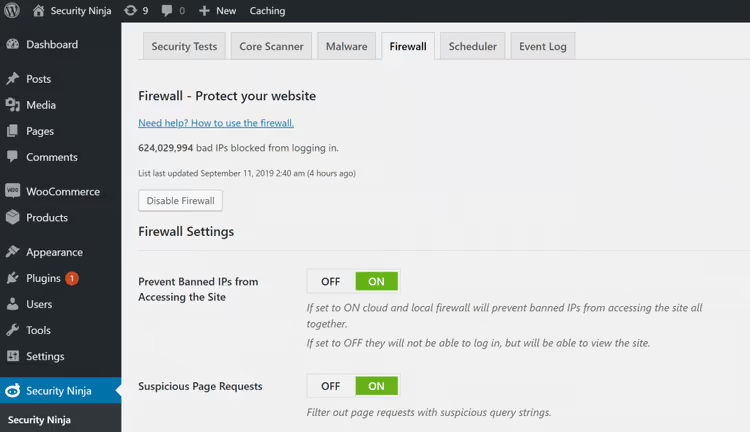
The firewall in Pro is no longer 8G rules but a full-fledged cloud firewall with a database of over 600 million known malicious IP addresses, updated every six hours. It automatically blocks SQL injections, XSS, and other typical attacks at the HTTP request level.
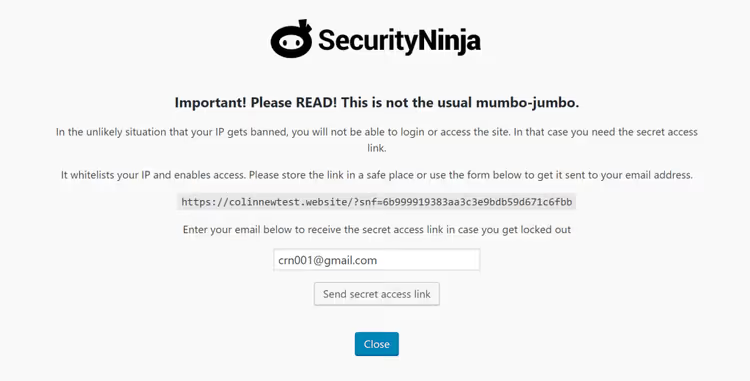
When enabling the firewall, the plugin issues a unique recovery link. If your IP accidentally gets blocked (this happens with aggressive settings), you can access the site via this link and unblock yourself.
In the firewall settings, there are two key automatic modes: denying access to known malicious IPs and blocking suspicious page requests.
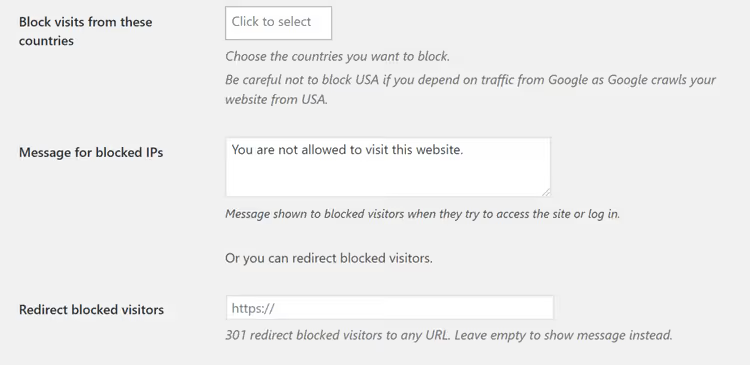
Country blocking is a useful module for sites that do not need traffic from certain regions. You can completely block access from IP addresses of selected countries or show visitors a message about unavailability. For an online store operating only in Russia and CIS countries, this is a simple way to cut off most automated attacks.
Login protection and two-factor authentication
The login page is the main target of WordPress attacks. Security Ninja Pro protects it with three tools:
- Login attempt limiting, a configurable limit (for example, 5 failed attempts in 5 minutes blocks the IP for 2 hours);
- Login URL change, if the standard
/wp-adminis constantly being brute-forced, it can be moved to a non-standard address; - Two-factor authentication (2FA), an additional verification layer when logging in.
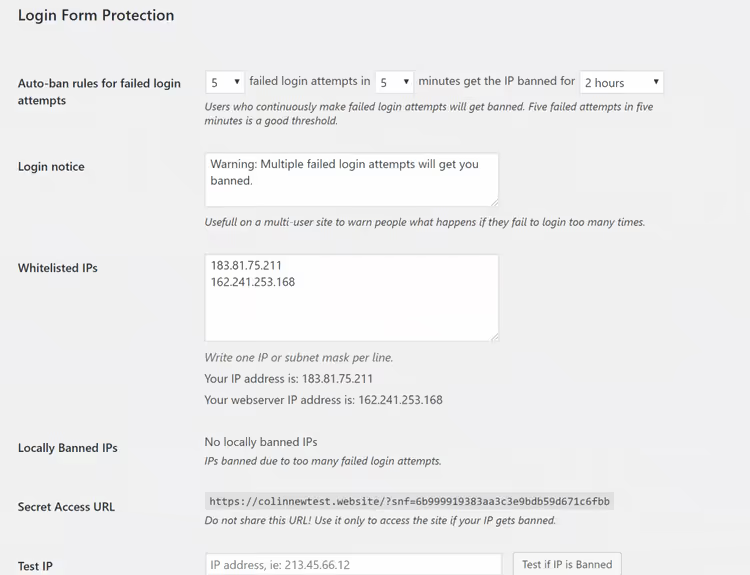
In practice, the combination of "renamed login + 2FA + attempt limit" closes virtually all automated login attacks. For sites with multiple administrators, you can add permanent IPs to the whitelist to avoid accidentally blocking colleagues.
Scan scheduler and event log
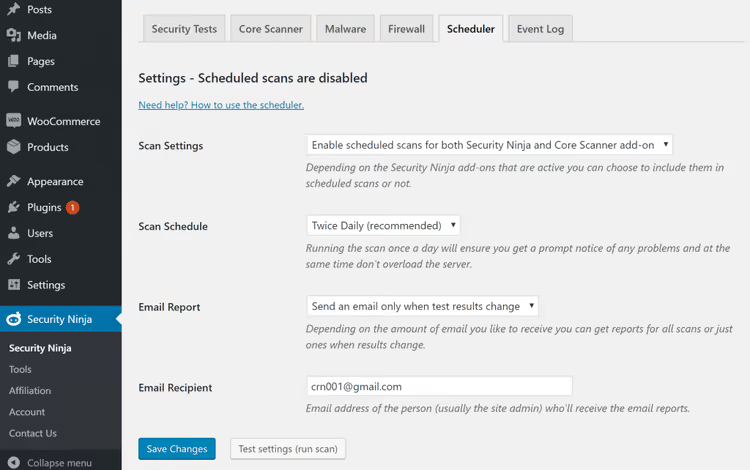
The scheduler runs the core and malware scanners automatically, from once a month to every minute. A useful detail: an email report is sent only if something has changed. If the site is fine, there are no emails. If a new suspicious file appears, you find out immediately.
The event log in the Pro version tracks everything that happens on the site: post publishing, file changes, plugin installations, settings changes, and user actions.
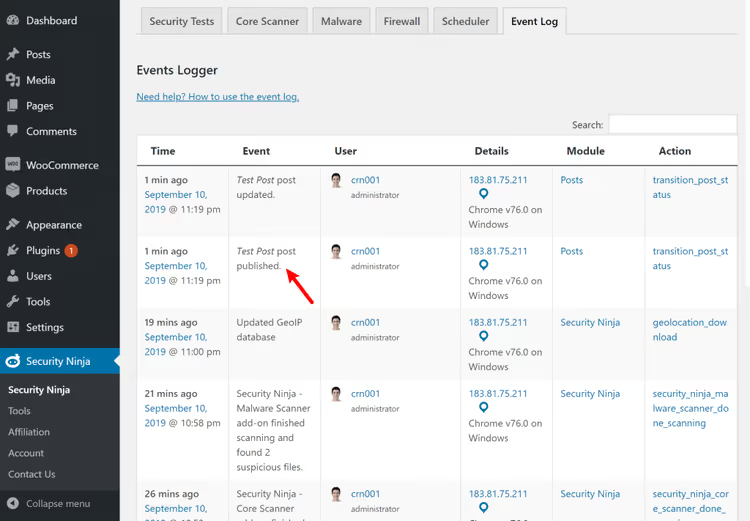
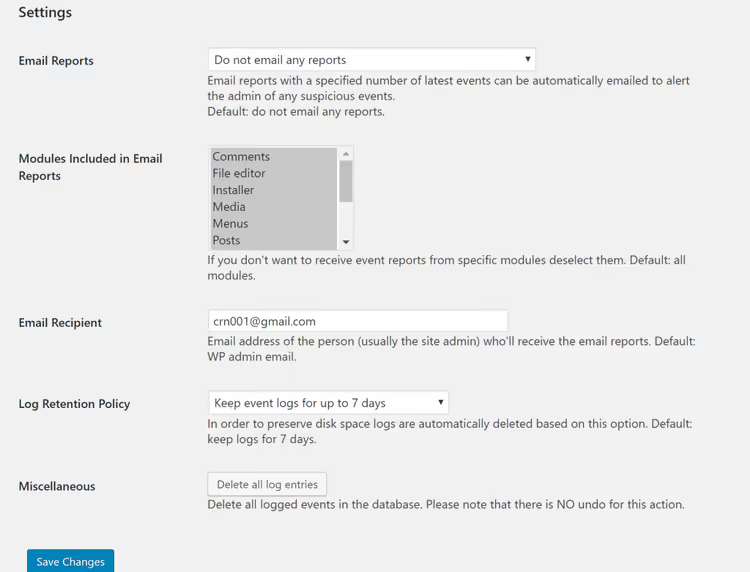
Logs can be filtered by event type and user. Email notifications can be configured for each event type: for example, receive emails when files are edited but not when posts are published. The Pro version also supports webhooks for Slack or Discord notifications on critical events.
In 2025-2026, two notable modules were added for Pro: WooCommerce Protection for protection against spam orders, coupon brute-forcing, and checkout form attacks, and 404 Guard for blocking aggressive scanners that hammer non-existent URLs and waste server resources.
How much does Security Ninja cost

The free version is available on WordPress.org and remains free forever. Pro is sold by subscription with three payment options (prices as of June 2026):
Plan | 1 site | 5 sites | 25 sites |
|---|---|---|---|
Annual | $119/year | $299/year | $599/year |
Monthly | $12.99/month | $24.99/month | $49.99/month |
Lifetime | $249 | $499 | $999 |
All plans include a 14-day free trial and a 30-day money-back guarantee; these are official terms from the developer's website. In practice, the annual plan at $119 for one site is the optimal option: it works out to just under $10 per month, and the functionality fully covers the needs of a typical commercial site or blog with traffic.
A lifetime license pays for itself in two years of use. For agencies and freelancers managing several sites, the 5-site plan offers the best value per site.
See Security Ninja in action
Before installing, watch what the plugin looks like in real life. This review shows the full cycle: installation, first audit, firewall setup, and malware scanning.
⁉️🤔 Frequently asked questions
Why do I need a separate security plugin if my hosting promises protection?
Hosting protects the server; the plugin protects the site. These are two different levels, and a commercial project needs both. Hosting protection works at the server level and does not see vulnerabilities inside WordPress: a leaky plugin, a weak admin password, or a modified core file. Security Ninja checks exactly the application level, what the hosting does not control. A server firewall will not notice that someone registered with editor privileges and uploaded a malicious script through a form plugin vulnerability, but Security Ninja will detect this on the next scan.
Does the plugin significantly slow down the site?
The free version does not affect the frontend at all; it only works in the admin panel. The Pro firewall adds a microscopic delay at the HTTP request level (milliseconds) as it checks the IP against the cloud database. Scanners run via wp-cron and do not create constant load. On a test site with 50,000 posts, a full core scan took about 40 seconds without any frontend slowdowns. For shared hosting with limited resources, schedule scanning for nighttime hours.
Can it be used together with another security plugin?
Yes, but with caveats. Two firewalls running simultaneously can conflict and block legitimate requests. If you already have Wordfence or Solid Security with an active firewall, it is better to disable the Security Ninja firewall and keep the scanners and audit. The combination of Security Ninja (scanners + log) with Cloudflare's cloud firewall works without conflicts. However, Wordfence + Security Ninja firewall together produce false positives on legitimate REST API requests. The simple rule: one firewall, everything else can be duplicated.
Do I need Pro for a small blog?
If the blog has no registration forms, WooCommerce, or user personal data, the free version is enough for periodic auditing. But if the blog generates income (ads, affiliate links), Pro with auto-fixes, firewall, and monitoring is insurance that, at the annual rate of $119 per site, costs less than a monthly subscription. A small blog with 200 visitors per day attracts the same bot attacks as a large site. The difference is that the blog owner may not log into the admin panel for weeks and not know that the site has already been hacked. Scheduled scanner with notifications is a must-have here.
What about support and updates?
The plugin is updated regularly: according to the changelog on WordPress.org, 2-3 releases per month came out in 2025-2026. Support responds within a day; Pro users receive priority support. The developer responds promptly to vulnerability reports. Judging by reviews in the WordPress.org catalog, users note quick and specific support responses; for a plugin at $10 per month, this is an excellent level.
Is Security Ninja worth installing in 2026
Security Ninja does not try to be "the only security plugin for all occasions," and that is a plus. It has a clear model: the free version for honest auditing, Pro for those who need a firewall, malware detection, and bot protection without unnecessary complexity.
In short: for a commercial site, online store, or platform with user-generated content, get Pro. For a small portfolio blog, start with the free version, run the 50+ tests, and see how many red lines you get. You will almost certainly want to upgrade.
🔗 Download Security Ninja from WordPress.org🔗 Official Security Ninja Pro website

A professional team of writers and editors specializing in creating quality content.