














🛡 WooCommerce checkout protection: 2 ways to add CAPTCHA in 15 minutes
Spam orders, bots in the cart, and fake registrations, every WooCommerce store goes through this. Nobody wants to clean the database of junk orders manually, and every tenth bot lead is wasted time and money.
CAPTCHA solves the problem with 10 minutes of setup. No bloated all-in-one plugins, no core hacks.
Below are two working ways to add verification to the checkout: via a free plugin and via code in functions.php. Plus a bonus: protecting the login page in the same 5 minutes.
What is CAPTCHA and why you need it on checkout
💡 Quick overview:
- What CAPTCHA is and what types exist, short, no theory for theory's sake
- Two installation methods: via the free
reCAPTCHA for WooCommerceplugin and via code - Bonus: CAPTCHA on the admin login page, brute-force protection
- Common setup mistakes and how to avoid them
CAPTCHA (Completely Automated Public Turing Test to Tell Computers and Humans Apart) is a test that distinguishes a live visitor from a bot. The user checks the "I'm not a robot" box, solves a simple image or puzzle, and only then does the form submit. A bot can't pass this: it needs to understand a task it wasn't trained for.
For a WooCommerce store, CAPTCHA on checkout is not a luxury, it's a necessity. Spam bots can fill out order form fields and click "Submit": the owner gets dozens of empty orders sitting in the admin panel and clogging the CRM. Real case: after enabling reCAPTCHA on a test site, the number of fake orders dropped to zero within 24 hours, no filters, no IP bans, no .htaccess edits.
Six main CAPTCHA types: text-based (distorted letters and numbers), audio (for visually impaired users), math (simple problems like "3 + 4"), image-based (select all pictures with a traffic light), puzzle (drag a piece into place), and invisible (reCAPTCHA v3, works in the background, analyzes user behavior). For a store, reCAPTCHA v2 (checkbox) or invisible v3 works best, they don't annoy customers while blocking the vast majority of bots.
Plugin overview: what to install on WooCommerce
There are three main plugins on the market that cover this task. Let's briefly break down which one fits which scenario.
ReCAPTCHA for WooCommerce (RelyWP)

Free, with no premium version at all. Supports reCAPTCHA v2 on checkout, login, registration, and password reset pages. 40,000+ active installs, 4.5 rating on WordPress.org. Installs in a minute: Google API keys → check the form boxes → done. Downside: v2 only, no v3 support. If you need invisible verification, look at the alternatives.
Advanced Google reCAPTCHA (WebFactory)

200,000+ installs, 4.8 rating on WordPress.org. Covers WooCommerce checkout, Easy Digital Downloads, BuddyPress, and standard WordPress forms. Supports v2 and v3, with a math CAPTCHA fallback. The free version covers 90% of needs; the PRO version adds country blocking. Nuances: the interface is an acquired taste (old-design tabs), and reviews occasionally mention conflicts with custom themes.
ReCaptcha by BestWebSoft

Free version + premium at $24 per year. v2, v3, and enterprise mode. Widget size and placement settings, multilingual, RTL. Downside: tied to Google services, which can be critical for GDPR-sensitive projects. But as a working tool, it's reliable and battle-tested on dozens of live projects.
Method 1: CAPTCHA via plugin (no code)
The simplest path. We take reCAPTCHA for WooCommerce, it's free, lightweight, and requires no hoop-jumping.
Step 1: Installation and activation
Go to the WordPress admin: Plugins → Add New. Type recaptcha for woo in the search bar.
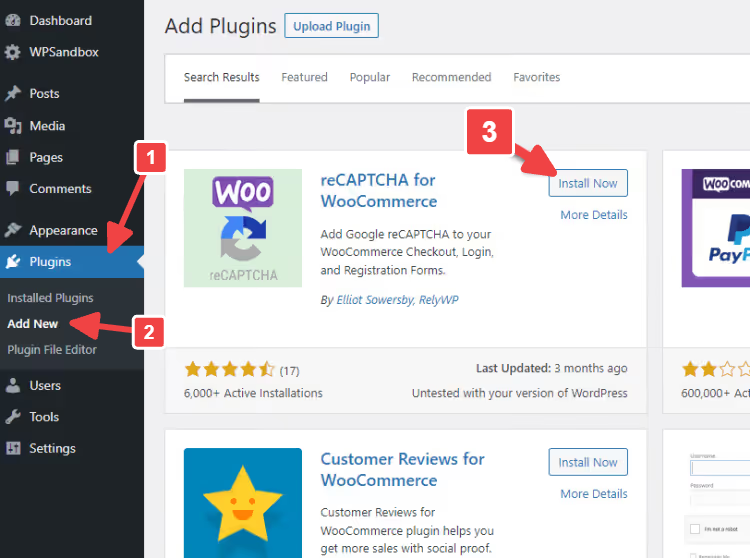
Found it, click Install Now, wait a couple of seconds, and activate.

After activation, a reCAPTCHA WooCommerce item will appear in the Settings menu.

Step 2: Google API keys
Go to the reCAPTCHA key creation page. Fill in:
- Label, any name (e.g., "My store")
- reCAPTCHA type, v2 ("I'm not a robot" Checkbox)
- Domains, your store domain without
https://

Click Submit, and the system will give you a Site Key and Secret Key.

Step 3: Plugin setup
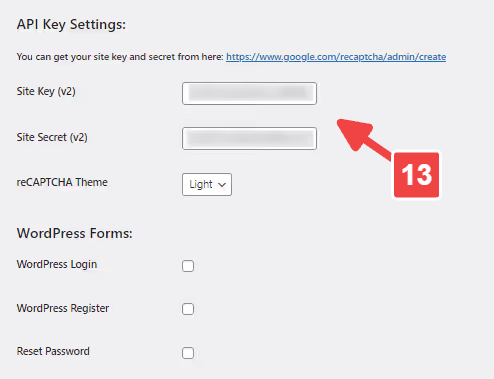
Copy the keys and paste them into the plugin fields: Settings → reCAPTCHA WooCommerce.

Scroll down to the WooCommerce Forms section. Check the box for WooCommerce Checkout (and Login/Register if you want to protect sign-in).

Save changes.
Step 4: Verification
On the same settings page there is a Test API Response button. Click it, and if the keys are correct you will see a green status.
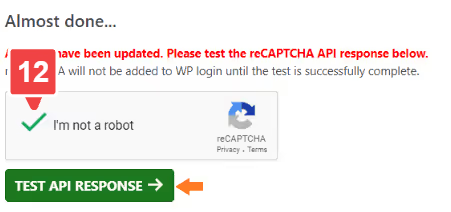
Done. Now a captcha will appear on the checkout page before the "Place order" button. Test it in incognito mode, the bot check should show up.
Method 2: CAPTCHA via code (no extra plugins)
If you don't want to install another plugin, here is a snippet that adds reCAPTCHA to checkout via functions.php.
Step 1: Preparation
Before editing any code, make a full site backup. We'll edit the functions.php file of your child theme or use the Code Snippets plugin, which is safer: a code error won't take down the site, the snippet will simply be disabled.
Step 2: The code
Below are two PHP functions. The first displays the reCAPTCHA widget on checkout, the second verifies the Google response when the order is submitted.
1 /** 2 * Display reCAPTCHA on the WooCommerce checkout page 3 */ 4 function doublee_show_me_the_checkout_captcha($checkout) { 5 echo '<div class="g-recaptcha" data-sitekey="YOUR_SITE_KEY"></div>'; 6 } 7 add_action('woocommerce_checkout_order_review', 'doublee_show_me_the_checkout_captcha', 18); 8 9 /** 10 * Verify reCAPTCHA response during checkout 11 */ 12 function doublee_process_recaptcha() { 13 $postdata = $_POST['g-recaptcha-response']; 14 $verified_recaptcha = file_get_contents( 15 'https://www.google.com/recaptcha/api/siteverify?secret=YOUR_SECRET_KEY&response=' . $postdata 16 ); 17 $response = json_decode($verified_recaptcha); 18 if (!$response->success) { 19 wc_add_notice('Please verify that you are not a robot', 'error'); 20 } 21 } 22 add_action('woocommerce_checkout_process', 'doublee_process_recaptcha');
What's happening here:
woocommerce_checkout_order_review, a hook that fires when the order block is rendered on checkout. We hook into it to output a<div>with adata-sitekeyattribute (that's the Site Key from the Google console).woocommerce_checkout_process, a validation hook that fires on order submission. The function sends the captcha response to Google's server via thesiteverifyendpoint, decodes the JSON, and if verification fails, adds an error usingwc_add_notice(), WooCommerce's standard mechanism.- If
allow_url_fopenis disabled on your hosting (thefile_get_contentsfunction won't work for URLs), replace it withwp_remote_get(), which works via cURL and doesn't depend on php.ini.
Step 3: Insert and test
Add the code via Code Snippets or into your child theme's functions.php, then save.

After saving, visit the checkout page in incognito mode, the reCAPTCHA widget should appear. Try submitting an order without checking the box: you'll get a "Please verify that you are not a robot" error.
Bonus: CAPTCHA on the login page
Checkout isn't the only pain point. Brute-force attacks on /wp-login.php and /my-account/ run around the clock, even on small stores. The same reCAPTCHA for WooCommerce plugin locks down the login form in a couple of clicks.
Go to Settings → reCAPTCHA WooCommerce, the WooCommerce Forms section, and enable Login:

Save, and /my-account/ is protected. If you also need to lock down /wp-login.php, this same plugin supports WordPress forms: same logic, just check WordPress Login Form.
Typical problems and how to solve them
- CAPTCHA does not appear at checkout. Check your keys: the Site Key and Secret Key must be from v2 ("I'm not a robot" Checkbox), not v3. If the version does not match, the widget simply will not render.
- CAPTCHA is displayed twice. Most likely, you have two reCAPTCHA plugins active at the same time (for example, one in the theme, another one separately). Disable the duplicate.
- "Invalid key" error during API test. Either a typo when copying the keys, or the keys were created for a different domain. Recreate the keys and check the domain in the Google console.
- Conflict with a custom checkout template. Switch to the default theme (Storefront) and check: if the CAPTCHA appears, the problem is in your theme's hooks. Solution: a custom hook in code (Method 2) tied to your template.
- Checkout does not load after enabling CAPTCHA. Clear the cache (plugin + browser), disable JS minification for the duration of the test; conflicts are most often caused by aggressive script optimization.
- Customers complain that the CAPTCHA rejects real people. Lower the sensitivity in reCAPTCHA settings or switch to v2 Checkbox; it is gentler than v3 and does not block based on a "suspicious" behavioral model.
⁉️🤔 Frequent questions
Is CAPTCHA needed at checkout if an anti-spam plugin is already installed?
Anti-spam plugins like Akismet protect comments and contact forms, but not the WooCommerce checkout. Bots that place fake orders bypass standard filters; they do not need comment fields, they fill in the order form itself. CAPTCHA closes this gap.
Which reCAPTCHA version should I choose, v2 or v3?
For a store, we recommend v2 Checkbox: the visitor checks one box, and the order goes through. v3 works in the background and can block a real customer if their behavioral model seems "suspicious" to the system, and at checkout every customer counts.
Can I protect only the guest checkout with CAPTCHA and let logged-in users through?
Yes. In the
reCAPTCHA for WooCommerceplugin, the WooCommerce Checkout checkbox enables CAPTCHA for everyone. To let logged-in users through, you will need to add a condition in code (Method 2): wrap the hook inif (!is_user_logged_in()). Without code, only with plugins that have conditional logic, like Advanced Google reCAPTCHA PRO.
Does CAPTCHA affect checkout loading speed?
Noticeably, no. The reCAPTCHA script loads asynchronously and only on pages where the form is actually displayed. No extra load on the entire site. In practice, the difference in checkout speed before and after is within 100-200 ms.
Summary
Adding CAPTCHA to the WooCommerce checkout is a 15-minute task, and the effect is clean. No spam orders, no manual database cleanup, no bots in the funnel.
If you do not want to install extra plugins, use the second method with code. It adds exactly two functions to functions.php and requires no updates. If you prefer a "set it and forget it" approach, reCAPTCHA for WooCommerce: free, 40 thousand installs, live updates, and Block Checkout support out of the box.
Verify that the CAPTCHA works on all devices: open the checkout from a phone and from a desktop in incognito mode. If the widget shifts on mobile, adjust the CSS container or switch the widget size to Compact in the Google reCAPTCHA console. Five minutes of testing now will save hours of cleaning up spam orders later.

A professional team of writers and editors specializing in creating quality content.