














🧪 Code validators: checking HTML, CSS and JavaScript in 2026
You submitted a project, opened it in a browser, and the layout fell apart. You checked on a tablet, and the menu was skewed. The client writes: "everything is gray in my Safari." Sound familiar?
The root of the problem is invalid code. One unclosed tag, a missing semicolon in CSS, or a syntax error in JavaScript, and the browser "guesses" for you. Each browser guesses differently. The result is chaos.
Fortunately, checking code validity in 2026 is easier than ever. Online services, browser extensions, and built-in DevTools find errors in seconds, not an evening of debugging. Below are the working tools we use in practice.
💡 Quick overview:
- Open validator.w3.org and check your page's HTML: it takes 10 seconds
- For CSS, use jigsaw.w3.org/css-validator: it shows warnings about incompatibility with specific browsers
- Check JavaScript through ESLint or the built-in browser console: syntax errors are highlighted immediately
- Install the Web Developer extension for Chrome: it gives one-click access to W3C validators
- For batch checking dozens of pages, use Total Validator: it checks HTML, CSS, links, and spelling in one pass
Comparison table
Tool | Type | What it checks | Price | Best for |
|---|---|---|---|---|
validator.w3.org | Online | HTML (Nu Checker) | Free | One-time page checks |
jigsaw.w3.org | Online | CSS | Free | Stylesheet validation |
Total Validator | FF Extension | HTML, CSS, links, accessibility, spelling | Free | Comprehensive site audits |
Web Developer | Chrome Extension | HTML, CSS, feeds, accessibility | Free | Quick one-click checks |
ESLint | CLI / IDE | JavaScript | Free | Development pipeline integration |
1. W3C online validators
validator.w3.org
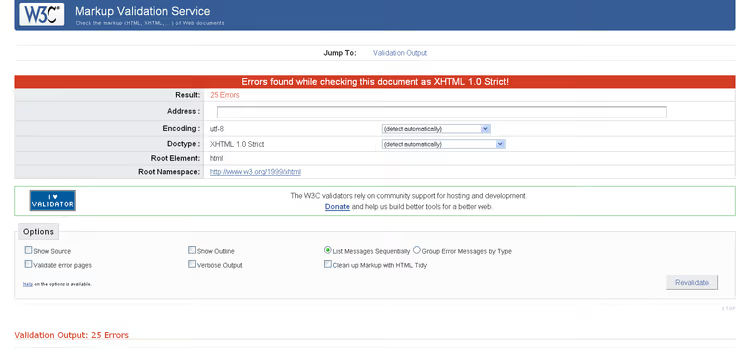
W3C Markup Validation Service is the official validator from the consortium that develops web standards. Since 2025, it runs on the Nu Html Checker engine, which is more modern and accurate than the old SGML parser.
You can check a page in three ways: by URL, by uploading an HTML file, or by pasting code directly. The report shows errors with line numbers and specific recommendations for fixes. Note that the validator checks compliance with the standard, not "whether the site works." A green W3C badge does not guarantee that the page looks the same across all browsers.
In practice, we run a check through validator.w3.org with every redesign. It catches unclosed tags and non-standard attributes that visual inspection misses.
jigsaw.w3.org
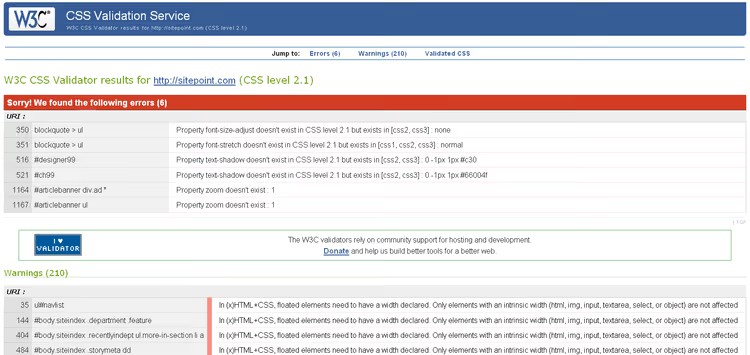
The W3C CSS Validation Service checks stylesheets for compliance with the specification. You can specify the CSS profile (2.1, 3, SVG), choose the display medium, and set the report detail level. Unlike the HTML validator, warnings here are just as important as errors because they often indicate properties that don't work in all browsers.
A useful feature is that the validator shows which vendor prefixes (-webkit-, -moz-) are no longer needed. In 2026, most CSS3 properties are supported without prefixes, and jigsaw helps clean up outdated code.
2. Specialized online tools
Validome.org
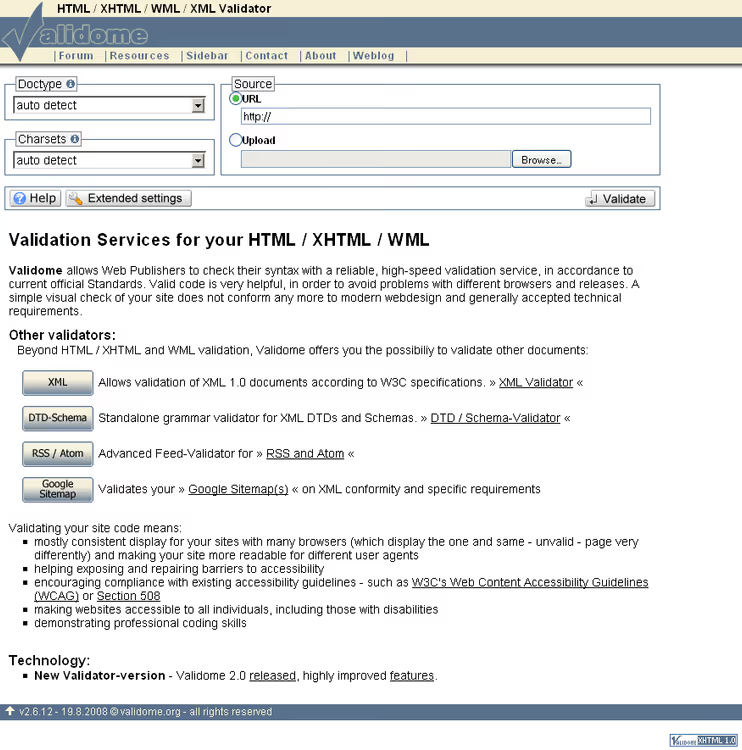
Validome is a lesser-known but solid validator with support for multiple standards: HTML (including XHTML and HTML5), CSS, RSS/Atom feeds, and even microdata. It works fast, and the interface is minimalist. It's convenient when you need a cross-check: run a page through W3C, then through Validome, and compare results. Different parsers sometimes catch different problems.
varvy.com
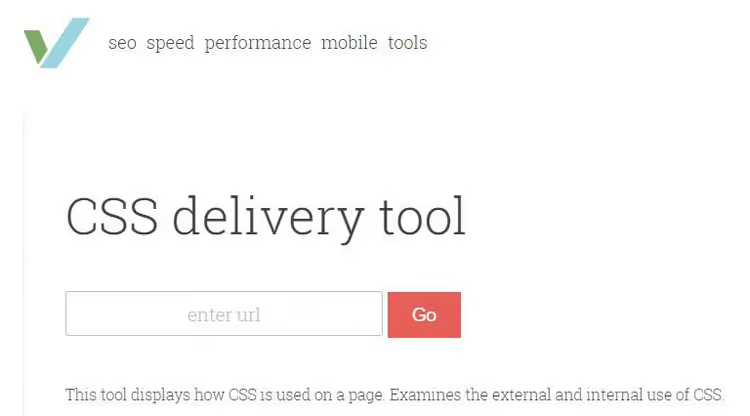
Varvy shows a summary of the page: how many scripts and styles are connected, their size, and loading order. This is not so much a validator as a diagnostic tool for performance auditing. It's useful when a page is slow: Varvy immediately shows which resource is blocking rendering.
3. Browser extensions for Firefox
HTML Validator
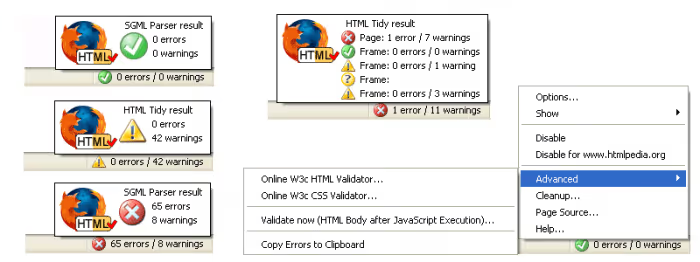
This extension based on Tidy and OpenSP shows a simple icon in the toolbar: green means the page is valid, red means there are errors. Clicking opens a detailed report with highlighted problem lines and fix suggestions. It's ideal for those who want to see the validation status of every page they visit without extra effort.
Total Validator
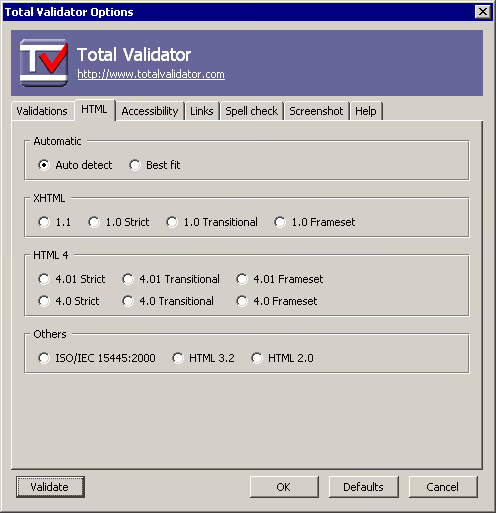
Total Validator is the combine harvester among validators. In one pass, it checks: HTML against multiple standard versions, CSS, broken links, accessibility, and spelling. It has a screenshot function for capturing pages in different browsers, which is convenient for quick visual comparison.
In practice, Total Validator is invaluable during site acceptance: you run a check on the entire domain and get a single report on all problematic pages.
- Pros: all in one tool, screenshots, link checking, regularly updated
- Cons: interface looks dated, checking a large site takes minutes
- Price: Free
Validaty
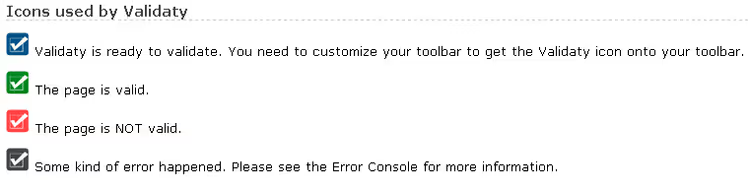
A lightweight extension that adds a button to the Firefox toolbar. One click, and you see a color indication of the current page's validity. Minimalist: no detailed reports, just "pass / fail." For quick checks during workflow, it's perfect.
4. Chrome extensions
Web Developer
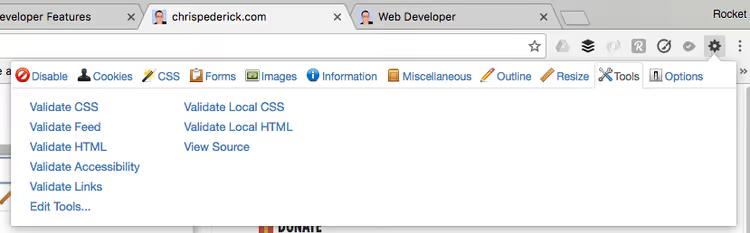
The Web Developer extension is the Swiss army knife for web developers. Besides validation (HTML via URL and direct code paste, CSS, feeds, accessibility), it can: disable JavaScript, manage cookies, edit CSS on the fly, show image alt texts, and check for broken links.
Validation here is not the main feature but part of the overall toolkit. It's nice that all tools are gathered in one panel, so you don't need to jump between tabs.
- Pros: rich set of tools, integration with W3C validators, active community
- Cons: uses an external validator (no built-in engine), cannot customize to your own instance
- Price: Free
Validity
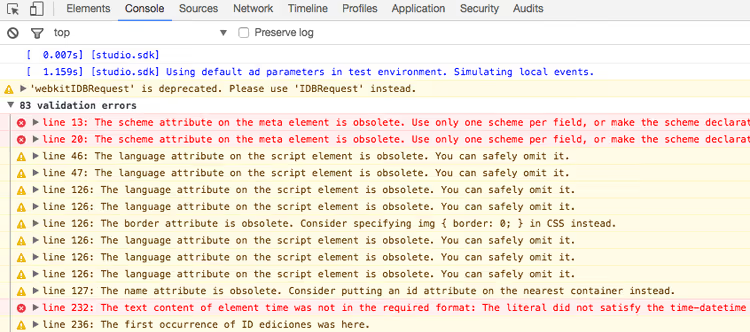
The Validity extension outputs HTML check results directly to the JavaScript console, so you don't need to open a new tab. You can configure it to use your own validator instance and enable automatic checking on specific hosts.
- Pros: customization, auto-checking on selected sites
- Cons: output mixes with JS logs, making it inconvenient to read; shows only the error line without a code snippet
- Price: Free
HTML Validation Bookmarklet
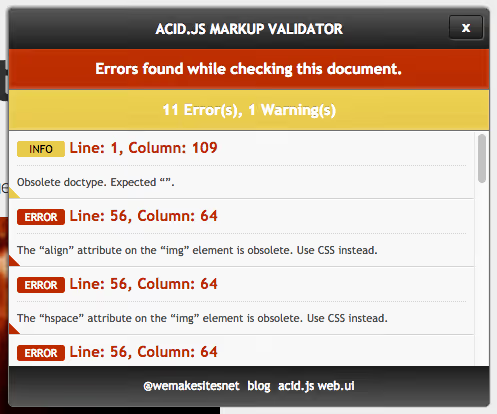
Acid.JS Validator is a bookmarklet that uses the W3C SGML API to check markup. It requires no extension installation: just drag the link to your bookmarks bar and launch it on any page with one click. It works in any browser. A good backup option when extensions are blocked by corporate policy.
5. Built-in developer tools
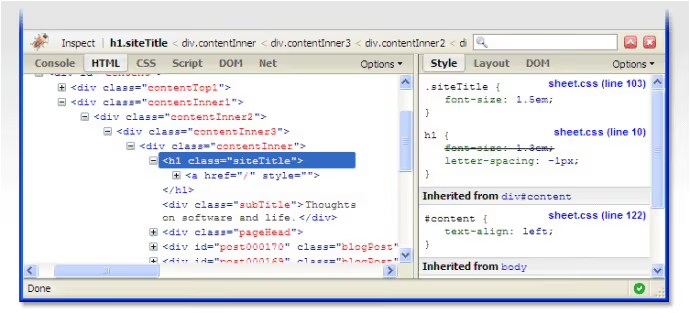
Firebug went into history back in 2017, but its legacy lives on in every modern browser. Firefox, Chrome, and Edge all have built-in DevTools (F12) that grew directly from Firebug.
What DevTools can do for validation:
- Console tab shows JavaScript errors with line numbers and stack traces. Syntax errors are highlighted in red immediately when the page loads.
- Elements tab shows invalid HTML visually: tags that the browser "fixed" automatically are displayed differently than in the source.
- Issues tab (Chrome) / Console panel (Firefox) shows warnings about deprecated APIs, mixed content (HTTP/HTTPS), and CSP problems.
The main advantage of DevTools is immediacy. You're already in the browser, you're already looking at the page, just press F12. No installation needed.
6. JavaScript validators
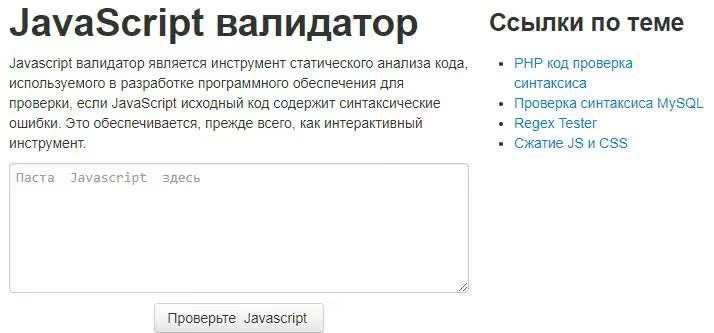
For serious work with JavaScript, an online validator is not enough. In practice, we use two levels of checking:
First, ESLint. A static analyzer that finds not only syntax errors but also potential problems: unused variables, unsafe constructs, and deviations from code style. It integrates with VS Code, WebStorm, and CI/CD pipelines. The eslint:recommended config covers most needs of a typical project.
Second, TypeScript. Strict typing catches entire classes of errors at the code-writing stage. If the project is in plain JS, at least add JSDoc annotations: TypeScript checks .js files with annotations without switching to .ts.
Online validators (javascript-validator.com and similar) are suitable for quick checking of a small snippet but not for systematic work with code.
7. Responsiveness testing
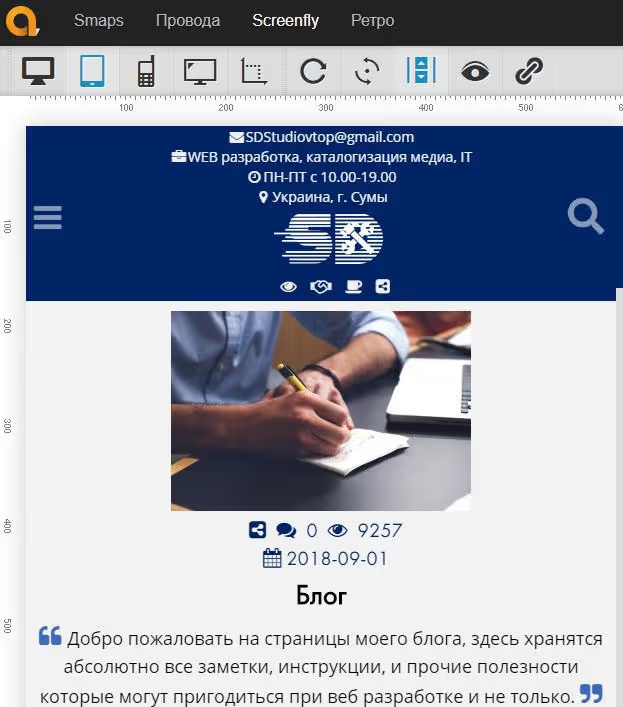
QuirkTools shows how a site looks at different screen resolutions, from smartphone to wide monitor. It's useful for quick responsive layout checks without physically cycling through devices.
In 2026, built-in DevTools serve as an alternative: Chrome and Firefox have device emulation mode (Device Toolbar), which more accurately renders mobile resolutions. But QuirkTools is convenient for demonstrating to clients: one screenshot with all breakpoints clearly shows the result.
Video: how to check HTML validity in 5 minutes
If you've never run a W3C validator, start with this short tutorial. The author demonstrates all three ways to check: by URL, by file upload, and by direct code paste.
⁉️🤔 Frequently asked questions
Why bother checking HTML validity in 2026 when browsers fix everything anyway?
Browsers fix errors differently. Chrome might close an unclosed tag one way, Safari another. The result: the page looks different. Additionally, invalid HTML breaks SEO because search bots are less tolerant of markup errors than browsers. W3C validation is insurance against cross-browser bugs and indexing problems.
What's more important to check: HTML or CSS?
HTML is more important. An HTML error breaks the document structure, causing screen readers and search engines to lose content. A CSS error usually affects only the visuals of a specific element. In practice: first validate HTML (validator.w3.org), then CSS (jigsaw.w3.org), then JS (ESLint or console).
Can validation be automated in the development process?
Yes, and this is the best approach. ESLint for JS, Stylelint for CSS, and html-validate for HTML integrate into pre-commit hooks (Husky + lint-staged). On push to the repository, code is checked automatically, and errors don't reach production. For WordPress projects, add checking to CI via GitHub Actions: run all theme templates through the validator on every PR.
Validator.w3.org shows dozens of errors on a working site. Is this a disaster?
Not always. Some W3C validator "errors" are non-standard attributes added by plugins or frameworks. For example, Alpine.js attributes (
x-data,x-show) or analytics data attributes. Look at errors selectively: unclosed tags, incorrect nesting, and duplicate IDs are real bugs. Non-standard data attributes are acceptable noise.
Which validator should I choose for a WordPress site?
Start with validator.w3.org for one-time checks of key pages. Install Total Validator as a Firefox extension for periodic audits. Add ESLint and Stylelint to your theme development process. For broken links, use the built-in audit in Total Validator or the specialized Dr. Link Check.
Summary: what to run and when
Code validation is not a one-time action before project delivery but a habit. Here's our working checklist:
- When building a new block: run HTML through validator.w3.org (direct code paste), CSS through jigsaw.w3.org.
- When installing a new plugin on WordPress: open the page with the plugin in the browser, press F12 → Console, check for red JS errors.
- Quarterly: run Total Validator on the entire site, check for broken links and the overall picture.
- Before release: DevTools → Device Toolbar → run through all breakpoints looking for visual bugs.
You don't need to check every page every day. It's enough to integrate validation into critical points of the workflow, and the number of "unexpected" bugs in production will decrease dramatically.
If you're just starting out, install the HTML Validator extension for Firefox or Web Developer for Chrome. The icon in the toolbar will remind you to check every time you open the site. This is the simplest way to make validation a habit.

A professional team of writers and editors specializing in creating quality content.