














💡 18 HTML tags you are not using in 2026 but should be
How many HTML tags do you actually use? Most developers have an arsenal of about a dozen: div, p, a, img, span, headings and lists. The remaining 100+ tags from the specification sit idle, simply because people forgot about them or never knew.
That's a mistake. Browsers have learned to understand semantics more deeply than you might think. Screen readers rely on it. Search engines parse the structure. The right tag in the right place delivers accessibility, SEO and readable code without a single line of JS.
We selected 18 HTML tags worth adding to your everyday markup. They aren't new in the sense of "just released from draft," but they are new to many developers because they've been unfairly overlooked. Some come from HTML5, others have always lived in the specification. Each one includes a working example and an explanation of where it actually helps.
💡 Quick overview:
- Which tags solve accessibility and semantics issues without JavaScript
- Where sub/sup, dfn, var and time come in handy for text markup
- How
<q>,<blockquote>and<cite>properly format quotations - Why
<video>,<picture>and<figure>organize media content - What del/ins, meter, dialog and menu bring to interfaces
1. Semantic text markup: sub, sup, dfn, var, time, kbd
Five tags that turn plain text into a structure understandable to both machines and humans. No JS, just native HTML.
<sub>** and **<sup>: subscript and superscript. Chemical formulas, mathematical exponents, footnotes. CSS can visually lower or raise text with vertical-align, but it won't convey the semantics. And that matters: a screen reader will announce "H two O" rather than reading "H two O" as regular text. Don't use them for purely decorative purposes; styles exist for that.
1 H<sub>2</sub>O 2 a<sup>2</sup> + b<sup>2</sup> = c<sup>2</sup>
<dfn>: a term being defined. When you introduce a new concept and provide its definition, wrap the term in this tag. The browser does nothing visual with it, but search engines and dictionary extensions use <dfn> to build a page glossary. The id attribute lets you create back references when mentioning the term again.
1 <p> 2 <dfn id="semantic">Семантическая разметка</dfn> — HTML, который 3 передаёт смысл содержимого, а не только его внешний вид. 4 </p>
<var>: a variable. In technical documentation, tutorials, formula descriptions. Browsers render it in italics by default. For full mathematical expressions MathML is better, but <var> is convenient when the variable is part of a sentence.
1 По теореме Пифагора, квадраты сторон 2 <var>a</var> и <var>b</var> дают квадрат гипотенузы <var>c</var>.
<time>: a date or time. Machines struggle to parse "April 2" in the middle of a paragraph. The <time> tag isolates the date and provides a machine-readable format via the datetime attribute. Calendars, search engines, event parsers: all will thank you.
1 GenerateJS пройдёт 2 <time datetime="2026-04-02">2 апреля 2026</time>.
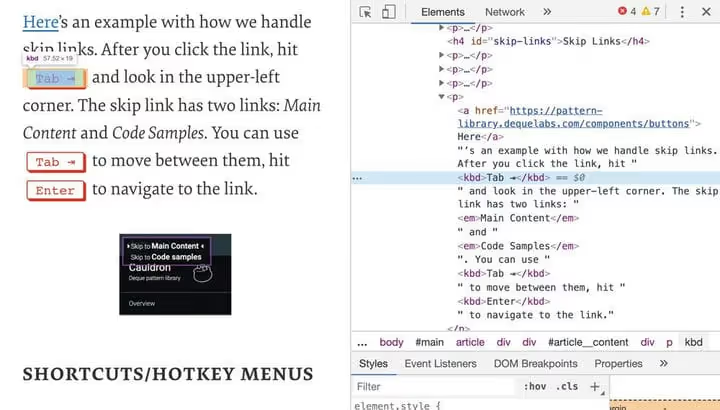
<kbd>: keyboard input. Instructions, keyboard shortcuts, commands. Visually displayed in a monospace font, semantically separating key names from surrounding text. You can nest them for combinations.
1 Закройте окно клавишей <kbd>Esc</kbd>. 2 Сохраните проект: <kbd><kbd>Ctrl</kbd> + <kbd>S</kbd></kbd>.
2. Quotations and source references: q, blockquote, cite
Three tags that cover all citation scenarios, from an inline phrase to an extended book excerpt.

<q>: an inline quotation within a paragraph. The browser automatically wraps the content in quotation marks matching the page language. The optional cite attribute specifies the source URL. The user doesn't see it, but machines do.
1 Как сказал Джереми Кит, 2 <q cite="https://adactio.com">HTML — объединяющий язык 3 Всемирной паутины</q>.
<blockquote>: a block quotation. For extended excerpts: a paragraph from an article, a review, a passage from a specification. Also supports cite. The browser adds an indent by default, and you can style it however you like.
1 <blockquote cite="https://html.spec.whatwg.org/multipage/"> 2 <p>HTML — это язык разметки, используемый для создания 3 структурированных документов для Всемирной паутины.</p> 4 </blockquote>
<cite>: the title of the cited work. Only the title: a book, article, film, game. Not the author's name, not the date, just the title. Browsers display it in italics by default. Often confused with the cite attribute on <q>/<blockquote>, but they're different things: the attribute stores a URL, while the <cite> tag displays the title to the user.
1 <p>Почитать подробнее можно в 2 <cite>HTML Living Standard</cite>.</p>
3. Document structure: address and dl/dt/dd

<address>: contact information. Not a company's postal address (Schema microdata handles that), but the contact details of the page or article author. When placed inside <article>, it refers to the article author; when in <body>, to the site owner. Search engines use this block to build Knowledge Graph.
1 <address> 2 <a href="mailto:editor@techblog.sdstudio.top">editor@techblog.sdstudio.top</a> 3 </address>
<dl>**, <dt>, **<dd>: a description list. Not just a "glossary of terms," but any "key/value" structure: product specifications, metadata, FAQ. One term (<dt>) can have multiple descriptions (<dd>), and vice versa. Order matters: the term comes first, then its description.
1 <dl> 2 <dt>Элемент</dt> 3 <dd>Конструкция из открывающего тега, содержимого и закрывающего тега.</dd> 4 <dt>Атрибут</dt> 5 <dd>Пара внутри открывающего тега, задающая свойства элемента.</dd> 6 </dl>
4. Media content: video, picture and figure/figcaption
Three powerful tools for working with visual and multimedia content. Each covers its own range of tasks.
<video>: embedded video without third-party players. You can specify a single src or multiple <source> elements; the browser picks the first supported format. Useful detail: the autopictureinpicture attribute automatically shrinks the video to a floating window when switching tabs, while disablepictureinpicture prevents that. Similarly, disableremoteplayback controls casting to Chromecast and Apple TV.

1 <video controls autopictureinpicture> 2 <source src="video.webm" type="video/webm"> 3 <source src="video.mp4" type="video/mp4"> 4 </video>
<picture>: responsive images with full control. Unlike srcset on <img>, where the browser chooses the source, <picture> lets you specify strict media queries. Different formats (WebP for Chromium, JPEG for others), different crops for mobile, a dark version for dark mode, all without a single line of JS.
1 <picture> 2 <source srcset="hero-dark.webp" media="(prefers-color-scheme: dark)"> 3 <source srcset="hero.webp" type="image/webp"> 4 <img src="hero.jpg" alt="Главный баннер с заголовком статьи"> 5 </picture>
<figure>** and **<figcaption>: self-contained content with a caption. An illustration, diagram, code listing, table, anything that can be removed from the main flow without losing meaning. <figcaption> semantically links the caption to the content: a screen reader reads them together rather than as separate elements. If the content is only tangentially related to the text (for example, a quote in a sidebar), use <aside> instead.
1 <figure> 2 <img src="framework-usage.png" alt="Рост React-проектов с 2022 по 2026"> 3 <figcaption>Динамика использования JavaScript-фреймворков, 2022–2026</figcaption> 4 </figure>
5. Navigational maps: map and area
Old but not obsolete. Image maps make individual regions of an image clickable links. Where text falls short (an interactive subway map, a building floor plan, an anatomical diagram), <map> with <area> works without JS.

1 <map name="london"> 2 <area shape="circle" coords="200,75,50" href="westminster.html" alt="Вестминстер"> 3 <area shape="rect" coords="300,120,380,180" href="city.html" alt="Сити"> 4 </map> 5 <img usemap="#london" src="london-map.jpg" alt="Карта центра Лондона">
The shape attribute accepts circle, rect, poly and default. Coordinates are in pixels from the top-left corner. For complex contours, use poly with a list of points. Despite its age (the tag is well over twenty years old), it enjoys stable support across all browsers.
6. Text editing: del and ins
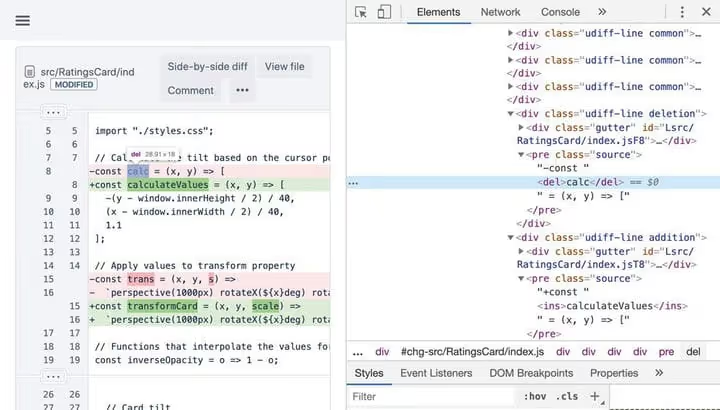
When you show edits, document changes, article updates, or legislative diffs, <del> and <ins> provide a semantically correct representation. <del> marks removed content (browsers strike it through), <ins> marks added content (browsers underline it).
Both support cite (why it changed) and datetime (when). Search engines see the page's revision history rather than just overwritten text.
1 <p> 2 Несмотря на негатив в прессе, 3 <del datetime="2026-01-15">covfefe</del> 4 <ins cite="#editorial-note">coverage</ins>. 5 </p>
Don't use <del> and <ins> for purely decorative strikethrough; text-decoration: line-through exists for that. These tags are specifically about content versioning.
7. Next-generation input fields
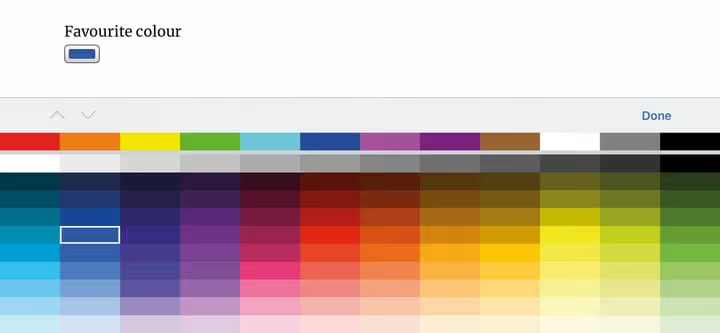
The <input> element has evolved far beyond text strings. Modern browsers support dozens of types, each bringing built-in validation, a mobile-specific keyboard, and native widgets without a single line of JavaScript.
Key types that many projects still ignore:
type="color": a color palette. A native picker without dragging in a spectrum library.type="range": a slider betweenminandmax. Volume, price, rating, all without coding a slider.type="date": a localized calendar. The browser shows a date picker with formatting adjusted to the user's region.type="datetime-local": date and time without a time zone. For bookings, deadlines, schedulers.
The pattern attribute accepts a regular expression: the value won't pass validation until it matches the pattern.
1 <input type="color" value="#FF0657"> 2 <input type="range" min="0" max="100" value="75"> 3 <input type="date" value="2026-06-13"> 4 <input name="username" pattern="[a-z]{5,10}" 5 title="От 5 до 10 строчных латинских букв">
8. Numeric indicators
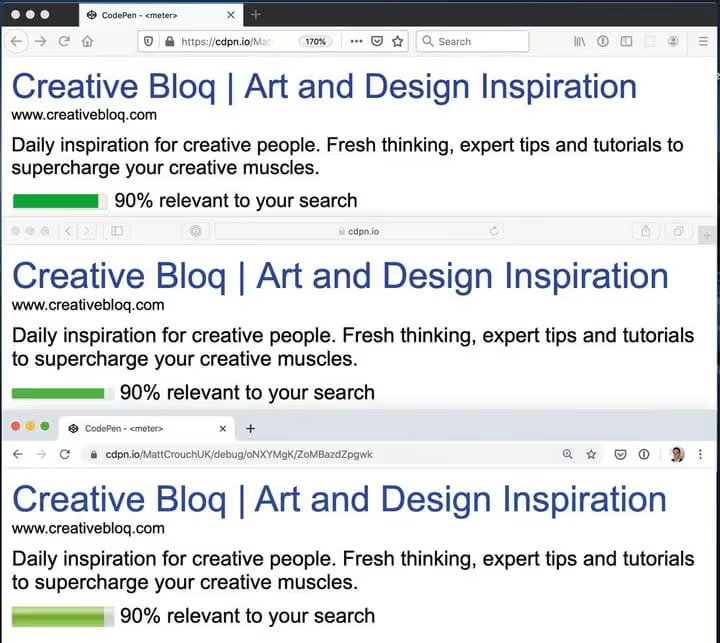
Don't confuse it with <progress>: <meter> is for a static value within a known range (disk usage, score, rating), while <progress> is for task completion progress (download, step-by-step process).
The browser automatically colors <meter> based on where the value sits relative to low, high and optimum. Green zone: value near optimum; yellow: tolerable; red: outside the normal range. Color logic can be customized via CSS, but the basic semantics work out of the box.
1 <meter value="6.4" min="0" max="10" low="4" high="9" optimum="7.5"> 2 6.4 из 10 3 </meter>
9. Interactive elements: dialog and menu
Two tags for interactions that previously required JS libraries or building from scratch.

<dialog>: a native modal window. The element is hidden by itself. Add the open attribute, and the browser displays it above the page in the top layer. The JavaScript method showModal() also provides the ::backdrop pseudo-element for dimming the background. Popup, action confirmation, alert, all without a single line of CSS positioning.
Support: Chrome, Edge, Firefox, Safari (since 2022). For older browsers, the dialog simply renders as a regular block container; polyfills are available.
1 <dialog id="confirm"> 2 <p>Удалить этот элемент?</p> 3 <button onclick="this.closest('dialog').close()">Отмена</button> 4 <button onclick="this.closest('dialog').close('confirmed')">Удалить</button> 5 </dialog>
<menu>: a list of interactive actions. Not navigation (use <nav> for that), but specifically a toolbar: brushes in a graphics editor, formatting buttons, object actions. The semantic equivalent of <ul>, but for buttons and commands. It has no default styling, only meaning.
The type="toolbar" attribute (the only one remaining in the specification) explicitly sets the toolbar role. The context type has been removed from the standard, so <menu> today is exclusively for visible sets of actions on screen.
1 <menu type="toolbar"> 2 <li><button>Круглая</button></li> 3 <li><button>Плоская</button></li> 4 <li><button>Веерная</button></li> 5 </menu>
If HTML markup is new to you, here's an excellent introduction from Traversy; Traversy Media is one of the best frontend channels on YouTube:
⁉️🤔 Frequently asked questions
Why use semantic tags when you can build everything with <div> and <span>?
Screen readers rely on tags to build page structure for blind users;
divis invisible to them. Search engines extract semantics for rich snippets: ratings from<meter>, FAQ from<dl>, contacts from<address>. Plus the code documents itself:<article>immediately says "this is an article," while<div class="article">does not.
Which tags from the list are already safe to use in production?
All eighteen.
<dialog>gained cross-browser support with Safari 15.4 (2022),<menu>de facto works as a semantic wrapper everywhere.<picture>and<video>with<source>have been mature since 2016.<meter>,<time>,<kbd>,<dfn>come from HTML's deep legacy with universal support. The only caveat:<input type="date">andtype="color"may render differently across operating systems, but that doesn't break functionality.
Are <b> and <i> dead?
No, but their role has changed.
<b>is now for drawing attention without conveying importance (keywords in a resume),<i>is for idiomatic expressions, terms in another language, ship names. For emphasizing importance, use<strong>; for stress emphasis,<em>. Stylistic bold/italic is CSS only.
Can I use <meter> for a loading progress bar?
No.
<meter>is for a static value within a known range (disk usage, score, rating). For progress over time, use<progress>exclusively. Browsers animate<progress>whenvaluechanges, while<meter>remains static. They're constantly confused, but the semantics differ and screen readers announce them differently.
What should I do if a browser doesn't support <dialog>?
The element simply renders as a block container and won't break. Add a polyfill:
dialog-polyfillfrom the Google Chrome team (400 lines, no dependencies) coversshowModal(),close()and::backdropfor older browsers.
Which tag should you adopt first?
{iframe} and <picture> are two tags that deliver maximum benefit with minimum effort. {iframe} will replace any third-party video player with a native window featuring picture-in-picture. <picture> eliminates manual WebP/AVIF format switching; the browser picks whatever it understands.
From there, scale up: <input> with modern types (color, date, range) will shave off kilobytes of JS widgets. <dialog> removes the dependency on modal libraries. <del>/<ins> brings order to content versioning.
You don't have to implement all 18 in a single sprint. Start with one tag per week. Within six months, your markup will be semantically rich and your code self-documenting, without a single line of JavaScript where it isn't needed.
If you don't know where to start, open your current project, find the nearest <div class="..."> without clear semantics, and replace it with a suitable tag from the list. The difference in code readability will be immediately noticeable.

A professional team of writers and editors specializing in creating quality content.