













 AIIllustrative image: AI-generated
🚀 How to add categories in WordPress: all scenarios
Categories might seem simple enough, but skip organizing just once and throw a dozen posts into "Uncategorized," and in six months your site becomes a mess. A visitor arrives, sees chaos, and leaves.
Categories in WordPress are the skeleton of navigation. Without them, even perfectly written articles get lost. Good structure with parent and child categories gives you three things: readers find what they need faster, search engines understand the site architecture better, and you spend less time on internal linking.
Below is a step-by-step breakdown of every category scenario. From creating your first section to bulk deleting posts. No fluff, just concrete admin screenshots.
💡 Quick overview:
- Add a new category through the post editor or Posts → Categories
- Create a child category and select the parent in the dropdown menu
- Assign posts to categories individually or in bulk
- Edit the section description for SEO
- Remove
/category/from URLs using a plugin
What are categories and subcategories in WordPress
A category is a way to group posts by topic. Picture a news site: sections like "Politics," "Economy," "Sports" are categories. And inside "Sports," you have "Football," "Hockey," "Tennis" as subcategories.
Technically, categories are hierarchical. This means each one can have an unlimited number of child elements. By default, WordPress creates an "Uncategorized" category, if you don't assign a post to any section, it goes there. You can fix this later.
One post can be in multiple categories simultaneously. For example, an article about an SEO plugin can be in both "Plugins" and "SEO." But don't abuse this: search engines might interpret multiple assignments as duplication.
How to add a new category

The fastest way is right when writing a post. In the WordPress editor (Gutenberg or Classic), on the right or bottom, there's a "Categories" block. Below the list of existing sections, click "Add New Category." Enter a name and click the button.
The second route is centralized, through the admin panel. Go to Posts → Categories. Fill in the fields:
Name, what visitors will see on the site.
Slug, the part of the category URL. If left blank, WordPress will generate it automatically from the name. Use Latin characters and hyphens:
wordpress-plugins, notwordpress_plugins.Parent Category, leave as "None" if this is a top-level section.
Description, optional, but useful for SEO (the text may appear on the category page if your theme supports it).
Click "Add New Category."
How to create a child category

A child category is created the same way as a regular one, but with one difference. In the "Parent Category" dropdown menu, select the one inside which the new category will reside. For example: parent "SEO," child "Technical SEO."
If you're not in the post editor but in the admin panel, the path is the same: Posts → Categories.

Fill in the name, slug, description, select the parent category, and click "Add New Category." The child category's slug doesn't have to mirror the parent's, WordPress will build the URL as /category/seo/technical-seo/ itself.
In practice, try not to get carried away with deep nesting. Three levels is the ceiling. Beyond that, navigation becomes confusing for both readers and search engines.
How to assign posts to categories
There are two methods. First, the targeted approach when editing a specific post.
Method 1: through the post editor

Open the post for editing, find the "Categories" block, and check the boxes for the ones you need.

Click "Update," and the post is linked to the selected section. If you've checked multiple boxes, the post will appear in each of the specified categories. Keep in mind: the post URL is formed based on the first category (alphabetically or by lowest ID), which might not be the one you wanted in the address bar.
Method 2: bulk assignment

Go to Posts → All Posts. Check the boxes for the posts you need. In the "Bulk Actions" dropdown, select "Edit" and click "Apply." The bulk edit panel will open. Find the "Categories" section, check the sections you need, and click "Update."
This method saves hours when you're cleaning up a long-neglected site with dozens of uncategorized posts.
How to add a category description
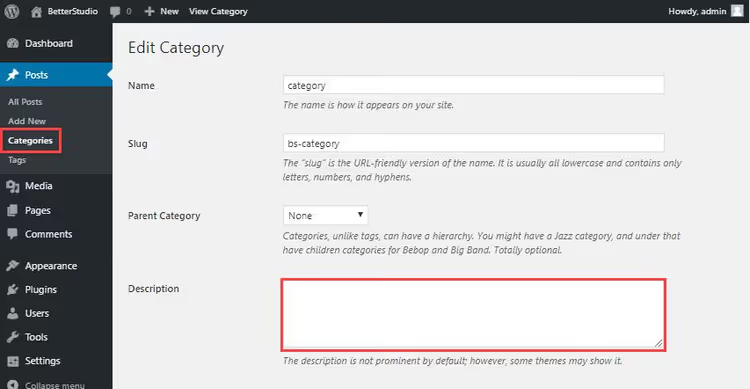
Category descriptions are an underrated SEO tool. Many themes display them on the category page before the post list or in the meta description.
To add a description, go to Posts → Categories. Find the section you need and click "Edit" under its name. Fill in the "Description" field and click "Update."
Write concisely: 1-2 sentences describing the section's content, with a keyword. For example: "Plugins for speeding up WordPress: caching, image optimization, and database tuning. Comparisons and setup guides."
How to change the default category
The "Uncategorized" category is the first thing worth changing on a new site. Leaving it means showing readers you couldn't be bothered to organize.
You can change it in two ways. First: create a new category (for example, "General" or "Blog") and set it as the default section in Settings → Writing, the "Default Post Category" dropdown.
Second: simply rename "Uncategorized" to something meaningful, through Posts → Categories, the "Edit" button under the name. Enter a new name, slug, and save. Old posts that were already in this category will automatically move under the new name.
How to rename a category

Renaming a category doesn't break links. WordPress uses the section's internal ID to connect with posts, the name changes but the ID stays the same.
Go to Posts → Categories, click "Edit" under the section you need. Enter the new name and, if necessary, a new slug. Click "Update."
Note: if you changed the slug, the old category URL will stop working. WordPress doesn't automatically redirect /category/old-name/ to /category/new-name/. For this, you'll need a redirect plugin, like Redirection. Without a redirect, search engines will see a 404 and dropped pages.
How to delete a category without losing content

Deleting a category doesn't delete posts. WordPress will automatically move them to the default category (the one you configured above).
To delete: Posts → Categories, check the boxes for unnecessary sections, in the "Bulk Actions" dropdown select "Delete" and click "Apply." Posts will remain but will end up in the default category. After that, go into them and redistribute to current sections.
How to delete a category along with posts

Sometimes you need to delete both the section and all its content. For example, you've closed a site section.
Go to Posts → All Posts. Above the post table, there's a category filter, select the one you plan to delete. Click "Filter" to see all posts in that section. Check them all (checkbox in the table header), in the "Bulk Actions" menu select "Move to Trash" and click "Apply."
After that, return to Posts → Categories and delete the section itself, now it's empty and content won't be affected.
An alternative for large numbers of posts across different categories is the Bulk Delete plugin. It allows flexible criteria: delete all posts from a specific category, older than a given date, or with a particular status.
Categories and SEO: what you need to know
Categories directly affect search optimization. Here are a few rules tested in practice.
Keywords in the name. The category name should contain a key phrase. Not "Miscellaneous," but "Plugins for caching." Not "Articles," but "WordPress guides." Length limit is 4 words maximum, otherwise URLs become unwieldy.
Remove /category/ from URLs. By default, WordPress inserts category/ in every section's address: site.com/category/seo/. This is an unnecessary nesting level. The FV Top Level Categories plugin removes the prefix, and the URL becomes site.com/seo/. The plugin has 20,000+ active installs, a 4.4 rating on WordPress.org, and compatibility with version 6.8.
Category description = content. If your theme displays the description on the category page, don't leave the field blank. Short text with a keyword helps search engines and readers understand what the section is about.
Don't duplicate. One post in ten categories isn't internal linking, it's clutter. Stick to the rule: one post, one category maximum two. For finer grouping, use tags.
Video: WordPress categories in 4 minutes
Short video from WPBeginner, all the basic category mechanics with admin screenshots:
⁉️🤔 Frequently asked questions
Can you add categories to WordPress pages?
By default, WordPress pages don't support categories. But this is easy to fix: add the line
register_taxonomy_for_object_type('category', 'page');to the child theme'sfunctions.phpor use a plugin like Pages with Category and Tag. After that, a "Categories" block will appear in the page editor.
How many categories are optimal for a site?
There's no magic number. For a blog with 50 articles, 5-7 parent categories are enough. For a news portal with hundreds of publications, 10-15. If you feel sections are duplicating each other in meaning, consolidate. If a category has fewer than three posts, it may not be needed as a separate section.
Which is better for SEO: categories or tags?
Categories are for structure and navigation, tags are for micro-grouping. Categories are hierarchical and mandatory (a post can't be without a category), tags are flat and optional. Search engines understand both well, but category pages carry more weight because they're usually better designed and contain descriptions.
How do you move posts from one category to another?
Use bulk editing: Posts → All Posts, filter by the old category, check all posts, select "Edit" in the "Bulk Actions" menu. In the panel that opens, uncheck the old category and check the new one. Click "Update."
What happens to links if you rename a category?
If you only changed the name (not the slug), links will continue to work, the URL doesn't change. If you changed the slug, old URLs will return 404. You'll need the Redirection plugin to set up 301 redirects from old addresses to new ones.
What to do with categories right now
Open the admin panel and run through a short checklist. Changed "Uncategorized" to a meaningful name? Checked that there are no posts stuck in the default section? Removed /category/ from URLs? Written descriptions for at least your three main sections?
If you answered "yes" to everything, your categories are in order. If not, start with the first item. One 20-minute session today saves hours cleaning up mess tomorrow.

A professional team of writers and editors specializing in creating quality content.