













 AIIllustrative image: AI-generated
👤 How to add an author box to your WordPress site: 5 plugins and a manual method
Readers trust text when they see a real person behind it. An anonymous blog is like a newspaper without bylines: there is information, but nobody is responsible for it. An author box closes that gap: a photo, a name, a couple of lines about yourself, and links to social media turn a faceless page into a conversation with a real expert.
But the default WordPress shows only the author's name, and only if the theme supports it. No biography, no avatar, no social icons. The good news: adding a full-featured author block takes 10 minutes and requires no PHP.
I have gathered 5 actively maintained plugins and one manual method that solve the problem for different scenarios, from a solo blog to a newsroom with a dozen authors.
💡 Quick overview:
- Learn what an author box gives to a business and a blog: numbers and logic
- Compare 5 plugins: from the ultra-simple Simple Author Box to the all-in-one Molongui Authorship with guest authors
- Copy ready-made PHP code for manual integration into functions.php
- Choose via the comparison table: a decision in 5 seconds
- Get answers to common questions: Gravatar, structured data, speed, theme conflicts
Why you need an author box at all
Shift your perspective. An author block is not footer decoration; it is a conversion tool. According to Orbit Media Studios, blogs that display an author get 30% more return visits: readers come back to someone they trust. For a commercial site this is a direct funnel: an author box with a link to a services page shortens the path from "useful article" to "I want to work with you" to a single click.
On top of that, from an SEO standpoint Google is looking ever more closely at E-E-A-T (Experience, Expertise, Authoritativeness, Trustworthiness). Transparent authorship with a biography, links, and social proof is a direct signal: this content can be trusted.
And one more thing. If you accept guest posts, an author box is the only way to give an invited expert the visibility they deserve without creating an admin account.
1. A theme with a built-in author block

The simplest path is not to install a plugin at all. Many modern WordPress themes, especially premium ones, ship with a ready-made author block. For example, the Total theme displays the biography, avatar, and author links under each post out of the box. All you need to do is fill out your profile under "Users → Your Profile" and, if you wish, tweak the CSS.
How to check if your theme has this feature: open the blog demo, scroll to the end of any post, and look for a block with the author's name. If it is not on the demo, ask the developer directly.
Pros: zero additional plugins, native speed, no separate component to update. Cons: customization only through theme code (or no customization at all); when you switch themes the block disappears.
Bottom line. If your theme already has an author block and it looks decent, use it. That is enough for most blogs.
2. Starbox: an author box "for people"

Starbox is a niche veteran with 10,000+ active installs and an update from May 2025 (v3.5.4, compatible with WordPress 6.8). The developer is the SEO Squirrly team, known for the SEO plugin of the same name.
The main selling point is ready-made visual themes. Business, Fancy, TopStar, Drop-Down: pick one of 6 themes, and the box looks designer-grade without a single CSS tweak. Under the hood are HTML5, vCard microformats (Google Rich Snippets), and support for Google Authorship and Facebook Authorship.
What the free version can do:
- display the author's name, avatar, biography, and social networks (Twitter/X, Facebook, LinkedIn, Instagram, Pinterest, Tumblr, YouTube, Vimeo, and 6 more);
- show a link to all posts by the author and a block of recent publications;
- for each author, a separate design theme and a separate set of social networks;
- automatically remove a duplicate author block from the theme;
- a shortcode
[starbox]with id and desc parameters for manual insertion.
Pros: visually rich out of the box without CSS fiddling; a dedicated author page; the ability to upload your own photo instead of Gravatar.
Cons: not compatible with WPML (multilingual support suffers); PRO features like gradient themes and priority support are paid.
🔗 Starbox on WordPress.org | 🔗 Live demo
3. Simple Author Box: a balance of simplicity and flexibility

If Starbox is "pick a theme and forget about it," then Simple Author Box is a constructor. The plugin from WebFactory studio (v2.60, May 2026) lets you change colors, fonts, border radius, and spacing in real time via a live preview.
On board are 30+ social network icons, including TikTok and BlueSky (added in v2.56). The plugin is fully responsive and does not break on mobile.
What sets it apart:
- uploading your own avatar to the server, so you can completely bypass Gravatar;
- AMP and RTL support;
- manual insertion via code in
single.phporauthor.phpfor custom themes; - Buny Fonts (GDPR-compliant, not Google Fonts).
Pros: detailed customization without CSS; frequent updates (8 releases in 2025-2026); live support on the forum, the developer responds within a day.
Cons: some features are moved to PRO (guest authors, "before content" position, nofollow on links, "top authors" widget). The free version cannot handle multiple co-authors in one post.
🔗 Simple Author Box on WordPress.org | 🔗 Live demo
4. Co-Authors Plus: when there is more than one author
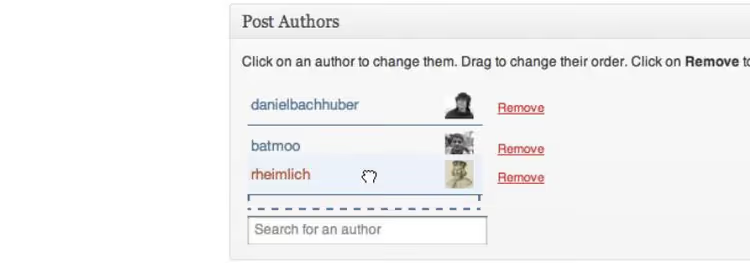
Co-Authors Plus solves a problem that WordPress cannot handle out of the box: multiple authors on a single post. The plugin from Automattic (v4.0.2, 20,000+ installs, PHP 7.4+, WordPress 6.4+) is the industry standard for newsrooms and blogs with a team of authors.
The plugin's philosophy: co-authorship is a first-class citizen. You assign multiple bylines via search-as-you-type in the post editor, and each co-author gets their own place in the byline, on the archive page, and in RSS.
A separate powerful feature: guest authors. You can create a profile for an invited expert without a WordPress account (with biography, avatar, and links) and assign them as a co-author on equal footing with registered users.
Technical details:
- 5 Gutenberg blocks: co-author avatar, name, biography, featured image, list of co-authors;
- REST API for headless builds;
- template tags for manual integration into the theme;
- 1-click import when migrating from Molongui Authorship or PublishPress Authors.
Pros: industry standard, developed by Automattic, 19 languages, an active (if not speedy) community.
Cons: requires editing theme files to display on the frontend (without Gutenberg blocks); forum support is unhurried, with volunteers rather than staff developers.
🔗 Co-Authors Plus on WordPress.org | 🔗 Live demo
5. Molongui Authorship: the new standard for author blocks

Molongui Authorship appeared later than the others but quickly became the benchmark for functionality. In a single plugin it packs everything that competitors split between free and PRO versions: guest authors, co-authorship, 90+ social icons, and pixel-perfect customization of the author box.
Why this is serious:
- guest authors with full profiles (photo, bio, social networks, job title) without creating an account;
- unlimited co-authors per post with drag-and-drop sorting in the byline;
- an author box with live preview, 4 layouts (boxed, minimalist, tabbed, inline), and a custom CSS panel;
- Schema.org markup for Google Rich Snippets out of the box;
- 1-click migration from Co-Authors Plus, PublishPress Authors, and One User Avatar.
Pros: maximum features in the free version; responsive tech support (live chat in the admin panel); frequent updates; integration with Elementor and Divi.
Cons: PRO features (dynamic bio with HTML, 30+ niche icons, conditional display logic, archive pages for guest authors) are paid; on legacy PHP 5.6 it may be slow.
🔗 Molongui Authorship on WordPress.org
6. Manual integration into the theme: when a plugin is unnecessary

If you are a developer with a custom theme, or you simply do not want extra plugins, an author box can be added in 30 lines of PHP. Here is ready-made code for functions.php (or a snippet via WPCode):
1 // Author box under post — functions.php 2 function techblog_author_box() { 3 if ( ! is_single() || ! get_the_author_meta( 'description' ) ) { 4 return; 5 } 6 $author_name = get_the_author(); 7 $author_bio = get_the_author_meta( 'description' ); 8 $author_url = get_author_posts_url( get_the_author_meta( 'ID' ) ); 9 $author_avatar = get_avatar( get_the_author_meta( 'user_email' ), 80 ); 10 ?> 11 <div class="author-box"> 12 <div class="author-box__avatar"> 13 <a href="<?php echo esc_url( $author_url ); ?>" rel="author"> 14 <?php echo $author_avatar; ?> 15 </a> 16 </div> 17 <div class="author-box__content"> 18 <h4 class="author-box__name"> 19 <a href="<?php echo esc_url( $author_url ); ?>" rel="author"> 20 <?php echo esc_html( $author_name ); ?> 21 </a> 22 </h4> 23 <p class="author-box__bio"><?php echo wp_kses_post( $author_bio ); ?></p> 24 </div> 25 </div> 26 <?php 27 } 28 add_action( 'wp_footer', 'techblog_author_box' ); 29
What to understand with manual integration:
- The biography is filled in under "Users → Your Profile." Without a filled-in
descriptionfield, the author box will not display at all; this is a deliberate decision so that an empty frame is not shown. - Avatars by default come from Gravatar. Each author needs a Gravatar account with the same email as in WordPress. The alternative is a plugin like Simple Local Avatars.
- Styling goes in the theme's
style.css. The code above provides only the structure; the appearance (borders, shadows, padding, colors) must be added separately. - The
wp_footerhook outputs the box in the footer. If you need it strictly under the post, replace it with thethe_contentfilter.
When to choose the manual method: you are a web developer, you have a custom theme without author block support, and minimizing plugins is critical. In all other cases, use a plugin: you will save hours on maintenance.
Comparison table
Criterion | Starbox | Simple Author Box | Co-Authors Plus | Molongui Authorship |
|---|---|---|---|---|
Guest authors | ❌ | PRO only | ✅ | ✅ |
Co-authorship | ❌ | ❌ | ✅ | ✅ |
Upload your own photo | ✅ | ✅ | ❌ (Gravatar) | ✅ |
Ready-made design themes | 6 | 0 (manual setup) | 0 | 4+ |
Social networks | 16 | 30+ | 0 (separate) | 90+ |
Gutenberg blocks | ❌ | 1 | 5 | ❌ |
Schema.org | vCard | ❌ | ❌ | ✅ (full) |
Active installs | 10,000+ | not disclosed | 20,000+ | not disclosed |
Last update | May 2025 | May 2026 | ~Apr 2026 | regularly |
Best scenario | Solo blog, beautiful box out of the box | Fine-tuned customization to match the brand | Newsroom, collaborative posts | Universal: guests, co-authors, design |
If you are a visual learner and prefer to watch the process rather than read, WP Engine Builders show how to build an author box with native WordPress blocks in 5 minutes. No plugins, just Gutenberg.
⁉️🤔 Frequently asked questions
Is using Gravatar for the author avatar mandatory?
Not mandatory. Starbox, Simple Author Box, and Molongui Authorship let you upload your own photo directly to the WordPress media library, bypassing Gravatar. This is convenient if the author does not want to register on a third-party service or if multiple authors use the same email. Co-Authors Plus also supports avatar uploads for guest authors without Gravatar, via the profile featured image. Gravatar is a global avatar system tied to email. By default, WordPress uses it. If Gravatar is not set up, a gray "mystery person" is shown. To opt out of Gravatar entirely, install Simple Author Box or Molongui Authorship: in the settings there is a toggle "Use local avatar."
Does an author box slow down site speed?
Quality plugins from this list do not. Starbox, Simple Author Box, and Molongui Authorship load only CSS and a minimal amount of SVG icons (usually 5-15 KB compressed). There are no additional requests to external servers. Verified: in Lighthouse and PageSpeed Insights, the before-and-after difference is usually within the measurement margin of error (0-2 points). The exception is if a plugin loads Google Fonts (Starbox in older versions); Simple Author Box has already switched to local Buny Fonts.
If speed is critical, prefer Simple Author Box or the manual method. And do not forget about caching: with server-side caching enabled (WP Rocket, FlyingPress), the author box's additional CSS is served from cache and has no impact on metrics at all.
Is Schema.org structured data for authors necessary?
Desirable, but not mandatory. A properly marked-up author block helps Google display enhanced snippets (author photo next to the search result), which increases CTR by 5-15% according to Backlinko. From this list, Schema.org out of the box is provided by Molongui Authorship (full markup) and Starbox (vCard). In Co-Authors Plus and Simple Author Box, markup must be added manually.
If you rely on an SEO plugin (Rank Math, Yoast SEO), it is likely already adding basic author markup. In that case, duplication through the author box plugin is unnecessary and even harmful. Check in Google Search Console (the "Enhancements" section) or the Schema.org validator for conflicts.
Can the author box be displayed not only under the post but also in the sidebar?
Yes, but via a shortcode or widget. Starbox provides the shortcode [starbox id="login"], Molongui Authorship PRO provides [molongui_author_box], and WPCode lets you build the box and display it via a "Custom HTML" widget. In the sidebar, however, a full-format author box with biography and social networks looks bulky; it is better to limit it to an avatar, a name, and a link to all posts by the author.
Without a plugin: create an HTML widget with
get_avatar(),get_the_author_meta(), andget_author_posts_url()code: just 3 lines of PHP. This works only on pages where an author is defined (post, author archive).
What do I do if the author box is duplicated by the theme?
A common situation: the theme already displays its own author block, and the plugin adds a second one. There are three solutions, from simple to complex: (1) disable the theme's author block in the Customizer settings (if the theme offers that option); (2) in the plugin settings (Starbox, Simple Author Box), change the display position or disable auto-insertion; (3) hide it with a CSS rule .theme-author-box { display: none; }, not elegant, but reliable. Starbox can automatically remove the duplicate if it detects a second author box in the DOM.
Ideally, use one or the other: either the theme's author block or the plugin. Two blocks with different designs confuse the reader and look like a layout bug.
Which plugin to choose for your task
We have covered tools from simple "install and forget" to manual code assembly. Now, here is a decision matrix so you do not have to reread everything.
If you run a blog solo and want a beautiful author block without CSS, install Starbox. Six ready-made themes, minimal settings, results in 2 minutes.
If pixel-perfect customization to match your brand matters, your choice is Simple Author Box. Live preview, upload your own photo instead of Gravatar, frequent updates (the developer is responsive).
If you have a newsroom, guest posts, and collaborative articles, choose Co-Authors Plus or Molongui Authorship. The difference: Co-Authors Plus is a proven standard from Automattic, but it requires editing theme templates. Molongui Authorship is a modern all-in-one solution where everything works out of the box and guest authors are set up in two clicks.
If you are a developer and do not want to add plugins, copy the PHP code from section 6 into your child theme's functions.php and add styles. 15 minutes of work, zero dependencies.
Regardless of the method you choose, do not skip the main step: fill in the author biography under "Users → Your Profile." The most beautiful author box with an empty biography is not worth a single line of code.

A professional team of writers and editors specializing in creating quality content.