













 AIIllustrative image: AI-generated
⚡ How to speed up WordPress: 21 ways to load in under 2 seconds
A slow website loses visitors faster than you can read this sentence. Google stated long ago that mobile users have a patience threshold of 3 seconds. Beyond that, bounce rates climb, conversions drop, and search rankings suffer. WordPress offers flexibility, but flexibility without discipline turns a site into a bloated mess of 50 plugins, unoptimized images, and four fonts for a single heading.
The problem isn't WordPress itself. The problem is that most site owners don't measure speed and don't know where to start with optimization. Meanwhile, a proven set of about twenty steps can slash load time from 7 seconds to fractions of a second without migrating to another platform and without losing functionality.
Below are 21 specific techniques we use on our own projects. Some deliver instant results, some work in combination. All have been tested on live sites with real traffic.
💡 Quick overview:
- Measure your baseline speed using GTmetrix to establish a starting point and identify bottlenecks
- Start with the server foundation: hosting, PHP 8.3, GZIP compression, and CDN provide the lion's share of speed gains
- Install a caching plugin and combine scripts/styles to cut HTTP requests dramatically
- Optimize media: compress images, remove unnecessary fonts, encode favicon in base64
- Disable everything you don't use: unused plugins, pingbacks, WordPress emoji, duplicate requests from page builders
Where to start: measuring speed correctly
Before fixing anything, you need to see the numbers. The most convenient free tools are GTmetrix and Pingdom. They provide specific metrics rather than abstract scores: full load time, total page size, and number of HTTP requests. GTmetrix also displays a "waterfall," a visual graph showing how each element loads, making it immediately clear what's causing slowdowns.
Our editorial team prefers GTmetrix for its transparent interface and the ability to test from different regions (after registration). Key parameters we examine:
- PageSpeed Score and YSlow Score evaluate frontend optimization. A high score doesn't guarantee instant loading, but a low score means there's room for improvement.
- Fully Loaded Time is the actual full load time. This affects user behavior, not the score. For servers in Europe/USA, ≤2 seconds is the norm; for Asian regions tested from Europe, the number will be higher, so consider your audience's geography.
- Total Page Size should be as small as possible. For an average blog page, aim for under 1 MB.
- Requests indicate the number of server requests. Each extra request equals delay. A well-optimized homepage might have just 7-10.
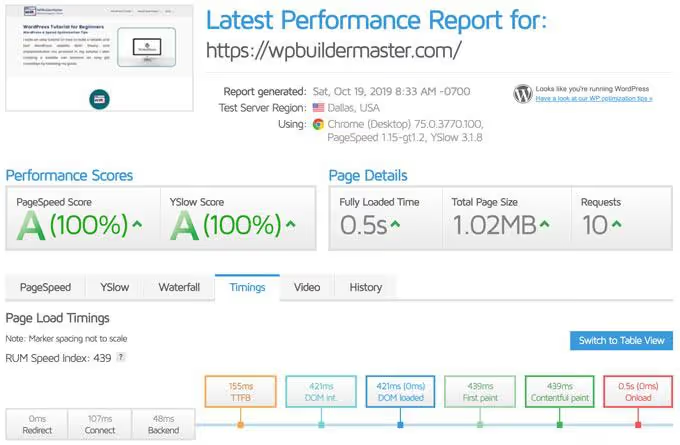
GTmetrix tabs: where to find bottlenecks
The PageSpeed / YSlow tab provides specific frontend recommendations: what to compress, what to defer, where to enable browser caching. Work through the list from top to bottom and address each item; one optimization often improves multiple metrics simultaneously.

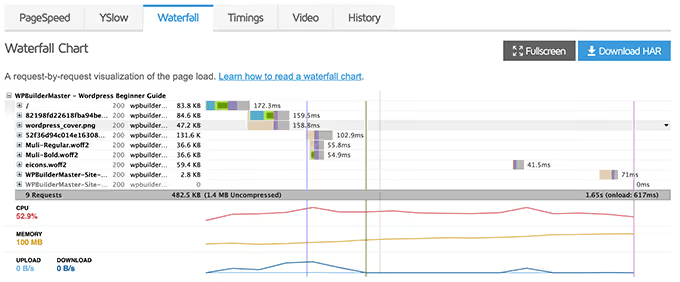
The Waterfall tab is the main diagnostic tool. Here you can see how long the server thinks before responding (first byte), which scripts and styles load sequentially, whether fonts load locally, and whether some minor element is dragging down the entire chart. The example below shows the waterfall of an unoptimized site: dozens of requests and long waiting bars.
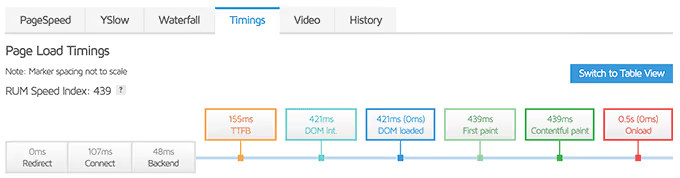
The Timings tab shows TTFB (Time to First Byte). This is the time from the browser request to the first byte of server response. Google recommends keeping TTFB below 300 ms. If yours is 800-1000 ms, the problem lies with hosting or lack of caching, not images.
Server and infrastructure: the foundation of fast loading
The server side provides the lion's share of overall speed gains. If this is broken, other techniques will only smooth over the picture.
Hosting and server location
Choosing hosting is not where you should cut costs. Providers like A2 Hosting and SiteGround maintain low response times and offer data centers in the USA, Europe, and Asia. The main rule: the server should be geographically close to your target audience. For Europe, use a European data center; for the USA, an American one. If your audience is global, CDN comes to the rescue (see below).
PHP version
WordPress today requires at least PHP 7.4, and the recommended minimum from 2025 is PHP 8.3. Switching from 7.4 to 8.3 yields a 1.5-2x speed increase on pure PHP code. This is free acceleration that many ignore. Change PHP version in your hosting panel (cPanel: Select PHP Version) or by contacting support. Before switching, ensure your theme and plugins are compatible; in 2026, the vast majority of popular plugins already support 8.3.
GZIP compression
GZIP compresses HTML, CSS, and JavaScript on the server before sending them to the browser, reducing transferred data size by 60-80%. Enable it with a single checkbox in a caching plugin (Swift Performance, WP Rocket) or with a couple of lines in .htaccess for Apache. This isn't optional; it's standard. Without GZIP, your site won't pass PageSpeed Insights checks.
CDN: Cloudflare and BunnyCDN
A content delivery network caches static files (images, CSS, JS) on dozens of servers worldwide and serves users from the nearest node. We recommend this combination: Cloudflare (basic plan is free) for general tasks + BunnyCDN for offloading media files. Together they address geographic issues, hotlink protection (via Cloudflare Scrape Shield), and static caching.
Plugins and caching: getting organized
Caching plugin
A cache plugin generates static HTML copies of pages and serves them instead of running PHP on every visit. The difference is like reading a finished book versus rewriting it by hand for each reader.
The Swift Performance plugin covers several items on our list at once: caching, combining and minifying scripts/styles, database optimization, lazy loading, critical CSS, and local font hosting. You can install and configure it in 10 minutes; the basic "Auto" mode delivers 80% of the results without manual parameter tuning.
Minification and combining scripts
Every WordPress plugin can load its own CSS and JavaScript, resulting in dozens of HTTP requests from nowhere. Merge/combine tools concatenate scattered files into one, while minification removes whitespace and comments. The result: instead of 15-20 script requests, you have 1-2. Swift Performance handles this in the Scripts & Styles Optimization section; after enabling it, be sure to check the frontend, as rare plugins may break and require exclusion from combining.
Disabling unused plugins
Deactivate everything not in active use. Each active plugin is a potential request, background cron task, or extra script. Go to "Plugins → Installed" and review the list: that form builder you installed for one page a year ago? Disable it. That experimental SEO plugin duplicating your main one? Delete it.
Database optimization
Over time, databases accumulate post revisions, expired transient records, spam comments, and meta duplicates. Swift Performance's Database section removes this clutter with one button. For regular cleanup, set up a schedule (once a week is sufficient).
Lazy loading
YouTube embeds and Google maps load heavily: a single video can pull hundreds of kilobytes before the user even scrolls to it. Enable lazy load for iframes, and videos will load only when scrolled into view. For images, lazy load provides more modest gains but still helps.
Media and fonts: trimming the fat
Image optimization
Images are usually the heaviest asset on a page. Before uploading to your site, reduce their physical dimensions: a 2400 px wide screenshot on a site with an 800 px content area means unnecessary kilobytes. Use Adobe Photoshop or the free GIMP to crop to the needed width.
After upload, run images through an optimizer. Swift Performance (Media tab) compresses PNG and JPEG with controlled quality loss (no visible difference, but file size decreases dramatically).

Fonts: fewer, faster
Google Fonts load from an external server by default, adding an extra DNS lookup and delay. The solution is to host fonts locally by downloading them to your theme folder. Swift Performance downloads Google Fonts to your server automatically (Fonts tab).
Limit the number of weights: one family + two weights (regular and bold) = 2 requests. Three families with four weights each = 12 requests. The speed difference is noticeable.
Font Awesome without the giant file
The full Font Awesome set weighs ~120 KB, though your site actually uses 3-5 icons. The Critical Font feature in Swift Performance builds a custom file containing only the icons actually present in your page code. Size drops from ~120 KB to 5-10 KB.
Favicon via Data URI
The small site icon often ends up as the last element in the loading chain, delaying the "fully loaded" event by 200-400 ms. The solution is to embed the icon directly in HTML via base64 encoding, eliminating an extra HTTP request.
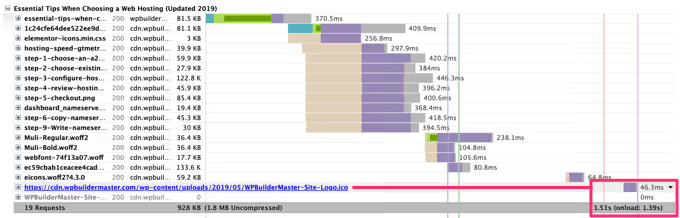
Encode the .ico file to base64 via Data URL Maker, then insert the code into functions.php:
1 function add_favicon() { 2 echo '<link rel="shortcut icon" type="image/x-icon" 3 href="data:image/vnd.microsoft.icon;base64,AAABAAEAQEAAAAEAIAAo.......=" />'; 4 } 5 add_action('wp_head', 'add_favicon');
After this, remove the original favicon from the customizer: Appearance → Customize → Site Identity → Site Icon → Remove.
Don't overload your theme with images
A lightweight theme is the foundation. WP Astra, with an installed size under 50 KB and no jQuery dependency, loads noticeably faster than many competitors. Before choosing a theme, test it through GTmetrix on a demo server.

Final cleanup: fine-tuning
Disabling pingbacks and trackbacks
Pingbacks are an outdated mechanism now used almost exclusively by spammers. Each pingback creates an extra HTTP request and clutters the database. Disable in two places:
For future posts: Settings → Discussion → uncheck "Allow link notifications from other blogs (pingbacks and trackbacks) on new posts."

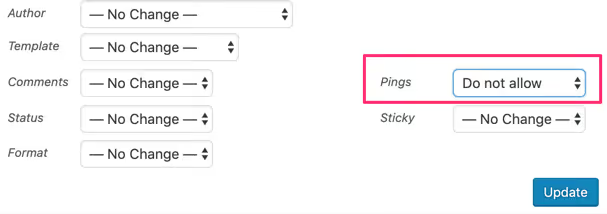
For existing posts: Posts → All Posts → select all → Bulk Actions: Edit → Apply → Pings → Do not allow → Update.
Disabling unnecessary WordPress features
WordPress emoji adds a DNS prefetch and an extra script (wp-emoji-release.min.js) to every page. Gravatar requests pull external calls for commenter avatars. Both can be disabled via Swift Performance (Tweaks tab) with a couple of checkboxes. Savings: minus 2-3 HTTP requests and several dozen kilobytes.
One site, one hosting account
Hosting multiple sites on a shared plan means dividing CPU time, memory, and disk I/O among them. When one project gets heavy traffic, the others suffer. If budget allows, give each site its own account.
Duplicate HTTP requests from page builders
Elementor and other page builders may duplicate Google Fonts and Font Awesome requests even when fonts are already hosted locally. After setting up local font hosting, be sure to recheck the Waterfall in GTmetrix: look for extra calls to fonts.googleapis.com and fontawesome.com. If found, go into the page builder settings and disable font/icon loading at the plugin level.
⁉️🤔 Frequently asked questions
Which hosting should I choose for fast WordPress?
A2 Hosting and SiteGround consistently show low TTFB in tests on European and American servers. The key criterion is having a data center in your audience's region. For projects with budgets of $15/month or more, consider managed WordPress hosting: the provider handles caching, PHP version, and server optimization for you.
Do I need a caching plugin if my hosting offers server-side cache?
Server cache (Varnish, Nginx FastCGI) and caching plugins operate at different levels; they complement rather than duplicate each other. Server cache is faster (no PHP execution at all) but doesn't manage script combining, lazy loading, or database cleanup. A plugin like Swift Performance covers these tasks, so install both.
Is it realistic to load WordPress in 0.5 seconds?
Yes, but only for a well-optimized lightweight page on fast hosting with caching and CDN, when tested from a geographically nearby region. An average site with a commercial theme, a dozen plugins, and media content typically achieves 1.5-2.5 seconds after optimizing all 21 points. This is an excellent result that won't hurt SEO or user experience.
Should I update PHP to the latest version?
Yes, but watch for compatibility. PHP 8.3 provides roughly 30% improvement compared to 7.4 in raw code execution. Before updating, update all plugins and themes to their latest versions and make a backup. If your site relies on an outdated plugin that hasn't been updated since 2022, replace that plugin with an alternative first, then change PHP.
What if speed is still low after following all these tips?
Return to the GTmetrix Waterfall and work through the chain from top to bottom. Look for: (1) slow TTFB (hosting or missing cache problem); (2) long load times for specific scripts (probably an external resource is slow, consider local hosting); (3) high number of requests (scripts/styles need combining); (4) heavy images (check if all are compressed and not loading at full resolution). Usually one of these four items eliminates the bulk of remaining slowdown.
Is it worth the effort: what these 21 steps deliver
Site speed isn't a one-time fix; it's hygiene. Of these 21 techniques, three deliver immediate results: a caching plugin (10 minutes to configure), GZIP compression (one checkbox), and CDN (basic Cloudflare takes half an hour to enable). Do these today, and tomorrow GTmetrix will show fundamentally different numbers.
The remaining steps add incremental gains. Image optimization, local fonts, and database cleanup won't transform things individually, but together they shave noticeable fractions off remaining load time. Complete the entire list, and your site will be faster than most WordPress competitors.

A professional team of writers and editors specializing in creating quality content.