














🧹 How to bulk delete WordPress users with a specific role
Twelve hundred spam registrations after an ad campaign. Three hundred test accounts that nobody deleted after launch. A hundred Contributors who left six months ago. All of this sits in the site's database as dead weight, growing every month.
Deleting this ballast one by one is a job for a robot, not a human. The standard WordPress table shows 20 users per page. With a thousand accounts, that means 50 "Delete" clicks and 50 confirmations. By the second dozen, you want to close the browser and pretend the problem doesn't exist.
But you can solve the problem in five minutes. WordPress provides four tools for mass user cleanup by role: from the built-in filter that requires no plugins at all to direct SQL in phpMyAdmin. We'll cover each one with instructions, screenshots, and most importantly, how to avoid locking yourself out of the site.
💡 Quick overview:
- Make a full backup of the database and files; this isn't advice, it's insurance against disaster
- Filter users by role using the built-in bulk actions; this works for a hundred or two accounts
- Install Bulk Delete if you need fine-grained filters: by registration date, inactivity, or absence of posts
- With WP-CLI, the task is solved with a single command, any volume, including tens of thousands
- Direct SQL gives absolute control but requires care: one typo in WHERE can cost you admin access
What to do before deleting
Three actions that save you from irreversible consequences. Skip any of them, and you risk not just content but the site's functionality.
Full backup. A backup of the database and files is the only way to roll back a mass deletion. UpdraftPlus works well (it sends backups to Google Drive, Dropbox, or your S3), as does WPvivid. On hosting with cPanel, use the built-in Backup Wizard; it's faster and doesn't load PHP workers.
Export the user list. If data from the accounts being deleted might be needed for auditing or reporting, export it first. Path: "Users" → "All Users" → "Export" button at the top → CSV format. Save the file locally. You cannot restore an account after DELETE from the database, only from a backup.
Content review. Filter users by role and look at the "Posts" column to see how many posts and pages will be left without an author. Decide in advance: will you transfer content to an administrator when deleting, or wipe it along with the accounts? Comments from deleted users remain on the site (the author displays as "Deleted User"); this doesn't affect them.
Method 1: built-in bulk actions
No plugins needed. Everything you need is already in the WordPress core. This works for volumes up to a couple hundred accounts in one go; beyond that, you start hitting slowdowns and timeouts.
Step 1: filter by role. Go to "Users" → "All Users." Above the table, there's a dropdown list of roles. Select the one you need (for example, "Subscriber") and click "Filter." WordPress will show only users with that role.

Step 2: items per page. By default, you see 20 entries. For bulk work, that's not enough. The "Screen Options" button (top right) opens a panel where you can set the "Number of items per page" field to 200, 500, or even 999. Click "Apply," the page will reload and show the entire list in one batch.

Step 3: bulk selection. The checkbox in the table header (next to the "Username" heading) selects everyone on the page at once. After that, manually uncheck those you want to keep: admins, editors, key authors.

Step 4: deletion and content reassignment. In the "Bulk Actions" dropdown above the table, select "Delete" and click "Apply." WordPress will ask what to do with the content of users being deleted: the "Attribute all content to" option plus selecting an administrator in the adjacent field preserves posts; "Delete all content" erases everything with no way to recover. Confirm, and you're done.

The built-in method is reliable for small and medium volumes. But when you're dealing with thousands, each page generates dozens of SQL queries through PHP, and the server either crashes on max_execution_time or grinds to a halt. For those cases, use the tools below.
Method 2: Bulk Delete plugin
Bulk Delete is a free plugin with 300,000+ active installations. Its main advantage over the standard method is batch processing. The plugin deletes users in batches of 50-100, without creating peak load on the database. And it offers filters that don't exist in the WordPress core.
Installation is standard: "Plugins" → "Add New" → search for "Bulk Delete" → "Install" → "Activate." After activation, a "Bulk WP" section appears in the sidebar menu, and inside it, "Bulk Delete Users."
Here you select the role for deletion and configure one or more additional filters:
- registration date: before or after a specified date;
- inactivity: users who haven't logged in for the last N days;
- no posts: accounts without a single post;
- meta field value: for example, delete everyone with
billing_country = 'RU'.
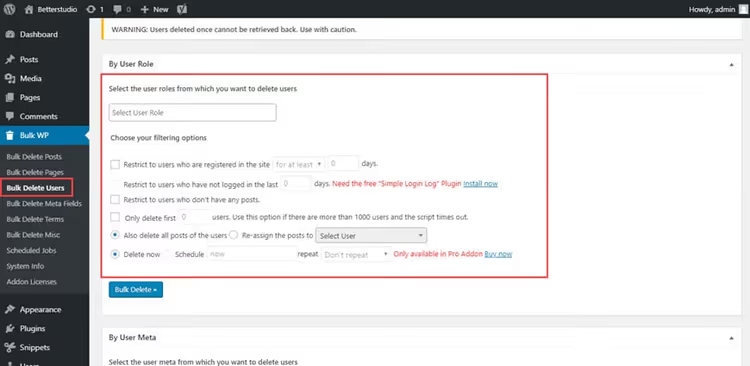
Before running the deletion, be sure to click "Preview Users"; the plugin will show a list of IDs and emails that match the filters. Verify that you're deleting exactly who you need to delete. Then check the confirmation checkbox and click "Bulk Delete."
Notable alternatives include WP Bulk Delete, which can delete not only users but also posts, pages, comments, and taxonomies (a universal cleaner, though some features are in Pro), and User Role Editor, which is primarily a tool for editing roles and creating custom ones, but its interface also has bulk deletion by role (the "Users" tab).
Method 3: WP-CLI
WP-CLI solves the task with a single console command. No pagination, no timeouts. You need shell access to the server (SSH on a VPS, dedicated hosting, or local dev environment). On cheap shared hosting, WP-CLI is usually unavailable.
First, get the IDs of all users with the desired role:
1 wp user list --role=subscriber --format=ids
The output is a string of space-separated IDs: 12 45 78 134 256. Delete them with content reassignment to the administrator (ID=1):
1 wp user delete 12 45 78 134 256 --reassign=1
You can do it in one command, without the intermediate list:
1 wp user delete $(wp user list --role=subscriber --format=ids) --reassign=1
The --delete-posts flag instead of --reassign completely erases both users and their content. Use it only if you're certain the content from the deleted accounts isn't needed.
WP-CLI works directly with the database, bypassing PHP. For a hundred thousand users, the command executes in 2-5 seconds. This is orders of magnitude faster than any plugin, and safer than manual SQL, because wp user delete cascades through metadata cleanup without leaving orphaned rows.
Method 4: direct SQL
For those who need absolute control over every query. SQL through phpMyAdmin or the MySQL console imposes no restrictions but also doesn't forgive mistakes.
First, back up the database. This is not a recommendation; it's a strict requirement. One typo in WHERE (for example, administrator instead of subscriber) and you lose access to the site. Recovery is only possible from a dump.
Log into phpMyAdmin through your hosting panel, select the WordPress database, and open the "SQL" tab.
Step 1: find the IDs. Roles are stored in the wp_usermeta table, field meta_key = 'wp_capabilities'. Replace subscriber with the desired role and adjust the wp_ prefix if it differs:
1 SELECT u.ID, u.user_login, u.user_email 2 FROM wp_users u 3 JOIN wp_usermeta um ON u.ID = um.user_id 4 WHERE um.meta_key = 'wp_capabilities' 5 AND um.meta_value LIKE '%subscriber%';
Review the output visually. Copy the resulting IDs.
Step 2: reassign content. Replace 1 with the ID of the user you're transferring posts to. The list 123, 456, 789 should be the IDs from step 1:
1 UPDATE wp_posts 2 SET post_author = 1 3 WHERE post_author IN (123, 456, 789);
Step 3: delete users and metadata. In exactly this order:
1 DELETE FROM wp_users WHERE ID IN (123, 456, 789); 2 DELETE FROM wp_usermeta WHERE user_id IN (123, 456, 789);
If you also need to delete posts and comments, clean the child tables first:
1 DELETE FROM wp_comments WHERE user_id IN (123, 456, 789); 2 DELETE FROM wp_posts WHERE post_author IN (123, 456, 789);
And only then, wp_users and wp_usermeta. The order is critical: child records first, then parent records, otherwise you'll get foreign key violations.
After running SQL, be sure to verify that the deleted users have actually disappeared from the admin panel and that posts (if you reassigned them) are visible under the new author.
⁉️🤔 Frequently asked questions
Can a deleted user be restored?
No. WordPress doesn't store deleted accounts in a trash bin, unlike posts and pages. The only way to bring them back is to restore from a database backup. That's exactly why a full backup before any mass deletion is non-negotiable: it's your only insurance.
What happens to a deleted user's content?
It depends on the choice made during deletion. The "Attribute all content to" option plus an administrator means posts and pages are preserved, just with a changed author. The "Delete all content" option erases posts, pages, and media files with no way to recover them. Comments from deleted users remain on the site, with the author displayed as "Deleted User"; deleting them is a separate operation.
What's the fastest method for 10,000+ users?
WP-CLI. A single command
wp user delete $(wp user list --role=subscriber --format=ids) --reassign=1executes in 2-5 seconds even for a hundred thousand accounts. SQL through phpMyAdmin is also fast but requires manually copying IDs between queries. Plugins and the built-in method are useless for such volumes: they push data through PHP and hitmax_execution_timelimits.
Do I need to delete wp_usermeta along with users?
Yes. If you only delete
wp_users, orphaned rows with metadata for non-existent accounts will remain inwp_usermeta. They won't break the site, but they bloat the database. The Bulk Delete plugin and WP-CLI (wp user delete) clean up metadata automatically. With manual SQL, be sure to add a second query:DELETE FROM wp_usermeta.
Can I delete only users without posts?
Yes. The Bulk Delete plugin has a ready-made "Users without posts" filter. In WP-CLI, chain two commands: first get the IDs of users with the role, then for each one check for posts using
wp post list. In SQL, add the conditionAND u.ID NOT IN (SELECT DISTINCT post_author FROM wp_posts).
Now about security in practice. The most dangerous scenario is deletion via SQL without a preview. Even experienced admins make mistakes in WHERE. A backup before SQL is a rule that pays off one time out of a hundred. But that one time is when it saves the site.
What to choose for your task
Four methods cover any scenario, from a couple dozen spam registrations to a hundred thousand dead accounts. Here's a quick matrix:
- Fewer than 200 users, don't want to install plugins → built-in bulk actions. Three clicks, and the problem is solved.
- Up to 5,000, need filters by date or inactivity → Bulk Delete plugin. The safest option for those who don't work with the console.
- Any volume, have SSH access → WP-CLI. One command, 2-5 seconds, done.
- Your own server, need control over every DELETE → direct SQL. But only if you know exactly what you're doing and have made a backup.
The main rule doesn't depend on the method: backup, backup, and backup again. The WordPress database doesn't forgive accidental deletions, and hosting doesn't keep copies forever. Make a backup now, and only then open the user list.

A professional team of writers and editors specializing in creating quality content.