














🎯 fullPage.js and WordPress: step-by-step integration in 2026
Full-screen scrolling in pure CSS is a pain. scroll-snap behaves differently in Chrome and Safari, it stutters on mobile, and you can forget about browser history and URL anchors. jQuery solutions need 200+ lines of code and still break on varying screen heights.
fullPage.js handles this task completely. A library with more than 35,000 stars on its GitHub repository and 2.5 million monthly downloads via the jsDelivr CDN gives predictable section-by-section scrolling, horizontal slides, lazy loading and 80+ options out of the box. Version 4.0.41 (March 2026) runs on Vanilla JS, and jQuery is no longer required.
Below is a step-by-step guide to integrating fullPage.js into WordPress: from loading it via wp_enqueue_script to a video background and selective style disabling. No plugins, with full control over every pixel.
💡 Quick overview:
- Load
fullPage.jsviawp_enqueue_script, one hook, no extra plugins - Configure sections, anchors and navigation to match the page structure
- Add a video background that pauses automatically when you leave the section
- Solve the problem of long blocks with
scrollOverflowandfp-auto-height - Disable the library styles selectively, without ripping it out entirely
What fullPage.js is
fullPage.js is a JavaScript library for sites with full-screen vertical scrolling. The page is sliced into sections, each taking exactly the height of the screen. A scroll or a touch moves the user between sections with a smooth animation. Inside sections there are horizontal slides.
The current version is 4.0.41 (March 2026). The library has been fully rewritten in Vanilla JS: dropping jQuery saved about 80 KB. All modern browsers and mobile devices are supported. IE11 works on the 3.x version.
For WordPress there are official plugins for Elementor, Gutenberg and Divi. The plugins are paid, but they build a landing page visually, without code. If you need full control, load the library into the theme manually.
Step 1. Connecting fullPage.js to WordPress
The correct way is via wp_enqueue_script in functions.php. No hardcoded <script> in the footer, no inserts through wp_head.
Download fullpage.min.js and fullpage.min.css from the official repository or load them via a CDN. For production a local file is more reliable, fewer external dependencies and faster loading.
Put the files in a theme folder, for example /assets/fullpage/, and add this to functions.php:
1 /** 2 * Loading fullPage.js only on the front page. 3 */ 4 function sd_register_fullpage() { 5 if ( ! is_front_page() ) { 6 return; 7 } 8 9 wp_enqueue_style( 10 'sd-fullpage', 11 get_template_directory_uri() . '/assets/fullpage/fullpage.min.css', 12 array(), 13 '4.0.41' 14 ); 15 16 wp_enqueue_script( 17 'sd-fullpage', 18 get_template_directory_uri() . '/assets/fullpage/fullpage.min.js', 19 array(), 20 '4.0.41', 21 true 22 ); 23 } 24 add_action( 'wp_enqueue_scripts', 'sd_register_fullpage' );
What matters here: is_front_page() limits loading to the front page only, so the library does not sit on the whole site. The fourth parameter true places the script in the footer, and the page renders without delay. The version in the third argument helps to reset the cache on update, so the browser picks up the new file instead of the cached old one.
If a CDN is more convenient, replace get_template_directory_uri() with direct links from the jsDelivr network or cdnjs. Pin the version in the URL explicitly (fullpage@4.0.41), do not use @latest, a major version update can break the site without warning.
Step 2. Basic configuration
The HTML structure is simple: a wrapper with id="fullpage" and sections with the class section. Inside sections there are horizontal slides with the class slide.
1 <div id="fullpage"> 2 <div class="section">First section</div> 3 <div class="section">Second section</div> 4 <div class="section"> 5 <div class="slide">Slide 1</div> 6 <div class="slide">Slide 2</div> 7 </div> 8 </div>
Initialization is in Vanilla JS, in the file fullpage-init.js, which is loaded after the library:
1 document.addEventListener('DOMContentLoaded', function () { 2 new fullpage('#fullpage', { 3 // Navigation 4 anchors: ['intro', 'features', 'pricing', 'contact'], 5 navigation: true, 6 navigationPosition: 'right', 7 8 // Scrolling 9 scrollingSpeed: 700, 10 autoScrolling: true, 11 fitToSection: true, 12 scrollBar: false, 13 easing: 'easeInOutCubic', 14 15 // Responsive 16 responsiveWidth: 1024, 17 responsiveHeight: 768, 18 19 // Design 20 verticalCentered: true, 21 sectionsColor: ['#1bbc9b', '#4BBFC3', '#7BAABE', '#f5f5f5'], 22 paddingTop: '2em', 23 24 // Performance 25 lazyLoading: true, 26 observer: true 27 }); 28 });
The key options worth configuring deliberately from the first run:
anchors, anchors for direct links to sections (site.com/#features). Without them the URL does not change on scroll, and you cannot link to a specific block.navigation, dots on the right. The user immediately sees how many sections there are and where they are.scrollingSpeed, animation speed in ms. 700 is the golden mean: not jerky and not dragged out.responsiveWidthandresponsiveHeight, on screens smaller than the set sizes full-screen scrolling is disabled automatically. Otherwise content gets cut off on tablets and phones.scrollBar, the scrollbar.falsefor a clean full-page effect;trueis handy for debugging.
The full list of 80+ options is in the official documentation.
Step 3. Vertical navigation
The built-in navigation dots are enabled by the flag navigation: true. But the default styling is minimal, grey circles on the right. We fit them into the design with CSS:
1 /* Color and size of the navigation dots */ 2 #fp-nav ul li a span { 3 background: #4b944e; 4 width: 10px; 5 height: 10px; 6 margin: -5px 0 0 -5px; 7 } 8 9 #fp-nav ul li a.active span { 10 background: #fff; 11 border: 2px solid #4b944e; 12 } 13 14 /* Tooltips on hover */ 15 #fp-nav ul li .fp-tooltip { 16 color: #333; 17 font-size: 14px; 18 font-family: inherit; 19 }
If the built-in navigation conflicts with the theme or fails to render, we write a manual binding with jQuery. The script below tracks the active class on the sections and highlights the corresponding menu item:
1 jQuery(document).ready(function ($) { 2 $(window).scroll(function () { 3 if ($(window).scrollTop() <= 1) return; 4 5 var sections = [ 6 'fullPage-1', 'fullPage-2', 'fullPage-3', 'fullPage-4', 7 'fullPage-5', 'fullPage-6', 'fullPage-7', 'fullPage-8', 8 'fullPage-9', 'fullPage-10' 9 ]; 10 11 sections.forEach(function (cls, i) { 12 var isActive = $('.' + cls).hasClass('active'); 13 var navItem = $('#fp-nav > ul > li:nth-child(' + (i + 1) + ') > a'); 14 15 if (isActive) { 16 navItem.addClass('active'); 17 navItem.find('span').css('background', '#fff'); 18 } else { 19 navItem.removeClass('active'); 20 navItem.find('span').css('background', '#4b944e'); 21 } 22 }); 23 }); 24 });
The navigation panel code itself, an unordered list with links to the anchors:
1 <ul id="fp-nav"> 2 <li><a href="#intro" class="active"></a></li> 3 <li><a href="#features"></a></li> 4 <li><a href="#pricing"></a></li> 5 <li><a href="#contact"></a></li> 6 </ul>
In practice this fallback saves you when the theme overrides fullPage.js selectors or uses a non-standard DOM structure. The code goes into footer.php or through wp_add_inline_script.
Step 4. Video background and playback control
A video behind the first section is a striking touch. But without control it keeps playing after you leave the section and wastes resources. It is solved with the afterLoad callback.
The HTML of the first section with video:
1 <div class="section" id="intro"> 2 <video id="bgVideo" loop muted playsinline data-autoplay> 3 <source src="/wp-content/uploads/video/background.mp4" type="video/mp4"> 4 </video> 5 <div class="layer"> 6 <h1>Heading over the video background</h1> 7 </div> 8 </div>
The playsinline attribute is mandatory for iOS, without it Safari opens the video in a full-screen player. The combination loop muted data-autoplay gives seamless background playback.
Control via afterLoad in the fullPage.js configuration:
1 new fullpage('#fullpage', { 2 // ...other options... 3 afterLoad: function (anchorLink, index) { 4 var video = document.querySelector('#bgVideo'); 5 if (!video) return; 6 7 if (index === 1) { 8 video.play(); 9 } else { 10 video.pause(); 11 } 12 } 13 });
The callback fires when you enter a section. Index 1, the first section, starts the video. Any other, pause. The processor and battery on mobile are not wasted.
For manual control add a Play/Pause button, the handler toggles the icon and calls video.play() / video.pause(). The user gets a choice, and the full-screen scroll mechanics do not break.
Step 5. Long blocks, scrollOverflow and auto height
When a section's content does not fit the screen height, the bottom gets cut off. We enable scrollOverflow:
1 new fullpage('#fullpage', { 2 scrollOverflow: true 3 });
The option adds an inner scrollbar to that specific section, the other sections are not affected. This is enough in most cases.
For finer control we put CSS classes directly on the section:
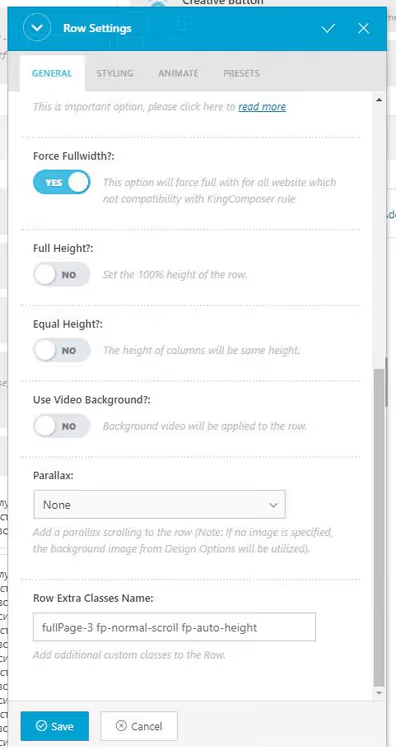
1 <div class="section fp-normal-scroll fp-auto-height"> 2 <!-- Long content with free scrolling --> 3 </div>
fp-auto-height removes the "exactly 100vh" constraint, the section height is defined by the content. fp-normal-scroll disables the snap effect, the section scrolls naturally. The combination is ideal for footers, long tables and pages with variable block heights.
In block editors like King Composer the classes are added in the row settings:
Step 6. Disabling fullPage.js styles selectively
Sometimes the library overrides the site CSS, shifts positioning, changes padding, section widths. There is no need to rip out fullPage.js entirely: we disable only the problematic styles.
An example of resetting positioning for sections 3 through 8:
1 /* Reset of fullPage.js styles for the selected sections */ 2 .fullpage-wrapper section:nth-child(n+3):nth-child(-n+8) { 3 left: inherit !important; 4 padding-left: inherit !important; 5 width: inherit !important; 6 height: inherit !important; 7 padding-top: inherit !important; 8 padding-bottom: inherit !important; 9 background-color: inherit !important; 10 }
The selector :nth-child(n+3):nth-child(-n+8) hits exactly the range. !important is justified here, fullPage.js sets styles inline, and you can only override them this way. But apply it selectively: one !important across the whole page, and the cascade turns to mush.
Prebuilt WordPress themes with fullPage.js
If you do not want to integrate the library into an existing theme manually, take a ready-made starter. Current starter themes on GitHub:
- starter-fullpagejs, a minimal starter, a good starting point for custom markup
- wordpress-onepager, a lightweight theme for one-page sites (repository unavailable, look for forks)
- derkodde_fullpagetheme, a theme with support for sections and slides (repository removed, use it as a concept)
- MyPortfolio, a portfolio built on
fullPage.js - dandelion, a one-page theme with a clean design
All the themes are under GPL and need adapting to a specific project. But they give you a ready section structure and basic fullPage.js integration, which saves half a day of work.
There is also an official WordPress theme from the developer and the plugins for Elementor, Gutenberg and Divi mentioned above. The plugins are paid, but they cover 95% of tasks without a single line of code.
A short video on installing and configuring fullPage.js in WordPress, it clearly shows the integration process via the official plugin for Divi.
⁉️🤔 Frequently asked questions
Is fullPage.js free?
Yes, for open-source projects under the GPLv3 license it is completely free. For closed commercial sites you need a commercial license. The WordPress plugins for Elementor, Gutenberg and Divi are separate paid products, from $29 per site.
How is fullPage.js better than CSS Scroll Snap?
CSS Scroll Snap behaves differently across browsers: smooth in Safari, jerky in Chrome, delayed on mobile.
fullPage.jsgives the same behavior everywhere. Plus out of the box: URL anchors, browser history, horizontal slides, inner scrolling in sections and 37 animation options. No polyfills and no manual crutches.
How do you disable fullPage.js on mobile?
The
responsiveWidth: 1024andresponsiveHeight: 768options in the configuration. When the screen width is under 1024px or the height under 768px, the library automatically disables snap scrolling and returns to normal scrolling. No extrauserAgentchecks are needed.
Can you use fullPage.js with WooCommerce?
Yes, but carefully. Product and cart pages should not be full-screen, it breaks the shopping UX. Attach
fullPage.jsonly to the front page or specific landing pages through WordPress conditional tags:is_front_page()oris_page('landing').
Why does the background video not play on iOS?
Safari on iPhone and iPad requires the
playsinlineattribute on the<video>tag. Without it the video goes into a full-screen player and does not work as a background. Also make sure the video is encoded in H.264 (MP4), HEVC is not supported on all Apple devices.
fullPage.js in 2026: manual setup or a plugin
If you are building a landing page, a portfolio or a presentation site, fullPage.js delivers a visual effect that pure CSS cannot achieve. 35,000+ stars on GitHub and 2.5 million installs a month confirm that the library is alive and stable.
For online stores, blogs and admin panels, it is not worth it. Full-screen scrolling gets in the way of navigation and content consumption, the user tires of it after 3 to 4 swipes.
Choosing your path: if you need full control over every section and are ready to write code, go with manual loading via wp_enqueue_script. If you want to build a landing page visually in Elementor or Gutenberg in an hour, take the official plugin. Both approaches are proven in practice, both work without surprises.
Have you tried fullPage.js in your own projects? Share your experience in the comments, and we will build a living list of solutions for common integration problems.

A professional team of writers and editors specializing in creating quality content.