













 AIIllustrative image: AI-generated
How to reduce HTTP requests in WordPress: analysis and optimization
Your site takes 4 seconds to load, and the visitor leaves. Sound familiar?
According to Google Research from 2023, bounce probability increases by 32% when load time goes from 1 to 3 seconds. One of the main causes of slowdowns that often gets overlooked is excessive HTTP requests. They don't stand out like heavy images or poor hosting, but they add up by the dozens and collectively eat up seconds.
Let's break down what these requests are, how to find them through waterfall analysis in GTmetrix, and most importantly, how to reduce their number without harming your site's functionality.
💡 Quick overview:
- Open GTmetrix, paste your site URL and go to the Waterfall tab to see each request with its size and load time
- Filter requests by
pluginsandthemesfolders to find plugins that load scripts on all pages unnecessarily - Go through 5 checkpoints: unnecessary images, uncombined CSS/JS, plugins with global loading, heavy plugins, and missing lazy loading
- After making changes, run the test again and compare the request count before and after
What HTTP requests are and why they slow down your site
When a browser opens a page, it doesn't receive a ready-made picture all at once. It needs the HTML skeleton, stylesheet files, each script, fonts, images, and for each element the browser sends a separate HTTP request to the server.
Some requests go to your server (internal: images from the media library, theme, plugins). Others go to external services (Google Analytics, YouTube embeds, ad scripts). The browser queues them up and loads them.
The relationship is simple: more requests means longer load times. But not all requests are equal. A tiny tracking script loads in 20 ms, while an unoptimized 500 KB image can hang for half a second. So the goal isn't just to "reduce the count" but to remove unnecessary ones and lighten the remaining ones.
In practice the difference is noticeable: a portfolio site on a clean theme makes 18 requests and opens instantly. A major news portal like New York Times makes over 200 requests, half of which are ad and tracking scripts. Your site is somewhere in between, and that number can be reduced.
How to analyze HTTP requests: waterfall in GTmetrix
The clearest way to see HTTP requests is a waterfall diagram (cascade). It shows each request as a separate row: where it comes from, how much it weighs, when it started loading, and how long it took.
Tools that can show waterfalls:
- Built-in Chrome DevTools (Network tab), free but only for your browser
- GTmetrix, free tier, testing from different locations, clear interface
- Pingdom Tools, similar to GTmetrix, different testing points
- WebPageTest, maximum detail but more complex to start with
Let's look at GTmetrix as an example. Paste the URL, run the test. In the results you'll find the Waterfall tab, which is the cascade:
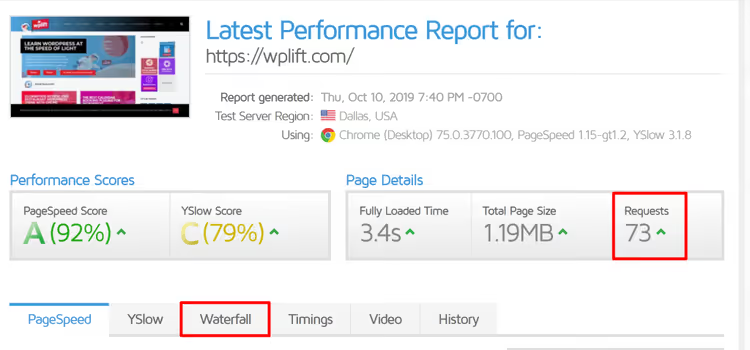
The diagram itself looks like this:
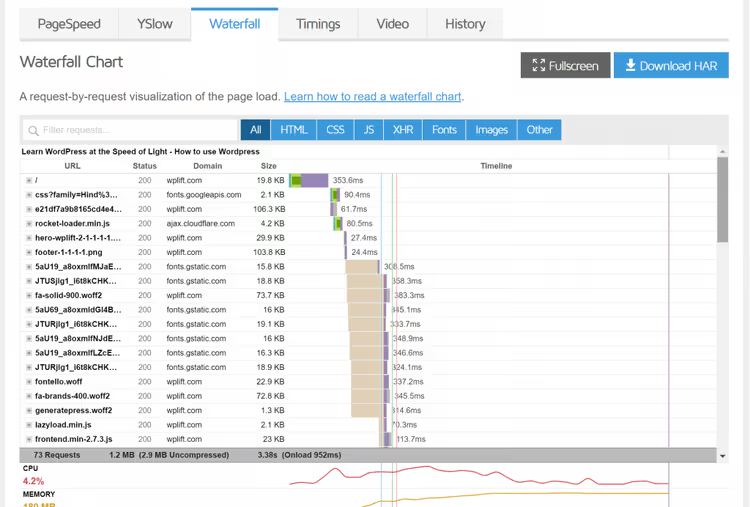
What the columns mean:
- URL, the path to the file. This shows which plugin or theme added the request
- Domain, your server or external. You can immediately see how much loads from outside
- Size, file weight. Heavy requests hit speed harder
- Timeline, when the request started and how long it lasted. Size isn't the only thing that matters: a file at the beginning of the chain blocks everything that comes after it
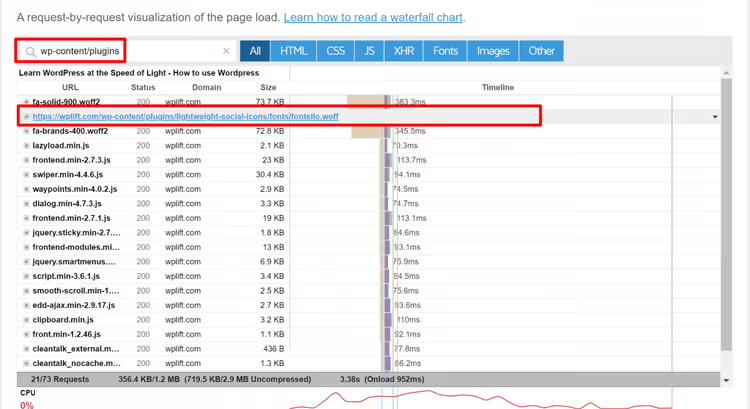
Click the search field above the diagram and enter wp-content/plugins to see only plugin requests. In the example below, the Lightweight Social Fonts plugin adds a font request for fontello.woff at 22.9 KB:
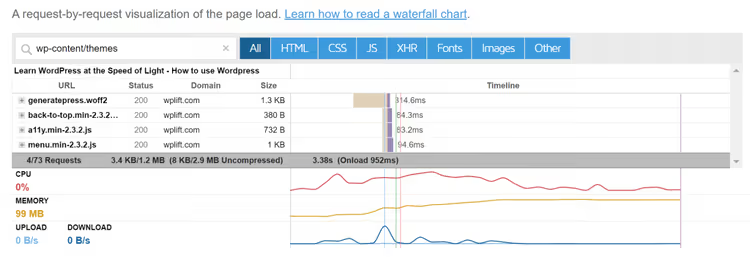
If you filter by themes, you'll see theme requests. GeneratePress, for example, serves only 4 requests, which is a good indicator for a lightweight theme:
Go through the list and ask yourself: "Does this plugin really need to load on every page?" Often the answer is no. We'll cover what to do about it next.
5 ways to reduce HTTP requests in WordPress
After waterfall analysis you have a list of requests in hand. Now for the specific steps to reduce them.
1. Remove unnecessary and unprepared images
Each image = one HTTP request. If a page has 15 images and 5 of them are decorative or duplicates, that's 5 requests you can remove without losing meaning. For essential images the rule is different: compress and resize to match display dimensions. A 2500px image inserted into a 700px-wide block loads 5 times more data than needed.
In practice a combination helps: manual review (remove the unnecessary) + a compression plugin. Among current options are ShortPixel, Imagify, Smush. They compress images on upload to the media library and can recompress existing ones.
2. Combine CSS and JavaScript
The theme and each plugin add their own style and script files. If you have an active theme, 10 plugins, and a couple of external services, you can easily accumulate 30-40 separate CSS/JS files. Each one requires a separate HTTP request.
The technique is called concatenation (combining) and usually comes paired with minification (removing spaces and comments from code). Most performance plugins do both:
- WP Rocket, premium plugin, combines and minifies CSS/JS in a few clicks
- Autoptimize, free, only concatenation and minification
Important: after enabling combination, go through your main site pages and make sure the layout hasn't broken. Sometimes scripts conflict when merged, in which case you exclude that specific file from combination.
3. Prevent plugins from loading where not needed
A contact form sits only on the contact page. But its CSS and JS often load across the entire site, meaning 2-3 extra requests on every page without a form. Contact Form 7, for example, loads scripts globally by default.
If the plugin allows it, there are two paths:
- Replace it with a more optimized alternative that doesn't load resources globally
- Keep the plugin but manage script loading through Perfmatters, which has a script manager that lets you disable a plugin's CSS/JS on all pages except where it's actually used
Result: the same 2-3 requests but only on the contact page, not the entire site.
4. Replace heavy plugins with lighter alternatives
After filtering the waterfall by plugins you can see which plugins generate the most requests. If one plugin adds 8 scripts and styles while its alternative gets by with two, switching cuts 6 HTTP requests.
Examples of replacements from practice:
- Revolution Slider (heavy) → a lightweight cover block from the theme or MetaSlider
- Page builder with dozens of scripts → the native Gutenberg block editor
- Social plugin with external API requests → static link icons
Check each plugin from the waterfall list: is it even being used? If a plugin hasn't been updated for over a year or the functionality isn't needed, delete it completely.
5. Enable lazy loading
Lazy loading defers loading of images and iframes that are below the visible screen area. A visitor opens the page, and only what they see loads. The rest pulls in as they scroll.
Since WordPress 5.5, the loading="lazy" attribute is added to images automatically. This is sufficient for the basic scenario. If you need more aggressive lazy loading (for iframes, background images, videos), use Perfmatters, WP Rocket, or the free LazyLoad by WP Rocket.
Video: WordPress HTTP requests in 5 minutes
A short video on the topic, from diagnosis to reducing requests without plugins:
⁉️🤔 Frequently asked questions
How many HTTP requests is normal for WordPress?
There's no universal number. A clean site on a lightweight theme with 5-7 plugins fits within 25-40 requests. A site with a page builder, ad scripts, and a dozen plugins might make 80-120. Focus not on the absolute number but on the trend: if it was 90 and became 55, that's a good result.
Do external requests (Google Fonts, Analytics) affect speed?
They do, but differently. An external request to Google Fonts adds 1-2 requests, but they go through Google's CDN and load quickly. The main problem is render blocking: until the font loads, the browser may not display text. Solution: preload fonts via
preloador host fonts locally.
Is it necessary to combine all CSS and JS into one file?
Not always. Combining all scripts into one file gives you one request, but a large file takes longer to load. Modern HTTP/2 can load multiple files in parallel, so 3-4 files at 30 KB each may load faster than one at 120 KB. Optimally, combine critical CSS (what's needed to render the first screen) and leave non-critical scripts separate with the
deferattribute.
What if the layout breaks after combining CSS?
Exclude the problematic file from combination. WP Rocket and Autoptimize let you add a script or style URL to the exclusion list. After that, run the test again. Losing one file from a pool of 15 requests is barely noticeable.
Can you reduce requests without plugins?
You can. Manual deregistering of scripts through
functions.phpgives full control but requires understanding of WordPress hooks. For most site owners, WP Rocket or Perfmatters is simpler and safer: they won't let you disable a script critical for operation.
Time to clean up your requests
HTTP requests aren't something you fix once. Install a new plugin, change the theme, add an ad script, and new requests appear. Every couple of months, go to GTmetrix, open Waterfall, and compare with what you had last time.
If you don't know right now how many requests your site makes, open GTmetrix, paste the URL, and click "Start Test." In a minute you'll see the real picture. Then follow the steps from this article. Each removed request brings your site closer to loading in 1-2 seconds.

A professional team of writers and editors specializing in creating quality content.