














⚡ How to reduce HTTP requests in WordPress
Your site is slow, and GTMetrix shows 130+ HTTP requests per page?
This isn't some abstract number from a report. Each request is a browser call to the server for a file: a script, stylesheet, image, or font. The more requests there are, the longer visitors stare at a blank screen. According to Portent, a loading delay from 0 to 3 seconds reduces conversion by 2.5%. And every extra second beyond that costs another 4.4%.
The problem with HTTP requests isn't that they exist. It's that most WordPress sites generate far more than necessary. Below are five specific steps that reduce request counts without rewriting your site from scratch.
💡 Quick overview:
- Remove unused plugins and themes that create extra requests on every page
- Optimize images: compress files, remove unused pictures, combine icons into sprites
- Merge CSS and JavaScript into 1-2 files and enable minification
- Set up deferred loading for scripts that block page rendering
- Enable caching and CDN so returning visitors don't reload the entire site
Step 1. Remove the clutter
Every installed plugin brings files with it. PHP, CSS, JavaScript: any of these creates an HTTP request when the page loads. Twenty plugins means nearly a hundred requests just on startup, before any content.
The first thing to do is an audit. Open Plugins → Installed Plugins and honestly ask yourself: which ones are critical for the site to function, and which are just sitting there "just in case"? That SEO analyzer you installed a year ago and opened twice is a candidate for removal. The social icons plugin is too, if you've already added links in the footer anyway.
A separate category is plugins that connect to third-party servers. Live chat, streaming radio, push notifications. Each such plugin creates additional external HTTP requests to third-party servers. Delete everything the site can function without. Need it once a month? Install it for a day and then remove it.
The same rule applies to themes. In Appearance → Themes, keep only your active theme and one backup (for example, the default Twenty Twenty-Five). Delete the rest.
If a plugin is needed but only on a specific page, load it selectively. Asset CleanUp: Page Speed Booster does exactly this. It's a free plugin with 100,000+ active installations and a 4.7 rating on WordPress.org.
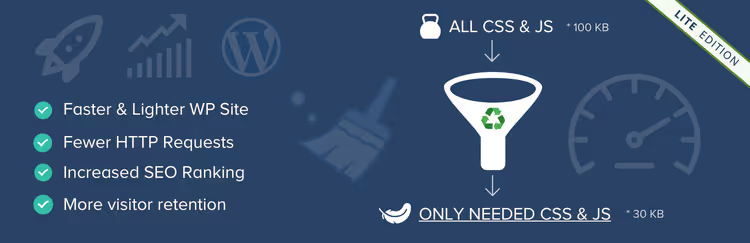
The plugin scans the page, shows a list of loaded CSS and JS files, and lets you disable specific files on particular pages, post types, or site-wide. Need Contact Form 7 only on the contact page? Uncheck it everywhere else, and its scripts won't load where the form isn't used.
🔗 Asset CleanUp on WordPress.org
While you're at it, optimize your database. After cleaning up plugins, their settings and records remain in the tables and should also be removed. Also check for broken links: each redirect is an extra HTTP request.
To clearly see the scale of the problem before and after, test your site in GTMetrix:
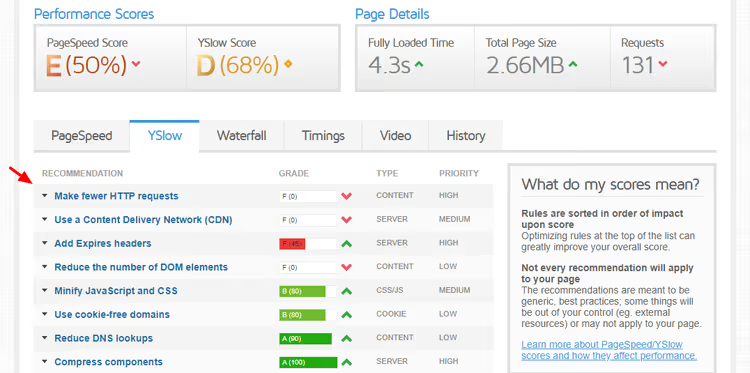
The first run shows the baseline: number of requests, total page size, load time. After each step in this article, run the test again. This way you'll see which changes had the biggest impact.
Step 2. Optimize images
Images are the biggest "weight" on an average WordPress page. According to HTTP Archive, images account for about 44% of total page size on desktop. And each image is an HTTP request.
Start by removing unused files. In Media → Library, filter by "Unattached." These are images not attached to any post. If they're not used in the theme or footer, delete them.
Next comes compression. Plugins like WP Compress handle this automatically: when you upload an image, it runs through a cloud optimizer, gets compressed without visible quality loss, and converts to WebP or AVIF. These formats are noticeably lighter than JPEG at the same visual quality. According to Google, WebP reduces file size by an average of 25-35% compared to JPEG.
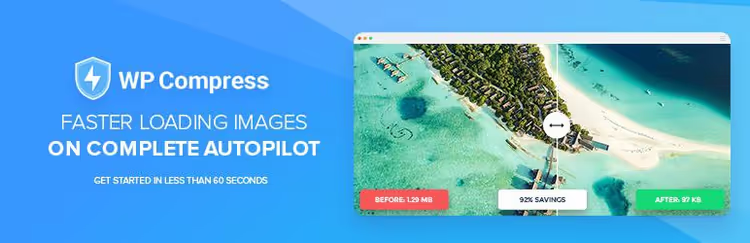
WP Compress has 10,000+ active installations, a 4.5 out of 5 rating, and over 1.1 million downloads on WordPress.org. The first 100 images are free, enough to see the difference.
🔗 WP Compress on WordPress.org
Compression alone doesn't reduce the number of HTTP requests. But it does reduce the size of each file, meaning less time to transfer it. Combined with the other steps, this delivers a noticeable speed boost.
CSS sprites: one file instead of ten
If you have a dozen small icons on a page (social networks, arrows, rating stars), each loads as a separate request. A CSS sprite solves this: all icons are combined into one file, and CSS displays the needed fragment.
Here's how it works: five images mean five server requests. Those same five images combined into one sprite mean one request. Online tools like CSS Sprite Generator can create sprites for you. Basic CSS knowledge is required to set the background-position for each icon.
Note: if your server supports HTTP/2, files load asynchronously within a single connection. In that case, sprite savings are less noticeable. But in practice, a dozen icons in one file still loads faster than ten separate ones.
Step 3. Combine and minify CSS and JavaScript
A typical WordPress site has 40+ JS files and 20+ CSS files. Each one is a separate HTTP request. That adds up to 60+ server calls just for scripts and styles, all loading before any content appears.
Minification removes everything unnecessary from files: spaces, line breaks, comments. The file becomes lighter, but the number of HTTP requests stays the same.
Combining merges multiple files into one. Five CSS files become two (one for above-the-fold, one for everything else). Five JS files, same thing. And instead of ten requests, you're down to two or three.
The most popular free tool for this is Autoptimize. A plugin with one million active installations and a 4.7 rating. In settings, there are three checkboxes: optimize HTML, CSS, and JS. Check all three and see immediate results.
For finer control, there's WP Rocket, a premium solution that combines files, minifies them, and adds caching in one interface.

After combining, always check your site in incognito mode: sometimes merging files breaks the layout. If something looks wrong, disable combining for the problematic file and keep only minification.
One more thing: combining files is not a cure-all. If a plugin loads external scripts from a CDN (Google Fonts, reCAPTCHA, YouTube player), you can't combine them. You can only defer them or load them asynchronously, which brings us to the next step.
Step 4. Handle render-blocking scripts
The browser reads a page from top to bottom. When it encounters <script src="..."> in <head>, it stops rendering, fully downloads the script, and only then continues. Visitors see a blank page during this time.
The solution is to move scripts that aren't needed for rendering the first screen to the bottom of the page, or add the async/defer attribute. The difference:
defer: the script loads in the background but executes strictly after HTML parsing completes and in the order they're included;async: the script loads and executes at the first opportunity, with no guaranteed order.
For WordPress, there's a free plugin called Async JavaScript. It adds async or defer to selected scripts through a clear interface. It works out of the box but requires caution: if a script added with async needs to run before another one, the page may break.
A safe approach is to test on one script, check the site in incognito, then move to the next.
WP Rocket can also defer scripts: go to File Optimization → Load JavaScript deferred. Select "Deferred" and add jQuery to exclusions, since most WordPress themes and plugins depend on it.
Result: the page starts rendering earlier, even if the total number of HTTP requests hasn't changed. Visitors see content while the remaining scripts load in the background.
Step 5. Enable caching and CDN
Caching directly reduces HTTP requests on repeat visits. The mechanics are simple: the browser saves static files (CSS, JS, images, fonts) locally. On the next page load, instead of requesting from the server, it pulls the file from cache. Zero HTTP requests for that file.
Server-side caching is the next level: the server delivers an already-assembled HTML page instead of running dozens of PHP queries to the database. Caching plugins (WP Rocket, Flying Press, W3 Total Cache) do this automatically.
CDN (Content Delivery Network) is a network of servers worldwide. Instead of pulling files from your hosting in the Netherlands for a visitor in Brazil, the CDN delivers them from the nearest node. Plus, CDN providers often include compression, minification, and image optimization out of the box.
Cloudflare is a free option that covers basic needs: CDN, DDoS protection, free SSL.

Install the Cloudflare plugin for WordPress. It connects your site to the CDN and provides basic settings right from the admin panel. For finer control, go to the Cloudflare dashboard: enable Auto Minify for CSS/JS/HTML, Brotli compression, and Rocket Loader for asynchronous script loading.
With caching and CDN, the number of HTTP requests for returning visitors drops dramatically. First visit: full load. Second visit: most files come from browser cache and the nearest CDN node without any calls to your server.
Bonus: check if your server supports HTTP/2
HTTP/2 is a protocol that transfers multiple files through a single TCP connection. The browser doesn't wait for file #1 to finish downloading before requesting file #2; they load in parallel. This reduces the impact of a high number of HTTP requests: 60 files over HTTP/2 load faster than the same 60 over HTTP/1.1.
Check your server using the KeyCDN HTTP/2 Test tool. Enter your domain and click "Test." A result of "HTTP/2 is supported" means multiplexing is working.
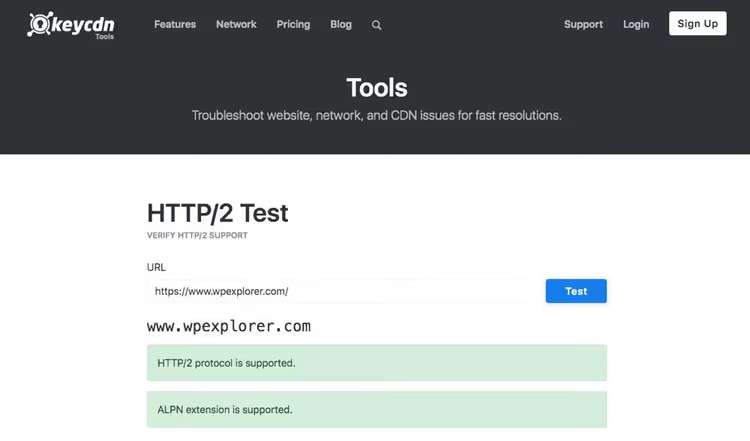
If the test shows HTTP/1.1, contact your host. Most modern hosting providers (SiteGround, Cloudways, Kinsta) enable HTTP/2 by default. On shared hosting from the 2010s, this may not be the case. Also check your PHP version: upgrading to a modern PHP version provides a noticeable performance boost, while outdated versions process requests significantly slower. If your host doesn't update either the protocol or PHP version, it might be time to consider switching hosts.
If you prefer video format, here's a visual guide to reducing HTTP requests in WordPress (12 minutes).
⁉️🤔 Frequently asked questions
How many HTTP requests are considered normal for WordPress?
A target range is 30 to 60 per page. Anything above 80-90 calls for optimization. GTMetrix and Pingdom show specific numbers in their reports. After applying the five steps in this article, it's realistic to drop from 130 to 35-45 requests.
"I have a site on Elementor, and it already has 100+ requests. Is that normal?"
Page builders generate a lot of CSS and JS by nature. Elementor and Divi add 30-50 requests on their own. This doesn't mean "accept it"; it means the rest of your site should be as clean as possible. Remove everything unrelated to the builder: unnecessary plugins, external fonts, unoptimized images. Keep only what actually serves your visitors.
What matters more: number of requests or total page size?
Both. 20 requests at 1 MB each means a 20-second page load. 100 requests at 5 KB each might load faster, but each request incurs overhead for DNS lookup, TCP connection, and TLS handshake. On HTTP/2, this difference is smoothed out. On HTTP/1.1, it's critical. Optimize both: reduce request count through file combining and sprites, reduce size through compression and minification.
Can I get by without plugins?
Partially, yes. CSS/JS minification can be set up via Gulp or Webpack during theme development. HTTP/2 is enabled at the server level (Nginx/Apache configuration). Caching can be done through server rules. But for most WordPress site owners, plugins are the most practical path: setup takes minutes, results are immediate, and the risk of breaking the site is lower.
How often should I recheck the number of HTTP requests?
After every major plugin installation or update. A new plugin might add its CSS/JS to all pages, and you won't notice until the site starts lagging. Once a month is sufficient for routine checks. GTMetrix lets you set up automatic monitoring with alerts when performance drops.
Do I even need this guide if I already have fast hosting?
Hosting solves part of the problem at the server level, but not at the code level. If a plugin inserts 15 scripts in the page's
<head>, even top-tier servers won't make them load instantly. The browser will still wait. Fast hosting gives you a head start, but the real winner is whoever cleans up the client side too.
What actually reduces HTTP requests, and what doesn't?
Let's run through all the steps without illusions:
- Cleaning up plugins and themes delivers the most noticeable improvement. Every removed plugin eliminates its CSS, JS, and external calls. In practice, 10-30 requests disappear after an audit.
- Image compression reduces file sizes, but the number of requests stays the same. However, total load time drops noticeably.
- Combining CSS and JS significantly cuts request count. Downside: it can break layouts, so check after every change.
- Deferred script loading: same number of requests, but the page becomes visible sooner.
- Caching and CDN: for new visitors, the difference is minimal. For returning visitors, repeat page loads happen without a single request to the server.
If we had to pick exactly three actions that deliver the biggest impact on a typical WordPress site: (1) remove unnecessary plugins, (2) enable CSS/JS combining via Autoptimize, (3) set up Cloudflare. These are three steps that take an evening rather than a week, and you'll see the results in GTMetrix numbers the very next day.

A professional team of writers and editors specializing in creating quality content.