














🚫 How to remove WordPress pages from Google search results
You set up a test page, and Google has already indexed it. Or pagination pages with /page/2 suddenly started appearing in search results and created duplicates. Maybe someone found a client's personal account through search. Anyone who seriously works with WordPress has discovered at least once something in the index that shouldn't be there.
The problem is frustrating: the search engine sends people where you didn't want them, and duplicate pages dilute the weight of your main content and hurt rankings. The good news is that you can remove a page from search results. Permanently.
Below are five working methods: from quick temporary removal through Search Console to complete blocking with meta tags and bulk indexing configuration through Yoast SEO. Each method has been tested on a live WordPress site and described with the exact location of the action.
💡 Quick overview:
- Learn why you should remove pages from the index and when it's actually necessary
- Add a
noindexmeta tag to a specific page, the most reliable method for permanent removal - Configure
robots.txtas an additional barrier for bots - Password-protect drafts and private sections
- Temporarily remove a URL using the Temporary Removals tool in Google Search Console
- Manage indexing of dozens of pages centrally through Yoast SEO
Step 1: Add a noindex meta tag to the page
The most direct and reliable way to remove a page from the index is to tell the search engine: "Don't index this one." This is done with a noindex meta tag in the <head> section.
If the page is generated by WordPress, the tag can be inserted through a hook. Add the code to your child theme's functions.php or through the Code Snippets plugin:
1 add_action('wp_head', 'sdstudio_noindex_specific_page'); 2 function sdstudio_noindex_specific_page() { 3 if (is_page(42)) { // replace 42 with your page ID 4 echo '<meta name="robots" content="noindex">' . "\n"; 5 } 6 }
You can find the page ID in the admin panel: open the page for editing and look at the URL, it will contain post=42. After saving, open the page source code (Ctrl+U) and make sure the tag appears in the <head>.
If accessing theme files is inconvenient, SEO plugins give you the same result (we'll cover this in Step 5); they add noindex with a single click.
After installing the tag, Google will remove the page from the index during the next crawl. This usually takes anywhere from a few days to a couple of weeks. Step 4 helps speed up the process.
Step 2: Configure robots.txt as an additional barrier
robots.txt doesn't remove already indexed pages; it prevents bots from accessing them in the future. That's why it's used as a second line of defense: first you set noindex (Step 1), and then you block the page in robots.txt so the search engine doesn't even try to recrawl it.
WordPress generates a virtual robots.txt; there's no physical file in the site root. You can edit it in two ways:
Through Yoast SEO: SEO → Tools → File Editor. If the file doesn't exist, the plugin will create it with a button click.
Through a filter in code:
1 add_filter('robots_txt', 'sdstudio_block_page_in_robots', 10, 2); 2 function sdstudio_block_page_in_robots($output, $public) { 3 $output .= "Disallow: /private-page/\n"; 4 $output .= "Disallow: /client-dashboard/\n"; 5 return $output; 6 }
Check the result at https://your-site.com/robots.txt; your Disallow directives should appear there.
Important note: if a page is already indexed and you block it ONLY through robots.txt (without noindex), Google will stop crawling it but may continue showing it in search results, just without an updated snippet. That's why robots.txt should always be combined with noindex.
Watch this short video showing the complete process of noindex configuration for a page through Yoast SEO and the manual method:
Step 3: Password-protect the page
A password on a page is an instant solution: the search engine physically cannot get past the password entry form and cannot see the content. It's suitable for client dashboards, drafts, and pages under development.
In the WordPress editor, open the page you need. In the "Document" sidebar, find the "Visibility" block and click "Public"; a choice of three options will appear: public, private, and password protected.
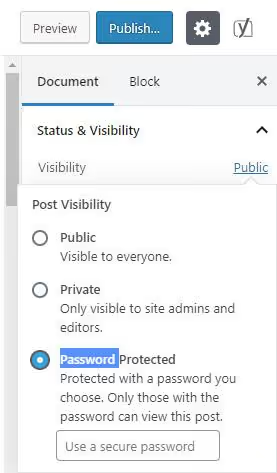
Select "Password Protected," set a password, and save the page. Now when Google tries to open it, it will only get the password entry form, and the content will remain invisible.
This method isn't for the entire site: password-protecting dozens of pages is inconvenient. For bulk indexing management, use Yoast SEO (Step 5).
If Google has already indexed the page before you set the password, the old snippet will remain in the search results. It will disappear only after the bot tries to recrawl the page and hits the password barrier. To speed things up, request a recrawl through Search Console (Step 4).
Step 4: Temporarily remove the URL through Google Search Console
The Temporary Removals tool in Search Console removes a page from search results for approximately six months. This is a temporary measure, but it works quickly, usually within 24 hours.
Go to Google Search Console and select your site (the property must be verified). In the left menu, open Removals and click New Request.
Enter the exact URL of the page you want to remove, including https:// and without an anchor (#). Select Temporarily remove URL and confirm.

After six months, the page may return to search results if by that time it doesn't have noindex and remains accessible for crawling. That's why Temporary Removals is NOT a standalone solution but an accelerator for the permanent methods from Step 1 and Step 5.
Want to remove a page permanently? Set noindex → request removal in Search Console → after six months noindex will prevent it from coming back.
Step 5: Manage indexing of dozens of pages through Yoast SEO
When you need to block from indexing not just one page but entire content types, author archives, pagination pages, or media files, you can't do it manually. Yoast SEO provides centralized indexing management.
Open Yoast SEO → Settings → Content types. You'll see all registered content types: Posts, Pages, Media, and custom types from plugins.
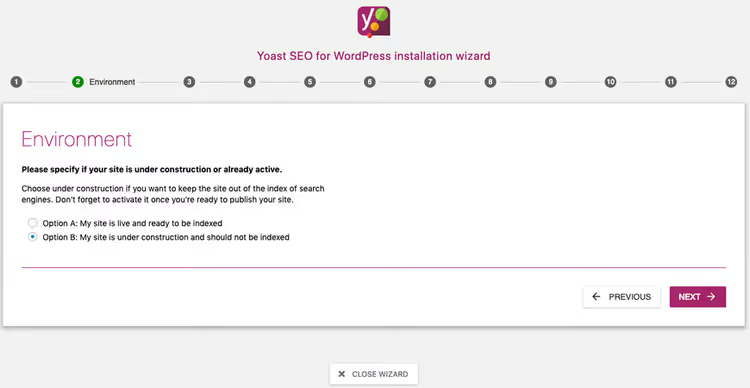
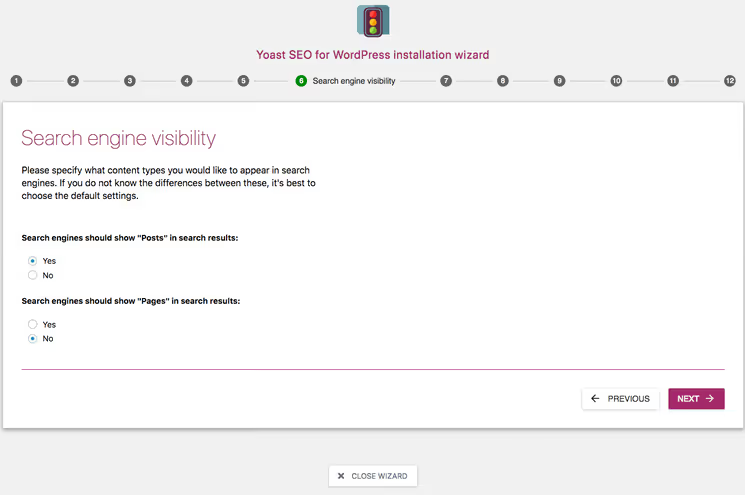
For each type, you can individually decide whether to show it to search engines. Set the Show in search results? toggle to "No," and all content of that type will be removed from the index. This is useful for Media (WordPress attachment pages), which often create junk URLs in search results.
A single page can also be blocked through Yoast on a case-by-case basis:
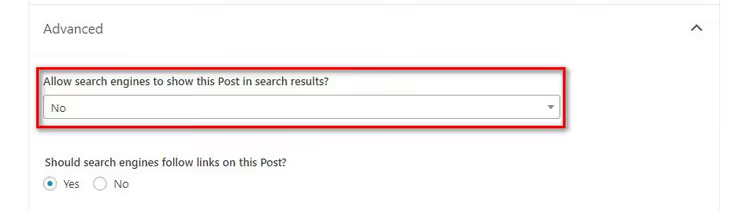
Open the page for editing, scroll down to the Yoast SEO meta box at the bottom, go to the Advanced tab, and in the dropdown Allow search engines to show this page in search results? select No. Yoast will add noindex specifically for this page, without a single line of code.
Bulk indexing management is the main reason to use an SEO plugin instead of manual functions.php edits when you have more than three pages.
Separately, check the Site representation setting in Yoast SEO → Settings → General → Site basics. If the site is still in development and you don't want it indexed at all, enable the toggle "I'm not ready to index my site" there. This is a global noindex for the entire site, convenient for staging environments.
⁉️🤔 Frequently asked questions
How long until the page disappears from Google after adding noindex?
The standard timeframe is from a few days to 2-4 weeks. It all depends on how often your site is recrawled: for news sites with daily crawling, the page disappears in 2-3 days, while for a small blog, the process can take up to a month. Based on administration experience, for a site with average traffic of 5-10 thousand per month, the page left the index in 6 days after setting
noindexplus a manual recrawl request in Search Console.
Can I remove a page permanently using only robots.txt?
No.
robots.txtprevents crawling but doesn't remove the page from the index. Google may continue showing it in search results, just without a snippet and with a note "No information available." A typical scenario: the page/old-promo/is blocked inrobots.txtand sits in the index for six months with an empty description.noindexsolved the problem in a week.
What should I do if the page belongs to someone else and I can't add noindex to it?
If content on someone else's site violates your rights, submit a legal request through Google Legal Removal. If the page is simply outdated and the content has changed, request a snippet update through the Remove outdated content tool in Search Console. It's available even without verifying site ownership.
Why does Google still index pagination and search pages?
WordPress generates pages like
/page/2/,/search/query/, and/author/name/by default, and search engines find them. If they're not blocked in Yoast SEO (Step 5), duplicates multiply by the dozens. Check Yoast SEO → Settings → Advanced → Crawl optimization, where you can centrally disable indexing of pagination and archive pages.
What to do if the page won't leave search results: step-by-step plan
We've compiled a checklist into one table. Go through it in order, and in most cases, the page will disappear from search results within 1-2 weeks.
Step | Action | Result |
|---|---|---|
1 | Check that | Confirmation that the tag is in place |
2 | Request a recrawl through URL Inspection in Search Console | Google learns about changes immediately |
3 | Submit a Temporary Removal request there | Page leaves search results within 24 hours |
4 | Block the URL in | Bots stop spending crawl budget on the page |
5 | Make sure the page isn't listed in the sitemap (Yoast → Settings → Content types) | Excludes rediscovery through the site map |
If after all five steps the page is still in the index after a month, check whether there are external links pointing to it. An active incoming link from another site can make Google keep the URL in the index longer than usual. In this case, only time and lack of repeated crawling will help.

A professional team of writers and editors specializing in creating quality content.