














🔐 How to set up author-level access for contributors publishing on your WordPress site
WordPress offers six user roles out of the box, from Super Admin to Subscriber. Each role is a set of capabilities: publishing posts, installing plugins, editing other users' pages. For a site owner with guest authors, three roles matter most: Contributor, Author, and Editor.
The difference between them comes down to three critical permissions: uploading files to the media library, publishing without review, and accessing other users' content. Choosing the wrong role means either a paralyzed author who cannot add a screenshot to a post, or a security hole through which someone accidentally deletes published pages.
Below is a step-by-step breakdown of each role, a tool for fine-tuning capabilities, and specific scenarios showing who should get what.
💡 Quick overview:
- Choose a role for the task: Contributor for text, Author for posts with screenshots, Editor for content managers
- Fine-tune permissions with the PublishPress Capabilities plugin if the default role falls short
- Grant exactly the access needed for the job and not a single permission more
Contributor role: minimum access, maximum control
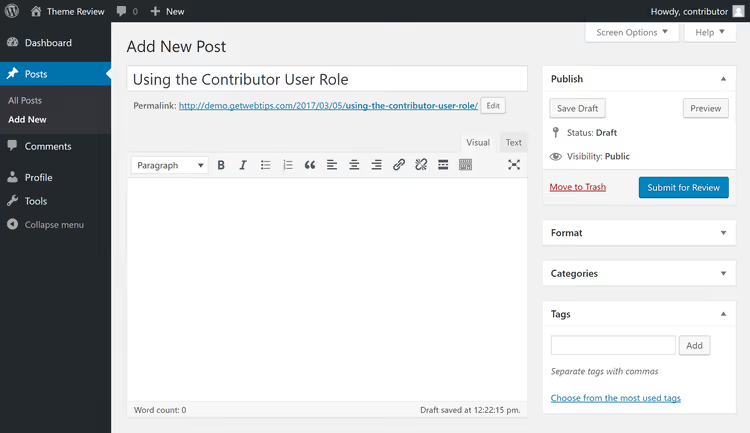
Contributor is the safest role for a freelance author. The user sees only the Posts section and their own drafts. No site settings, plugins, themes, or other people's posts. They create content, click "Submit for Review," and the post goes to an editor or administrator. Self-publishing is not allowed.
Critical limitation: Contributor has no access to the WordPress media library. The "Add Media" button in the editor is missing. The author cannot insert an interface screenshot, an infographic, or a featured image for the post. For a blog where every article includes visual content, this is a showstopper.
Two workarounds exist. First, promote the role to Author (more on that below). Second, add the upload_files capability to the Contributor role through a plugin.
Configuring roles with a plugin
For fine-tuning roles, use PublishPress Capabilities (formerly Capability Manager Enhanced). The plugin has 100,000+ active installs and a 4.5-star rating on WordPress.org; it is the industry standard for permission management. Core features are free.
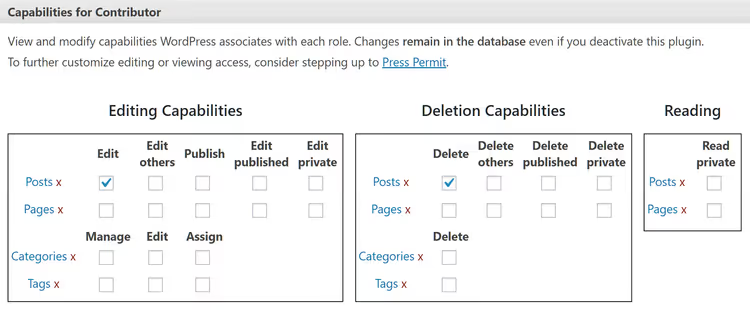
Working with the plugin boils down to checking and unchecking boxes next to specific capabilities. Select a role, mark the permissions you need, save. No code required. For Contributor, simply add the upload_files checkbox; authors will be able to upload images while remaining unable to publish.
Document what changes you made and for whom. With a dozen authors and custom permissions, it is easy to get confused and accidentally grant plugin management access to the wrong person. PublishPress Capabilities has a Backup & Restore section for this; take a snapshot of roles before making changes.
Author role: full control over your own posts

Author is the next level up from Contributor. The key difference: Author sees the "Add Media" button in the editor and can upload images, videos, and other files to the media library. Setting a featured image for the post is also available. This is a complete toolkit for creating polished content from start to finish.
Additionally, Author can publish posts without submitting for review and can edit or delete their own published entries. Other users' posts and WordPress pages remain off-limits.
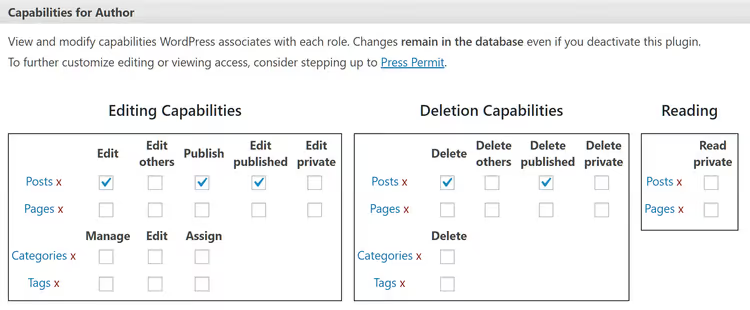
Self-publishing is the main reason for caution. If the author makes a mistake and publishes a rough draft, or decides to "tweak" a post a month later without coordination, the editorial buffer is gone. Solution: uncheck publish_posts for the Author role via PublishPress Capabilities. Authors will be required to submit posts for review while keeping access to media files.
Such a hybrid (Contributor + upload_files or Author without publish_posts) covers most scenarios for guest authors: full control over their post's content and visuals while preserving the editorial barrier.
Editor role: for content managers

Editor is one level below Administrator. A user with this role can not only create and publish their own posts but also manage other authors' content: edit, publish, delete. Editor also works with WordPress pages (creating, editing, and publishing other people's pages included).
On top of that, Editor moderates comments and manages categories and tags. Access to site settings, plugins, themes, and the user list remains closed; that is the Administrator's domain.
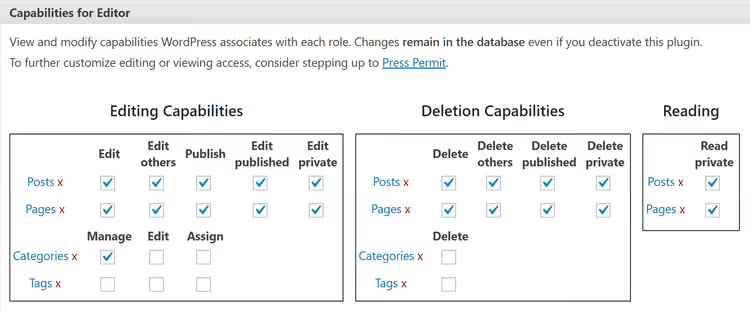
Assign Editor thoughtfully. It is the ideal role for a content manager, blog editor, or outsourced specialist responsible for the entire publishing flow: accepting drafts from authors, reviewing, publishing, monitoring comments. For regular authors, Editor is overkill; the ability to delete other people's published posts and pages is unnecessary for someone who simply writes articles.
Security and common mistakes when granting access
The golden rule is the principle of least privilege: grant exactly the capabilities needed for the job and not a single extra one.
Mistakes to avoid:
- Granting Administrator "so everything definitely works." An Administrator installs and removes plugins, changes the theme, edits site files. For writing posts, Author or a configured Contributor is enough.
- Forgetting to revoke access. An author stops contributing to the blog; their account remains with publishing rights. Review your user list quarterly; remove or demote inactive accounts.
- Failing to document a custom role. Six months later you will not remember why this user has
edit_others_postsand that one does not. Keep a brief change log.
For WordPress Multisite installations, the same roles apply with one difference: an Administrator of an individual site in the network cannot install plugins or themes; that is the Super Admin's prerogative.
This short English-language video demonstrates the role configuration process in action, from assigning a role to a user to editing individual capabilities.
⁉️🤔 Frequently asked questions
Can I give an author access to only one category?
Standard WordPress roles do not restrict access by category. Author sees all categories and can publish to any of them. For segmentation, you will need a plugin such as PublishPress Capabilities Pro or User Role Editor; paid versions include taxonomy restriction functionality.
How does Contributor differ from Author in practice?
Contributor cannot upload media files or publish posts, only write and submit for review. Author uploads images and publishes independently. If the author writes text without images, Contributor is enough. If posts include screenshots and photos, you need Author or a Contributor with the
upload_filescapability added via a plugin.
Will custom role settings disappear after a WordPress update?
No. Custom roles and modified capabilities are stored in the WordPress database in the
wp_optionstable (thewp_user_rolesrecord). Major WordPress updates sometimes add new default capabilities but do not reset user configurations. Before a major update, back up roles through the plugin.
How do I verify that a new author has the correct permissions?
Create a test user with the desired role and log in as that user in a private browser window. Go through all key screens: the post editor, the media library, the pages list, settings. Confirm there is no excess access and that the necessary access is present. It takes 5 minutes and saves hours of troubleshooting.
Do I need a plugin to configure roles, or can I use code?
Code works too. WordPress provides four functions:
add_role()andremove_role()for creating and deleting roles, plusadd_cap()andremove_cap()for adding and removing individual capabilities. You can place the calls in your theme's or child theme'sfunctions.php. But a plugin offers a visual interface and protection from typos: misspell a capability name in code and the role silently breaks; in a plugin you see the checkbox and description.
Which role to choose: final breakdown
A quick guide based on your scenarios:
- A guest author writes text; an editor selects the images. Use Contributor. Minimum access, no risks.
- An author prepares a complete post: text, screenshots, photos. Author. If you want to keep the pre-publication review barrier, remove the
publish_postspermission via PublishPress Capabilities. - Someone manages the content flow: accepting, editing, publishing, monitoring comments. Editor. Enough permissions for management, not enough to break the site.
- You are the sole owner and author. Administrator. Even then, for daily work it is safer to create a second account with Editor and use the admin account only for settings and updates.
Spend 10 minutes configuring roles once, and every subsequent author will log in with exactly the permissions they need: no risk to the site, no extra questions in chat, and no compromises on security.

A professional team of writers and editors specializing in creating quality content.