













🔗 How to quickly find and fix broken links on a website
A broken link on a website isn't just "oops, page not found." It's a customer who went to your competitors. It's a search bot that stumbled and dropped your site in the rankings. It's a reputation falling apart.
The problem is that links die quietly. An external site moved, a page got deleted, a domain wasn't renewed, and your post keeps sending readers into the void. The older the site, the more of these landmines on its pages.
You can handle this without hiring a developer and without buying expensive SEO tools. Here's a specific method: how to find all broken links in one scan, how to fix them, and how to prevent them from appearing again.
💡 Quick overview:
- The free online tool brokenlinkcheck.com scans the entire site and shows the exact location of each dead link in the HTML code, no need to dig through thousands of lines manually.
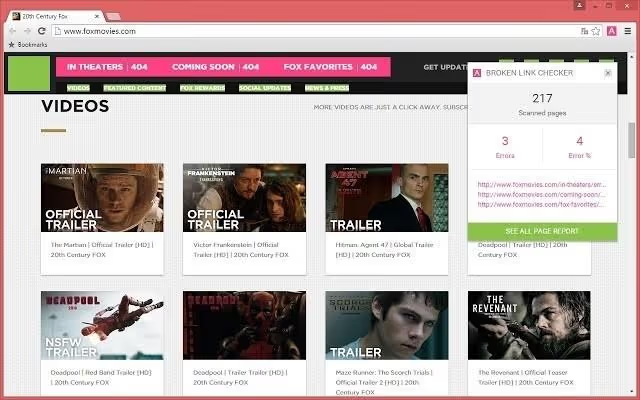
- After checking, you get a list: the broken link URL, the page where it's located, and the HTTP response code. All that's left is to go through the list and replace or remove each one.
- For WordPress sites, there are plugins that automate the process and check links on a schedule, but the online checker works for any CMS and requires no installation.
Why broken links aren't trivial but a direct threat to your site
Dead links hit three fronts simultaneously.
SEO. Search bots regularly crawl your site. When a bot hits a 404, it doesn't just record an error, it spends part of the crawl budget on it. The more broken links, the fewer pages the bot manages to index in one crawl. For large sites, this means new content might not appear in search results for weeks.
User experience. Clicking a link and landing on a 404 is one of the strongest triggers for leaving a site. User behavior studies show: encountering a 404 error, 60 to 70 percent of visitors leave the site and don't return to search for the information they need on it. Instead, they go to Google and open the next result, often a competitor's site.
Conversion and trust. Broken links on a payment page, in a submission form, or on a landing page are direct money losses. But even on informational pages, non-working links create an impression of neglect: "the site hasn't been updated, the owner doesn't care." A visitor who doesn't trust a site won't leave their email or money there.
Where dead links come from and why they accumulate
Links break for a dozen reasons, and you don't control most of them:
- External. The site you linked to changed its URL structure, deleted a page, or shut down. The domain wasn't renewed, the server is down, the company discontinued product support. You won't know about it until someone complains or until you run a check.
- Internal. You renamed a page, changed a slug, moved a post to another category, and old links within your own site became broken. On WordPress, this happens especially often during migrations, permalink structure changes, or content cleanup.
- Technical. URL errors (missing slash, typo in protocol
httpinstead ofhttps), broken redirects, SSL certificate issues on an external site.
On large sites, the number of broken links grows exponentially. CMSs like WordPress dynamically display content on dozens of pages: categories, archives, "related posts" widgets. One broken link in a post replicates across all these pages, and instead of one problem, you have dozens.
How to find all broken links: free tool in 5 minutes
The simplest method for a site of any size and on any CMS is a free online checker. It requires no registration, installation, or technical knowledge. Works like this:
- Go to the service homepage and enter your site address.
- The tool crawls all pages, scans the HTML code, and checks every link it finds.
- For each broken link, you get: the non-working URL, the page where it's located, the HTTP response code, and most importantly, a highlighted HTML code fragment with the exact location.
The last point is critically important. Most checkers simply output a list of broken URLs, and then you search yourself for which post or page that URL is written in. On a site with a hundred pages, this can take hours. brokenlinkcheck.com shows the source code line with the <a href="..."> tag, you immediately see where to go and what to fix.
The free version scans up to 3,000 pages. For most sites, this is more than enough. The commercial version removes the page limit and adds CSV export, scheduled checking, and RSS feed monitoring, but for one-time or periodic manual checks, the free version is sufficient.
Worth mentioning separately is deadlinkchecker.com, an alternative free checker that also requires no registration. Same principle, slightly simpler interface. Makes sense to run your site through both tools: sometimes one catches what the other missed.

Step-by-step guide: checking your site and fixing links

Step 1. Launch the scan. Enter your site URL on brokenlinkcheck.com, click "Find broken links". Scanning takes from a couple of minutes to half an hour, depending on the number of pages.
Step 2. Review the report. The tool outputs a list of broken links. For each, the response code is indicated: 404 (page not found), 403 (access forbidden), 500 (server error), timeout (server didn't respond). Links with 404 code are definitely dead and need to be fixed first.
Step 3. Classify the links. Go through the list and determine what to do for each:
- Internal broken, page exists under a different address, fix the URL to the current one.
- Internal broken, page deleted, remove the link or replace it with another relevant page on your site.
- External broken, content moved, find the new URL by searching for the material title and update the link.
- External broken, source site is dead, remove the link entirely or replace it with an alternative source (if the link was fact confirmation). You can use archive.org to restore deleted page content and find a similar material on live sites.
Step 4. Make the edits. Open each page from the report, find the broken link (the tool shows the exact location in HTML), fix or delete it. For WordPress sites, this is done through the post or page editor.
Step 5. Recheck. After edits, run the scan again. Ideally, the report should be clean.
For WordPress sites, the process can be automated with plugins, for example, the free Broken Link Checker tracks links in the background and sends notifications about problems. More details on plugin setup and working with broken links specifically in WordPress in our separate guide: how to fix non-working WordPress links on your site.
Prevention: so links don't die again
A one-time scan fixes the problem here and now, but links will keep breaking. Here are three habits that keep your site in order:
- Quarterly check. Set a calendar reminder and run your site through brokenlinkcheck.com every three months. For sites with high publishing frequency, once a month.
- Redirects when changing URLs. If you change a page slug or move a post, set up a 301 redirect from the old address to the new one. On WordPress, this is done through plugins like Redirection or Rank Math.
- Choose sources wisely. Before linking to an external resource, look over the site: is it being updated? Is the team active? A link to an abandoned 2019 blog is almost guaranteed to become broken within a year.
⁉️🤔 Common questions
Why do broken links affect search positions?
Search engines view broken links as a signal of low site quality. Additionally, each broken link consumes crawl budget, the limit of pages the bot crawls per visit. On a site with a hundred broken links, the bot might not reach fresh content. Search engines don't disclose exact ranking formulas, but correlation studies confirm: sites with fewer technical errors consistently rank higher.
How many broken links is "a lot"?
There's no definite threshold, but practice shows: if a site with 100 pages has more than 5-7 broken links, that's already a problem search engines notice. For e-commerce and high-traffic sites, the standard is even stricter: 2-3 broken links for the entire site. The key isn't the absolute number but the ratio of broken links to total links. The higher it is, the worse the signal to search engines.
Can you check broken links without access to the site code?
Yes, brokenlinkcheck.com and deadlinkchecker.com work like regular visitors: they access the site, crawl pages, and check links. No server access, FTP, or admin panel required. The only limitation: the tool sees only pages publicly available without authorization.
What's the difference between checking with an online checker versus a WordPress plugin?
An online checker requires no installation, works with any CMS, and doesn't load your server, the check runs from an external service. A WordPress plugin installs directly in the admin panel, checks links in the background, and can automatically notify about problems. For a one-time check, an online tool is more convenient. For constant monitoring, a plugin. Optimal option: regular checks with an online checker and background monitoring with a plugin between checks.
What to do with a broken link to an external site that no longer exists?
Three options: find the same material on another site and replace the link; restore page content through web.archive.org and find a live analog; if the link was just illustrative, remove it entirely, the content won't suffer from this. Don't leave a broken link "as is," each such link harms both the user and SEO.
What to do about broken links right now
Broken links aren't a problem you can postpone until the next redesign. Every day they quietly eat away at search positions and annoy visitors. The good news is that the solution takes exactly as much time as one scan and one pass through the list.
Right now, open the link checking service, enter your site address, and launch the check. If you find more than five broken links, block out an hour in your calendar this week and go through the list. Regular quarterly checks will close the issue forever.
A site without broken links doesn't get a medal for it. But a site with broken links gets a penalty for it. The difference is half an hour of work.

A professional team of writers and editors specializing in creating quality content.