













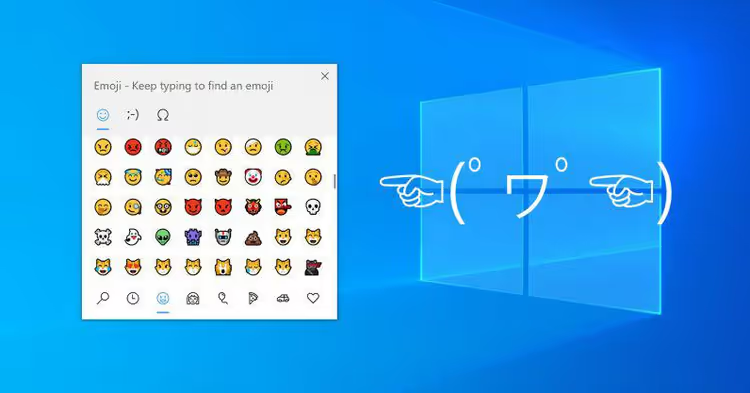
😊 How to quickly type emojis on Windows 10 and 11 - emoji keyboard
Putting an emoji in a chat or email from your phone takes two taps. But on desktop, many people still google "emoji copy paste" and insert symbols through the clipboard like it's 2005. Even though Windows has been able to open the emoji panel with a single keyboard shortcut for almost a decade now.
Faster than reaching for the mouse. And much more convenient than memorizing Alt codes.
With the release of Windows 11, the panel evolved from a modest set of smileys into a full-featured tool: emoji, kaomoji, symbols, GIFs, and even clipboard history, all in one popup window. Let's break down how it works, how the Windows 10 version differs from Windows 11, and which keyboard shortcuts actually save time.
💡 Quick overview:
- Open the emoji panel with Win and period in any text field.
- Select a tab and find the symbol you need using search or arrows.
- Press Enter, and the emoji appears in the text, the panel closes.
- Repeat for each subsequent emoji.
How to open the emoji panel in Windows
Works the same in Windows 10 and Windows 11. Place your cursor in any text field, search bar in a browser, chat in Telegram, Word document, comment field on a website, and press Win +. (Windows key and period) or Win +; (Windows key and semicolon). The result is identical, a small panel pops up over the application.
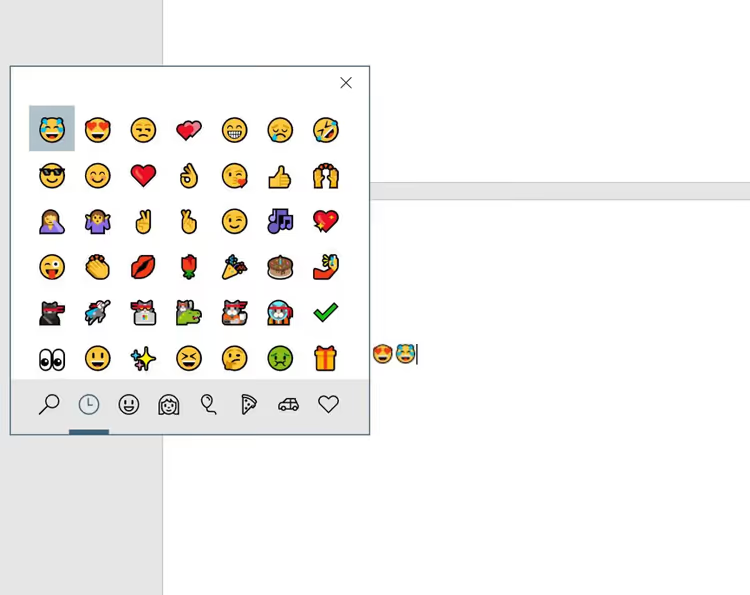
The combination is instantly memorable: period, as in "period at the end of a sentence," a logical association. And it works everywhere you can enter text, the system hotkey intercepts the press before it reaches the application, so conflicts are almost nonexistent.
On the touch keyboard, there's also an emoji button, the smiley icon to the left of the space bar. But the hotkey is faster: your hands stay on the keyboard, no mouse needed.
What's inside the panel: emoji, kaomoji, symbols
In Windows 10, the panel contains two sections: emoji and kaomoji (Japanese text faces like (╯°□°)╯︵ ┻━┻). In Windows 11, they added three more: GIFs, symbols, and clipboard history.
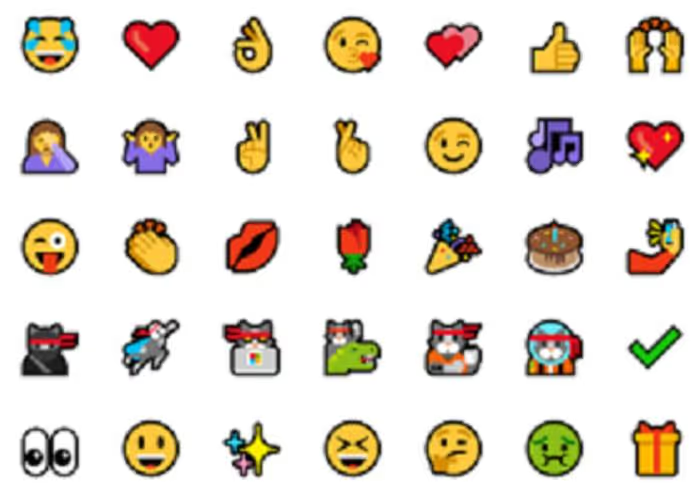
Switch between tabs by clicking the icon in the top row of the panel. Categories within emoji: people and gestures, food and drinks, travel and places, activities, animals, flags, and a couple dozen more, scroll with the wheel or arrows.
The main thing they significantly improved in Windows 11 is search. Start typing a word (in English or Russian, Windows will figure it out) and the panel filters results on the fly. Type "dog," you get 🐕🐶🐩. "Fire," 🔥🚒🧯. In Windows 10, search exists too, but slightly slower and only by English names.
Kaomoji, a separate joy. In Windows 11, they're organized by emotions: joy, anger, surprise, indifference. Unlike graphical emoji, kaomoji are inserted as plain text and look identical in any application, from Notepad to terminal.
Navigation without a mouse
The fastest way is keyboard. After opening the panel with Win +.:
- Tab, switch between tabs (emoji → kaomoji → symbols → GIF → clipboard in Windows 11).
- Arrows, move through the grid of emojis within a category.
- Enter, insert the selected emoji.
- Esc, close the panel without inserting.
Your hand never leaves the keyboard from start to finish: Win +., Tab to the needed tab, arrows to the emoji, Enter, and the panel disappears, leaving the emoji in the text. Working through the sequence takes less than a second.
A limitation that has remained since the first version: the panel closes after selecting ONE emoji. Want to insert three in a row, call Win +. three times. Or insert the first one, copy it and paste with Ctrl+V, the panel isn't involved in clipboard pasting at all. Yes, it's slightly annoying, but four presses of Win +. in a row take about a second and a half.
Skin tone settings
For people-emoji and gestures, you can choose a skin tone. In the emoji panel (first tab), there's a small sample square in the upper right, next to the close button.
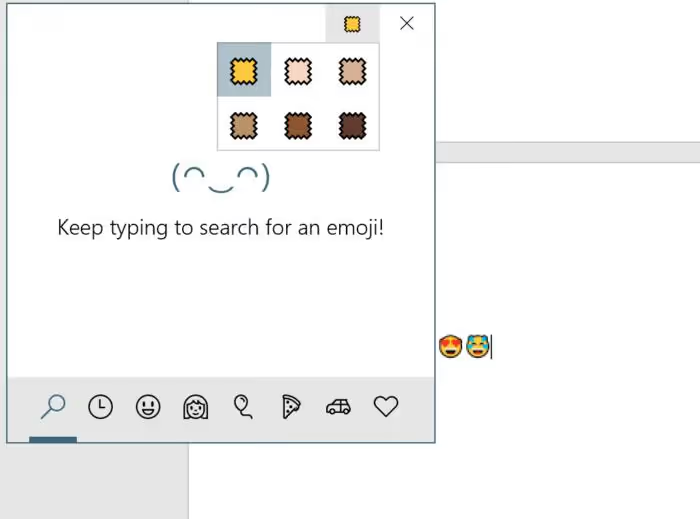
Click on it, a row of six tones (according to the Fitzpatrick scale) expands. Select one, and ALL human emoji in the panel switch to that tone. The setting is global and persists between panel invocations until you change it again.
GIFs, symbols and clipboard, Windows 11 capabilities
Three tabs that don't exist in Windows 10:
GIF, built-in GIF search. Works through Bing, pulls popular animated files. Type "thumbs up," get a dozen variants. Inserted as an image, not as a link. Convenient for chats and social networks where GIFs are supported.
Symbols, table of special characters: currencies (€, £, ¥), mathematical symbols (∞, ±, √), arrows, fractions, punctuation. Previously, you'd open "Character Map" through
charmap.exe, now everything is in the same panel.Clipboard, Win + V (separate hotkey, not through the emoji panel) opens the history of the last 25 copied items: text, images, HTML. You can pin frequently used fragments, they don't disappear on reboot.
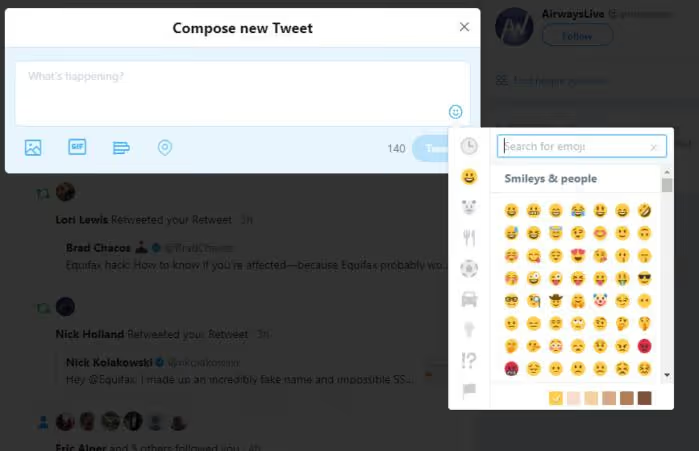
Worth mentioning separately: many web applications (Twitter, Facebook, Slack, Discord) have their own emoji buttons directly in the input field. They work independently of the system panel and don't require Fall Creators Update or Windows 11, purely a website feature. But the system hotkey is more universal: it works in any input location, not just where the website developer provided a button.
If the panel doesn't open
Rare, but possible. Typical causes and quick fixes:
Focus not in a text field. Click in the input field, then Win +., the panel appears only when the system has somewhere to insert the symbol.
Stuck Win key. Try the second Win key (right one, if the left is stuck) or the Win +; combination as an alternative.
Disabled through registry. Some corporate builds and tweakers disable the emoji panel through group policy. Check
HKEY_LOCAL_MACHINE\SOFTWARE\Microsoft\Input\Settings\proc_1, theEnableExpressiveInputShellHotkeyparameter should be1(or absent, then it works by default).Touch keyboard as a fallback. Right-click the taskbar → "Show touch keyboard" → smiley icon next to the space bar. Works even if the system panel is disabled, as it's a separate component.
⁉️🤔 Frequently asked questions
Does Win +. work in Windows 10 Home?
Yes, the emoji panel is available in all editions of Windows 10 and 11, Home, Pro, Enterprise, Education. There's no difference in emoji composition between editions, but on Enterprise builds an administrator can disable the panel through group policy.
Can you add your own emoji or kaomoji to the panel?
No, the Windows emoji panel is a closed system utility, editing the set is not provided. New emoji come only with Windows updates (every six months to a year). Kaomoji is also a fixed list.
How does the emoji panel differ from the old "Character Map"?
Character Map (
charmap.exe) is a legacy tool for inserting any character from installed fonts, including private Unicode areas. The emoji panel is a modern alternative for frequently used items: emoji, kaomoji, and typical special characters. For rare characters, Character Map is still needed.
Does the hotkey work with third-party keyboard layouts (for example, Punto Switcher)?
Yes, system hotkeys like Win +. have priority over user layouts and are intercepted at the Windows level, not the application level. Punto Switcher, Key Switcher, and similar tools don't affect the emoji panel.
Can you remap the keyboard shortcut to another one?
Through standard means, no. The hotkey is hardcoded in the system. Through AutoHotkey, you can assign the panel call to an arbitrary combination, just send
#.(Win+period) when your combination is pressed. Script example:
1 ; Call emoji panel with Ctrl+Shift+E 2 ^+e::Send #.
What changed from Windows 10 and is it worth updating for emoji
Radically, nothing. The basic hotkey is the same, the emoji set is replenished with OS updates. The main leap came with Windows 11: GIF and symbols tabs plus instant search in Russian. If you're on Windows 10, the emoji panel already works (Win +.), and for the vast majority of tasks that's enough.
Updating to Windows 11 exclusively for the emoji panel makes no sense. But if you're already on Windows 11, check out the symbols tab: entering the euro sign (€) or an em dash has never been this fast.
To summarize: memorize Win +., and the question "how to insert an emoji on a computer" disappears forever. Works out of the box, requires no installation, doesn't conflict with language layouts, and is available right now, just try it in any text field.
If you're still copying emoji through Google, give yourself five minutes to memorize Win +. once and forget about the clipboard for emojis forever.

A professional team of writers and editors specializing in creating quality content.