













How to disable the WordPress admin bar: 3 ways
You visit your own website, and the first thing you see is a black bar at the top. Links to the admin panel, quick access to settings, a logout button. Sometimes it's convenient, no argument there. But when you simply want to evaluate the layout, take a screenshot for a client, or show the site to a customer, this bar becomes annoying visual noise.
The WordPress admin bar (also known as the Toolbar or "top panel") appeared in version 3.1 as a navigation helper between the frontend and backend. The problem is that by default it appears to all logged-in users when viewing the site, and not everyone needs it. Moreover, on some themes it shifts the layout, breaks sticky elements, and adds extra CSS/JS to the frontend.
Fortunately, removing it takes five minutes. Below are three proven methods: from the simplest (one click in settings) to the most flexible (code in functions.php). Choose what fits your task.
💡 Quick overview:
- Go to your user profile and uncheck "Show Toolbar," the admin bar will disappear from the frontend in 10 seconds.
- Install the Disable Toolbar plugin and configure admin bar visibility by role through General WordPress settings.
- Add the
show_admin_barfilter tofunctions.phpfor complete disabling for everyone with one line or selectively by role.
1. Disabling through profile settings
The fastest method, no plugins or code at all. Suitable if you are the only site administrator and simply want to stop seeing the admin bar when viewing pages.
Go to the WordPress admin panel and navigate to: Users → Your Profile. Find the option "Show Toolbar when viewing site". Uncheck it and click "Update Profile" at the bottom of the page.
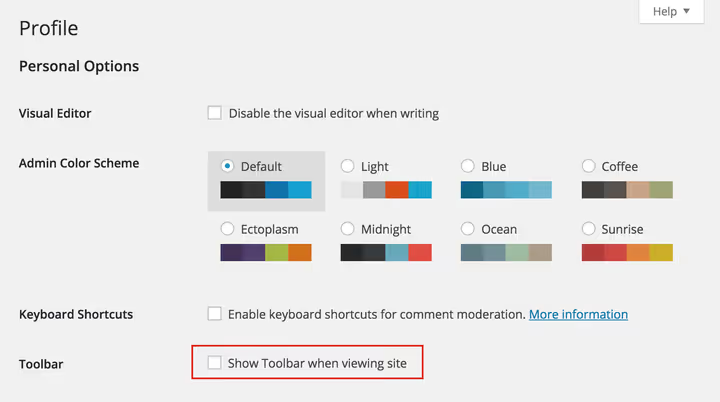
Done, the admin bar will disappear from the frontend. It will remain in the admin panel (this is standard WordPress behavior and cannot be disabled through settings). The downside of this method: the setting is individual and only applies to your account. If the site has multiple users and you want to remove the admin bar for everyone, proceed to the next options.
2. Disabling through a plugin
There are dozens of plugins for hiding the admin bar on WordPress.org. But we recommend Disable Toolbar, a minimalist option without a separate settings page that integrates directly into Settings → General.
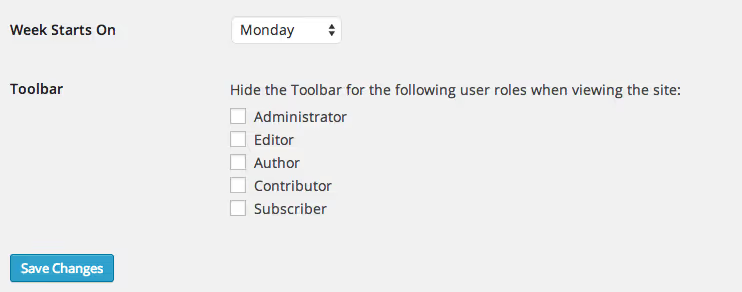
After installation and activation, a "Disable Toolbar" block appears in the "General Settings" section with checkboxes next to each role: Administrator, Editor, Author, Contributor, Subscriber. Check the roles for which the admin bar should be hidden and save your changes.
The main advantage of the plugin is role-based management. For example, you can leave the admin bar for administrators and editors but hide it for authors and subscribers. This is especially useful on sites with user-generated content, forums, and membership platforms where regular members have no need to see administration tools.
The plugin also automatically hides the "Show Toolbar" option in the profiles of users whose role is already restricted, keeping things clean and confusion-free.
3. Disabling through code in functions.php
The most flexible method, requiring no additional plugins. WordPress provides the show_admin_bar filter through which you can control admin bar visibility programmatically. The code is added to the functions.php file of a child theme (a child theme is strongly recommended, otherwise changes will be lost on update) or through a snippet plugin like Code Snippets.
Disable for all users. The shortest option, one line:
1 // Completely disable the admin bar for all users on the frontend 2 add_filter( 'show_admin_bar', '__return_false' );
The function __return_false is a built-in WordPress helper that returns false. The show_admin_bar filter is called during frontend rendering and determines whether to show the admin bar to the current user. With this snippet, no one will see the admin bar regardless of role and individual profile settings.
Disable selectively by role. If complete disabling is not suitable, the filter can be tied to a role check for the current user:
1 // Hide the admin bar for authors and lower roles 2 add_filter( 'show_admin_bar', function ( $show ) { 3 if ( current_user_can( 'author' ) && ! current_user_can( 'edit_pages' ) ) { 4 return false; 5 } 6 return $show; 7 } );
This code checks: if the user has "Author" level permissions and cannot edit pages (a sign of an editor or administrator), the admin bar is hidden. Thus, administrators and editors continue to see it, while authors, contributors, and subscribers do not.
The logic can be adapted to your role structure: replace 'author' with 'subscriber', 'contributor', or another role, and the current_user_can( 'edit_pages' ) condition with any capability from the official WordPress capabilities table.
Where to insert the code. Three safe options:
functions.phpof a child theme, the classic approach where code lives together with the theme;- The Code Snippets plugin, a graphical interface for snippets with enable/disable by click, and code is not lost when changing themes;
- MU-plugin (must-use plugin), a file in
/wp-content/mu-plugins/that always executes and cannot be accidentally deactivated.
Before editing functions.php, be sure to back up the file. An error in PHP code can take down the site, so beginners find it more convenient to start with Code Snippets (it has a built-in syntax check before saving).
⁉️🤔 Frequently asked questions
Can I hide the admin bar only on the frontend but keep it in the admin panel?
Yes, that is exactly how all three methods above work. WordPress by default always shows the admin bar in the admin panel; the
show_admin_barfilter and profile settings only affect display when viewing the site. There is no way to completely remove the admin bar from the admin panel using standard tools (and there is no need to, as navigation in the backend would become inconvenient without it).
What should I do if the admin bar still shows after disabling it?
Check the cache: both server-side (caching plugins like WP Rocket, W3 Total Cache) and browser-side (open the site in incognito mode). If you use a CDN, clear the cache on the Cloudflare side or equivalent. Make sure a security plugin (Solid Security, Wordfence) is not overriding settings. Verify that the code in
functions.phpis actually executing by temporarily insertingecho 'test';before the filter. And finally: sometimes a theme forcibly shows the admin bar through awp_admin_bar_render()call in the template, in which case neither settings, nor a plugin, norshow_admin_barwill help. The solution: find and remove this call in the theme files (usuallyheader.phporfooter.php).
Does disabling the admin bar affect site speed?
Yes, but modestly. The admin bar loads the CSS file
admin-bar.min.css(~6 KB compressed), JavaScriptadmin-bar.min.js(~2 KB), and makes one additional AJAX request to check notifications. In total, about 10-15 KB and 1 extra HTTP request. For site visitors (not logged in), these resources are not loaded anyway, so the benefit only applies to those who access the site under their account.
Which method is better for a client site?
A combination of the second and third: the Disable Toolbar plugin for the administrator (quick management with checkboxes in General Settings, the client will figure it out) and a snippet in Code Snippets for guaranteed hiding of the admin bar from all roles below editor. This way the client sees a clear interface, and you have code as backup: even if the plugin is ever disabled, the snippet will remain active.
What to use for your task
Three methods cover three different needs:
Remove the admin bar only for yourself, the first method, the checkbox in your profile. 10 seconds, no plugins or code.
Configure visibility by role without diving into code, the Disable Toolbar plugin. A clear interface in General Settings with checkboxes next to each role. Ideal for sites with content from different authors.
Programmatic control and automation, a snippet in
functions.phpor Code Snippets. One line with__return_falsedisables the admin bar for everyone, while conditional logic throughcurrent_user_canprovides any flexibility, including disabling only for specific URLs or post types.
Choose what fits your situation, and breathe easier without that black bar above your site.

A professional team of writers and editors specializing in creating quality content.