













🚫 How to selectively disable WordPress plugins on specific pages and posts
Every WordPress plugin adds PHP code that runs on page load, pulls in scripts and styles, and sometimes makes additional database queries. The more plugins you have, the heavier your pages become. But the problem isn't just quantity: even a single "chatty" plugin like Contact Form 7 loads its .css and .js files on every page by default, including pages where no form exists at all.
The CF7 developers openly acknowledge that the plugin loads resources everywhere because the shortcode can appear anywhere. This logic isn't unique to CF7; most plugins work the same way. The result: your blog's homepage loads scripts for a gallery slider that was never there in the first place.
The good news: WordPress lets you selectively disable plugin loading only on pages where they're actually needed. We'll cover both approaches: programmatic (using a mu-plugin with the option_active_plugins filter) and plugin-based (Plugin Organizer, Perfmatters, Plugin Load Filter). At the end, we'll measure results using the browser's network monitor.
💡 Quick overview:
- Choose plugins based on three criteria: developer reputation, performance under load, and actual necessity
- Programmatic approach: write a PHP snippet that uses
get_option('active_plugins')to get the list of active plugins and filters them by page URL - Mu-plugin: place the filter in
/wp-content/mu-plugins/so it runs BEFORE all regular plugins, disabling unnecessary ones on the fly - Plugin approach: Plugin Organizer and Perfmatters provide a visual interface for the same tasks without writing a single line of code
- Measure the effect using Chrome/Firefox DevTools: after filtering, HTTP requests drop and load time noticeably decreases
Three rules for choosing plugins
Before filtering plugin loading, make sure the plugins on your site actually deserve a place in wp_options. Three rules that save you headaches and server resources.
Only install verified plugins from developers with a track record. Open the plugin page on WordPress.org and check: number of active installations, rating, last update date, and number of resolved support tickets. A plugin with 100,000+ installations, a 4.5+ rating, and an update within the last 3 months is a safe choice.
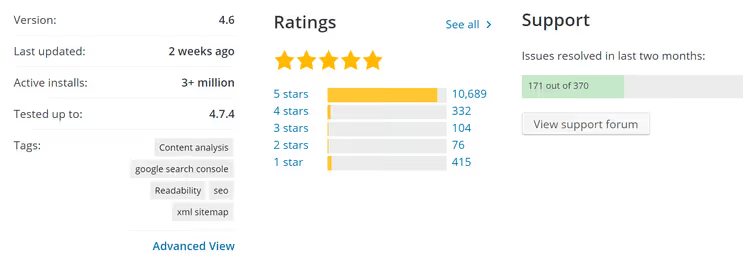
Prefer scalable plugins. Two plugins with identical functionality can affect speed differently. Compare candidates using browser inspector (Network tab) or online services like Google PageSpeed Insights, Pingdom, and GTmetrix; measure load time and HTTP request count before and after installation.
Don't keep dead weight. Every unused plugin means extra PHP code in every request. Periodically audit your active plugins list and remove those your site can live without. If a plugin "might come in handy in six months," deactivate and delete it, then install a fresh version in six months.
Real-world example: Contact Form 7
Contact Form 7 is the perfect test subject. It adds to every page:
style.cssfor form stylesscripts.jsfor validation and submission logic
Even if a page has no [contact-form-7] shortcode, both files load faithfully. The screenshot below shows the Chrome DevTools Network panel, which doesn't lie:
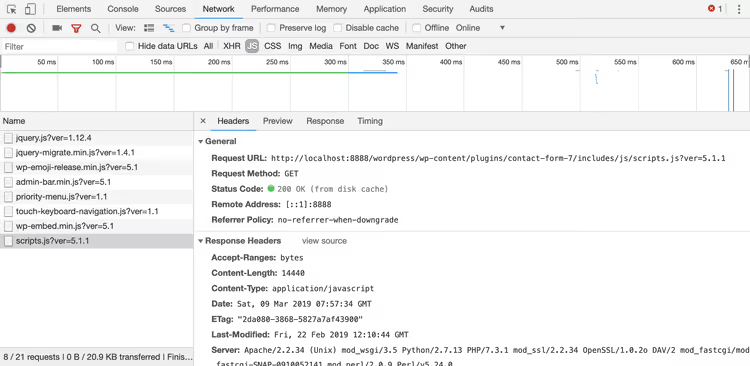
The solution: either modify the loading logic inside the plugin (which will break on update) or selectively disable the plugin for all pages except the one you need. The second approach is more reliable, so let's focus on that.
Step 1. Get the list of active plugins via PHP
Before filtering, you need to understand where WordPress stores the list of active plugins. They're all in the wp_options table, in the row with the key active_plugins. You can retrieve the array with a single get_option function.
Add this code to the Code Snippets plugin or to your own plugin file (don't forget the plugin header at the top):
1 <?php 2 /** 3 * Plugin Name: Active Plugins Lister 4 */ 5 6 add_shortcode( 'activeplugins', function() { 7 $active_plugins = get_option( 'active_plugins' ); 8 $plugins = ""; 9 if ( count( $active_plugins ) > 0 ) { 10 $plugins = "<ul>"; 11 foreach ( $active_plugins as $plugin ) { 12 $plugins .= "<li>" . $plugin . "</li>"; 13 } 14 $plugins .= "</ul>"; 15 } 16 return $plugins; 17 } );
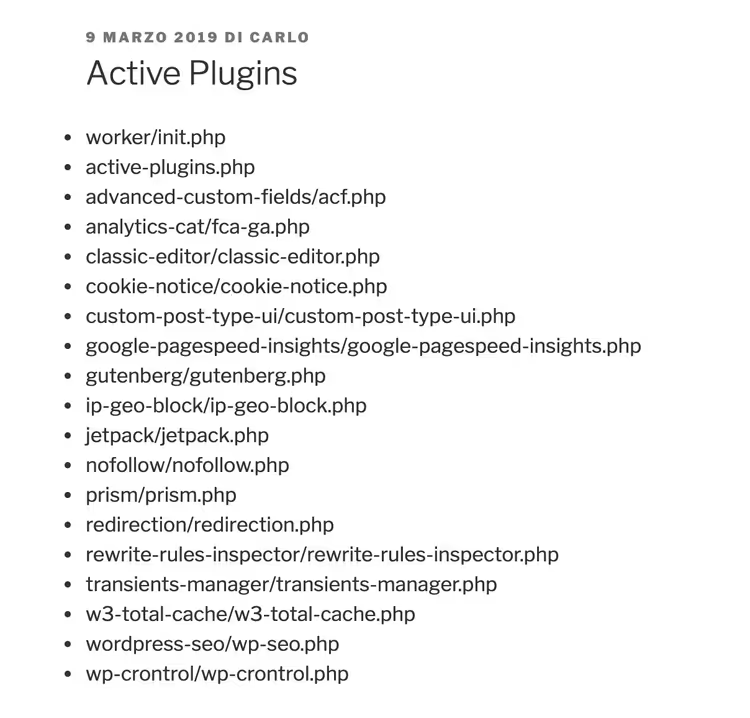
Save the file as active-plugins.php and upload it to /wp-content/plugins/. Create a test page, insert the shortcode [activeplugins], and you'll get a numbered list of all active plugins in folder/file.php format.
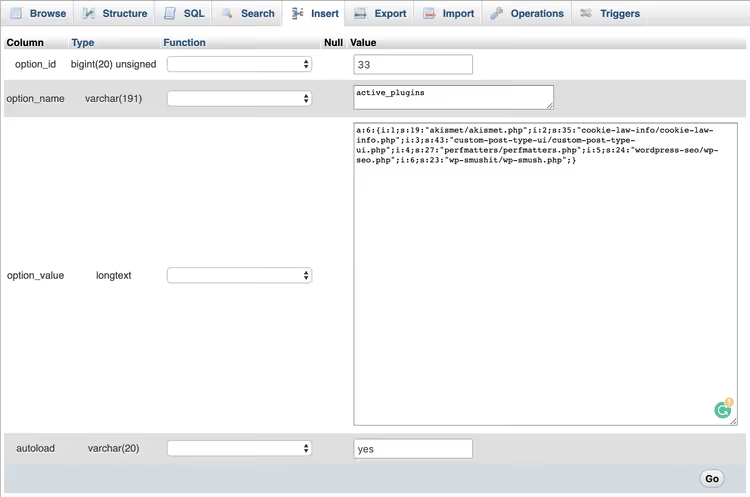
Here's what the result looks like after inserting the shortcode on a page:
Step 2. The option_active_plugins filter: your main tool
Now for the main tool: the option_active_plugins filter. It belongs to the option_$option_name filter family and fires every time WordPress retrieves an option value from the database. Since active plugins are stored as the active_plugins option, this filter lets you modify the array on the fly: remove unwanted plugins or add new ones.
Here's a minimal example that programmatically activates Advanced Custom Fields (assuming the plugin is already installed):
1 add_filter( 'option_active_plugins', function( $plugins ) { 2 $myplugin = "advanced-custom-fields/acf.php"; 3 if ( ! in_array( $myplugin, $plugins ) ) { 4 $plugins[] = $myplugin; 5 } 6 return $plugins; 7 } );
This code adds ACF to the list of active plugins on every page. Not particularly practical, but the principle is clear: you can modify the $plugins array however you want.
Important note: the filter must run before regular plugins, otherwise WordPress will read the unfiltered list first. That's what mu-plugins are for.
Step 3. Create a mu-plugin for selective disabling
Must-use plugins live in /wp-content/mu-plugins/ and execute before all regular plugins. That's exactly what we need: our filter gets control first.
There's one catch: WordPress conditional tags (is_page(), is_single(), and others) don't work in mu-plugins because the request hasn't been parsed yet, so they all return false. You have to analyze the URL manually via $_SERVER['REQUEST_URI'].
Here's a ready-to-use mu-plugin that disables Contact Form 7 on all pages except /contact/:
1 $request_uri = parse_url( $_SERVER['REQUEST_URI'], PHP_URL_PATH ); 2 $is_admin = strpos( $request_uri, '/wp-admin/' ); 3 4 if ( false === $is_admin ) { 5 add_filter( 'option_active_plugins', function( $plugins ) { 6 global $request_uri; 7 8 $is_contact_page = strpos( $request_uri, '/contact/' ); 9 $myplugin = "contact-form-7/wp-contact-form-7.php"; 10 $k = array_search( $myplugin, $plugins ); 11 12 if ( false !== $k && false === $is_contact_page ) { 13 unset( $plugins[ $k ] ); 14 } 15 16 return $plugins; 17 } ); 18 }
Let's break it down line by line:
parse_url( $_SERVER['REQUEST_URI'], PHP_URL_PATH )extracts the request path (for example,/blog/kak-otkljuchit-plaginy/)strpos( $request_uri, '/wp-admin/' )checks if we're in the admin area; if so, the filter doesn't apply, keeping plugin settings pages accessiblearray_search( $myplugin, $plugins )finds CF7 in the active plugins arrayunset( $plugins[ $k ] )removes the plugin from the list if we're NOT on the contact page
Save the file, upload it to /wp-content/mu-plugins/, and clear the cache. Now the [activeplugins] shortcode should show Contact Form 7 only on the /contact/ page.
Here's what the same principle looks like for multiple plugins at once. Instead of array_search with a single plugin, use an array and array_diff:
1 $request_uri = parse_url( $_SERVER['REQUEST_URI'], PHP_URL_PATH ); 2 $is_admin = strpos( $request_uri, '/wp-admin/' ); 3 4 if ( false === $is_admin ) { 5 add_filter( 'option_active_plugins', function( $plugins ) { 6 global $request_uri; 7 8 $is_contact_page = strpos( $request_uri, '/contact/' ); 9 $myplugins = array( 10 "contact-form-7/wp-contact-form-7.php", 11 "code-snippets/code-snippets.php", 12 "query-monitor/query-monitor.php", 13 "autoptimize/autoptimize.php" 14 ); 15 16 if ( false === $is_contact_page ) { 17 $plugins = array_diff( $plugins, $myplugins ); 18 } 19 20 return $plugins; 21 } ); 22 }
The array_diff function returns values from the first array that aren't in the second, exactly what you need for bulk disabling.
The result is immediately visible in the Network panel: Contact Form 7's script.js file disappears from the resource list on all pages except the contact page.
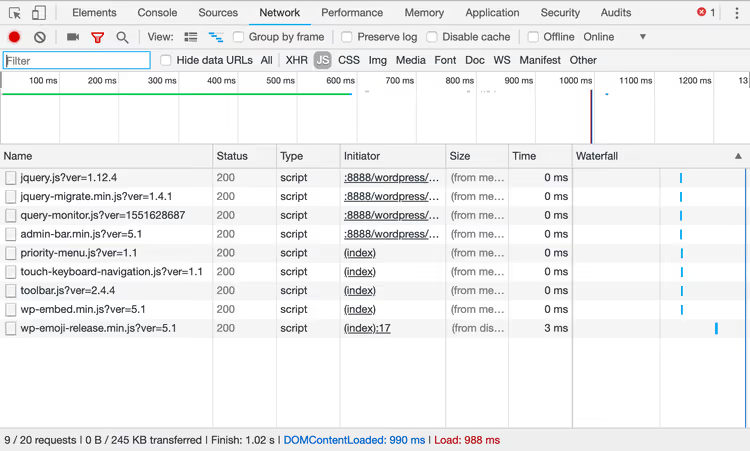
The programmatic approach is flexible but requires code changes for each new plugin. For those who prefer a visual interface, there are ready-made filter plugins.
Plugin-based approach: filtering without code
Plugin Load Filter
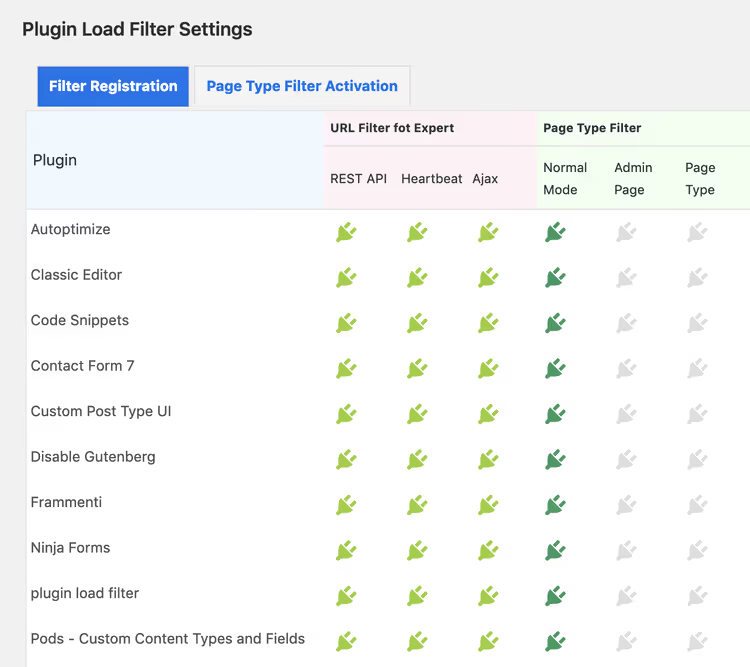
Plugin Load Filter is a free tool for filtering plugins by several conditions. It supports:
- filtering by post type (posts, pages, custom post types)
- filtering by post format
- exceptions for Jetpack modules
- URL filtering for REST API, Heartbeat, AJAX, and AMP requests

Settings for activating the filter by page type:
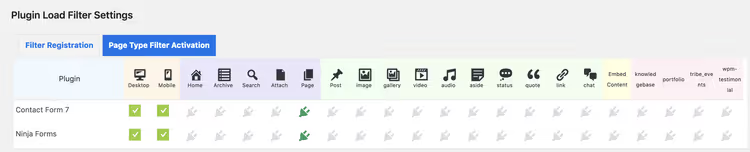
After activation, the administrator configures which pages the filter applies to via the "Filter Activation by Page Type" tab. Minimalist and straightforward.
Plugin Organizer
Plugin Organizer is a veteran among filtering plugins with a 5-star rating. It gives you full control over loading:
- selective plugin disabling by page URL
- disabling by user role
- plugin groups (enable/disable a batch at once)
- changing plugin load order
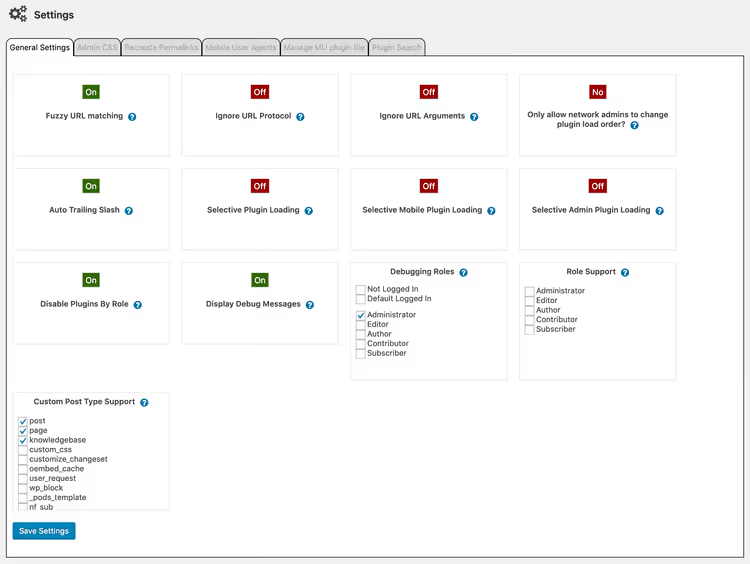
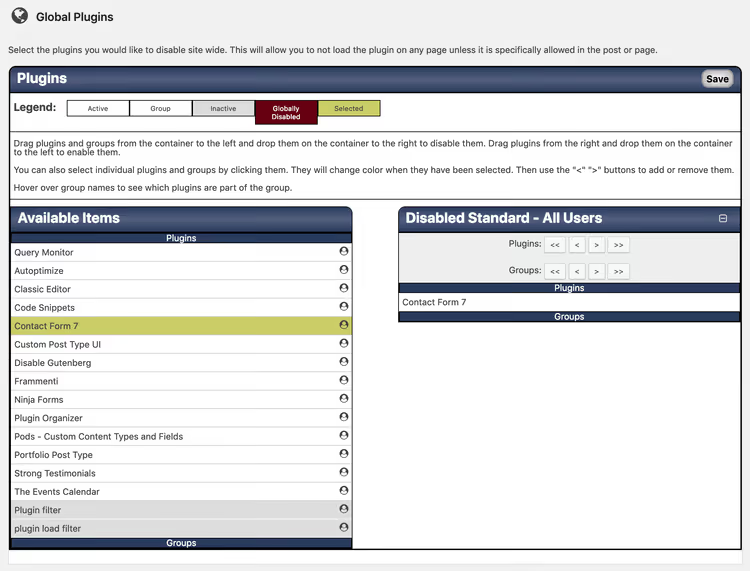
On the "Global Plugins" page, you can drag and drop to globally disable a plugin for the entire site and selectively re-enable it on specific pages via a metabox in the post editor. In the screenshot below, Contact Form 7 is globally disabled:
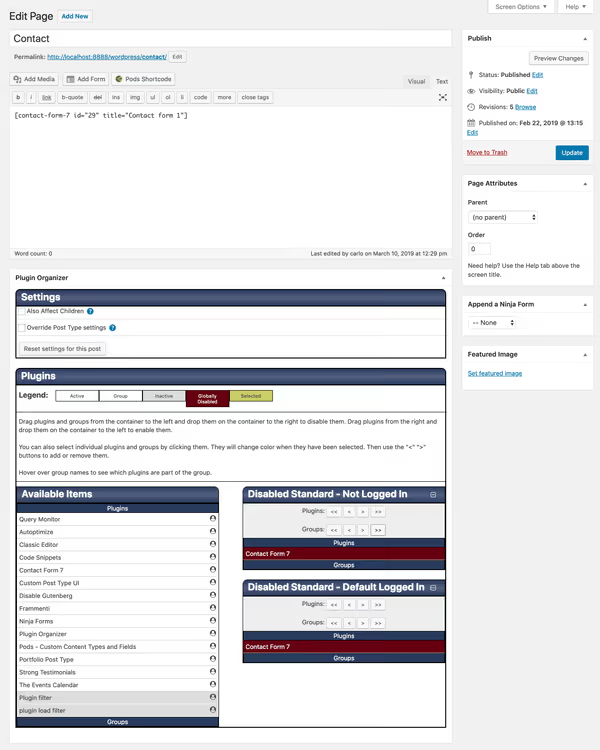
And here's that same metabox on the contact page edit screen, which overrides global settings:
Plugin Organizer also shows debugging information: which plugins actually loaded on each page and why. Documentation is available on the developer's website.
Perfmatters
Perfmatters is a premium tool from the Kinsta development team. Its main feature, Script Manager, groups all scripts and styles by plugin or theme name.
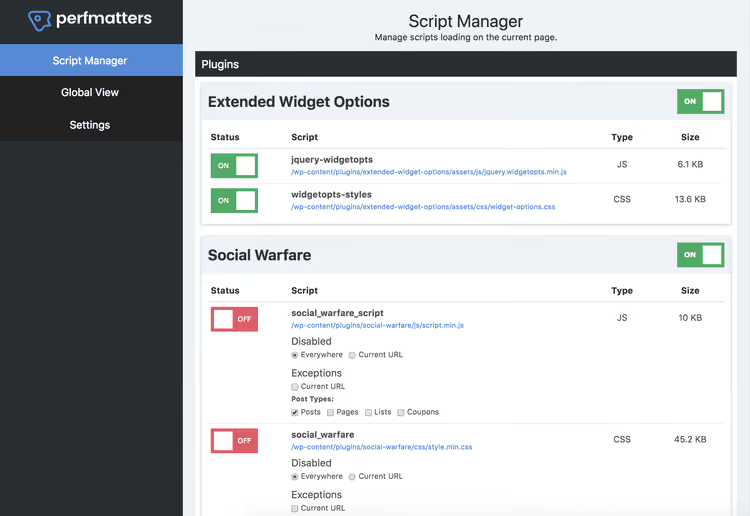
You can disable a plugin entirely or selectively remove individual CSS/JS files within it. For sites with complex URL structures, there's script disabling via regular expressions.
Three scenarios where Perfmatters delivers instant gains:
- Social media plugins (share buttons): disabled everywhere except blog posts
- Contact Form 7: disabled everywhere except the form page
- Gutenberg block editor styles (
block-library/style.min.cssandtheme.min.css): removed for sites using the classic editor
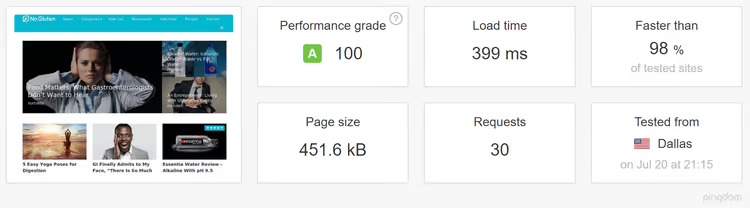
In an independent test on woorkup.com, disabling unnecessary scripts via Perfmatters reduced total load time by 20.2%, HTTP requests on the homepage from 46 to 30, and page size from 506.3 KB to 451.6 KB.
Perfmatters is a paid plugin, and it's justified for sites where speed directly impacts conversion. For a small blog, Plugin Organizer or a programmatic mu-plugin will suffice.
Measuring results with the browser network monitor
Optimization without measurement is guesswork. Browser DevTools give you an accurate before-and-after picture without third-party services. Any modern browser will work:
On a test WordPress installation with 18 active plugins, we measured page speed before filtering (empty cache, Firefox Network Monitor):
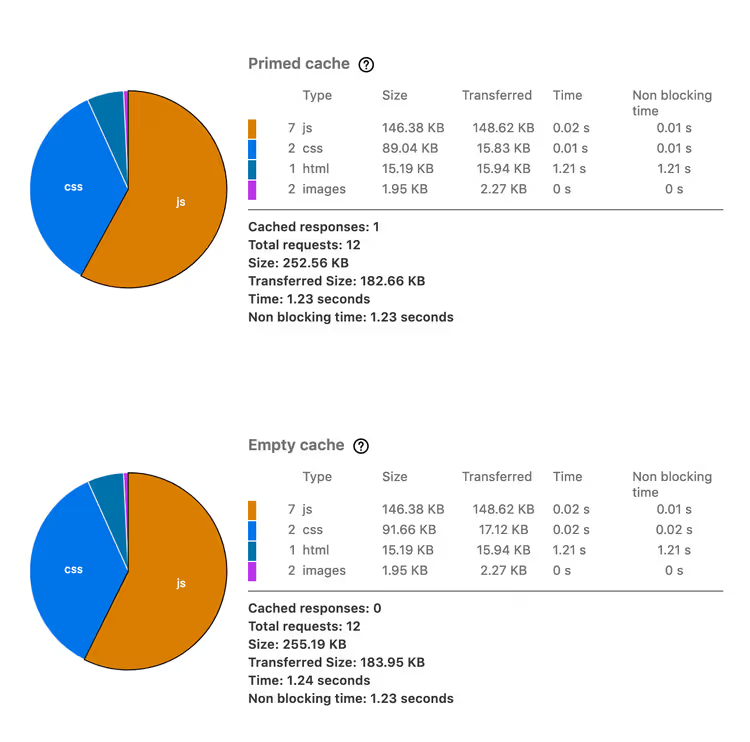
Result: 255.19 KB, load time 1.24 seconds, 12 requests.
After installing Plugin Organizer and globally disabling Contact Form 7, the pie chart changed:
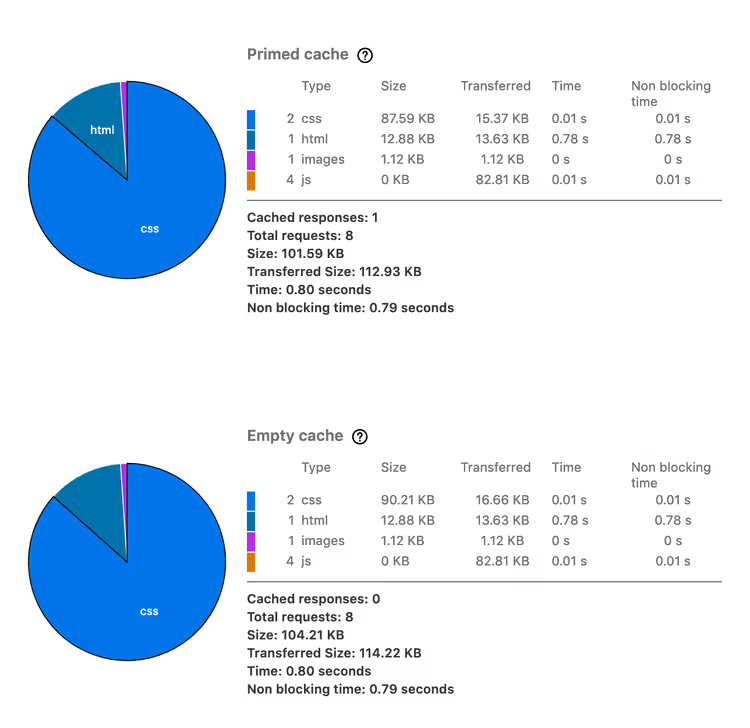
Metrics: 104.21 KB, load time 0.80 seconds, 8 requests.
Finally, we disabled all unused plugins:
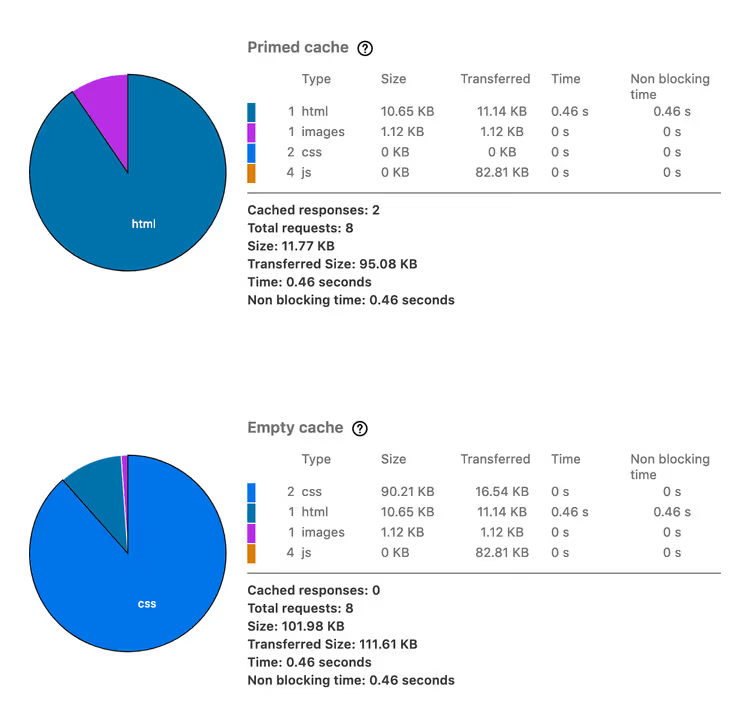
Final result: 101.98 KB, load time 0.46 seconds, 8 requests.
Comparing the extremes: resource size dropped by more than half (from 255 to 102 KB), load time dropped from 1.24 to 0.46 seconds, and HTTP requests dropped from 12 to 8. The numbers speak for themselves: selective plugin disabling delivers noticeable speed gains even on a small site, and TTFB and LCP degradation directly affects search rankings.
⁉️🤔 Frequently asked questions
Is a mu-plugin mandatory, or can I leave the code in a regular plugin?
You can use a regular plugin, but load order might ruin everything. If your
option_active_pluginsfilter loads after WordPress has already read the active plugins list, it won't work. A mu-plugin is the only way to ensure your filter gets control before all other plugins. In a regular plugin, you depend on alphabetical order or hooks that might change after any other plugin updates.
What if I can't create the mu-plugins folder on my hosting?
You can create the
/wp-content/mu-plugins/folder via FTP, your hosting's file manager, or WP-CLI with the commandwp scaffold mu-plugin. If you have no file system access at all, use Plugin Organizer: it does the same thing through its own filtering mechanism and doesn't require editing server files. Most hosting providers give access to wp-content through a file manager in the control panel. Folder permissions: 0755.
Will disabling a plugin via the filter affect its settings?
No, plugin settings are stored in the database (
wp_optionstable) and remain untouched. You're simply preventing WordPress from loading the plugin's code when processing a specific request. All settings stay in place, and on the next request where the plugin isn't filtered, it loads with full functionality. Disabling viaoption_active_pluginsis specifically blocking code loading on the fly, not deactivation. In the admin area, the plugin remains active, its settings aren't touched, and scheduled tasks (WP-Cron) continue working.
How do I verify that the filter is actually working?
The most visual method is the Network panel in Chrome DevTools (F12 → Network). Open it on a page where the plugin should be disabled, refresh with Ctrl held down (empty cache), and search for the plugin name or its CSS/JS file. If there are no requests, the filter is working. Plugins like Query Monitor also show the list of loaded components and their execution time. For Contact Form 7, type
contact-form-7in the Network search; if the filter worked, you won't seestyle.cssorscripts.jsfrom CF7 in the loaded resources list.
Is there any point in disabling plugins on a very small site with only 5-7 plugins?
If all 5 plugins are genuinely needed on every page, no. But even on a small site, there are often a couple of plugins that only work on one page: a contact form, a portfolio gallery, a homepage slider. Disabling that pair on other pages noticeably reduces HTTP requests and speeds up loading. As we saw above on the test installation, even one filtered plugin shaves off dozens of milliseconds. For a site with 1,000+ daily visitors, those milliseconds add up to a noticeable difference for both the user and Core Web Vitals.
Code, plugin, or Perfmatters: what to choose for your task
If your site has 5 plugins and all of them are genuinely needed on every page, this guide isn't for you. But a typical WordPress site pulls in 15-25 active plugins, of which only 5-7 actually work on any given page. The rest just consume server time and slow down loading.
A programmatic mu-plugin is a free, lightweight, and fully controllable approach, but it requires attention with each new plugin. Plugin Organizer is the sweet spot: visual interface, flexibility, and free. Perfmatters is the choice for commercial projects where every tenth of a second in load time converts to money.
If you've accumulated more plugins than you need, start with an audit and cleanup of unused ones, then take control of loading for those that remain. Choose your approach based on comfort level and site load, and you'll see the difference in your very first Network measurement. Don't wait for plugins to eat your TTFB.

A professional team of writers and editors specializing in creating quality content.