













 AIIllustrative image: AI-generated
🧹 How to completely remove a WordPress plugin: step by step database and file cleanup
Your site slows to a crawl, backups balloon to a gigabyte, and phpMyAdmin shows dozens of tables with prefixes from plugins you "deleted" a year ago. Sound familiar?
The standard "Delete" button in the plugins section only removes the folder from wp-content/plugins. Everything else (tables, options, cron jobs, shortcodes in posts) stays in the database and on disk. Developers handle cleanup differently: some diligently tidy up after themselves via uninstall.php, while others leave everything untouched.
Below is a complete algorithm for removing a plugin without a trace: from the dashboard to manual SQL. With backups at every stage and precise instructions for popular plugins.
💡 Quick overview:
- Deleting through the dashboard is only the first step; tables, shortcodes, and cron jobs require separate cleanup
- Before any database operations, make a full backup (using built-in hosting tools or a plugin)
- WooCommerce, Yoast SEO, Wordfence, and other popular plugins have their own constants and SQL queries
- A deactivated plugin is not "switched off" but "sleeping"; its files remain accessible for direct access and represent an attack vector
Why the "Delete" button isn't enough
WordPress calls a plugin's uninstall.php or callback from the main file when deleting it. But this only works if the developer created such a file. In practice, roughly half of plugins from the WordPress.org catalog either lack uninstall.php or implement it partially: they delete the folder but leave the database untouched.
What remains after standard deletion:
Type of remnant | Where to look | Risk |
|---|---|---|
Database tables |
| Database growth, slower queries |
Rows in |
| Cluttered |
Rows in |
| Dead data when fetching posts |
Shortcodes in content | Post/page text | Broken |
Cron jobs |
| Unnecessary HTTP requests to wp-cron |
Files outside plugin folder |
| Disk clutter |
Rules in | Site root | Conflicts with new plugins |
Rows with the autoload flag are especially critical: WordPress loads them on every request. Fifty extra autoload rows add 30-80 ms to server response time. Seems negligible at first glance, but with 100,000 monthly views, that's a noticeable performance hit.
Deactivation vs deletion: what's the difference
The difference is fundamental, and understanding it before cleanup begins is helpful.
Criterion | Deactivation | Full deletion |
|---|---|---|
Plugin files | Remain in | Deleted |
Code | Not executed, available for reading | Absent |
Database tables | Preserved | Depends on developer |
Settings | Preserved | Depends on |
Updates | Arrive (for free plugins from.org) | Don't arrive |
Vulnerabilities | Code on server is an attack vector | No threat |
Reversibility | One click and plugin is active again | Only from backup |
A deactivated plugin is not "switched off" but "sleeping." PHP files physically reside on the server. If a vulnerability is found in the code, an attacker can access the file directly through the path in wp-content/plugins/, bypassing WordPress logic. WAF firewalls don't solve this problem: the best protection is removing unused code from the server entirely.
The rule is simple: if you haven't used a plugin for more than a week, delete it. Reconfiguring is faster than dealing with a breach through a hole in abandoned code.
Step-by-step cleanup: 4 stages
Step 1: Deletion through the dashboard
The first stage is standard. Go to Plugins → Installed, find the one you need. Active plugins are highlighted with a blue bar, deactivated ones are not.
Click "Delete" under the name, confirm with the "Yes, delete these files" button. WordPress will call the plugin's uninstall.php (if it exists) and delete the folder from wp-content/plugins.

For simple plugins (a lightweight widget, login page logo replacement), cleanup ends here. They don't create tables or write to wp_postmeta. But caching, SEO, security, gallery, and page builder plugins require further action.
Step 2: File cleanup via FTP
Some plugins create folders outside wp-content/plugins/. Typical locations:
wp-content/uploads/plugin-name/: cache, compressed images, exported fileswp-content/ngg/: NextGEN Gallerywp-content/ewww/: EWWW Image Optimizerwp-content/backup/: backup plugins
Connect to the server via FTP (FileZilla, WinSCP) or the hosting file manager. Navigate to wp-content/, find the folder with the plugin name, and delete it. Before deletion, download the folder locally; if it contained user uploads, restore them.
Caching plugins (WP Rocket, W3 Total Cache, LiteSpeed Cache) additionally write to wp-content/cache/ and create wp-content/advanced-cache.php. Delete the advanced-cache.php file manually via FTP, and in wp-config.php find and remove this line:
1 define('WP_CACHE', true);
Step 3: Removing shortcodes from content
Plugins that add shortcodes (forms, galleries, sliders, tables) leave bare [shortcode] in post text after deletion. It looks messy and confuses readers.
A quick way to silence unused shortcodes is one line in your active theme's functions.php:
1 add_shortcode('pluginshortcode', '__return_false');
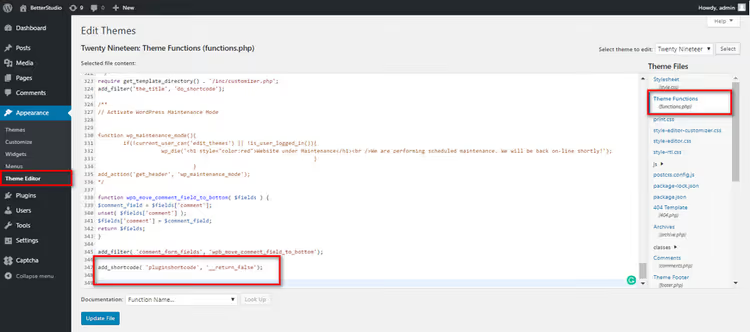
Replace pluginshortcode with your shortcode tag. For example: nggallery, gravityform, or contact-form-7. The __return_false function returns false, and the shortcode disappears from the frontend without being removed from post text.
Add the code through a child theme or the Code Snippets plugin; edits to the parent theme's functions.php will be lost on the next update. If you decide to restore the plugin later, simply remove this line.
Step 4: Database cleanup
The most critical stage. Make a full database backup before any deletion SQL query; exporting through phpMyAdmin takes half a minute and saves you from irreversible mistakes.
4a. Find the plugin's tables. Go to phpMyAdmin (via cPanel or your hosting admin panel), select the site's database. Look for tables with the plugin prefix: wp_wc_* (WooCommerce), wp_yoast_* (Yoast SEO), wp_wf* (Wordfence). Select them, choose "Drop" at the bottom → confirm.
4b. Automation via Advanced Database Cleaner. If you prefer not to work in phpMyAdmin directly, install Advanced Database Cleaner. This free plugin scans the database, finds orphaned tables and records, and deletes them in one click.
4c. Clean wp_options. Even if the plugin didn't create separate tables, it almost certainly wrote to wp_options. Execute in phpMyAdmin (SQL tab):
1 SELECT * FROM wp_options WHERE option_name LIKE '%pluginname%';
Replace pluginname with part of the plugin name. Verify the rows actually belong to the deleted plugin, then:
1 DELETE FROM wp_options WHERE option_name LIKE '%pluginname%';
4d. Clean cron jobs. Some plugins register their own cron events. Install WP Crontrol; it shows all registered cron jobs in one list. Find events with the plugin name and delete them manually.
Specifics of removing popular plugins
Each major plugin leaves a unique footprint. Below are precise instructions for the most common ones.
WooCommerce
WooCommerce creates 16+ tables in the database. To have them cleaned up automatically on deletion, add to wp-config.php (before the line /* That's all, stop editing! */):
1 define('WC_REMOVE_ALL_DATA', true);
This constant forces WooCommerce to call its full uninstall.php on deletion; all wp_woocommerce_* and wp_wc_* tables will be deleted, including products, orders, and coupons. The operation is irreversible, so backup is mandatory.
After deleting the plugin, additionally check wp_options since WooCommerce writes dozens of rows there with the woocommerce_ prefix:
1 SELECT * FROM wp_options WHERE option_name LIKE '%wc_%';
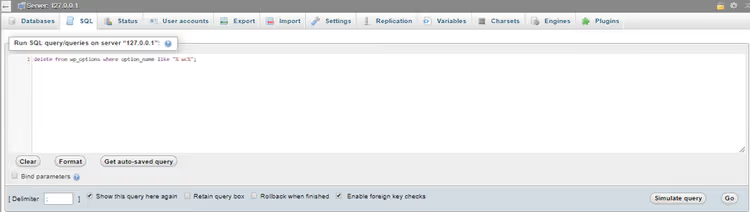
If rows are found and the plugin is already deleted, execute the DELETE query with the same condition.
Yoast SEO
Yoast SEO leaves records in wp_postmeta and wp_usermeta, as well as its own tables wp_yoast_indexable and wp_yoast_seo_links.
First, clean wp_postmeta:
1 SELECT * FROM wp_postmeta WHERE meta_key LIKE '%yoast%';
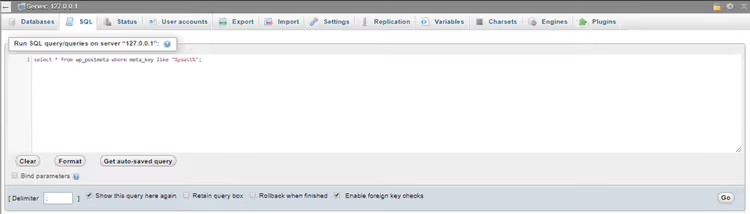
After confirming this is Yoast data, execute:
1 DELETE FROM wp_postmeta WHERE meta_key LIKE '%yoast%';
Then, wp_usermeta:
1 SELECT * FROM wp_usermeta WHERE meta_key LIKE '%yoast%';
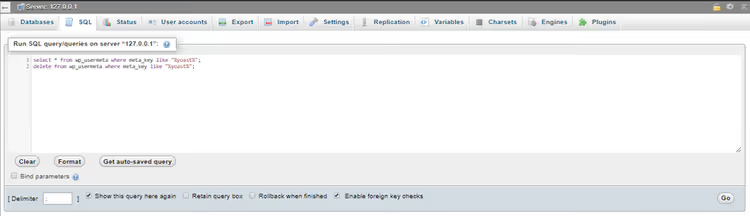
Delete what you find with an analogous DELETE query. Yoast also registers the cron event wpseo_onpage_fetch; remove it through WP Crontrol. Drop the wp_yoast_indexable and wp_yoast_seo_links tables manually through phpMyAdmin.
Akismet
Akismet is the standard comment spam protection plugin, pre-installed with WordPress. After deletion, its data remains in wp_commentmeta:
1 SELECT * FROM wp_commentmeta WHERE meta_key LIKE '%akismet_%';
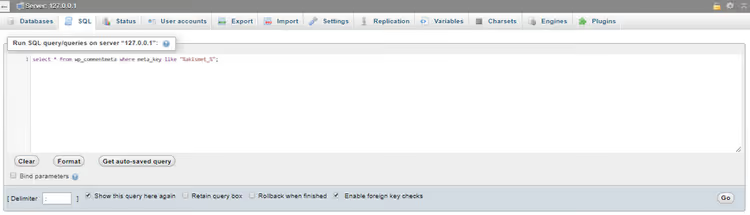
Then:
1 DELETE FROM wp_commentmeta WHERE meta_key LIKE '%akismet_%';
If the site has thousands of comments, wp_commentmeta can weigh dozens of megabytes. After cleanup, optimize the table:
1 OPTIMIZE TABLE wp_commentmeta;
More ways to fight spam are in our article how to stop WordPress comment spam: all 18 solutions.
Gravity Forms
Gravity Forms creates 9 tables in the database (wp_gf_*, wp_rg_*). Before deletion, go to Forms → Settings → Uninstall and confirm. Then delete the plugin from the dashboard.
After deletion, check wp_options:
1 SELECT * FROM wp_options WHERE option_name LIKE '%gravity%' OR option_name LIKE '%gf_%';
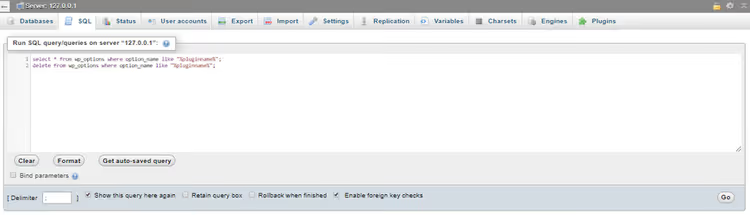
Delete the rows found with an analogous DELETE query.
Wordfence
Wordfence is one of the "heaviest" security plugins: it creates 23 tables with the wp_wf* prefix. Standard deletion through the dashboard doesn't clean them.
The official helper plugin Wordfence Assistant was discontinued by the developer in December 2025. So we clean manually: delete the main Wordfence plugin through the dashboard, then go to phpMyAdmin and execute:
1 SELECT * FROM wp_options WHERE option_name LIKE '%wordfence%' OR option_name LIKE '%wf%';
Delete the rows found with a DELETE query using the same condition. Then find and drop all tables with the wp_wf prefix (there are usually 23 of them, from wp_wfblockediplog to wp_wflivetraffichuman). Via FTP, delete the wp-content/wflogs/ folder and the wordfence-waf.php file in the site root if they remain.
NextGEN Gallery
The plugin creates 3 tables (wp_ngg_*) and a folder wp-content/ngg/ with uploaded galleries.
First, delete the plugin through the dashboard. Then via FTP, delete the wp-content/ngg/ folder, saving gallery images first if you need them. In phpMyAdmin, execute:
1 SELECT * FROM wp_options WHERE option_name LIKE '%ngg%';
Delete the rows found with a DELETE query using the same condition. Drop the wp_ngg_pictures, wp_ngg_galleries, and wp_ngg_album tables manually.
EWWW Image Optimizer
EWWW stores data about each optimized image in the wp_ewwwio_images table: file path, original size, size after compression. It also creates a wp-content/ewww/ folder with cache.
Delete the folder via FTP. Then in phpMyAdmin:
1 SELECT * FROM wp_options WHERE option_name LIKE '%ewww%';
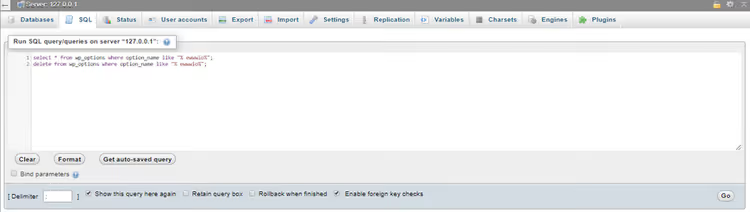
Delete what you find and drop the wp_ewwwio_images table.
WP All Export
The plugin creates 4 tables in the database. After deletion through the dashboard, go to phpMyAdmin, find tables with the wp_pmxe_* prefix, select them, and execute "Drop." Additionally check wp_options for the key pmxe; the plugin stores last export settings there.
More details about the complete plugin removal cycle are in the video tutorial below.
⁉️🤔 Frequently asked questions
Is it safe to delete plugin tables directly through phpMyAdmin?
It's safe under two conditions: you made a full database backup and accurately identified the tables as belonging to an already deleted plugin. Third-party plugin tables always have a recognizable prefix:
wp_wc_,wp_yoast_, orwp_wf. Don't touch WordPress system tables (wp_posts, wp_options, wp_users, wp_comments, wp_postmeta, and wp_usermeta) withDROP; you can only clean them with selectiveDELETE.
What should I do if the site shows a white screen after plugin deletion?
Restore the plugin from backup: upload the folder via FTP, import its tables. The cause is most likely in the theme's
functions.php, where a call to a plugin function might remain without a fallback. Find such calls and wrap them infunction_exists()or remove them, then repeat the plugin deletion.
How do I find all traces of a plugin in the database?
Install the Advanced Database Cleaner plugin. It scans all tables for orphaned data and shows a complete list: tables, rows in
wp_optionsandwp_postmeta, cron jobs. This is faster and safer than manual searching through phpMyAdmin.
Should I delete plugins that came bundled with the theme?
Yes, if you're not using them. Plugins bundled with themes (WPBakery Page Builder, Slider Revolution, ACF Pro) often come with limited licenses, and security updates don't arrive for them. A deactivated, outdated WPBakery with a known vulnerability is a direct path to a breach. If you're not using it, delete it.
Can I restore a plugin after complete deletion?
Only from backup. After cleaning tables and
wp_options, all plugin settings are lost permanently. That's precisely why the algorithm above is built from simple to radical: first standard deletion (reversible), then file cleanup, and only at the end the database. Go through the stages sequentially; don't jump straight to phpMyAdmin.
Does plugin data remain in WordPress Multisite?
In Multisite, each subsite has its own tables:
wp_2_options,wp_2_postmeta, and so on. After deleting a plugin through the super admin, check each subsite's tables (wp_*_optionsandwp_*_postmetafor all blog IDs). The plugin might have been activated on individual sites in the network and left records in their tables.
Conclusion: when complete cleanup is justified
If you have a small site and delete a plugin once every six months, standard deletion through the dashboard plus a one-time wp_options cleanup is sufficient.
But if your site is several years old, dozens of plugins have passed through it, and backups have grown to a gigabyte, surgical cleanup following the instructions above will noticeably reduce the database and speed up the admin panel. In practice, we've cleaned thousands of orphaned records in wp_postmeta and dozens of unnecessary tables, and admin panel response time was reduced nearly by half.
Make it a habit: after deleting a plugin, run through the checklist (FTP → wp_options → cron → tables). Ten minutes today saves hours tomorrow, when a bloated database crashes your site at peak traffic.
What plugin left the most garbage after deletion on your site? Let us know in the comments.

A professional team of writers and editors specializing in creating quality content.