













 AIIllustrative image: AI-generated
🔗 How to reset WordPress permalinks: 3 ways to fix a 404 error
You know the feeling: you open a website and see a white screen with the dreaded 404. The homepage loads fine, the admin panel works, but the post or page itself does not. You check the URL, resave the entry, clear the plugin cache, nothing helps.
Nine times out of ten the root cause is broken WordPress rewrite rules. Permalinks stopped resolving, and the CMS cannot figure out what content to display at that address. Good news: this can be fixed in a minute, without plugins or code changes.
Below are three methods to reset permalinks: from the simplest (a couple of clicks in the admin panel) to manual intervention in the database via phpMyAdmin. After the reset the 404 error disappears, and the URL structure remains intact.
💡 Quick overview:
- Go to the WordPress admin panel and click "Save Changes" on the Permalinks page.
- Add a line of code to your theme's functions.php, refresh the site, and remove the line.
- Clear the rewrite_rules field in the wp_options table via phpMyAdmin.
- Verify the result: open the problematic page and confirm the 404 is gone.
What permalinks are and why you need to reset them
Permalinks are human-readable URLs for WordPress pages and posts. Instead of ?p=123 you see /blog/how-to-reset-permalinks/. The transformation is handled by the rewrite rules mechanism, a set of rules that the CMS stores in the database and (with certain settings) in the .htaccess file.
When adding a new post type, changing the link structure, or after migrating a site the rewrite rules may not update automatically. WordPress keeps using the old cached rules, and a page that physically exists returns 404. A flush forcibly rebuilds the rewrite rules from scratch: it deletes stored rules and generates current ones.
This is not "deleting" permalinks; the URL structure defined in settings remains unchanged. Only the internal routing rules cache changes. The operation is completely safe: themes, plugins, and content are not affected.
Method 1. Via the WordPress dashboard
The fastest and safest method is resetting through the admin panel. Use it when the dashboard is accessible.
- Log in to the WordPress console:
your-site.com/wp-admin. - Navigate to Settings → Permalinks.
- Do not change anything in the settings, just scroll down the page.
- Click the blue "Save Changes" button.

WordPress will silently rebuild the rewrite rules and update .htaccess (if it is used). No success notification will appear; simply open the problematic page in a new browser tab and check whether the error is gone.
Why does this work? When you click "Save Changes" the CMS calls the internal flush_rewrite_rules() function, the same one developers use in code. The only difference is how it is triggered: here you click with a mouse instead of writing PHP.
This method solves the problem in the vast majority of cases. If it did not help, proceed to method 2.
Method 2. Via the theme's functions.php
If the admin panel does not load or the "Save" button produced no result, reset the rules programmatically. You will need access to the site files: via FTP, the hosting file manager, or the built-in theme editor.
Important: flush_rewrite_rules() is an expensive operation. It rebuilds the entire URL structure and noticeably slows the site if called on every hit. Therefore we will add the function once, refresh the site, and immediately remove the line.
- Open the
functions.phpfile of the active theme. Path:/wp-content/themes/your-theme/functions.php. - At the very end of the file, before the closing
?>(if present), add one line:
1 flush_rewrite_rules();
- Save the file.
- Refresh any page on the site in the browser; the function will execute on the first hit.
- Open
functions.phpagain and delete the line you added. This step is mandatory.

The function ran once, the rules were rebuilt, the code was removed, and the site operates normally without extra load. Plugin developers use the same approach: flush_rewrite_rules() is hooked to the activation hook, not to every request.
An alternative for those who prefer not to touch functions.php directly: the Code Snippets plugin. Create a new snippet with the same code, execute it once (the "Execute" button), and delete it. The result is identical.
Method 3. Via phpMyAdmin, direct rules reset in the database
The deepest level is manually clearing the rewrite rules directly in the wp_options table. Use this when you have access neither to the admin panel nor to the theme files (for example, a white screen of death across the entire site except for the database).
Be sure to back up the database before making any changes in phpMyAdmin. A single wrong action in the SQL editor can damage the site irreversibly.
- Open phpMyAdmin through your hosting panel (cPanel, ISPmanager, DirectAdmin) in the "Databases" section.
- In the left column select your WordPress site's database.
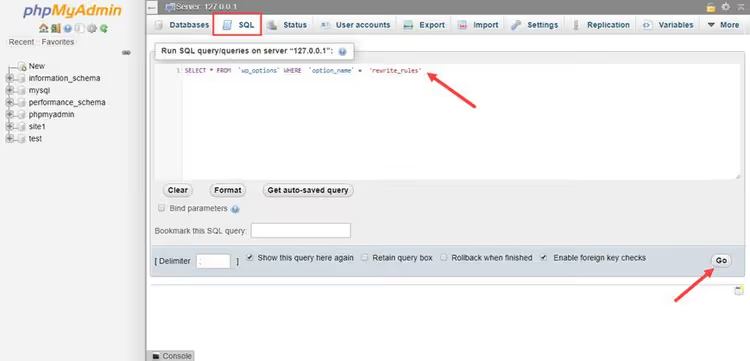
- Go to the SQL tab in the top menu.
- Paste the query into the text field and click "Go":
1 SELECT * FROM wp_options WHERE option_name = 'rewrite_rules'
- The results will show a single row. Click "Edit" (the pencil icon) next to it.
- Find the
option_valuefield containing a long text with serialized data. Select all the field's content and delete it, then save.
On the next page load WordPress will detect the empty rewrite_rules value, realize there are no rules, and regenerate them automatically. You do not need to run anything else.
Note: in some hosting configurations the table prefix may differ from wp_. If your prefix is different (for example, wpxy_), replace wp_options with wpxy_options. You can verify the prefix in the wp-config.php file, the $table_prefix line.
Video: resetting permalinks in practice
If you prefer watching over reading, this video demonstrates the entire process of resetting permalinks using the first method, from logging into the admin panel to verifying the result:
⁉️🤔 Frequently asked questions
Will my URLs disappear after resetting permalinks?
No. A flush does not change the link structure defined in "Settings → Permalinks." It only rebuilds the internal routing rules cache. All your addresses like
/blog/,/product/, and/category/will remain exactly the same. The exception is if you manually changed the structure in settings before saving; in that case URLs will be rebuilt according to the new template.
Do I need to install a plugin to reset permalinks?
For a one-time operation, definitely not. The three methods above cover all scenarios without additional software. Plugins like Rewrite Rules Inspector make sense only if you regularly register custom post types and taxonomies in code and want to see the state of the rules in real time. For a simple 404 fix this is overkill.
Resetting via the admin panel did not help. What next?
Check whether the
.htaccessfile is being overridden by another plugin (caching, security, SEO). Temporarily deactivate suspicious plugins and repeat the reset. If that does not help, proceed to method 2 (PHP); it is guaranteed to call the sameflush_rewrite_rules()function bypassing any admin filters.
Can I reset rules via WP-CLI?
Yes, if WP-CLI is installed on the server the
wp rewrite flushcommand does exactly the same thing from the command line. This is the fastest method for developers working via SSH. It executes instantly, does not require opening a browser, and leaves no traces in the theme code.
What should I do if the 404 error persists after the reset?
The cause is not the permalinks. Check three things: (1) whether the page or post itself was physically deleted, (2) whether the slug conflicts with other content or a taxonomy, (3) whether requests are blocked by an
.htaccessfile with incorrect redirect rules. In the latter case temporarily rename.htaccessto.htaccess.bak, save permalinks via the admin panel (WordPress will create a new.htaccess), and check again.
You reset the links, what is next?
You performed the reset using one of the three methods, and the page opened. Great. But if a 404 appeared once, it can return: after a plugin update, a theme change, or edits to custom post types. Bookmark this guide; you now know the first method (the "Save" button in the admin panel) by heart and can complete it in ten seconds.
And the main rule when working with the database: before any intervention, make a backup. phpMyAdmin does not forgive mistakes, but a database backup brings the site back to life in a couple of minutes.

A professional team of writers and editors specializing in creating quality content.