














How to delete old WordPress revisions: 4 steps
Has your WordPress database ballooned, your admin panel slowed to a crawl, and your backup grown as large as a mid-sized site archive? Revisions are likely the culprit: draft copies from every save that the engine accumulates over the years.
A single page collects dozens of edits over its lifetime. Multiply that by hundreds of posts and you end up with gigabytes of junk in wp_posts. Worse still, revisions are stored in the same table as published content, so every extra record slows down queries.
Below are four ways to clean old versions from your database: from a safe plugin to raw SQL. Plus a bonus trick that will keep revision clutter from coming back.
💡 Quick overview:
- WP-Sweep, the safest route: the plugin removes revisions using native WordPress functions without direct database queries.
- wp-config.php, three lines of code completely disable or limit draft saving at the engine level.
- SQL query, instant cleanup in a single query; requires a full database backup before running.
- Autosave interval, does not delete what has already accumulated but drastically slows future revision growth.
Step 1: Remove revisions with the WP-Sweep plugin
The simplest and safest method for those who prefer not to touch code. WP-Sweep calls native WordPress functions (wp_delete_post_revision) and writes no raw queries, so the risk of damaging the database is minimal.
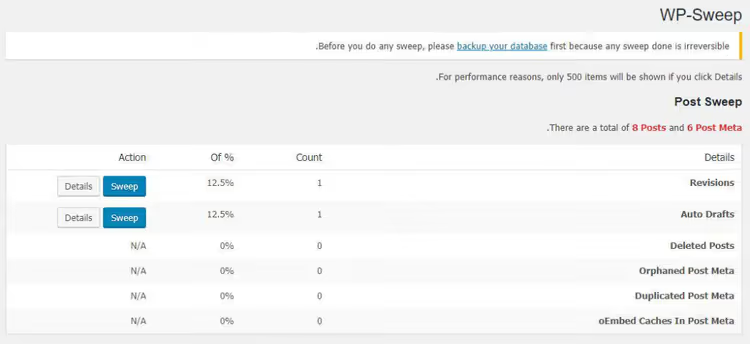
Standard installation:
- Go to Plugins → Add New.
- Search for WP-Sweep, click Install and then Activate.
- Open Tools → Sweep.
- Find the Revisions row and click the Sweep button.
The plugin will show how many revisions were deleted and how much space was freed. Besides revisions, WP-Sweep can clean spam comments, autosave drafts, unused taxonomy terms, and orphaned meta fields, all through the native WordPress API.
Step 2: Disable revisions via wp-config.php
If you do not need revisions at all, disable them with a single line. Locate the wp-config.php file in your site root and add the code before the line /* That's all, stop editing! */:
1 define( 'WP_POST_REVISIONS', false );
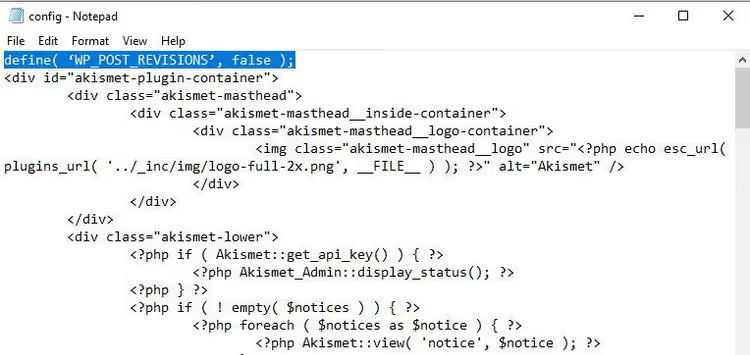
After this, WordPress will stop saving drafts on every autosave and every click of "Update." Only the latest version of each post will remain in the database.
Note that this line does not delete revisions that have already accumulated; it only prevents new ones from appearing. Clean up existing clutter with Step 1 or the bonus SQL query below.
To re-enable revisions, replace false with true or simply remove the line.
Step 3: Limit the number of revisions
Full disabling is not for everyone. If a three-person editorial team edits the same post and needs a change history, it is better not to turn off revisions but to limit their number.
Add the following to wp-config.php before the line /* That's all, stop editing! */:
1 define( 'WP_POST_REVISIONS', 3 );
The number 3 means WordPress keeps a maximum of three recent versions of each post. A fourth revision will overwrite the oldest one, so the database will not keep growing.
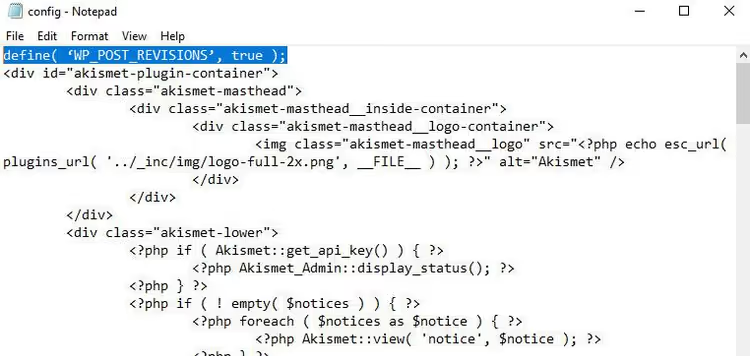
For most sites, three revisions are more than enough. If you publish long-form articles with dozens of iterations, set 5 or 10. There is no limit; you can specify any integer.
Step 4: Change the autosave interval
By default, WordPress saves a draft every 60 seconds. During active editing, this creates dozens of revisions per hour. You can stretch the interval so that autosaves happen less often and the database grows more slowly.
Add the following to wp-config.php:
1 define( 'AUTOSAVE_INTERVAL', 600 );
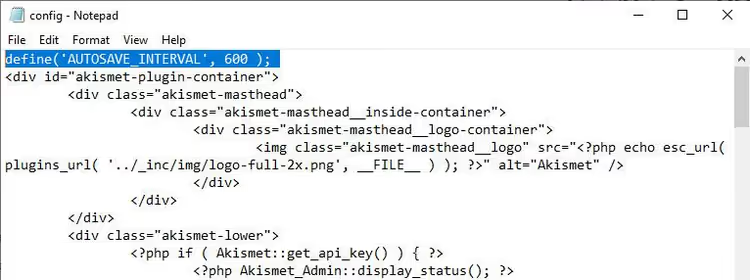
The value 600 is in seconds (10 minutes). With this setting, a draft is written to the database once every 10 minutes instead of every minute. The minimum WordPress accepts is 60 seconds; the recommended maximum is 3600 (one hour).
This trick does not clean existing revisions but drastically reduces the accumulation of new ones. Combine it with the limit from Step 3 to get a clean database without regular manual cleanup.
Bonus: Deleting revisions directly with an SQL query
The fastest route if plugin cleanup is not an option for some reason. Warning: this query is irreversible. Before running it, make a full database backup via phpMyAdmin, WP-CLI, or a backup plugin.
First, a safe dry run to see how many revisions will be affected without deleting them:
1 SELECT COUNT(*) FROM wp_posts WHERE post_type = 'revision';
If your table prefix is not wp_, replace it with your own (check wp-config.php, the $table_prefix line).
Once you have confirmed the number is reasonable, run the deletion:
1 DELETE FROM wp_posts WHERE post_type = 'revision';
The query removes all revisions from all posts in one sweep. After that, the database will be lighter immediately, especially on older sites with hundreds of pages.
What the query does not touch: published posts, drafts (post_status='draft'), pages, attachments, menus, and the trash. It targets strictly records with post_type='revision', which the engine uses only for storing versions.
⁉️🤔 Frequently asked questions
Do revisions really affect site speed?
They do, but indirectly. Revisions themselves are not loaded on the front end; they sit in
wp_postsand increase the overall table size. On a site with 10,000+ records, every extra thousand rows slows downWP_Queryqueries, especially without an object cache (Redis). After cleaning revisions, the difference is noticeable in the admin panel and when saving posts.
Is it safe to delete revisions with a plugin?
WP-Sweep is safe precisely because it does not write raw SQL queries. It calls
wp_delete_post_revision(), the same function WordPress invokes when deleting a draft normally. Nevertheless, the rule "make a backup before any database operation" still applies.
What will happen to autosaves after disabling revisions?
Autosaves will continue to work; they are technically a separate mechanism. WordPress keeps one autosave per post (the latest), and it is overwritten, not accumulated. Disabling revisions via
WP_POST_REVISIONSdoes not affect autosaves. ChangingAUTOSAVE_INTERVAL, however, does control them directly.
Can I delete revisions only for specific post types?
Yes, via the
wp_revisions_to_keepfilter. Add the following to your theme'sfunctions.phpor to Code Snippets:
1 add_filter( 'wp_revisions_to_keep', function( $num, $post ) { 2 if ( 'product' === $post->post_type ) { 3 return 0; // do not keep revisions for WooCommerce products 4 } 5 return $num; 6 }, 10, 2 );
This code disables revisions only for products while leaving default behavior for posts and pages. For bulk deletion of already accumulated revisions of a specific type, use SQL with a condition on
post_parent.
Does Perfmatters replace WP-Sweep?
Perfmatters is a commercial performance plugin, and revision management is just one of its 40+ features. It can limit the number of revisions (similar to
WP_POST_REVISIONS) and clean them on a schedule. But if you only need revision cleanup, WP-Sweep is completely free and does the job just as well. Perfmatters makes sense when you also need lazy loading, disabling emoji scripts, and other fine-tuned performance options.
Do I need to clean revisions on a new site?
On a fresh site with a dozen posts, revisions take up kilobytes, so there is no point in cleaning. But form a habit: if you plan to blog actively, set a
WP_POST_REVISIONSlimit of 3-5 right now. You will not have to deal with clutter later.
What should you choose for your situation?
Quick matrix:
- Want safe and fast cleanup without code → WP-Sweep (Step 1) + limit revisions to 3 (Step 3).
- Do not need revisions at all and work solo → disable via
WP_POST_REVISIONS, false(Step 2). - **Huge database, the plugin is slow on your **hosting → SQL query from the bonus section (strictly after a backup).
- Already clean, want to keep it that way → revision limit of 3-5 (Step 3) + autosave interval of 300-600 seconds (Step 4).
Spend five minutes now, and your database will stop ballooning over the years. If the site is still slow after cleaning revisions, check out other ways to speed up WordPress: query caching and a lightweight theme often provide a bigger boost than removing revisions.

A professional team of writers and editors specializing in creating quality content.