













🔄 How to undo changes in WordPress using revisions
You spent half an hour editing text, rewrote three paragraphs, and then realized the old version was better. You closed the editor. Now you're panicking: the Undo button no longer works, and there's nowhere to go back to.
Sound familiar? With WordPress, this happens to everyone. But there's no need to panic because the platform has built-in insurance. Revisions save every time you click Save or Update and let you roll back to any point. No plugins, no backups, no phpMyAdmin, everything is already inside the admin panel.
Let's break down how to find, compare, and restore any version of a post in under a minute.
💡 Quick overview:
- Open revisions in the WordPress editor sidebar
- Read the color markers and find the version you need
- Restore a previous version with one click
- Limit the number of revisions using a constant in wp-config.php
What are revisions and how do they work
Every time you click Save, Update, or Publish, WordPress creates a copy of the post in the posts table. The copy gets the type revision and status inherit, and it's attached to the parent post as a child record, similar to image attachments.
Besides manual saves, there are autosaves. Every 60 seconds, WordPress silently saves a draft, but it stores exactly one autosave per user. A new one overwrites the old one. This keeps the table from growing infinitely, and if the browser crashes or the power goes out, the editor will offer to restore the last autosaved version.
Revisions track changes in four fields: title, content, excerpt, and author. Meta fields and post settings are not tracked.
Until version 6.9, the revisions screen was classic: two columns with an HTML diff. Starting with WordPress 7.0 (May 2026), a new screen appeared with a visual slider and color markers directly in the text. The classic view is still available via the "Open classic revisions screen" link in the sidebar.
How to open post revisions

Go to the editor for the post you need. Open the Settings sidebar and switch to the Page or Post tab. At the very bottom, you'll see the Revisions line with a number. Click the number.
The revisions screen will open. The top slider scrolls through saved versions chronologically: older ones on the left, newer ones on the right. To the right of the slider, there's a vertical bar with color markers: each marker shows where a change occurred and how extensive it is.
Colors:
- Green: added text
- Red: deleted text
- Yellow: modified fragment
Click a marker, and you'll jump directly to that spot in the text. The Show changes button to the left of the slider toggles the highlighting on and off, which is useful when you need to read clean text without visual noise.
Above the slider, you'll find information about who made the change, when, and how it was saved (manually or via autosave).
How to restore a previous version
Found a revision that works for you? Click the Restore button, and the selected version becomes the current post content.
Important: the original is not deleted. The restored version creates a new revision in the chain, and the one you replaced stays in the history. You don't lose any copy and can always go back another step if you change your mind.
After restoring, the post is saved as a draft. You can continue editing or publish immediately since the revision has already been applied.
Comparing any two versions
In WordPress 7.0, comparison works through the top slider: you simply move the handle and see changes relative to the current version. But if you need to compare two specific revisions (not adjacent ones), open the classic screen via "Open classic revisions screen" in the sidebar.
In classic mode, you'll see two columns of HTML code and a "Compare any two revisions" mode. Enable it, and the slider splits into two handles: the left one for the "from" version, the right one for the "to" version. Move each independently and view the line-by-line diff between any points in history.
This is useful when multiple authors have worked on a post. You can take the editor's version and the author's version and see exactly what changed between them, even if there were five intermediate edits in between.
Older WordPress versions: classic screen
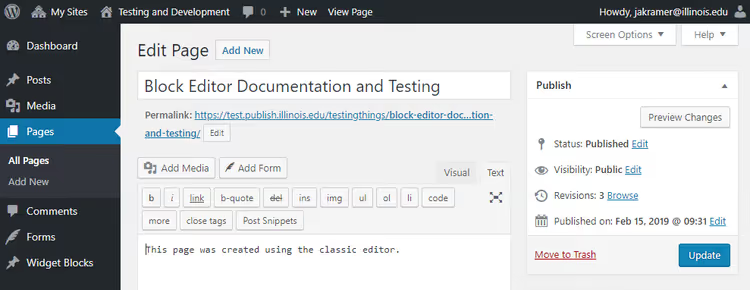
If your site runs WordPress 6.9 or older, revisions open in classic mode by default. The same functionality applies: line-by-line comparison, Previous / Next buttons for navigation, and a Restore This Revision button for restoring.
In version 5.0 and above, revisions are located in the editor sidebar. In versions before 5.0, they're in the Publish metabox to the right of the editor, under the Browse button. The restoration mechanics are the same; only the location of the interface entry point changes.
How to limit the number of revisions
By default, WordPress stores all revisions without any limit. For a site with hundreds of posts, this can bloat the wp_posts table by tens of megabytes. The solution is the WP_POST_REVISIONS constant in wp-config.php:
1 define( 'WP_POST_REVISIONS', 5 );
Values:
trueor-1(default): store all revisionsfalseor0: store nothing except one autosave per user- an integer:
3,5, or10, stores the specified number of revisions per post. Older ones are automatically deleted on the next post update
The wp-config.php file is located in the site's root folder. Add the line before /* That's all, stop editing! */ and save. The change takes effect immediately, and no plugins are needed.
For fine-tuning specific post types, there's the wp_revisions_to_keep filter. Developers can set the limit programmatically without editing the config in production.
Here's a short video on the topic that clearly shows the entire process of finding and restoring revisions in the WordPress admin:
⁉️🤔 Frequently asked questions
Can I restore a revision of a deleted post?
No. Revisions are child records in the
wp_poststable, and when a post is deleted (to trash or permanently), they are deleted along with it. This is why revisions do not replace backup copies. If a post is deleted, you need a database backup or a plugin like UpdraftPlus.
Are autosaves and revisions the same thing?
Not exactly. An autosave is a special revision that is created automatically every 60 seconds and gets overwritten. Only one is stored per user per post. Regular revisions are created on manual save and accumulate. WordPress uses autosaves for emergency recovery after a crash, while revisions are for manual rollback.
Do revisions slow down the site?
By themselves, no, because they don't participate in page rendering. But in the admin panel, when opening a post with hundreds of revisions, the list may load slightly slower. The real issue is database size. Limiting revisions to 5-10 versions per post via
WP_POST_REVISIONSsolves the problem without losing functionality.
Can other site users see revisions?
Only those who have access to edit that post. Regular visitors and subscribers cannot see revisions. If you have multiple authors, each one sees the edit history for posts they have editing access to. For completely restricting access to revisions, there are role control plugins.
What should I do if revisions aren't showing in the editor?
Check
wp-config.phpbecause revisions might be disabled by the linedefine( 'WP_POST_REVISIONS', false );. Revisions can also be hidden by a theme or optimization plugin. A third possibility is that the post has never been manually saved after creation (autosaves don't count). Make the first manual save, and the Revisions block will appear.
Should you rely only on revisions?
Revisions are a convenient tool for quick rollbacks during editing, but they do not replace full backup. Their main advantage is speed and being built-in: open the editor, click, restore. No need to dig into backups or hosting.
For peace of mind, set up automatic backups through your hosting or a plugin. Keep revisions for everyday work with a limit of 5-10 versions per post so the database doesn't bloat and your edit history is always at hand. Try it right now: open any post, click Revisions in the sidebar, and scroll through the slider. You'll see the complete change history in just a few seconds.

A professional team of writers and editors specializing in creating quality content.